
Introduction
This manual provides detailed instructions for the setup, operation, and maintenance of your Jedel KL141 68% Mechanical Gaming Keyboard. Please read this guide thoroughly to ensure optimal performance and longevity of your device.
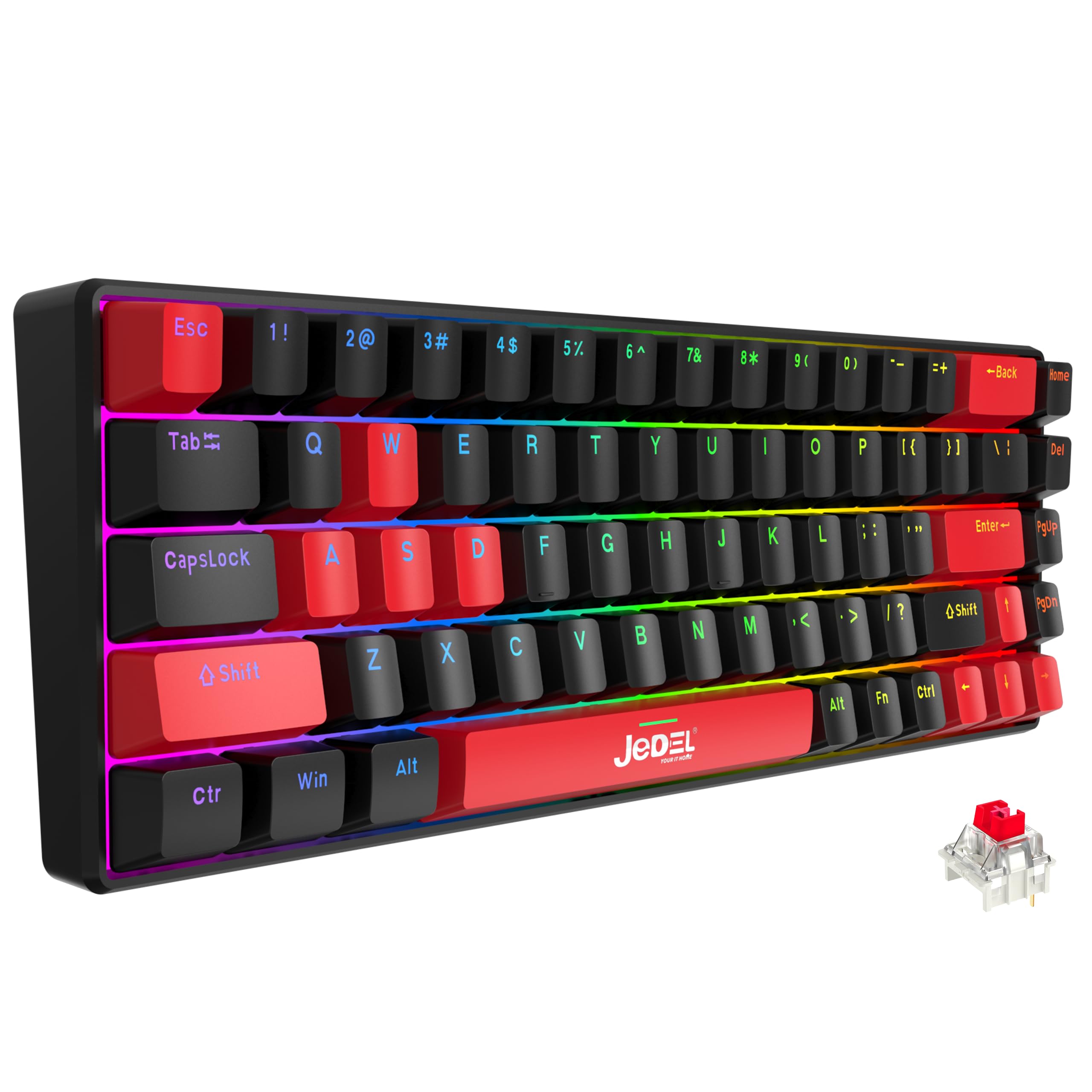
Figure 1: Jedel KL141 68% Mechanical Gaming Keyboard. This image shows the full keyboard layout with its vibrant RGB backlighting and English/Arabic keycap legends.
Setup
- Unpacking: Carefully remove the keyboard from its packaging. Ensure all components, including the keyboard and user manual, are present.
- Connection: Connect the USB cable from the keyboard to an available USB port on your computer, laptop, tablet, or smartphone. The keyboard is plug-and-play and does not require additional drivers for basic functionality.
- Initial Power-On: Upon connection, the keyboard's RGB backlight will illuminate, indicating it is powered on and ready for use.

Figure 2: Key features of the Jedel KL141 keyboard, including its 1.5-meter cable length and Type-C connection mode.
Operating Instructions
Keyboard Layout and Keycaps
The Jedel KL141 features a 68% layout, providing a compact design while retaining essential keys. It includes English and Arabic legends on its keycaps.

Figure 3: Detached keycaps illustrating the double-shot ABS construction and the underlying mechanical switches.
The keycaps are made from durable double-shot ABS plastic, ensuring excellent light transmission for the backlight and preventing legends from fading over time. The suspended design of the keycaps enhances tactile feedback and comfort.
Backlight Control
The keyboard features a smart rainbow LED backlight system with multiple lighting modes and 10 distinct backlight effects. You can customize the lighting to your preference.
- Changing Modes: Use the Fn key in combination with specific function keys (refer to keyboard legends for specific combinations, often indicated by icons or secondary functions) to cycle through different backlight effects.
- Adjusting Brightness: Typically, Fn + Up Arrow / Down Arrow keys control backlight brightness.
- Adjusting Speed: For dynamic lighting modes, Fn + Left Arrow / Right Arrow keys may adjust the effect speed.
Experiment with the Fn key combinations to discover all available lighting options.
Maintenance
- Cleaning Keycaps: The double-shot molded keycaps are easy to clean. You can gently wipe them with a soft, damp cloth. For deeper cleaning, keycaps can be carefully removed using a keycap puller (not included) and cleaned individually. Ensure they are completely dry before reattaching.
- Cleaning the Keyboard Base: Use a soft brush or compressed air to remove dust and debris from between the keys. Avoid using harsh chemicals or abrasive materials.
- Cable Care: Avoid bending or twisting the USB cable excessively to prevent damage.
Troubleshooting
| Problem | Possible Cause | Solution |
|---|---|---|
| Keyboard not responding | Loose USB connection, faulty USB port, driver issue (rare for plug-and-play) |
|
| Backlight not working or stuck | Backlight turned off, specific mode selected, software glitch |
|
| Certain keys not registering | Debris under keycap, faulty switch |
|
Specifications
- Brand: Jedel
- Model: KL141
- Keyboard Type: Mechanical Gaming Keyboard
- Layout: 68% (68 keys)
- Keycap Language: English and Arabic
- Switch Type: Red Mechanical Switches
- Backlight: Rainbow LED (RGB effects, 10 modes)
- Connectivity: Wired USB (Type-C cable)
- Cable Length: 1.5 meters
- Keycap Material: Double-shot ABS Plastic
- Compatible Devices: Computer, Laptop, Tablet, Smartphone (Windows, Mac, Android)
- Recommended Use: Gaming, Office


Figure 4: Side profiles of the Jedel KL141 keyboard, highlighting the ergonomic keycap design.
Warranty and Support
For warranty information or technical support, please refer to the contact details provided with your purchase or visit the official Jedel website. Keep your proof of purchase for warranty claims.


