
Introduction
This manual provides detailed instructions for the installation, operation, and maintenance of your OTTOCAST Mini 3.0 Wireless CarPlay & Android Auto Adapter. Please read this manual thoroughly before using the device to ensure proper functionality and to avoid any issues.
Product Overview
What's in the Box
- OTTOCAST Mini 3.0 Wireless CarPlay/Android Auto Adapter
- USB plug adapter (Type-A to C)
- User Manual
Key Features
- Universal Car Compatibility: Designed for vehicles with factory-wired CarPlay or Android Auto.
- Automatic Dual-Phone Switching: Reconnects to the last used phone or a second saved device.
- High-Speed Dual-Band WiFi: Supports 2.4GHz and 5GHz for stable and low-latency connections.
- Universal USB Fit: Includes a USB-A plug and an A-to-C adapter for compatibility with both USB-A and USB-C car systems.
- Integrated Vehicle Controls: Full compatibility with steering wheel buttons, dashboard knobs, touchscreens, and voice assistants.
- Enhanced Audio Quality: Provides superior audio performance compared to standard Bluetooth car adapters.
- Over-The-Air (OTA) Updates: Supports online firmware upgrades for continuous improvement.

Image: The compact OTTOCAST Mini 3.0 adapter, showcasing its small size and sleek design.
Setup Instructions
- Connect the Adapter: Plug the OTTOCAST Mini 3.0 adapter into your vehicle's USB data port. Use the included USB-A to USB-C adapter if your car has a USB-A port. Ensure the connection is secure.

Image: The OTTOCAST Mini 3.0 adapter connected to a vehicle's USB-C port, demonstrating its compact and integrated fit.
- Prepare Your Phone: On your smartphone, enable both Wi-Fi and Bluetooth.
- Pair via Bluetooth: On your car's infotainment screen or your phone's Bluetooth settings, search for available devices. Select the device named "CAR2-XXXX" (the last four characters will vary). Confirm any authorization requests on your phone.
- Initial Connection: Once paired, your phone should automatically connect to the adapter, and your car's display will show the CarPlay or Android Auto interface wirelessly.
Firmware Update (Optional but Recommended)
Regularly updating the firmware ensures optimal performance and access to new features. Follow these steps:
- Connect to Adapter's Wi-Fi: On your phone, go to Wi-Fi settings and connect to the adapter's Wi-Fi network. The SSID will be "CAR2-XXXX" and the default password is "88888888". Ensure your phone's mobile data is temporarily disabled to prevent connectivity issues.
- Access Update Page: Open a web browser on your phone and enter the IP address 192.168.1.101. This will take you to the firmware update page.
- Perform Update: Follow the on-screen instructions to download and install the latest firmware. During the update, ensure the adapter remains powered and connected. If the update appears to stall, restart the process.
- Restart Adapter: After the update is complete, disconnect from the adapter's Wi-Fi, unplug the OTTOCAST Mini 3.0 from your car, and then plug it back in.
Operating Instructions
Automatic Reconnection
Once initially paired, the OTTOCAST Mini 3.0 will automatically reconnect to your phone within approximately 5 seconds of starting your vehicle. If multiple phones are paired, it will attempt to connect to the last used device. For shared vehicles, if the primary phone is not present, it will attempt to connect to the next saved device.

Image: A visual representation of the automatic reconnection feature, showing the adapter seamlessly connecting to a device.
Using Car Controls
The adapter maintains full functionality with your vehicle's existing controls:
- Touchscreen: Interact directly with the CarPlay or Android Auto interface on your car's display.
- Steering Wheel Controls: Use your steering wheel buttons for audio, calls, and navigation commands.
- Voice Assistants: Activate Siri or Google Assistant using your car's built-in microphone for hands-free operation.
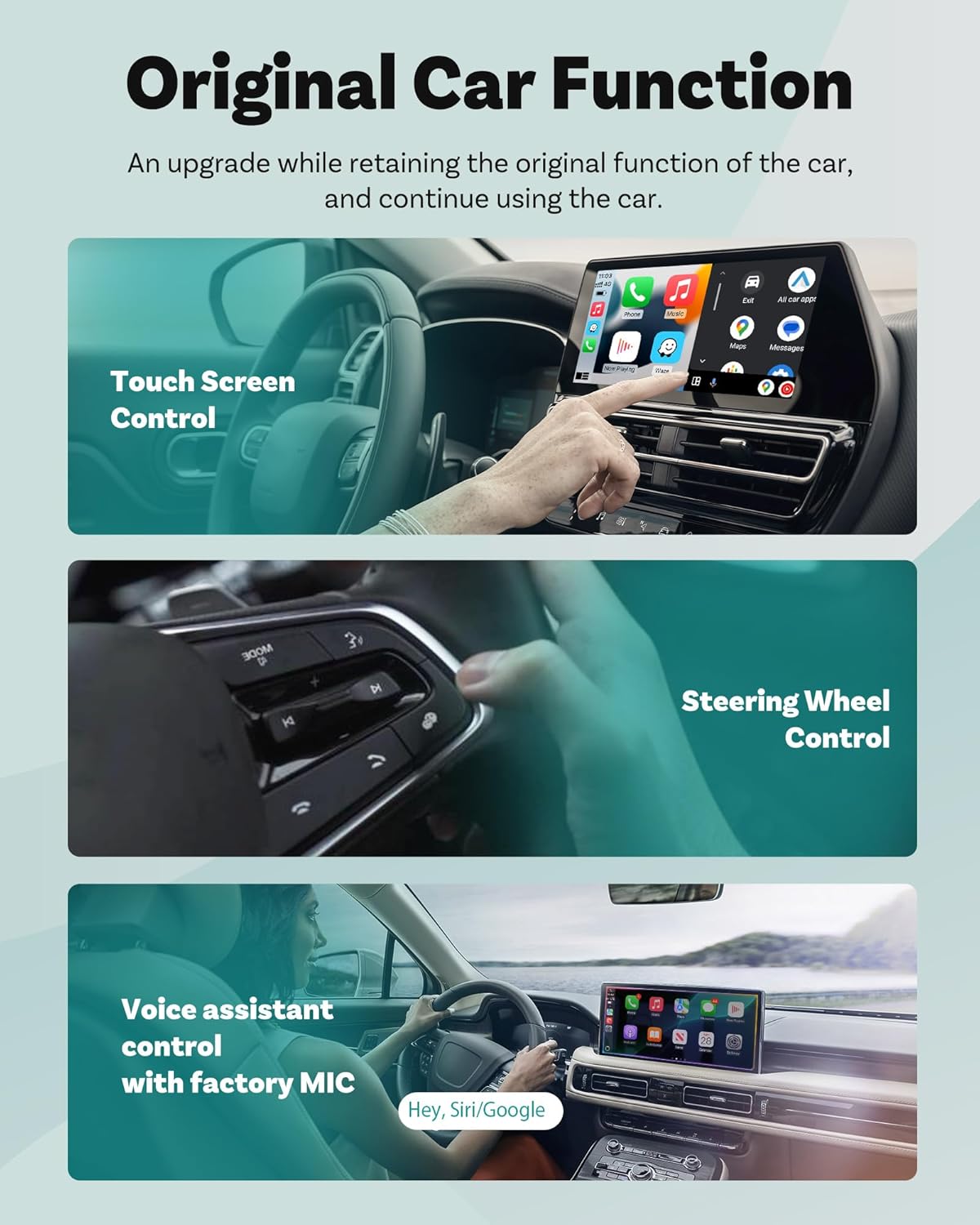
Image: Demonstrates the use of the car's original controls, including touchscreen, steering wheel buttons, and voice commands, with the wireless adapter.
Maintenance
- Firmware Updates: Regularly check for and install OTA firmware updates as described in the Setup section to ensure optimal performance and compatibility.
- Cleaning: Keep the adapter free from dust and debris. Use a soft, dry cloth for cleaning. Avoid liquid cleaners.
- Storage: When not in use for extended periods, store the adapter in a cool, dry place away from direct sunlight.
Troubleshooting
| Issue | Possible Cause | Solution |
|---|---|---|
| Adapter does not power on or connect. | Loose connection, incompatible USB port, or device malfunction. |
|
| Connection drops frequently or is unstable. | Interference, outdated firmware, or phone settings. |
|
| Cannot connect to a different phone in a shared car. | Adapter is still connected to the previous phone. |
|
| Firmware update fails or stalls. | Network interruption, incorrect power source, or temporary software glitch. |
|
| Need to factory reset the adapter. | Persistent issues or changing primary users. |
|
Specifications
| Feature | Detail |
|---|---|
| Brand | OTTOCAST |
| Model | Mini 3.0 (USB Type-C) |
| Connectivity Technology | USB |
| Wireless Compatibility | 2.4 GHz Radio Frequency, 5 GHz Radio Frequency |
| Data Link Protocol | USB, IEEE 802.11 |
| Hardware Interface | 802.11 ac/b/g/n, Bluetooth |
| Compatible Devices | Smartphones (iPhone iOS 10+, Android 11+), Tablets, Laptops |
| Item Weight | 0.03 Kilograms |
| Color | Black |
| Built-In Media | Wireless CarPlay Adapter, Wireless Android Auto Adapter |
Warranty and Support
Warranty Information
The OTTOCAST Mini 3.0 Wireless CarPlay & Android Auto Adapter comes with a 2-year manufacturer's warranty. This warranty covers defects in materials and workmanship under normal use. Please retain your proof of purchase for warranty claims.
Customer Support
For technical assistance, troubleshooting, or warranty inquiries, please contact OTTOCAST customer support. US-based support is available to assist you.
Please visit the official OTTOCAST website for contact details and further support resources: OTTOCAST Official Store


