
Introduction and Overview
This Doohoeek Keyboard Folio is designed exclusively for the Samsung Galaxy Tab S11 Ultra 14.6 inch (2025), compatible with models SM-X930 and SM-X936B. It integrates a protective case with a full-featured Bluetooth keyboard, enhancing your tablet's functionality for productivity and entertainment.
Key features include a real-time status display screen, 7-color backlit keys with 3 adjustable brightness levels, a multi-angle kickstand for versatile viewing, and a magnetic detachable keyboard with a precise trackpad. The folio also provides a dedicated storage slot for your S-Pen.

Image: The Doohoeek Keyboard Folio shown with a Samsung Galaxy Tab S11 Ultra, highlighting its compatibility. The image displays the tablet in the folio, both open and closed, with text confirming compatibility with the 14.6-inch 2025 model (SM-X930/SM-X936B).
Setup Instructions
- Verify Tablet Model: Before installation, confirm your tablet is the Samsung Galaxy Tab S11 Ultra 14.6 inch (2025) with model numbers SM-X930 or SM-X936B. You can find this information in your tablet's Settings under 'About tablet' or on the back of the device.
- Install Tablet: Carefully insert your Samsung Galaxy Tab S11 Ultra into the protective case portion of the folio. Ensure all ports and buttons are accessible and aligned correctly. The case is designed for a tight fit to secure the tablet.
- Charge the Keyboard: Connect the provided charging cable to the keyboard's charging port and a power source. The keyboard features a 650mAh rechargeable battery. Monitor the battery indicator on the status display screen.
- Bluetooth Pairing:
- Turn on the keyboard.
- On your tablet, go to Settings > Connected devices > Bluetooth and ensure Bluetooth is enabled.
- Press and hold the Fn key and the C key simultaneously for 3 seconds on the keyboard to enter pairing mode. The Bluetooth indicator on the status screen will flash.
- On your tablet, select the detected keyboard from the list of available Bluetooth devices to complete the pairing process.

Image: A close-up of the keyboard's charging port with a cable inserted, next to a graphic indicating a 650mAh rechargeable battery.
Operating Instructions
Status Display Screen
The integrated status display screen provides real-time information on the keyboard's operational status, including battery level, Bluetooth connection status, and charging status. This allows for quick monitoring of your keyboard's condition.

Image: A close-up of the keyboard showing a holographic-like projection of the status display screen, indicating 'Pairing...', 'Wireless Keyboard', and battery level.
Backlit Keyboard
The keyboard features 7 distinct colors and 3 adjustable brightness levels. To cycle through colors and brightness, use the dedicated backlight key (often marked with a light bulb icon, typically accessed with Fn + light icon key). This feature allows for comfortable typing in various lighting conditions, including dim environments.

Image: Two keyboards shown with different backlight colors, illustrating the 7-color effects and 3-level brightness feature.
Trackpad Usage
The integrated trackpad supports multi-touch gestures for intuitive navigation of your tablet's interface. To prevent accidental input during typing, the trackpad can be locked or unlocked using the Fn + Lock key combination.

Image: A hand interacting with the trackpad, illustrating multi-touch functionality and palm rejection to prevent accidental contact while typing.
Adjustable Stand
The folio case features an adjustable kickstand, allowing you to smoothly adjust viewing angles in horizontal mode for tasks like video calls or movie watching. It also supports a vertical orientation, ideal for reading recipes or e-books.

Image: The tablet in the folio, showcasing the removable keyboard and the 150-degree adjustable angle of the stand, offering multiple usage options.
Magnetic Detachable Keyboard
The keyboard is magnetically attached to the folio, allowing for easy detachment. This provides flexibility to use the tablet independently for reading, sketching, or other activities without the keyboard.
S-Pen Storage
A dedicated and secure slot is integrated into the case for convenient storage of your S-Pen, ensuring it is always accessible and protected.
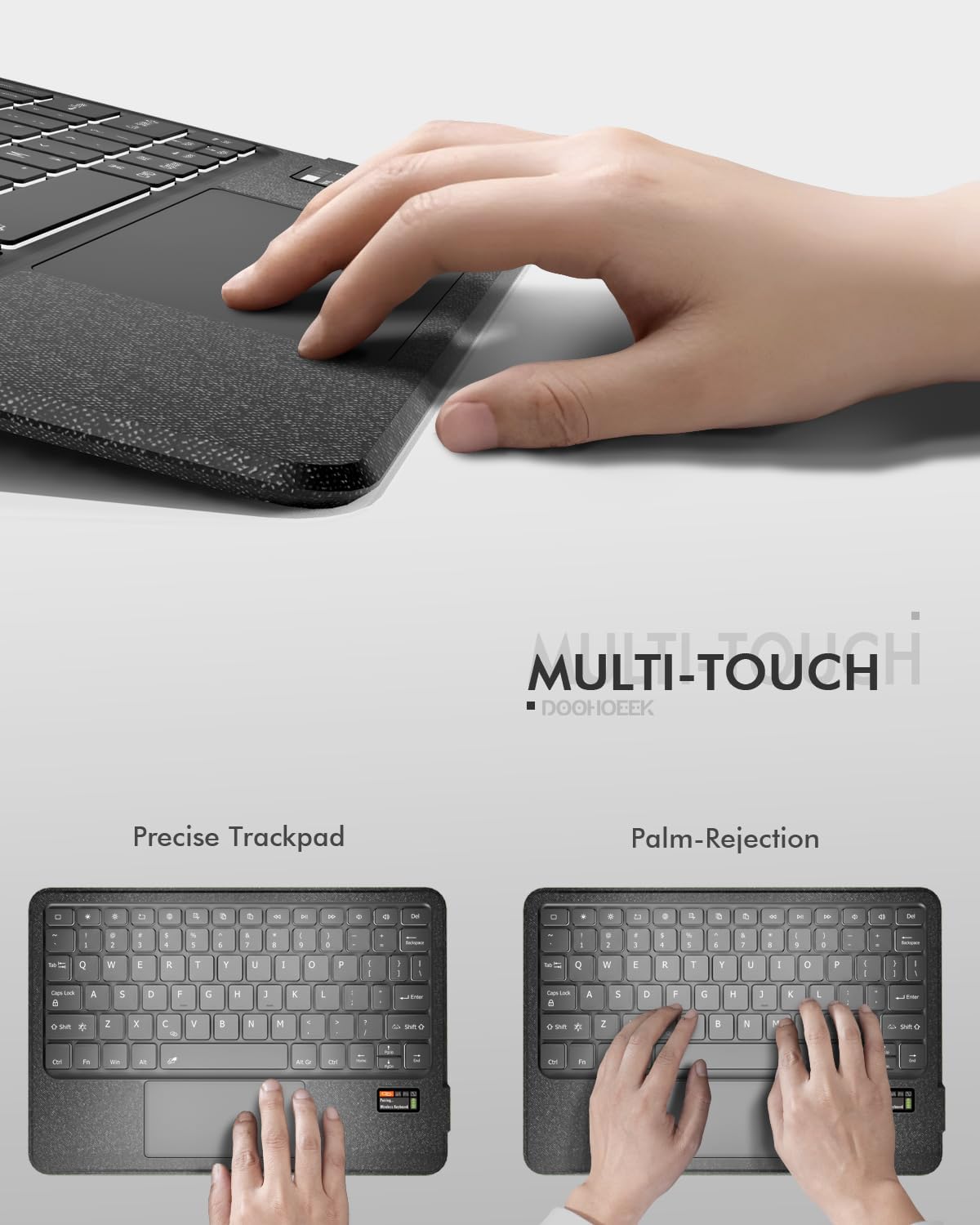
Image: A close-up of the tablet case, clearly showing the integrated slot designed for storing the S-Pen.
Shortcut Keys
The keyboard includes a row of dedicated shortcut keys for quick access to common functions, enhancing efficiency and control over your tablet.

Image: A close-up of the top row of the keyboard, highlighting the various shortcut keys for quick functions.
Maintenance
- Cleaning: Regularly wipe the keyboard and case with a soft, dry, lint-free cloth. Avoid using harsh chemicals or abrasive materials.
- Liquid Exposure: Prevent exposure to liquids. If the device comes into contact with liquid, power it off immediately and allow it to dry completely before use.
- Battery Care: Charge the keyboard regularly to maintain optimal battery health. Avoid fully depleting the battery frequently.
- Storage: When not in use for extended periods, store the keyboard folio in a cool, dry place.
Troubleshooting
- Keyboard Not Connecting:
- Ensure Bluetooth is enabled on your Samsung Galaxy Tab S11 Ultra.
- Press Fn + C for 3 seconds on the keyboard to enter pairing mode.
- If issues persist, reset the keyboard by pressing the first and last key on the top row simultaneously until all indicators flash, then attempt to re-pair.
- Trackpad Not Responding:
- Check if the trackpad is locked. Press Fn + Lock key to toggle its status.
- Ensure the keyboard has sufficient battery charge.
- Backlight Not Working:
- Verify the keyboard is powered on and charged.
- Use the backlight key (typically Fn + light icon key) to cycle through brightness levels and colors.
- Tablet Does Not Fit:
- Double-check your tablet's model number to ensure it is the Samsung Galaxy Tab S11 Ultra 14.6 inch (2025) (SM-X930/SM-X936B).
- The case is designed for a snug fit; apply gentle, even pressure during installation.
Specifications
| Brand | Doohoeek |
| Compatible Devices | Samsung Galaxy Tab S11 Ultra 14.6-inch 2025 (models: SM-X930/SM-X936B) |
| Connectivity Technology | Bluetooth |
| Special Features | Backlit, Integrated Stand, Portable, Rechargeable, Status Display Screen, Trackpad, S-Pen Holder |
| Power Source | Battery Powered |
| Keyboard Layout | QWERTY |
| Battery Capacity | 650mAh |
Warranty and Support
This Doohoeek Keyboard Folio is covered by a 1-Year Warranty from the date of purchase. This warranty covers manufacturing defects and workmanship under normal use.
For technical support, troubleshooting assistance, or to make a warranty claim, please contact Doohoeek customer service directly through the retailer where the product was purchased. Please retain your proof of purchase for warranty validation.
Product Video
Video: An overview of the Doohoeek Keyboard Folio for Samsung Galaxy Tab S11 Ultra, demonstrating its features including the S-Pen holder, keyboard functionality, and how it transforms the tablet into a laptop-like setup. (Duration: 0:18)