
1. Product Overview
The FLYDIGI Charger Dock 2 Pro is a wireless charging station designed specifically for FLYDIGI Vader 5 Pro and Apex 5 game controllers. It features multiple connectivity options, customizable RGB lighting, and a real-time display for charging status. This dock helps keep your gaming setup organized while ensuring your controllers are always ready for use.
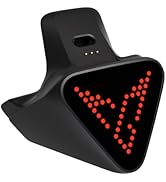
Figure 1.1: The FLYDIGI Charger Dock 2 Pro. This image shows the compact design of the wireless charging dock, ready to accommodate compatible FLYDIGI controllers.
2. Package Contents
- FLYDIGI Charger Dock 2 Pro (1 unit)
- User Manual (this document)
- Note: Power cable is not included in the package. Please use a compatible USB-C cable for power.
3. Setup Instructions
- Connect Power: Connect a compatible USB-C cable (not included) to the Type-C port on the back of the Charger Dock 2 Pro and plug the other end into a power source (e.g., PC USB port, wall adapter).
- Place Controller: Gently place your FLYDIGI Vader 5 Pro or Apex 5 controller onto the charging area of the dock. Ensure the controller is properly seated for wireless charging to initiate.
- Utilize USB Ports: The dock includes 3 USB ports and 1 Type-C port. These can be used to connect other peripherals or for additional charging needs.
- Install Space Station 4.0 (Optional): For advanced customization of RGB lighting and real-time adjustments, download and install the FLYDIGI Space Station 4.0 software from the official FLYDIGI website. Connect the dock to your PC via one of the USB ports for software communication.

Figure 3.1: A FLYDIGI Vader 5 Pro controller, compatible with the Charger Dock 2 Pro. The dock is designed to securely hold and charge this type of controller.
4. Operating Instructions
4.1. Wireless Charging
Once a compatible controller (Vader 5 Pro or Apex 5) is placed correctly on the charging area, the dock will automatically begin wireless charging. The 150 FPS full-color display on the dock will show the real-time charging status and battery level of the connected controller.
4.2. RGB Pixel Charging Base
The dot-matrix RGB lighting on the base provides visual feedback and can be customized. Default lighting animations indicate charging status. For personalized lighting effects, connect the dock to a PC and use the Space Station 4.0 software.
4.3. USB and Type-C Ports
The integrated 3 USB ports and 1 Type-C port can be used for connecting other devices such as keyboards, mice, or for charging other small electronics. These ports provide stable power and data connectivity.
4.4. Space Station 4.0 Software
The Space Station 4.0 software allows for advanced configuration of the Charger Dock 2 Pro. This includes:
- Adjusting RGB lighting patterns and colors.
- Monitoring controller battery status.
- Firmware updates for the dock.
Ensure the dock is connected to your PC via a USB cable to utilize the software features.
5. Maintenance
- Cleaning: Use a soft, dry cloth to wipe the surface of the dock. Avoid using abrasive cleaners or solvents, as these can damage the finish.
- Storage: When not in use for extended periods, store the dock in a cool, dry place away from direct sunlight and extreme temperatures.
- Avoid Liquids: Keep the dock away from water and other liquids to prevent electrical damage.
6. Troubleshooting
6.1. Controller Not Charging
- Ensure the power cable is securely connected to the dock and the power source.
- Verify that the controller is properly seated on the charging area.
- Confirm that your controller is a FLYDIGI Vader 5 Pro or Apex 5, as other models are not supported for wireless charging.
- Try using a different USB-C power cable and power adapter.
6.2. RGB Lights Not Functioning
- Check if the dock is receiving power.
- If using Space Station 4.0, ensure the lighting settings are correctly configured and not turned off.
- Restart the dock by disconnecting and reconnecting the power cable.
6.3. Space Station 4.0 Software Connection Issues
- Ensure the dock is connected to your PC via a USB data cable.
- Verify that the Space Station 4.0 software is the latest version.
- Try connecting the dock to a different USB port on your PC.
- Restart your PC and the dock.
7. Specifications
| Feature | Detail |
|---|---|
| Model Name | Charger Dock 2 Pro |
| Brand | FLYDIGI |
| Compatible Devices | FLYDIGI Vader 5 Pro, FLYDIGI Apex 5 |
| Connectivity Technology | Wired (for power/data), Wireless (for charging) |
| Ports | 3 x USB, 1 x Type-C |
| Display | 150 FPS Full-Color Display |
| Lighting | RGB Pixel Charging Base |
| Software Support | Space Station 4.0 |
8. Warranty and Support
8.1. Warranty Information
The FLYDIGI Charger Dock 2 Pro comes with a One Year Warranty from the date of purchase. This warranty covers manufacturing defects under normal use. Please retain your proof of purchase for warranty claims.
8.2. Customer Support
For technical assistance, troubleshooting, or warranty inquiries, please visit the official FLYDIGI store or contact their customer support. You can find more information and support resources at the FLYDIGI Official Store on Amazon.

