
Introduction
Thank you for choosing the SOULION C40 PC Speakers. These speakers are designed to provide clear and powerful stereo sound for your computer, gaming, and music needs. Featuring both wired USB and wireless Bluetooth connectivity, dynamic LED lighting, and a convenient external desktop controller, the C40 offers a versatile audio experience. Please read this manual carefully to ensure proper setup and operation.

Image: SOULION C40 PC Speakers, showcasing the front view with vibrant purple LED lighting.
Package Contents
Please check the box for the following items:
- SOULION C40 PC Speakers (2 units)
- External Desktop Controller (integrated with cables)
- Quick Start Guide
Product Overview
The SOULION C40 speakers feature a compact design with integrated LED lighting and an external controller for easy access to functions.
External Desktop Controller

Image: Diagram of the SOULION C40 external desktop controller, illustrating the function of each button and indicator.
- BT RESET: Press to reset Bluetooth connection.
- Power On/Off: Press to turn the speakers on or off.
- Mode Selector (BT/USB): Slide up for Bluetooth mode, slide down for USB (PC) mode.
- LED ON/OFF: Press to turn the LED lighting on or off.
- Lighting Mode Selector: Press to cycle through LED lighting modes.
- Volume +/-: Rotate the knob to adjust the volume.
Setup
The SOULION C40 speakers are plug-and-play, requiring no additional drivers or software. Ensure the speakers are connected to a USB port for power, regardless of the audio input mode.
Connecting the Speakers
- Place the two speaker units on your desk, ensuring optimal stereo separation.
- Connect the integrated USB-A or USB-C cable from the external controller to an available USB port on your computer or a 5V USB power adapter. This connection provides power to the speakers.
- Proceed to the Operating Instructions section to select your preferred audio input mode.
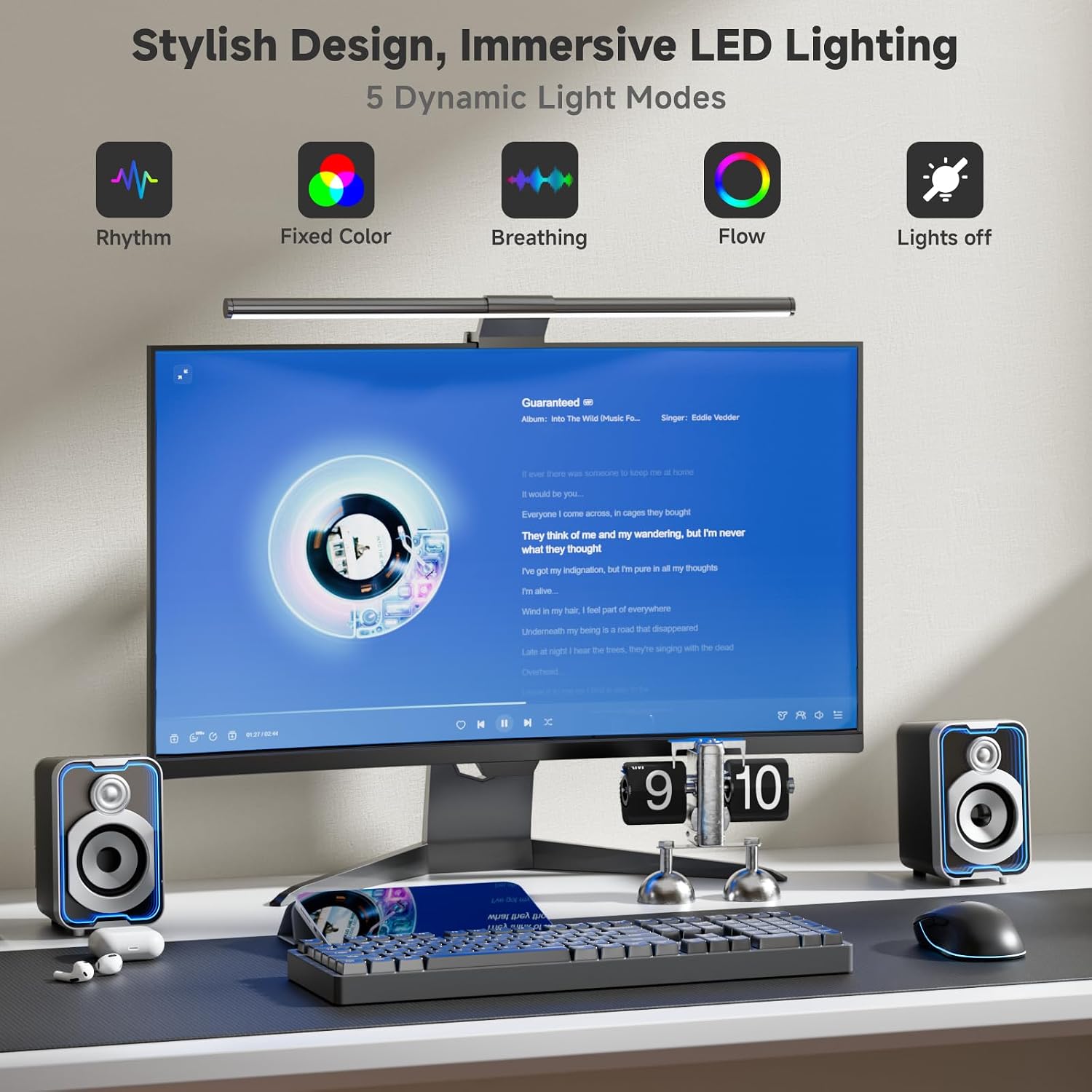
Image: SOULION C40 PC Speakers shown with the external desktop controller and connecting cables.
Operating Instructions
Power On/Off
Press the Power On/Off button on the external desktop controller to turn the speakers on or off.
Wired (USB) Mode
- Ensure the USB cable is connected to your computer for both power and audio.
- Slide the Mode Selector button on the external controller down to select PC (USB) mode.
- Your computer should automatically detect the speakers as an audio output device. If not, check your computer's sound settings.
Wireless (Bluetooth) Mode
- Ensure the USB cable is connected for power.
- Slide the Mode Selector button on the external controller up to select Bluetooth mode.
- On your mobile phone, tablet, or other Bluetooth-enabled device, search for Bluetooth devices.
- Select "C40" from the list of available devices to pair.
- If pairing fails, press the "BT RESET" button on the controller and try again.

Image: Visual guide demonstrating both wired USB and wireless Bluetooth connectivity options for the SOULION C40 speakers.
LED Lighting Control
The SOULION C40 speakers feature dynamic LED lighting with multiple modes:
- Rhythm: Lighting reacts to audio.
- Fixed Color: Displays a static color.
- Breathing: Colors fade in and out.
- Flow: Colors transition smoothly.
- Off: LED lighting is turned off.
Press the Lighting Mode Selector button on the external controller to cycle through these modes. Press the "LED ON/OFF" button to quickly toggle the lighting on or off.

Image: Visual guide illustrating the five dynamic LED lighting modes available on the SOULION C40 speakers.
Volume Control
Rotate the Volume +/- knob on the external desktop controller to adjust the audio output level.
Maintenance
To ensure the longevity and optimal performance of your SOULION C40 PC Speakers, follow these maintenance guidelines:
- Cleaning: Use a soft, dry cloth to wipe the speaker surfaces. Avoid abrasive cleaners or solvents.
- Storage: Store the speakers in a cool, dry place away from direct sunlight and extreme temperatures when not in use for extended periods.
- Handling: Avoid dropping the speakers or subjecting them to strong impacts.
- Cables: Do not pull on the cables forcefully. Always grasp the plug when disconnecting.
Troubleshooting
If you encounter issues with your SOULION C40 PC Speakers, refer to the following common problems and solutions:
| Problem | Possible Cause | Solution |
|---|---|---|
| No sound | Speakers not powered on, incorrect mode selected, volume too low, incorrect audio output device selected on computer/device. | Ensure speakers are powered on. Check Mode Selector (USB/BT). Increase volume. Verify audio output settings on your device. |
| Bluetooth pairing fails | Speakers not in Bluetooth mode, device too far, interference, previous pairing issue. | Ensure speakers are in Bluetooth mode. Move device closer. Press "BT RESET" button on controller and try pairing again. |
| LED lights not working | LEDs turned off. | Press the "LED ON/OFF" button on the controller to activate the lights. Cycle through modes with the Lighting Mode Selector. |
| Sound distortion | Volume too high, poor audio source quality. | Lower the volume. Try a different audio source or file. |
If the problem persists after trying these solutions, please contact SOULION customer support for further assistance.
Specifications
| Feature | Specification |
|---|---|
| Brand | SOULION |
| Model Number | C40 |
| Max Speaker Output Power | 12 Watts |
| Frequency Response | 20 Hz - 20 KHz |
| Connectivity Technology | Bluetooth, USB |
| Audio Output Mode | Stereo (2.0 Channel) |
| Input Voltage | 5 Volts (USB Powered) |
| Mounting Type | Tabletop |
| Material | Acrylonitrile Butadiene Styrene (ABS) |
| Product Features | Stereo Pairing, LED Light, USB Port, Waterproof |
| Recommended Uses | For computer, For smartphone or tablet |
| Color | Black |
| Bluetooth Range | 10 Meters |
| Control Method | Push Button, Rotary Knob |
| Speaker Size | 50 Millimeters |
| Signal-to-Noise Ratio | 70 dB |
| Compatible Devices | Desktop Computer, Laptop, Smartphone, Tablet |
Warranty and Support
Warranty Information
The SOULION C40 PC Speakers come with a 2-year limited warranty from the date of purchase. This warranty covers manufacturing defects and workmanship under normal use. It does not cover damage caused by misuse, accidents, unauthorized modifications, or normal wear and tear.
Customer Support
For technical assistance, warranty claims, or any questions regarding your SOULION C40 PC Speakers, please contact SOULION customer support through the retailer where you purchased the product or visit the official SOULION website for contact information.
Important Note on Videos
The provided product data did not include specific URLs or metadata for official product videos (m3u8 format) with a 'Seller' creator type. Therefore, no videos could be embedded in this manual. If such video data becomes available, it can be integrated into relevant sections.


