
1. Introduction
The ULar S7-1M is a versatile 2-in-1 device that functions as both a digital alarm clock and an HD WiFi camera. It is designed for discreet monitoring and timekeeping, offering features such as 1080P Full HD video recording, night vision, motion detection, and flexible connectivity options for remote viewing and local recording.
This manual provides detailed instructions for setting up, operating, and maintaining your ULar S7-1M device. Please read it thoroughly before use to ensure proper functionality and safety.
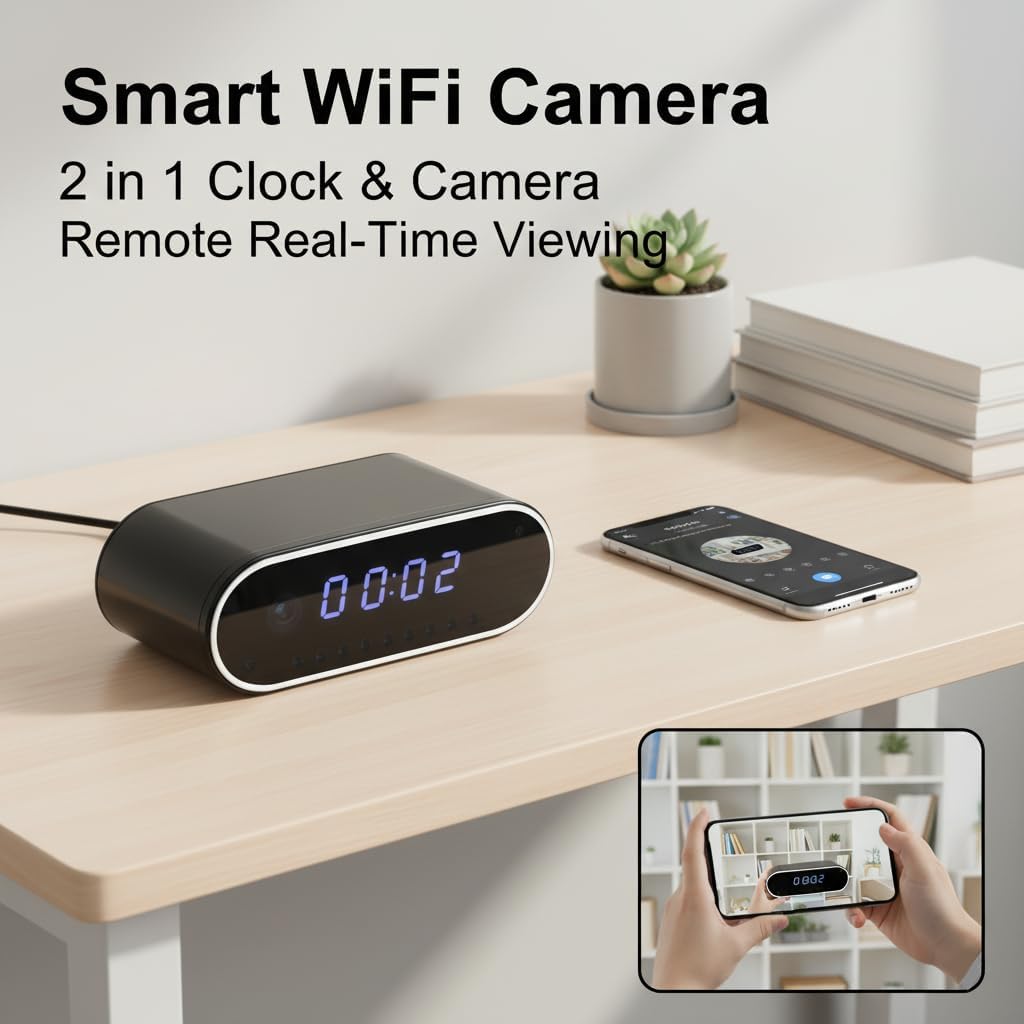
Image: The ULar S7-1M device, functioning as both a smart WiFi camera and a clock, shown on a desk with a smartphone displaying its remote real-time viewing capability.
2. Safety Information
- Do not expose the device to extreme temperatures, humidity, or direct sunlight.
- Avoid dropping or subjecting the device to strong impacts.
- Keep the device away from water or other liquids.
- Do not attempt to disassemble or modify the device. This will void the warranty.
- Use only the provided USB cable for charging.
- Ensure the device is placed on a stable surface to prevent accidental falls.
- This device is intended for indoor use only.
3. Package Contents
Please check the package for the following items:
- ULar S7-1M Alarm Clock Camera
- USB Charging Cable
- User Manual (this document)
- 64GB SD Card (pre-installed or included separately)
4. Product Overview
The ULar S7-1M integrates a digital clock display with a hidden camera lens. Key components include the clock display, camera lens, infrared LEDs for night vision, control buttons (usually on the back or side), a USB charging port, and an SD card slot.
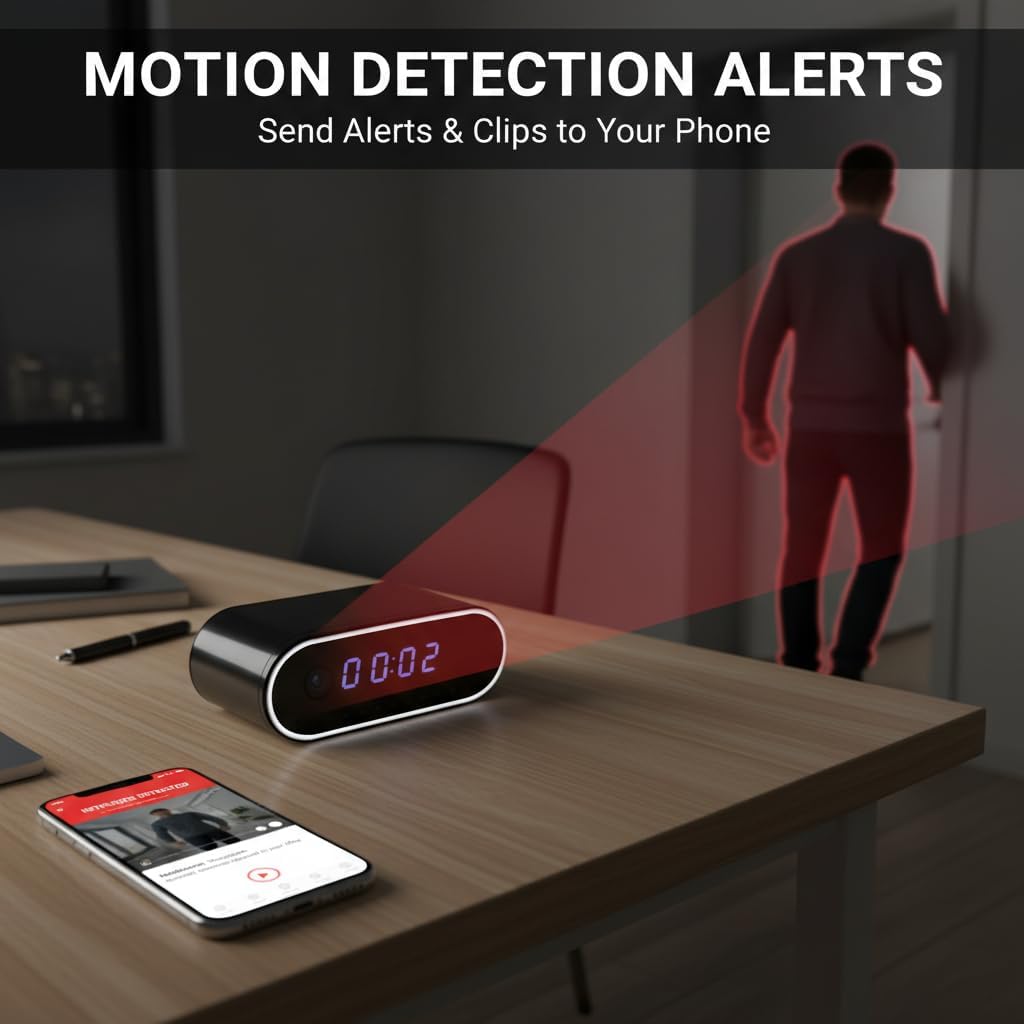
Image: A close-up front view of the ULar S7-1M Alarm Clock Camera, highlighting its digital time display and sleek design.
5. Setup
5.1 Charging the Device
Before first use, fully charge the device. Connect the provided USB cable to the device's charging port and a standard USB power adapter (not included) or a computer USB port. The charging indicator light will typically show the charging status and turn off or change color when fully charged. The built-in 2600mAh battery provides wireless portability.
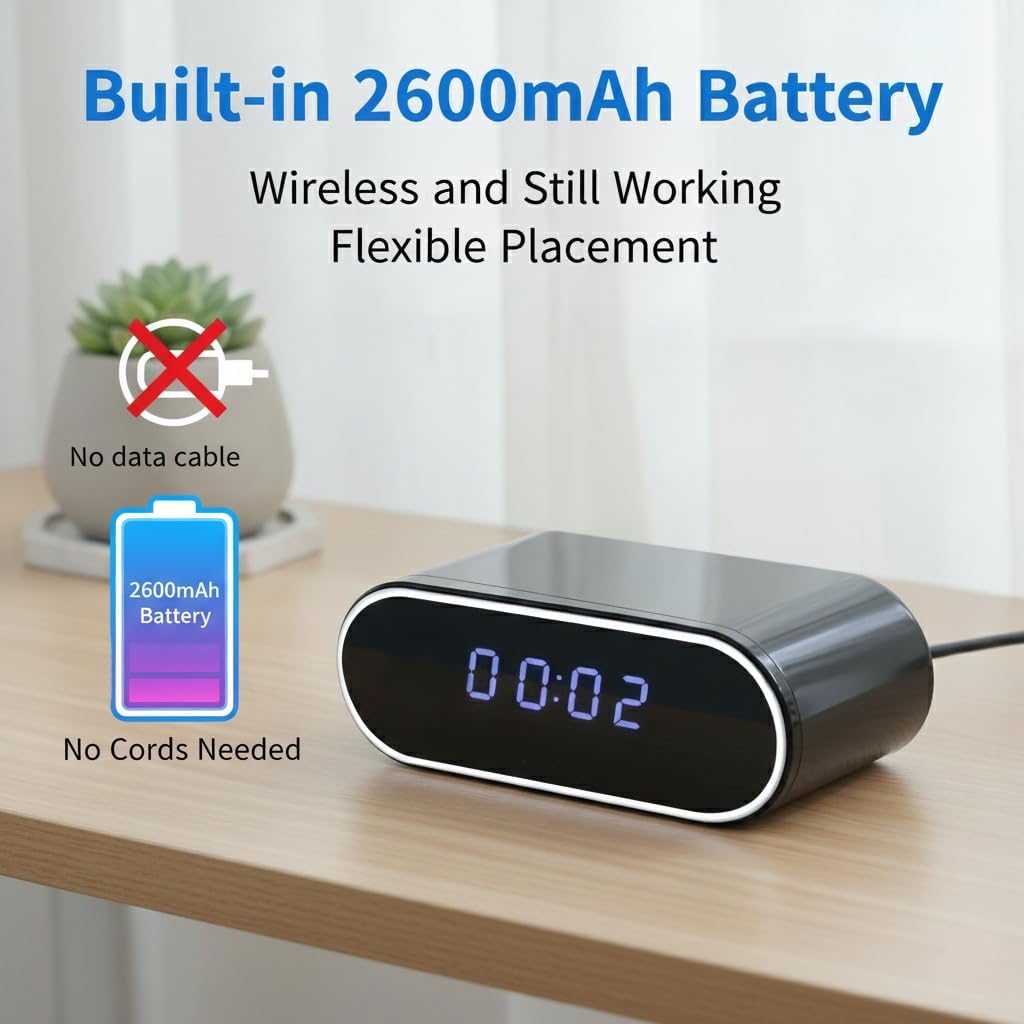
Image: The ULar S7-1M device on a desk, emphasizing its built-in 2600mAh battery for flexible, wireless placement without constant power cords.
5.2 Inserting the SD Card
The device supports up to a 512GB SD card for local recording. A 64GB SD card is included. Locate the SD card slot on the device. Gently insert the SD card with the gold contacts facing down until it clicks into place. To remove, push the card in again until it springs out.
5.3 Powering On/Off
Refer to the device's physical buttons for power control. Typically, a long press on the power button will turn the device on or off. The clock display will illuminate upon powering on.
5.4 App Installation
Download the dedicated mobile application from your smartphone's app store (e.g., Apple App Store for iOS or Google Play Store for Android). Search for the app name provided in the quick start guide or on the product packaging. Install the app and create an account if prompted.
5.5 Connecting to Wi-Fi (Router Mode)
For remote live viewing, connect the camera to your home or office Wi-Fi network:
- Ensure your smartphone is connected to the 2.4GHz Wi-Fi network you intend to connect the camera to.
- Open the app and follow the on-screen instructions to add a new device.
- Select the option for Wi-Fi connection (Router Mode).
- The app will guide you through entering your Wi-Fi credentials and connecting the camera. This often involves scanning a QR code generated by the app with the camera lens or connecting to a temporary hotspot created by the camera.
- Once connected, the camera will appear online in your app, allowing for remote viewing.
5.6 Connecting via AP Hotspot Mode
For local point-to-point access without an internet connection:
- Power on the camera. It will broadcast its own Wi-Fi hotspot (AP mode).
- On your smartphone, go to Wi-Fi settings and connect to the camera's hotspot (e.g., named like 'IPC-XXXXXX').
- Open the app. The camera should automatically be detected or can be added manually via AP mode.
- You can now view live footage within the range of the camera's hotspot. Note that this mode does not allow remote viewing over the internet.
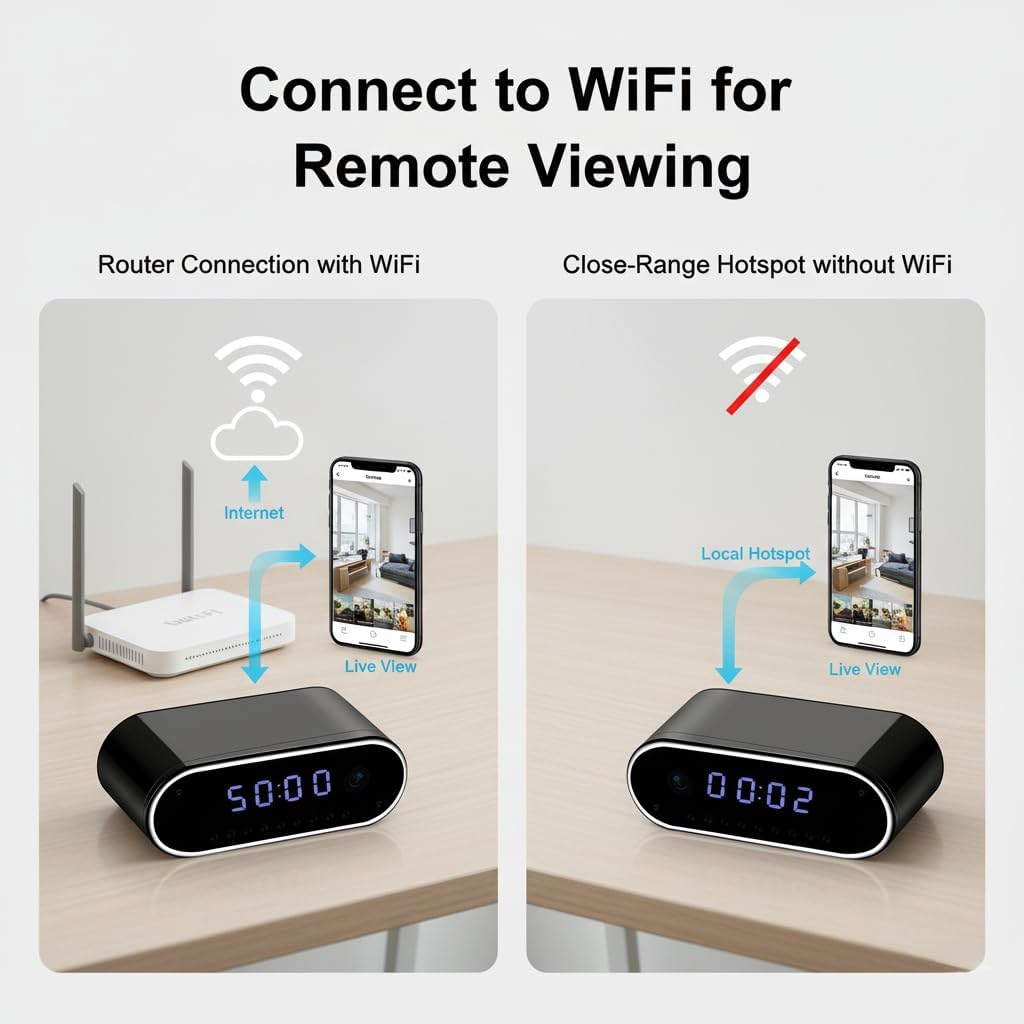
Image: A visual representation of the two connectivity methods for the ULar S7-1M: connecting to a WiFi router for internet-based remote viewing, and using a close-range hotspot for local, direct viewing without an internet connection.
6. Operating Instructions
6.1 Setting the Clock
The clock time is typically synchronized automatically via the mobile app once the camera is connected to Wi-Fi. If manual adjustment is needed, refer to the app settings or physical buttons on the device as per the quick start guide.
6.2 Video Recording (Local)
With an SD card inserted, the camera can record video locally. This can be continuous recording or triggered by motion detection. Recordings are saved as MP4 files to the SD card. The H.265 encoding ensures efficient storage.

Image: The ULar S7-1M device illustrating its ability to record and save MP4 video files directly to an SD card, functioning independently of a WiFi connection.
6.3 Live Viewing
Open the mobile app and select your device to access the live video feed. You can view 1080P FHD video in real-time. Ensure a stable internet connection for remote viewing.

Image: A visual comparison demonstrating the superior clarity of 1080P FHD video from the ULar S7-1M compared to standard 720P HD video from other devices, highlighting real-time viewing quality.
6.4 Motion Detection and Alerts
The camera features motion detection with adjustable sensitivity. When motion is detected, the camera can send instant alerts and short video clips to your phone via the app. Configure motion detection settings within the app.

Image: The ULar S7-1M device on a desk, illustrating its motion detection capability with a red beam, and a smartphone displaying an alert and video clip of a person entering the room.
6.5 Night Vision
Equipped with 940nm infrared LEDs and 9 built-in fill lights, the camera provides clear night vision for continuous monitoring in low-light or dark conditions. Night vision activates automatically or can be controlled via the app.
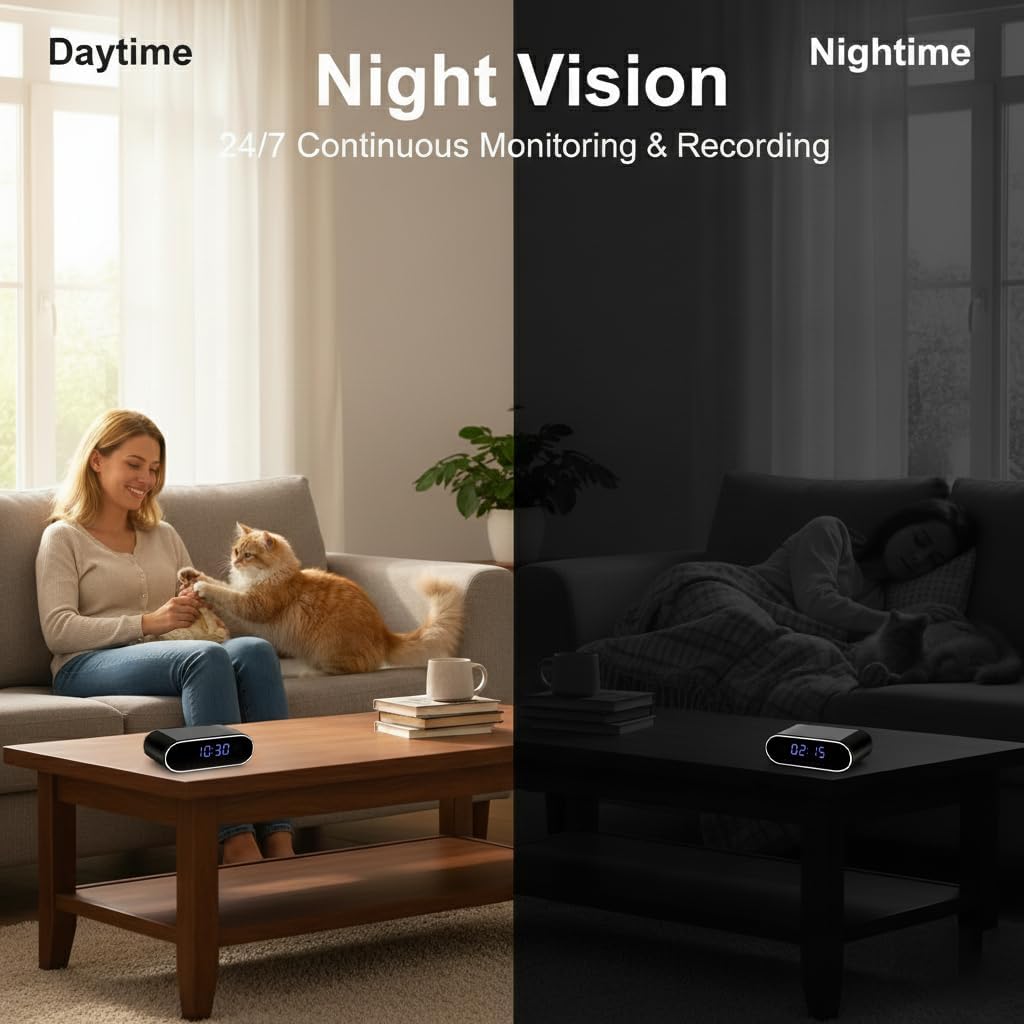
Image: A split image showing the ULar S7-1M's clear video quality during the day and its effective night vision capability in a dark room, demonstrating 24/7 continuous monitoring.
6.6 Loop Recording
When the SD card is full, the camera automatically overwrites the oldest files with new recordings, ensuring continuous operation without manual intervention. This feature is enabled by default.
6.7 Playback and Downloading
Recorded videos stored on the SD card can be accessed and played back through the mobile app. You can also download specific video clips to your smartphone's local storage for archiving or sharing.
7. Maintenance
- Cleaning: Use a soft, dry cloth to clean the device. Do not use liquid cleaners or abrasive materials.
- Battery Care: To prolong battery life, avoid fully discharging the battery frequently. If storing the device for an extended period, charge it to about 50% and recharge every few months.
- SD Card: Periodically format the SD card via the app to maintain optimal recording performance and prevent data corruption. Back up important recordings before formatting.
- Firmware Updates: Check the mobile app regularly for any available firmware updates for the camera. Updates can improve performance and add new features.
8. Troubleshooting
| Problem | Possible Solution |
|---|---|
| Device not powering on | Ensure the device is fully charged. Connect to a power source and try again. |
| Cannot connect to Wi-Fi | Check if your Wi-Fi network is 2.4GHz. Ensure correct Wi-Fi password. Move the camera closer to the router. Restart the camera and router. |
| No live video feed | Check internet connection on both camera and phone. Ensure the camera is online in the app. Restart the app. |
| SD card not recognized | Ensure the SD card is inserted correctly. Try formatting the SD card via the app (if accessible) or on a computer. Use a compatible SD card (Class 10 or higher). |
| Motion detection alerts not received | Check app notification settings on your phone and within the camera app. Ensure motion detection is enabled and sensitivity is adjusted correctly. |
| Poor video quality | Ensure the camera lens is clean. Check network bandwidth for live streaming. Adjust video resolution settings in the app if available. |
9. Specifications
- Model Name: S7-1M
- Manufacturer: ULar
- Video Resolution: 1080p FHD
- Frame Rate: 20 FPS
- Connectivity: Wi-Fi (2.4GHz), AP Hotspot
- Night Vision: 940nm Infrared LEDs, 9 built-in fill lights
- Storage: Supports up to 512GB SD card (H.265 encoding)
- Battery: Built-in 2600mAh
- Dimensions: 10.2 x 4.4 x 3.7 cm
- Usage: Indoor
10. Warranty and Support
This product comes with a standard manufacturer's warranty. For specific warranty details, please refer to the warranty card included in your package or contact ULar customer support. If you encounter any issues not covered in this manual, please reach out to our support team for assistance.
Customer Support: Please refer to the contact information provided on the product packaging or ULar's official website for technical support and service inquiries.