
1. Introduction
Thank you for choosing the JADEMALL Bluetooth Keyboard Case for your Honor Pad 10 12.1-inch (2025) tablet. This manual provides essential information for setting up, operating, maintaining, and troubleshooting your new keyboard case. Please read these instructions carefully before use to ensure optimal performance and longevity of the product.
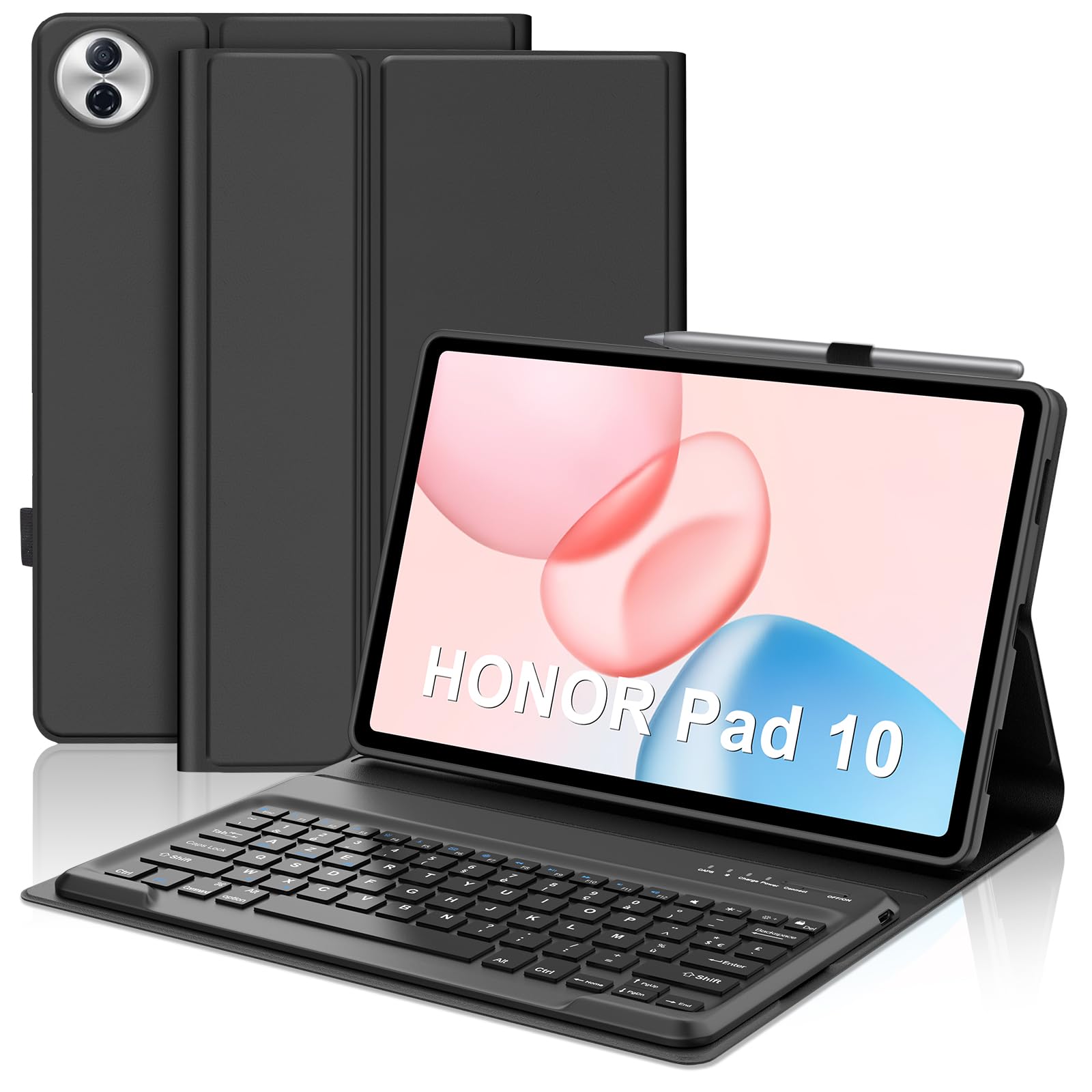
The JADEMALL Bluetooth Keyboard Case provides a protective cover and a detachable keyboard for your Honor Pad 10 12.1-inch (2025) tablet.
2. Product Overview
Key Features:
- Compatibility: Specifically designed for Honor Pad 10 12.1-inch (2025).
- AZERTY Bluetooth Keyboard: Premium ABS material, ultra-thin design, silent, smooth, and responsive input. Bluetooth connection range up to 10 meters.
- Detachable Magnetic Keyboard: Keyboard attaches magnetically to the protective case and can be easily removed.
- Adjustable Viewing Angle: Three integrated grooves for adjusting the tablet's angle (120°, 125°, 130°).
- Full Protection: Made from soft, durable TPU material to protect against daily bumps, scratches, and accidental drops.
- Rechargeable Battery: Built-in lithium rechargeable battery for the keyboard.
Package Contents:
- 1 x JADEMALL Keyboard Case
- 1 x Bluetooth Keyboard
- 1 x USB Charging Cable
- 1 x User Manual (this document)
3. Setup
3.1 Compatibility Check
This keyboard case is exclusively compatible with the Honor Pad 10 12.1-inch (2025) model. Please verify your tablet's model number before proceeding.

This keyboard case is specifically designed for the Honor Pad 10 12.1-inch (2025) model. It is not compatible with Honor Pad 9 12.1-inch or Honor Pad 8 12.0-inch tablets.
3.2 Charging the Keyboard
- Locate the charging port on the keyboard.
- Connect the provided USB charging cable to the keyboard's charging port.
- Connect the other end of the USB cable to a USB power adapter (not included) or a computer's USB port.
- The charging indicator light on the keyboard will illuminate during charging and turn off when fully charged.

The keyboard is powered by a built-in rechargeable lithium battery and charges via a USB cable. It also includes an integrated holder for a stylus (stylus not included).
3.3 Pairing the Bluetooth Keyboard
- Ensure the keyboard is charged.
- Turn on the keyboard by sliding the power switch to the 'ON' position. The power indicator light will turn on.
- Press the 'Connect' button on the keyboard. The Bluetooth indicator light will start blinking, indicating it's in pairing mode.
- On your Honor Pad 10 12.1" (2025), go to Settings > Bluetooth.
- Turn on Bluetooth. Your tablet will search for available devices.
- Select "Bluetooth Keyboard" (or a similar name) from the list of available devices.
- Follow any on-screen prompts to complete the pairing process. Once paired, the Bluetooth indicator light on the keyboard will stop blinking.
3.4 Attaching the Tablet to the Case
- Gently insert your Honor Pad 10 12.1" (2025) into the protective TPU case, ensuring all edges are securely fitted.
- Align the tablet with the precise cutouts for the camera, ports, and buttons.
- The keyboard can be magnetically attached to the case. Position the keyboard at the bottom of the case, and it will snap into place.

The keyboard features a magnetic design, allowing it to be easily detached from the case for flexible use.

The case is designed with precise cutouts to ensure full access to the tablet's camera, speakers, charging port, and volume controls without obstruction.
4. Operating Instructions
4.1 Using the Keyboard
Once paired, the keyboard functions like a standard external keyboard. Simply open any text input application on your Honor Pad 10 and begin typing. The keyboard features an AZERTY layout.
4.2 Adjusting Viewing Angles
The case offers three distinct grooves to prop up your tablet, allowing you to choose the most comfortable viewing angle for various activities such as typing, watching videos, or browsing.
- Place the tablet in the case.
- Lift the tablet's screen and position its bottom edge into one of the three integrated grooves on the case.
- The available angles are approximately 120°, 125°, and 130°.

The case offers three integrated grooves to adjust the tablet's viewing angle, providing comfortable positions for typing, watching, or drawing.
4.3 Detaching the Keyboard
To use your tablet without the keyboard, simply pull the magnetic keyboard away from the case. It can be reattached easily when needed.
5. Maintenance
5.1 Cleaning
- Wipe the keyboard and case with a soft, damp cloth.
- Avoid using harsh chemicals, abrasive cleaners, or excessive moisture.
- Ensure the keyboard is powered off and disconnected from any power source before cleaning.
5.2 Storage
- Store the keyboard case in a cool, dry place away from direct sunlight and extreme temperatures.
- If storing for an extended period, ensure the keyboard is fully charged to maintain battery health.
6. Troubleshooting
6.1 Keyboard Not Connecting/Typing
- Check Power: Ensure the keyboard is turned on and has sufficient battery charge.
- Re-pair: Delete the keyboard from your tablet's Bluetooth device list and re-pair it following the instructions in Section 3.3.
- Distance: Ensure the keyboard is within the 10-meter Bluetooth range of your tablet.
- Interference: Move away from other wireless devices that might cause interference.
- Tablet Bluetooth: Ensure your tablet's Bluetooth is enabled and functioning correctly.
6.2 Charging Issues
- Cable Check: Ensure the USB charging cable is securely connected to both the keyboard and the power source.
- Power Source: Try a different USB power adapter or a different USB port on your computer.
- Indicator Light: Observe the charging indicator light. If it doesn't illuminate, there might be an issue with the cable or power source.
6.3 Keys Not Responding
- Reboot: Turn off the keyboard, then turn it back on.
- Re-pair: Attempt to re-pair the keyboard with your tablet.
- Clean: Ensure no debris is lodged under the keys.
7. Specifications
| Feature | Detail |
|---|---|
| Brand | JADEMALL |
| Compatible Devices | Honor Pad 10 12.1 inch 2025 Tablet |
| Connectivity Technology | Bluetooth |
| Keyboard Description | Detachable |
| Special Features | Magnetic Detachable Keyboard Design, Adjustable Viewing Angle, Full Protection |
| Color | Black/Non-backlit Keyboard |
| Material | Plastic (ABS for keyboard, TPU for case) |
| Power Source | Battery Powered (Rechargeable Lithium Battery) |
| Keyboard Layout | AZERTY |
| Number of Keys | 105 |
| Minimum OS Requirement | Android 10.0 |
| Manufacturer | JADEMALL |
| Country of Origin | China |
8. Warranty and Support
The keyboard features a built-in rechargeable lithium battery. For any questions regarding our products (such as keyboard keys not working, charging issues, etc.), please do not hesitate to contact us. We are committed to providing a satisfactory solution and the best shopping experience.
Please refer to your purchase documentation or the seller's information for specific warranty details and contact methods.