
Introduction
This manual provides clear, comprehensive instructions for using your Samsung Galaxy Tab A11. Whether you are new to Samsung devices or upgrading, this guide will assist you from initial setup to advanced customization, ensuring you maximize your tablet's potential.
The Samsung Galaxy Tab A11 is designed for ease of use and versatility, offering a range of features for productivity, entertainment, and communication. This guide aims to make your experience seamless and enjoyable.
1. Setup and First Use
1.1 Unboxing and Device Identification
Upon opening the package, ensure all components are present. Familiarize yourself with the tablet's physical layout, including buttons, ports, and camera locations.
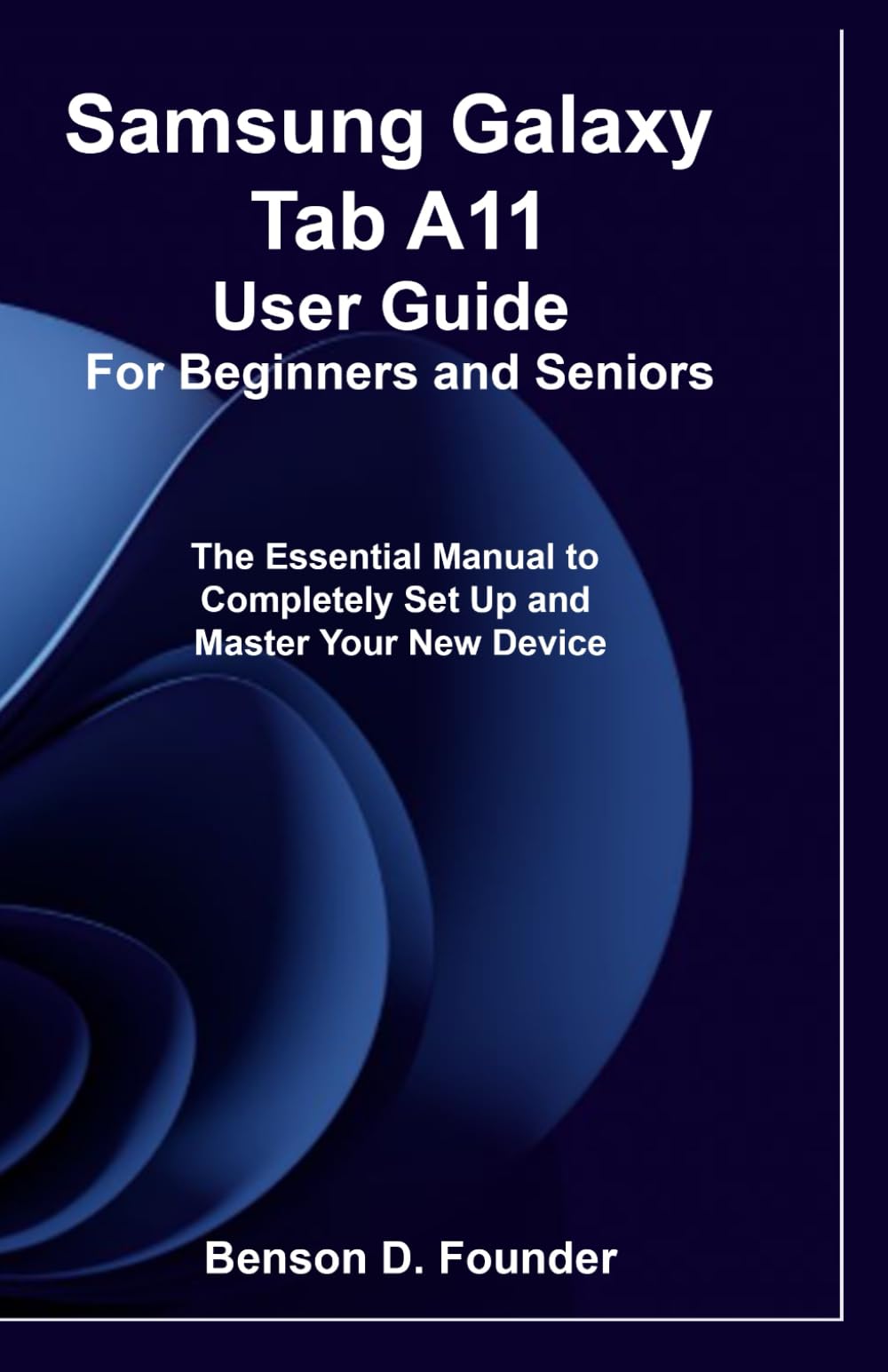
Figure 1: Front cover of the user guide book for the Samsung Galaxy Tab A11.
1.2 Charging Your Device
Before first use, fully charge your Galaxy Tab A11 using the provided charger and USB cable. Connect the charger to a power outlet and the USB cable to the tablet's charging port. A charging indicator will appear on the screen.
1.3 Initial Setup Process
Power on your tablet by pressing and holding the power button. Follow the on-screen prompts to:
- Select your preferred language.
- Connect to a Wi-Fi network.
- Review and accept the End User License Agreement.
- Sign in with your Google account or create a new one.
- Set up a screen lock (PIN, pattern, password, or biometric).
- Restore data from a previous device (optional).
1.4 Safety and Battery Health
To ensure device longevity and user safety, avoid extreme temperatures, direct sunlight, and moisture. Use only approved chargers and accessories. For optimal battery health, avoid fully discharging the battery frequently and consider charging it to around 80% for daily use.
2. Operating Your Device
2.1 Personalizing Your Tablet
Customize your home screen, widgets, and app drawer to suit your preferences. Change wallpapers, themes, and adjust the layout for quick access to frequently used applications.
- Home Screen: Long-press an empty area to access wallpaper, widgets, and settings.
- Widgets: Add small applications to your home screen for quick information or actions.
- Themes: Apply different visual styles from the Galaxy Themes store.
- Secure Locks: Set up PIN, pattern, password, or biometric security via Settings > Lock screen.
2.2 Navigating Samsung One UI
Samsung's One UI provides an intuitive interface. Swipe down from the top of the screen to access Quick Settings and Notifications. Utilize Multi-Window, Split Screen, and Pop-Up View for enhanced multitasking.
- Quick Settings: Access frequently used settings like Wi-Fi, Bluetooth, and brightness.
- Notifications: View alerts and messages from your apps.
- Multi-Window/Split Screen: Open two apps simultaneously by dragging an app from the Recents screen to the top or bottom half of the display.
- Digital Wellbeing: Monitor and manage your screen time and app usage via Settings > Digital Wellbeing and parental controls.
2.3 Essential Apps and Productivity
The Galaxy Tab A11 comes with pre-installed apps and supports a wide range of applications from the Google Play Store. Utilize Samsung Notes for digital note-taking, manage emails, browse the web, and organize your schedule with the Calendar and Reminders apps.
2.4 Connectivity and Smart Features
Connect your tablet to other devices and services:
- Wi-Fi & Bluetooth: Connect to wireless networks and Bluetooth accessories like headphones or keyboards.
- Hotspot & Nearby Share: Share your tablet's internet connection or files with nearby devices.
- Samsung Cloud & Google Drive: Sync and back up your data to cloud storage.
- Smart View: Mirror your tablet's screen to a compatible TV or display.
2.5 Camera and Media Essentials
Capture photos and videos using the integrated camera. Explore various camera modes and editing tools. Organize your media in the Gallery app and utilize automatic backups.
2.6 Entertainment and Family Features
Enjoy streaming movies, videos, and games. The tablet offers display and audio optimization for various media types. Utilize Kids Mode for a safe and controlled environment for children.
3. Maintenance and Care
Proper maintenance ensures the longevity and optimal performance of your Samsung Galaxy Tab A11.
3.1 Storage Management
Regularly check and clean up your device's storage. Delete unnecessary files, uninstall unused apps, and clear cache data to free up space and improve performance. Navigate to Settings > Battery and device care > Storage for management options.
3.2 Software Updates
Keep your tablet's software updated to the latest version. Updates often include performance improvements, security patches, and new features. Check for updates via Settings > Software update.
3.3 Factory Reset
If you encounter persistent issues or wish to sell/transfer your device, a factory reset can restore it to its original state. Warning: This will erase all data on your device. Back up important data before proceeding. Access this option via Settings > General management > Reset > Factory data reset.
4. Troubleshooting
This section addresses common issues you might encounter with your Samsung Galaxy Tab A11.
4.1 Connectivity Issues
- Wi-Fi not connecting: Ensure Wi-Fi is enabled, restart your router, and forget/reconnect to the network on your tablet.
- Bluetooth pairing problems: Ensure both devices are in pairing mode and within range. Restart Bluetooth on both devices.
4.2 App Performance
- Apps crashing or freezing: Close and reopen the app. Clear the app's cache (Settings > Apps > [App Name] > Storage > Clear cache). If issues persist, uninstall and reinstall the app.
- Slow performance: Close background apps, clear storage, and restart your tablet.
4.3 Battery Drain
If your battery drains quickly, check battery usage in Settings > Battery and device care > Battery to identify power-hungry apps. Reduce screen brightness, disable unnecessary features like GPS or Bluetooth when not in use, and enable power-saving mode.
4.4 Device Not Responding
If your tablet becomes unresponsive, perform a forced restart by pressing and holding the power button and volume down button simultaneously for about 7-10 seconds until the device restarts.
5. Specifications
Key technical specifications for the Samsung Galaxy Tab A11 (based on general information for a user guide, as specific device specs are not in the provided JSON for the book).
| Feature | Detail |
|---|---|
| Model | Samsung Galaxy Tab A11 |
| Operating System | Android (version may vary by region/update) |
| Display | Typically a TFT LCD, size varies by specific model variant |
| Processor | Octa-core (specific model varies) |
| Memory (RAM) | Varies by configuration (e.g., 2GB, 3GB) |
| Storage | Varies by configuration (e.g., 32GB, 64GB), expandable via microSD |
| Cameras | Rear and Front cameras (megapixel count varies) |
| Battery | Non-removable Li-Po (capacity varies) |
| Connectivity | Wi-Fi, Bluetooth, GPS, USB-C |
| Dimensions | Varies slightly by model variant |
| Weight | Varies slightly by model variant |
Note: Specific technical specifications for the actual Samsung Galaxy Tab A11 device are not provided in the source material, which describes a user guide book. The details above are general expectations for such a tablet model.
6. Warranty and Support
For information regarding your device's warranty, please refer to the warranty card included with your Samsung Galaxy Tab A11 or visit the official Samsung support website. Warranty terms and conditions may vary by region and retailer.
For further assistance, technical support, or service inquiries, please contact Samsung Customer Service or visit an authorized service center. You can find contact details and support resources on the official Samsung website: www.samsung.com/support/
Figure 2: Back cover of the user guide book, showing publication details and ISBN 979-8277030073.


