
Introduction
The Alxum 20Gbps USB-C Unidirectional Switch D1151A allows two USB-C source devices (such as laptops, tablets, or smartphones) to share one USB-C display or docking station. This switch supports high-speed data transfer, high-resolution video output, and power delivery, providing a streamlined solution for managing multiple devices with a single peripheral setup.
Product Features
- High-Speed Data Transfer: Supports up to 20Gbps data transfer rate, compliant with USB4 standards.
- High-Resolution Video Output: Capable of displaying resolutions up to 8K@30Hz or 4K@144Hz via USB-C DisplayPort Alternate Mode (DP Alt Mode).
- Power Delivery 3.1: Provides up to 140W (28V/5A) Power Delivery pass-through to charge the active connected device.
- Unidirectional Switching: Designed for 2-in-1-out functionality, allowing two source devices to connect to one display/dock.
- Remote Control: Includes a remote control for convenient switching between connected devices without physical access to the switch.
- Wide Compatibility: Compatible with Windows, macOS, and Linux operating systems, and various USB-C devices.
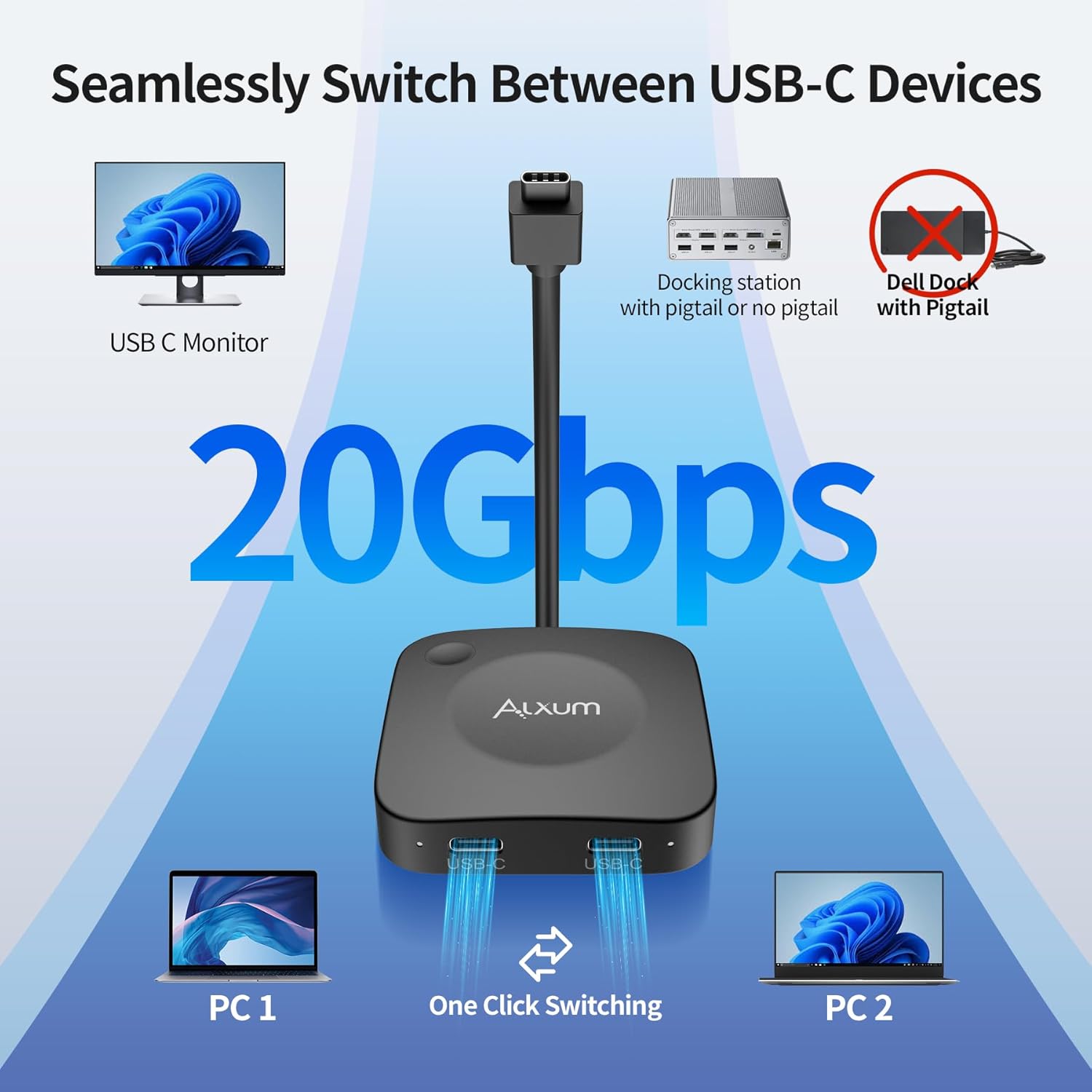
Image: The Alxum USB-C Switch facilitates seamless switching between two USB-C devices, supporting 20Gbps data transfer to a single USB-C monitor or docking station.
Package Contents
Please verify that all items are present in your package:
- Alxum 20Gbps USB-C Unidirectional Switch (Model D1151A)
- USB-C to USB-C Cables (Quantity: 2, for connecting source devices)
- Remote Control (with CR2032 battery pre-installed)
- User Manual (this document)
Setup Instructions
Follow these steps to set up your Alxum USB-C Switch:
- Connect Source Devices: Use the provided USB-C to USB-C cables to connect your two source devices (e.g., PC1 and PC2) to the two USB-C input ports on the Alxum switch. These ports are typically labeled 'Input 1' and 'Input 2' or similar.
- Connect Output Device: Connect your USB-C monitor or USB-C docking station to the single USB-C output port on the Alxum switch.
- Power Connection (Optional/Required for PD): If you require Power Delivery to your active source device, connect a compatible USB-C power adapter (not included) to the dedicated PD input port on the switch. The switch supports up to 140W PD pass-through. Ensure the 'SIDE UP' label on the cable faces up when connecting to a docking station with a pigtail.
- Verify DP Alt Mode: Ensure that all connected USB-C devices (source and display/dock) support DisplayPort Alternate Mode for video output functionality.

Image: Two PCs sharing one USB-C monitor through the Alxum switch, supporting high-resolution displays.

Image: The switch supports PD3.1 140W Power Supply pass-through. When using a docking station with a pigtail, ensure the 'SIDE UP' cable orientation.
Important Notes:
- Dell Docking Stations with integrated pigtail cables are not supported by this switch.
- For initial setup, it may be beneficial to have laptop lids open to accept any operating system prompts for new device connections, especially with Thunderbolt 3 devices.

Image: The Alxum switch can be paired with a docking station for dual-screen output, but Dell Docking Stations with integrated cables are not supported.
Operating Instructions
The Alxum USB-C Switch offers two methods for switching between connected source devices:
- Manual Button: Press the button located on the top of the switch unit to toggle between PC1 and PC2. An LED indicator will illuminate to show which input is currently active.
- Remote Control: Use the provided remote control to switch between PC1 and PC2. The remote control allows for seamless 360-degree switching without requiring direct line of sight to the switch unit.
Upon switching, there may be a brief delay as the connected display and peripherals re-establish connection with the newly selected source device.
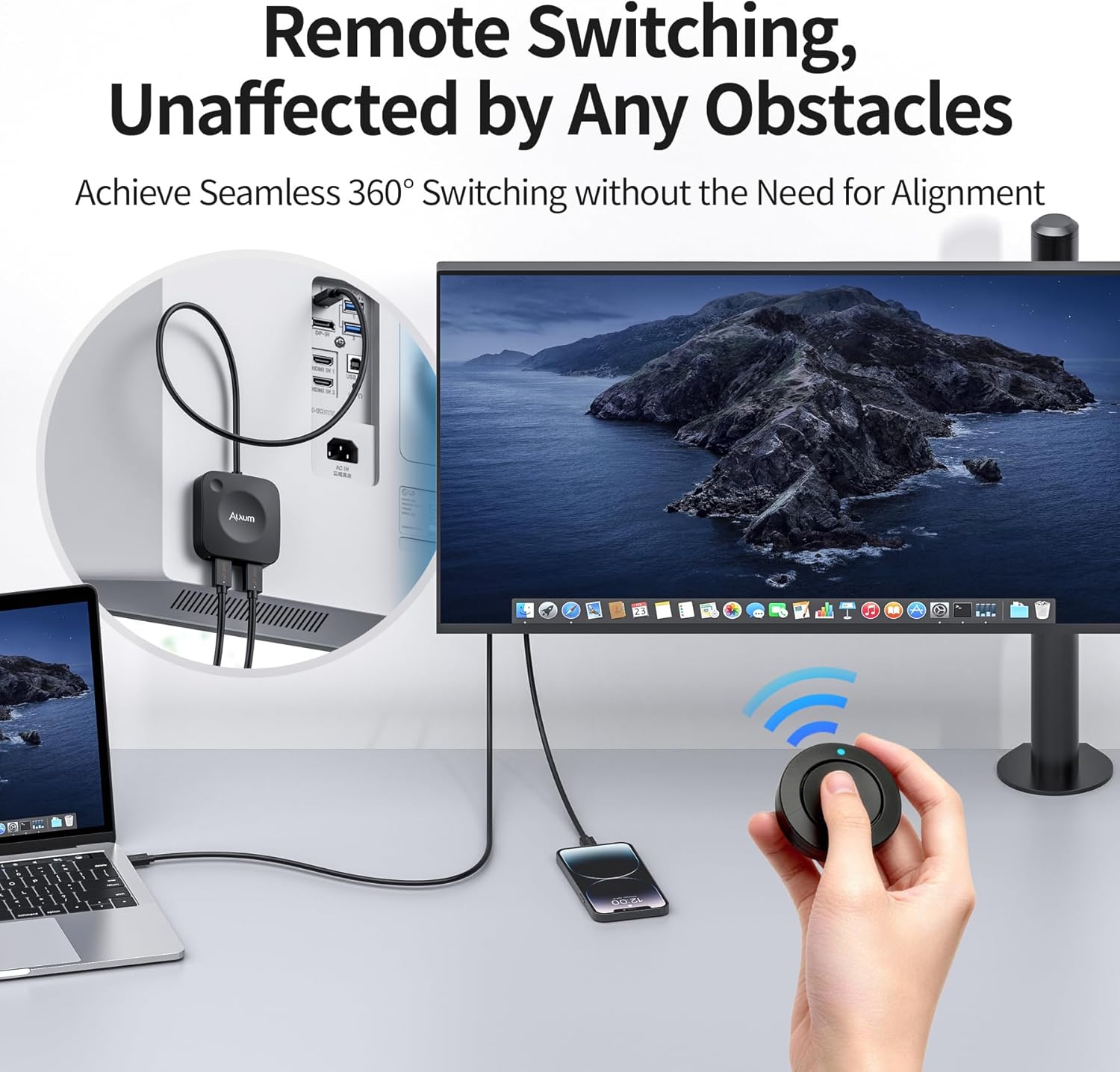
Image: Remote switching allows for seamless 360-degree control, unaffected by obstacles.
Compatibility
The Alxum USB-C Switch is designed for broad compatibility with devices supporting USB-C DisplayPort Alternate Mode.
Supported Systems:
- Windows
- macOS
- Linux
Compatible Input Devices:
- Laptops with USB-C ports
- Tablets with USB-C ports
- Smartphones with USB-C ports
Compatible Output Devices:
- USB-C Monitors
- USB-C TVs
- USB-C Docking Stations & Hubs

Image: The Alxum switch offers wide compatibility with multiple operating systems and USB-C devices.
Thunderbolt 3 Device Limitations
When connecting the Alxum USB-C Switch to a Thunderbolt 3 laptop, docking station, or monitor, there are specific display output limitations:
- Only a single display output is supported.
- The maximum resolution supported is 4K@60Hz.
This limitation applies regardless of the Thunderbolt 3 device type (laptop, docking station, or monitor) and is due to the specific protocols and bandwidth allocation when interfacing with Thunderbolt 3 technology.

Image: Thunderbolt 3 device limitations: Single display output at a maximum of 4K@60Hz.
Troubleshooting
If you encounter issues with your Alxum USB-C Switch, please refer to the following common solutions:
- No Display Output:
- Ensure all USB-C cables are securely connected.
- Verify that both your source device and display/docking station support USB-C DisplayPort Alternate Mode.
- Check if the active source device is receiving sufficient power, especially if using Power Delivery pass-through.
- Try connecting the source device directly to the display/dock to confirm individual component functionality.
- Peripherals Not Working (Keyboard/Mouse via Dock):
- After switching, allow a few seconds for the operating system to recognize connected peripherals.
- If using a new setup, ensure any operating system prompts (e.g., for Thunderbolt device access) are accepted on the source device.
- Confirm that your docking station or hub is functioning correctly.
- Switching Issues:
- If using the remote control, ensure its battery (CR2032) is not depleted.
- Try using the manual button on the switch unit to rule out remote control issues.
- Intermittent Connection:
- Ensure you are using high-quality USB-C cables that support the required data transfer rates and video bandwidth.
- Avoid excessive cable lengths, which can degrade signal quality.
Specifications
| Model | D1151A |
| Data Transfer Rate | Up to 20Gbps (USB4 Standard) |
| Video Resolution | 8K@30Hz, 4K@144Hz (via USB-C DP Alt Mode) |
| Power Delivery | PD3.1 140W Pass-Through (28V/5A) |
| Inputs | 2 x USB-C |
| Output | 1 x USB-C |
| Dimensions (L x W x H) | 5.5 x 5.5 x 1.3 cm |
| Weight | 240 g |
| Material | Plastic |
Maintenance
To ensure the longevity and optimal performance of your Alxum USB-C Switch, follow these maintenance guidelines:
- Cleaning: Use a soft, dry cloth to clean the exterior of the device. Avoid using liquid cleaners or solvents.
- Storage: Store the switch in a cool, dry place away from direct sunlight and extreme temperatures.
- Handling: Handle the device with care to prevent physical damage. Avoid dropping or subjecting it to strong impacts.
- Cable Management: Ensure cables are not excessively bent or strained, which can lead to damage over time.
Warranty and Support
Alxum products are designed for reliability and performance. For warranty information, technical support, or any inquiries regarding your Alxum 20Gbps USB-C Unidirectional Switch D1151A, please refer to the official Alxum website or contact Alxum customer service directly. Contact details are typically available on the product packaging or the brand's official support page.
