
Introduction
This manual provides essential information for the safe and efficient use of your TESSAN Dual Surge Protector Power Strip. Please read these instructions carefully before use and retain them for future reference.
Product Overview
The TESSAN Dual Surge Protector Power Strip is designed to expand your power options and protect your electronic devices. It features multiple AC outlets and USB charging ports, along with advanced surge protection.
Key Features:
- 12-in-1 Power Solution: Converts one wall socket into 8 AC outlets (15A, 1875W Max) and 4 USB ports (2 USB-A, 2 USB-C), allowing simultaneous charging of up to 12 devices.
- Dual Surge Protection (2100J): Provides comprehensive protection against power surges, overloads, and short circuits, safeguarding your valuable electronics. An automatic shut-off feature activates during overloads.
- Fast USB Charging: Includes one USB-C2 port with 20W Power Delivery (PD) Max, one USB-C1 port (5V 3A, 15W Max), and two USB-A ports (5V 2.4A, 12W Max per port) for efficient charging of various USB-powered devices.
- Space-Saving Design: Features a 5-foot ultra-thin flat plug extension cord (0.35 inches) and a 45° right-angle design, ideal for tight spaces behind furniture.
- Mountable & Stable: Equipped with 2 wall mount holes for versatile installation on workbenches, walls, or under counters, and 4 rubber feet to prevent slipping.

Safety Information
- WARNING: Do not exceed the maximum power rating of 1875W (15A). Overloading may cause damage or fire.
- This device is for indoor use only. Do not expose to moisture or use in wet environments.
- Do not disassemble or modify the power strip.
- Keep out of reach of children.
- Ensure the plug is fully inserted into the wall outlet.
- Do not use with aquariums or other water-related products.

Setup
- Placement: Choose a suitable location for your power strip, ensuring it is away from water sources and excessive heat.
- Connecting to Power:
Plug the power strip's flat plug into a standard 2-pin North American wall outlet. The 45° right-angle design allows it to fit snugly behind furniture without blocking other outlets.

The ultra-thin flat plug is designed for discreet placement behind furniture. - Mounting (Optional):
For a more permanent setup, utilize the two wall mount holes on the back of the power strip. Secure it to a workbench, wall, or under a counter using appropriate screws (not included).

The power strip can be wall-mounted for convenience and space-saving. The 4 rubber feet on the bottom also provide stability if placed on a flat surface.
Operating Instructions
- Using AC Outlets:
Plug your electronic devices directly into any of the 8 AC outlets. The outlets are widely spaced to accommodate larger power adapters without blocking adjacent ports.

Widely spaced outlets prevent bulky adapters from blocking other ports. - Using USB Charging Ports:
Connect your USB-powered devices (smartphones, tablets, smartwatches, etc.) to the available USB-A or USB-C ports. The USB-C2 port supports 20W Power Delivery for faster charging of compatible devices.
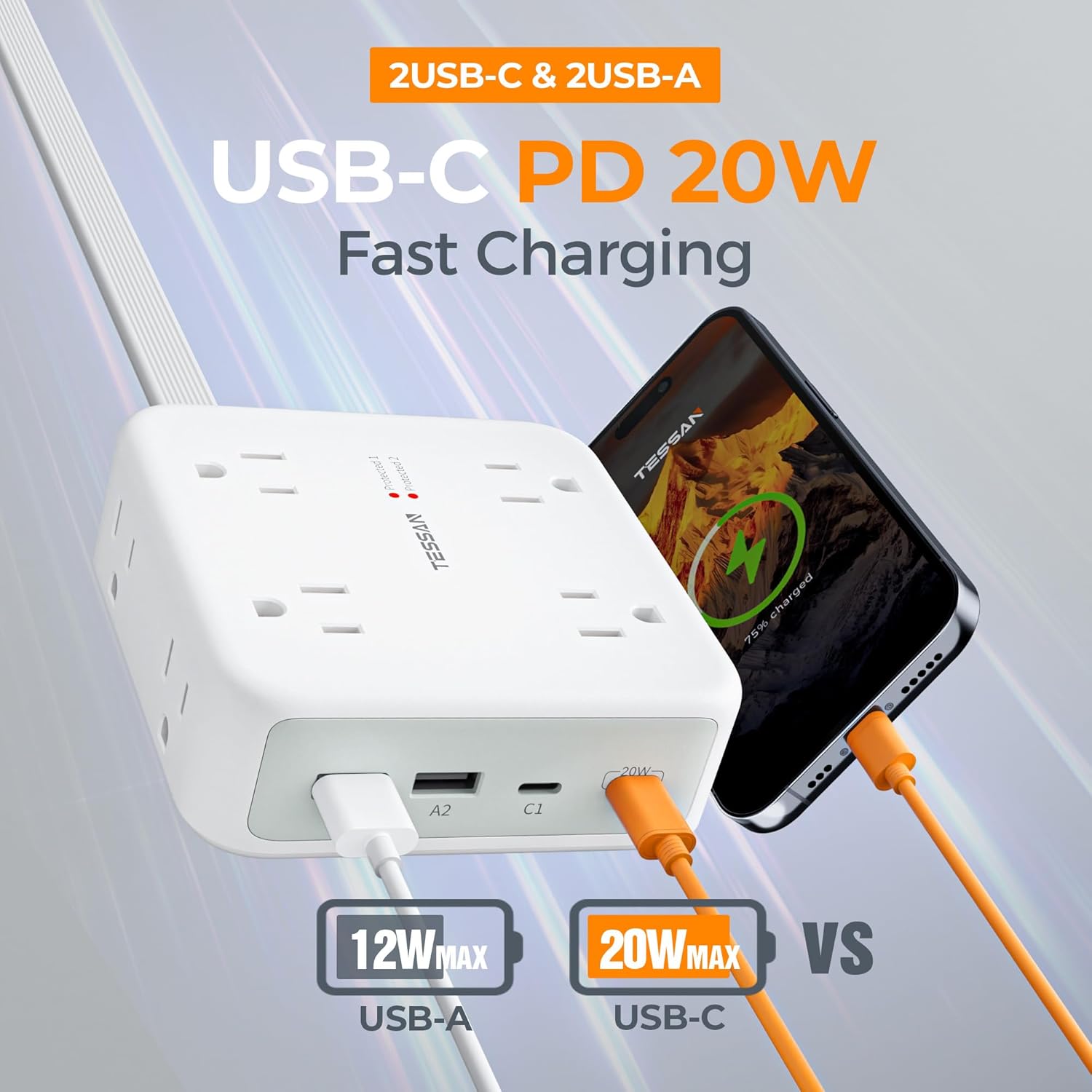
Utilize the USB-C PD 20W port for fast charging compatible devices. - Power Switch (RESET/OFF):
The power strip includes a master ON/OFF switch. Press it to turn power on or off to all connected devices. In case of an overload, the switch will automatically trip to protect your devices. Press it to reset after removing the overloaded device.

The integrated power switch allows for easy control and acts as an overload protector. - Surge Protection Indicator:
Observe the indicator lights on the power strip to confirm surge protection status:
- Two lights on: Surge protection is active (2100J).
- Only one light on: Partial surge protection is active (1050J).
- Both lights off: Surge protection may have failed and the unit should be replaced.

Understand the surge protection status through the indicator lights.
Maintenance
- Keep the power strip clean and free from dust. Use a dry, soft cloth for cleaning.
- Regularly inspect the power cord and the unit for any signs of damage, such as frayed wires or cracks. If damage is found, discontinue use immediately and replace the unit.
- Do not attempt to repair the power strip yourself. Contact customer support for assistance.
Troubleshooting
No Power to Devices:
- Ensure the power strip's plug is securely inserted into the wall outlet.
- Check if the power switch (RESET/OFF) is in the "ON" position. If it has tripped, reduce the load by unplugging some devices and then press the switch to reset.
- Verify that the wall outlet itself is functioning by plugging in another device.
Devices Not Charging via USB:
- Confirm that the USB cables are properly connected to both the power strip and your device.
- Ensure your device is compatible with the USB charging specifications (e.g., 20W PD for fast charging).
- Try a different USB port or cable to rule out a faulty connection.
Surge Protection Indicator Lights are Off:
- If both surge protection indicator lights are off, it means the surge protection components may have been compromised due to a significant power surge. The power strip may still provide power, but it will no longer offer surge protection. For continued protection, the unit should be replaced.
Specifications
| Brand: | TESSAN |
| Model Number: | TS-PS07US00 |
| Color: | White |
| Total AC Outlets: | 8 |
| Total USB Ports: | 4 (2 USB-A, 2 USB-C) |
| Maximum Current: | 15 Amps |
| Power Rating: | 1875W |
| Surge Protection Rating: | 2100 Joules |
| USB-C2 Output: | 20W Max (Power Delivery) |
| USB-C1 Output: | 5V 3A (15W Max) |
| USB-A Output: | 5V 2.4A (12W Max per port) |
| Cord Length: | 5 Feet |
| Plug Type: | Type A - 2 pin (North American) |
| Special Features: | Mountable, Surge Protection, USB Slots, Flat Plug, ON/OFF Switch |
| Manufacturer: | Zhuhai Tessan Power Technology Co., Ltd |
Compatible Devices:
This power strip is compatible with a wide range of devices including, but not limited to: Hair Dryers, Set Top Boxes, Freezers, Fax Machines, Modems, Irons, Tablets, Cellular Phones, Mixer Grinders, Microwave Ovens, Gaming Consoles, Refrigerators, Smartwatches, Laptops, Projectors, Radios, Air Conditioners, Televisions, Printers, Electric Fountains, Rice Cookers, Toasters, Lamps, DVD Players, MP3 Players, Home Theaters, Lights, E-Readers, Personal Computers, Smartphones, Routers, Scanners, Speakers, Cameras, Water Boilers, Monitors, Coffee Machines, Audio Sound Systems, Fans, Heaters, Juicers.
Official Product Video
Warranty and Support
For warranty information or technical support, please refer to the product packaging or contact TESSAN customer service directly. Keep your purchase receipt for warranty claims.