
1. Introduction
The CYBERDOT Tracker Tags Finder is an MFi Certified item tracker designed to help you locate your valuables using Apple's Find My network. This device connects via Bluetooth to your iOS devices, allowing you to track items such as keys, wallets, backpacks, and even pets. It features a durable, waterproof design and a replaceable battery for long-term use. This manual provides instructions for setup, operation, maintenance, and troubleshooting.
2. Package Contents
Please verify that all items are present in your package:
- 2 x CYBERDOT Tracker Tags (each with an installed CR2032 battery)
- 1 x Replaceable CR2032 Battery
- 2 x Protective Cases
3. Setup Guide
The CYBERDOT Tracker Tags are compatible only with iOS devices (iPhone, iPad, Mac) and utilize the Apple Find My app. Ensure your iOS device is updated to the latest version for optimal performance.
3.1 Initial Pairing
- Ensure Bluetooth is enabled on your iOS device.
- Open the Find My app on your iPhone or iPad.
- Tap the Items tab at the bottom of the screen.
- Tap the + icon in the top right corner, then select Add Other Item.
- Press and hold the button on your CYBERDOT Tracker Tag for approximately 12 seconds until you hear a beeping sound. This indicates the tracker is in pairing mode.
- Follow the on-screen instructions in the Find My app to complete the pairing process. You may be prompted to name your tracker and assign an emoji.

Image: Steps for pairing the CYBERDOT Tracker Tag with the Find My app.
3.2 Attaching the Tracker
Use the provided protective case to attach the tracker to your desired item. The case allows for attachment to keyrings, backpack zippers, pet collars, or other loops.

Image: Examples of how to attach the tracker tag to different items.
4. Operating Instructions
4.1 Finding Items Nearby (Bluetooth Range)
When your tracker is within Bluetooth range of your iOS device, you can make it play a sound to help you locate it.
- Open the Find My app on your iOS device.
- Tap the Items tab.
- Select the CYBERDOT Tracker Tag you wish to locate.
- Tap Play Sound. The tracker will emit a "di di di" sound (80-100dB) to guide you to its location.
- Tap Stop Sound once you have found your item.

Image: Using the 'Play Sound' feature in the Find My app to locate a nearby item.
4.2 Finding Items Far Away (Lost Mode)
If your tracker is out of Bluetooth range, the Apple Find My network can help you locate it. Millions of Apple devices worldwide anonymously detect your tracker's location and securely relay it to you.
- Open the Find My app.
- Tap the Items tab.
- Select the lost CYBERDOT Tracker Tag.
- Scroll down and tap Enable under Lost Mode.
- Follow the prompts to enter a phone number or email address where you can be contacted if someone finds your item. You can also choose to be notified when the item is found.
When your item is located by another Apple device, you will receive a notification with its updated location on a map.

Image: Activating Lost Mode in the Find My app.
4.3 Share Item with Family
With iOS 17 or later, you can share your CYBERDOT Tracker Tag with family members, allowing multiple people to view its location.
- Open the Find My app.
- Tap the Items tab.
- Select the CYBERDOT Tracker Tag you wish to share.
- Scroll down and tap Share This Item.
- Follow the prompts to add family members from your contacts.

Image: Sharing your tracker tag with family members.
4.4 Left-Behind Reminder
Receive notifications on your iPhone if you leave your tracker tag behind and it goes out of Bluetooth range.
- Open the Find My app.
- Tap the Items tab.
- Select your CYBERDOT Tracker Tag.
- Under Notifications, tap Notify When Left Behind.
- Toggle the feature on and configure any desired exceptions (e.g., specific locations where you don't want to be notified).

Image: Example of a 'Left-Behind Reminder' notification.
5. Maintenance
5.1 Battery Replacement
The CYBERDOT Tracker Tag uses a replaceable CR2032 coin cell battery, which provides up to 1 year of tracking performance. When the battery is low, you will receive a notification on your iOS device.
- Gently twist the back cover of the tracker counter-clockwise to open it.
- Remove the old CR2032 battery.
- Insert a new CR2032 battery with the positive (+) side facing up.
- Align the back cover and twist clockwise to securely close it.
Please dispose of used batteries responsibly according to local regulations.
5.2 Water Resistance
The tracker tag is IP67 waterproof, meaning it can withstand splashes, rain, and brief immersion in water (up to 1 meter for 30 minutes). However, it is not recommended for prolonged submersion or use during swimming or diving. Ensure the battery cover is securely closed to maintain water resistance.
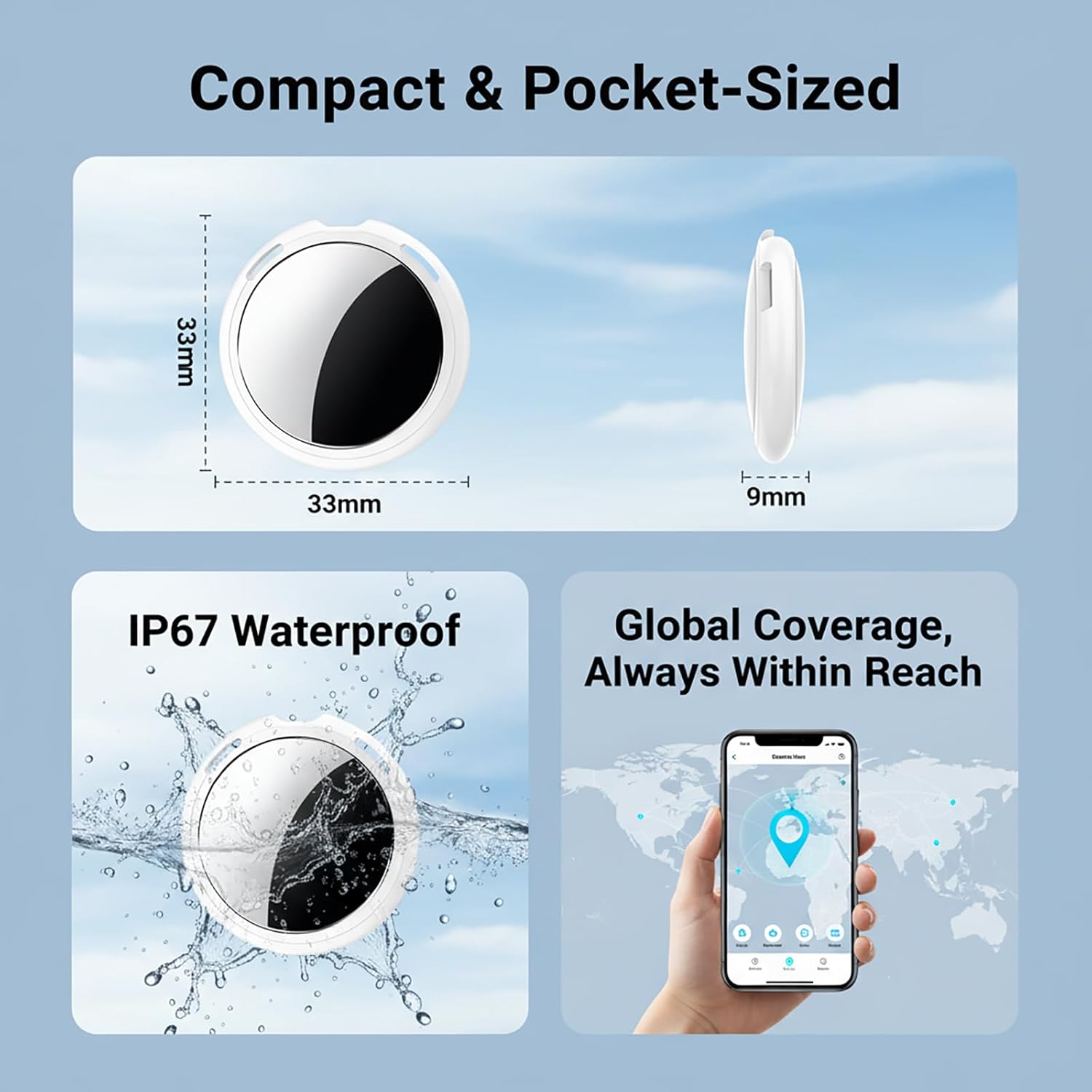
Image: Tracker tag dimensions, IP67 waterproof feature, and global coverage.
6. Troubleshooting
| Problem | Possible Cause | Solution |
|---|---|---|
| Tracker not pairing with Find My app | Bluetooth is off; Tracker not in pairing mode; iOS device issue. | Ensure Bluetooth is on. Press and hold the tracker button for 12 seconds until it beeps. Reboot your iPhone/iPad and try again. Ensure you select "Add Other Item" in the Find My app. |
| No sound when using "Play Sound" | Tracker is out of Bluetooth range; Battery is low or dead. | Move closer to the tracker. Check the battery status in the Find My app and replace if necessary. |
| Location not updating | Tracker is out of range of Apple devices; Battery is low or dead. | Ensure the tracker is in an area where it can be detected by other Apple devices. Check and replace the battery. |
| Left-Behind Reminder not working | Feature is disabled; Exceptions are set. | Verify "Notify When Left Behind" is enabled in the Find My app for the specific tracker. Check if you have set any locations as exceptions. |
7. Specifications
- Model: TAGC
- Connectivity: Bluetooth
- Compatibility: iOS devices only (Apple Find My network)
- Battery Type: CR2032 (replaceable)
- Battery Life: Up to 1 year (8760 hours)
- Water Resistance: IP67 (splash, water, and dust resistant)
- Dimensions: Approximately 33mm x 33mm x 9mm
- Weight: Approximately 40g
- Sound Level: 80-100dB
- Material: Plastic
8. Warranty Information
The CYBERDOT Tracker Tags Finder (Model TAGC) comes with a 3-month warranty from the date of purchase. This warranty covers manufacturing defects and malfunctions under normal use. It does not cover damage caused by misuse, accidents, unauthorized modifications, or normal wear and tear. Please retain your proof of purchase for warranty claims.
9. Customer Support
If you encounter any issues or have questions regarding your CYBERDOT Tracker Tags Finder that are not addressed in this manual, please refer to the seller's contact information on the platform where you purchased the product. For general information about the Apple Find My network, visit Apple Support.