
1. Introduction
Thank you for choosing the SakerPlus Smart 2K Window Security Camera. This manual provides essential information for setting up, operating, and maintaining your camera to ensure optimal performance and security for your indoor and outdoor spaces. Please read these instructions carefully before use and retain them for future reference.
What's in the Box
- SakerPlus Smart 2K Window Security Camera
- Power Adapter
- USB Power Cable
- Mounting Sticker
- User Manual
2. Product Overview
Familiarize yourself with the components and features of your SakerPlus Smart 2K Window Security Camera.

Image: Labeled diagram showing the camera's lens, light sensors, speaker, power port, SD card slot, reset button, and overall dimensions (2.08 x 1.65 x 1 inches).
Key Features
- 2K (3MP) Ultra-HD Resolution: Provides clear and detailed video footage.
- Enhanced Color Night Vision: Offers improved visibility in low-light conditions.
- Smart Motion Detection: Detects movement and sends instant alerts to your smartphone.
- 24/7 Continuous Recording: Supports continuous video recording with local (MicroSD) or optional cloud storage.
- Dual-band Wi-Fi Connectivity: Supports 2.4GHz and 5GHz Wi-Fi networks for stable connection.
- Easy Peel & Stick Setup: Simple, tool-free installation on windows.
- Two-Way Audio: Built-in speaker for communication.
- Multi-Camera Monitoring: View up to four cameras simultaneously within the app.
3. Setup Guide
Follow these steps to set up your SakerPlus Smart 2K Window Security Camera.
3.1 Preparation
- Ensure your smartphone is connected to a 2.4GHz or 5GHz Wi-Fi network.
- Download the SakerPlus app from your device's app store (available for Android and iOS).
- Create an account and log in to the app.
- Unpack the camera and all accessories.
- If using local storage, insert a MicroSD card (up to 128GB, not included unless specified) into the camera's SD card slot.
3.2 Mounting the Camera
The camera is designed for easy window mounting using the provided peel-and-stick adhesive.

Image: Visual instructions for mounting the camera: 1. Clean both sides of the window. 2. Peel off the mounting sticker. 3. Install the sticker onto the window. 4. Attach the camera firmly to the mounting sticker.
- Clean the Window: Thoroughly clean both the inside and outside surfaces of the window where you intend to mount the camera. Ensure the surface is dry and free of dust or grease.
- Prepare the Sticker: Peel off the protective backing from the mounting sticker.
- Apply Sticker: Firmly press the adhesive side of the sticker onto the clean window surface from the inside. Ensure there are no air bubbles.
- Attach Camera: Align the camera with the mounting sticker and press it firmly into place. Ensure the camera lens has a clear view of the area you wish to monitor.
- Connect Power: Plug the USB power cable into the camera's power port and connect it to the power adapter, then plug the adapter into a power outlet. The camera will power on.
3.3 Pairing with the App
- Open the SakerPlus app on your smartphone.
- Tap the "+" icon to add a new device.
- Select your camera model from the list.
- Follow the on-screen instructions to connect the camera to your Wi-Fi network. This typically involves scanning a QR code displayed on your phone with the camera's lens or entering Wi-Fi credentials.
- Once connected, you can name your camera and begin live viewing.
4. Operating Instructions
This section details how to use the various functions of your SakerPlus Smart 2K Window Security Camera.
4.1 Live View and Playback

Image: Screenshot of the SakerPlus app interface displaying live camera feed, person detection alerts, viewing and detection angles, and controls for recording, siren, and privacy mode.
- Access Live Feed: Open the SakerPlus app and select your camera from the device list to view the live video stream.
- Digital Zoom: Pinch to zoom in or out on the live feed for a closer look (up to 4x digital zoom).
- Playback: Access recorded footage via the app's playback function. You can review continuous recordings or event-triggered clips stored on the MicroSD card or cloud.
4.2 Recording Options
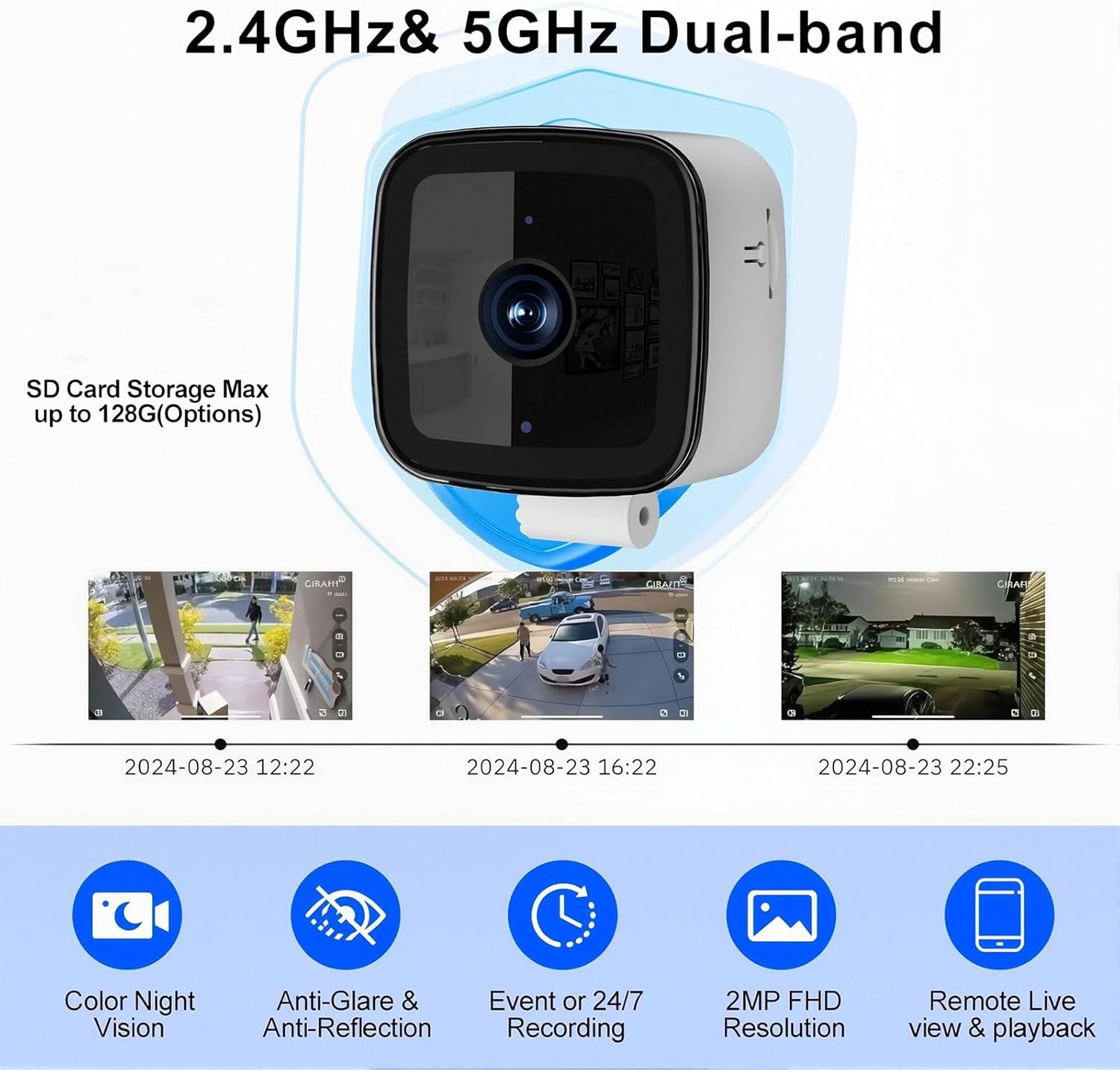
Image: Graphic illustrating 2.4GHz & 5GHz Dual-band Wi-Fi, MicroSD card storage up to 128GB, timeline of recorded events, and icons representing Color Night Vision, Anti-Glare & Anti-Reflection, Event or 24/7 Recording, 2MP FHD Resolution, and Remote Live view & playback.
- 24/7 Continuous Recording: If a MicroSD card is inserted and enabled, the camera will record continuously. The oldest footage will be overwritten once the card is full.
- Event-Triggered Recording: When motion is detected, the camera will automatically record a clip and send an alert.
- Cloud Storage: Optional cloud storage plans are available for secure off-site storage of your recordings. Refer to the app for subscription details.
4.3 Night Vision
The camera features enhanced color night vision for clear images in low-light conditions. The camera automatically switches between day and night modes based on ambient light.
4.4 Motion Detection & Alerts
- Enable/Disable Alerts: Configure motion detection sensitivity and alert notifications within the app settings.
- Instant Notifications: Receive push notifications on your smartphone when motion is detected.
4.5 Two-Way Audio
Use the built-in speaker to communicate with individuals on the other side of the camera. Activate the microphone and speaker functions within the live view interface of the app.
4.6 Multi-Camera Monitoring & Sharing
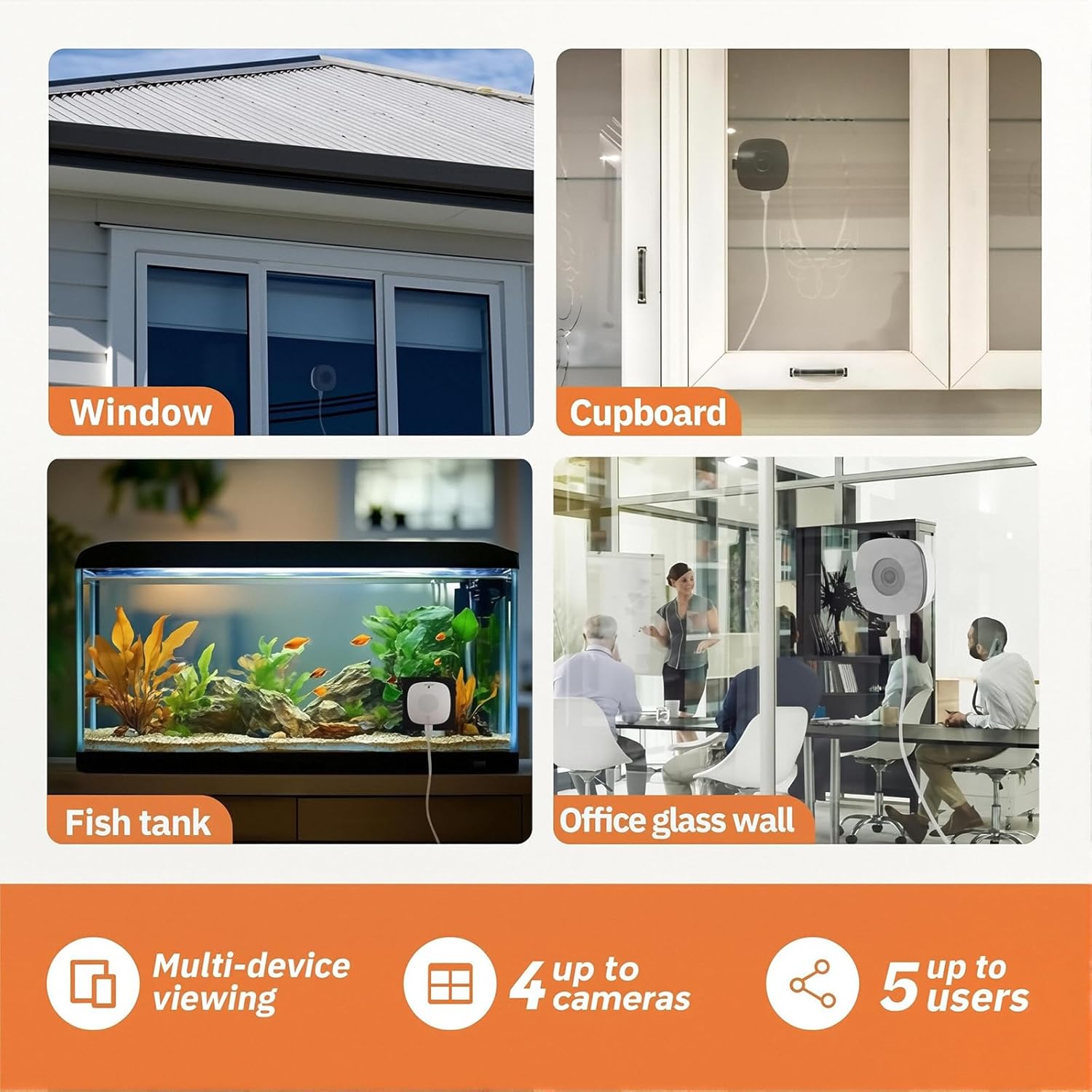
Image: Graphic showing multi-device viewing, support for up to 4 cameras on one screen, and sharing access with up to 5 users. Also depicts various installation locations like window, cupboard, fish tank, and office glass wall.
- Multiple Cameras: The app allows you to add and manage multiple SakerPlus cameras. You can view live feeds from up to four cameras simultaneously on a single screen.
- Share Access: Securely share camera access with family members or trusted individuals through the app's sharing features.
5. Maintenance
Proper maintenance ensures the longevity and optimal performance of your camera.
- Cleaning: Use a soft, dry cloth to clean the camera lens and body. Avoid abrasive cleaners or solvents.
- Firmware Updates: Regularly check the app for available firmware updates. Keeping your camera's firmware updated ensures you have the latest features and security enhancements.
- Power Cycle: If the camera becomes unresponsive, disconnect the power cable, wait 10 seconds, and then reconnect it to perform a power cycle.
6. Troubleshooting
If you encounter issues with your SakerPlus Smart 2K Window Security Camera, refer to the following troubleshooting steps.
| Problem | Solution |
|---|---|
| Camera fails to connect to Wi-Fi or app. |
|
| Night vision is unclear or reflects off the window. |
|
| Camera is not recording 24/7. |
|
| App is not working or crashing. |
|
| No motion alerts received. |
|
7. Specifications
| Feature | Detail |
|---|---|
| Model Number | EC105851 |
| Video Resolution | 2K (3MP Effective Still Resolution) |
| Viewing Angle | 105 Degrees |
| Night Vision | Enhanced Color Night Vision |
| Connectivity | Wi-Fi (2.4GHz & 5GHz Dual-band), Bluetooth |
| Storage Options | MicroSD Card (up to 128GB), Cloud Storage (optional) |
| Power Source | Corded Electric |
| Mounting Type | Window Mount (Self-Adhesive) |
| Compatible Devices | Android, iOS Smartphones and Tablets |
| Dimensions (L x W x H) | 2.08 x 1.65 x 1 inches |
| Zoom | 4x Digital Zoom |
| Audio | Two-Way Audio (Built-in Speaker) |
8. Warranty and Support
SakerPlus products are designed for reliability and performance. For information regarding warranty coverage, technical support, or service inquiries, please refer to the official SakerPlus website or contact customer support through the SakerPlus app. Keep your purchase receipt as proof of purchase for warranty claims.