
1. Important Safety Information
Please read and understand all instructions before assembling and using this bunk bed. Keep this manual for future reference.
- Always follow the manufacturer's recommended assembly steps.
- Ensure all connections are tight and secure before use. Periodically check and tighten hardware.
- The top bunk is not suitable for children under 6 years of age.
- Use only mattresses that meet the specified dimensions and thickness for each bunk.
- Do not allow more than one person on the top bunk.
- Always use the ladder for entering and exiting the top bunk. Do not use the bed as a play structure.
- Keep children away from the assembly area during construction.
- Do not remove or modify any parts of the bed, especially guardrails.
2. Product Overview
The MERITLINE Twin Size Gaming Bunk Bed is designed to optimize space, combining a comfortable sleeping area with a dedicated gaming or workstation setup. It features integrated lighting, charging capabilities, and storage solutions.
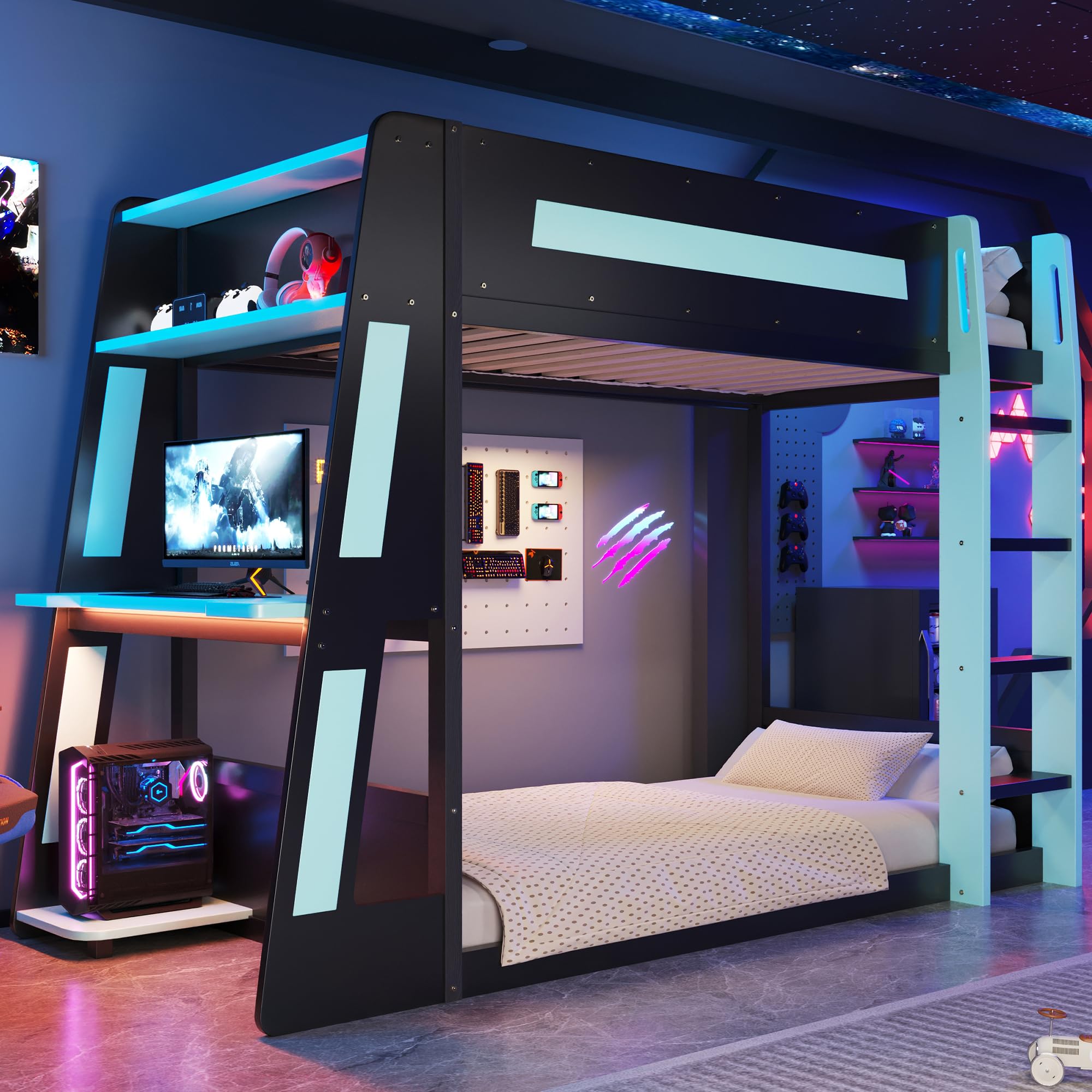
Figure 2.1: Overall view of the MERITLINE Twin Size Gaming Bunk Bed with desk and storage.
3. Assembly Instructions
Assembly requires two adults. Ensure you have ample space and all parts are accounted for before beginning. Refer to the included hardware pack and detailed diagrams for specific component identification.
- Unpack Components: Carefully remove all parts from the packaging. Lay them out on a soft, clean surface to prevent scratches. Verify all parts are present against the parts list provided in your package.
- Assemble Bed Frame: Begin by connecting the headboard and footboard panels to the side rails using the provided bolts and nuts. Ensure all connections are finger-tight initially.
- Install Desk and Shelves: Attach the desk surface and overhead storage shelves to the designated frame sections. Pay attention to the orientation for cable management holes and USB port placement.
- Secure Ladder and Guardrails: Mount the ladder and full-length guardrails to the top bunk frame. These are crucial safety components and must be securely fastened.
- Insert Bed Slats: Place the reinforced bed slats into the designated slots on both the upper and lower bunk frames. Ensure they are evenly spaced and secured.
- Connect Electrical Components: Carefully route the wiring for the RGB LED lights and USB charging port. Connect them to the power source as indicated in the specific wiring diagram in your package.
- Final Tightening: Once all components are in place, systematically tighten all bolts and screws using the provided tools. Do not overtighten.
- Safety Check: Before use, perform a thorough check to ensure the bed is stable, all parts are securely fastened, and there are no loose components.
4. Operating Instructions
4.1 RGB LED Lights
The bunk bed features built-in adjustable RGB LED ambient light strips to create an immersive atmosphere. The lights are controlled via a remote or integrated button panel.
- Power On/Off: Press the power button on the remote or panel to turn the lights on or off.
- Color Selection: Use the color buttons or color wheel on the remote to select your desired light color.
- Brightness Adjustment: Adjust the brightness levels using the dedicated brightness control buttons.
- Mode Selection: Cycle through various lighting modes (e.g., static, flashing, fading) using the mode selection button.

Figure 4.1: Example of RGB LED lighting in use, illuminating the storage shelves.
4.2 USB Charging Port
The desktop features an integrated USB charging port for convenient charging of your electronic devices.
- Connect Device: Plug your USB charging cable into the port and connect your device.
- Power Source: Ensure the bed's power supply is connected to a working electrical outlet for the USB port to function.

Figure 4.2: Integrated USB charging port on the desk surface.
4.3 Cable Management System & PC Tower Space
The under-bed desk area is designed with dedicated space for a PC tower and pre-drilled cable holes to maintain an organized and clutter-free gaming or work setup.
- PC Tower Placement: Utilize the designated space below the desk for your PC tower.
- Cable Routing: Route all power and data cables through the pre-drilled holes to keep them tidy and out of sight.

Figure 4.3: PC tower space and cable management in action.
4.4 Overhead Storage Shelves
Two overhead storage shelves are provided for convenient access to items such as books, gaming accessories, or decorative pieces.
- Weight Limit: Do not overload the shelves. Refer to the product specifications for maximum weight capacity.
- Secure Items: Place items securely to prevent them from falling.

Figure 4.4: Overhead storage shelves for easy access.
5. Maintenance and Care
Proper maintenance will extend the life and appearance of your MERITLINE Gaming Bunk Bed.
- Cleaning: Wipe surfaces with a soft, damp cloth. Avoid harsh chemicals or abrasive cleaners.
- Hardware Check: Periodically inspect all bolts, screws, and connections. Tighten any loose hardware to ensure stability and safety.
- Electrical Components: Ensure all electrical connections for the LED lights and USB port are secure and free from damage. Do not attempt to repair electrical components yourself.
- Avoid Overloading: Do not exceed the recommended weight limits for the bed or shelves.
6. Troubleshooting
If you encounter any issues with your bunk bed, refer to the following common troubleshooting tips:
- Bed Wobbles: Check all assembly hardware. Ensure every bolt and screw is securely tightened. Verify the bed is on a level surface.
- LED Lights Not Working:
- Ensure the power adapter is securely plugged into both the bed and a working wall outlet.
- Check the remote control battery.
- Verify all wiring connections are secure.
- USB Port Not Charging:
- Confirm the bed's main power is connected and the LED lights are functional.
- Try a different USB cable or device to rule out device-specific issues.
- Missing Parts: If any parts are missing or damaged upon arrival, contact customer support immediately.
7. Specifications
| Feature | Detail |
|---|---|
| Size | Twin |
| Product Dimensions | 91.5"L x 40.7"W x 64.9"H |
| Brand | MERITLINE |
| Model | Twin Size Gaming Bunk Bed |
| Color | Black+blue |
| Special Features | Storage, RGB LED Lights, USB Port, Cable Management, PC Tower Space, Full-Length Guardrails |
| Included Components | Bed Frame, Desk, Shelves, Ladder, Guardrails, LED Lighting System, USB Charging Port |
| Material | Solid wood and MDF composite frame with reinforced slats |
| UPC | 199962001832 |
| ASIN | B0G4MGL6XB |

Figure 7.1: Product dimensions in inches.
8. Warranty and Support
For warranty information, product support, or to order replacement parts, please contact MERITLINE customer service. Keep your purchase receipt and product model number handy for faster service.
Contact information can typically be found on the MERITLINE official website or on your purchase documentation.