
1. Introduction
This manual provides detailed instructions for the Picun G2 Wireless Gaming Headset. Designed for an immersive audio experience, this headset offers versatile connectivity options, long-lasting battery life, and clear communication features. Please read this manual thoroughly before using your headset to ensure optimal performance and longevity.
2. Package Contents
Verify that all items listed below are included in your package:
- 1 * Wireless Gaming Headset
- 1 * USB & Type-C 2 in 1 Transmitter
- 1 * 3.5mm Braided Audio Cable
- 1 * Type-C Charging Cable + 1 * User Manual
3. Features
- Immersive 7.1 Virtual Surround Sound: Powered by 40mm drivers, the headset delivers accurate positional audio for gaming and rich music detail.
- 5ms Ultra-Low Latency: The 2.4GHz wireless connection provides near-instant audio response, ideal for competitive gaming.
- Tri-Mode Connectivity: Supports 2.4GHz USB-A/Type-C dongle, Bluetooth 5.4, and 3.5mm wired mode for broad compatibility.
- Up to 100 Hours Playtime: Enjoy extended use in Bluetooth mode (RGB off) or 42–45 hours via 2.4GHz wireless. Supports charging while in use.
- Retractable ENC Noise-Canceling Microphone: Built-in omnidirectional mic with Environmental Noise Cancellation reduces background noise for clear communication.
- Lightweight Design & Comfort: Features memory foam ear cushions and breathable fabric for all-day comfort.
4. Product Overview

Figure 1: Picun G2 Wireless Gaming Headset highlighting 7.1 Surround Sound.
4.1 Headset Components
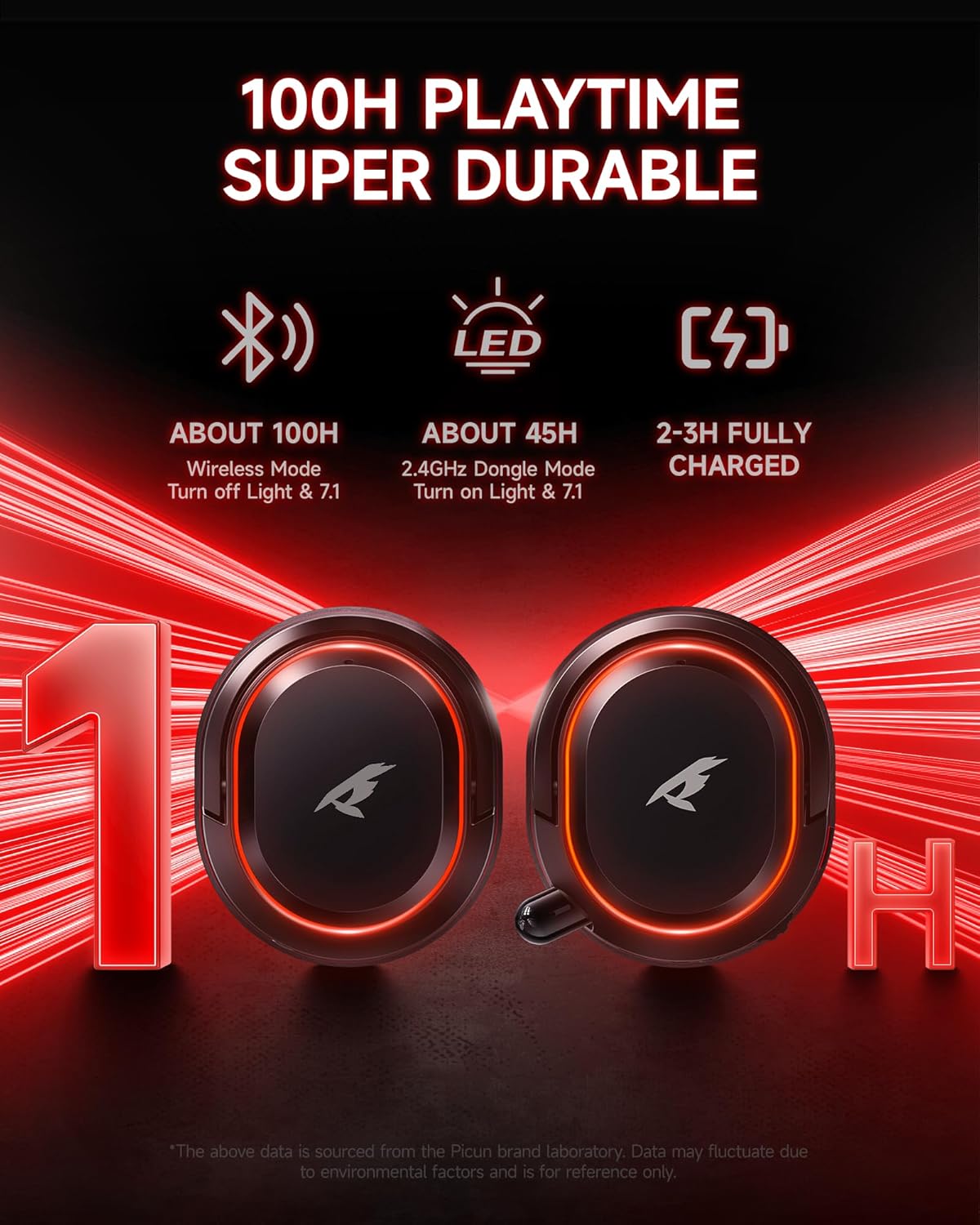
Figure 2: Detailed view of headset controls and ports.
- 7.1 Mode Light Control: Button to control the 7.1 virtual surround sound and RGB lighting.
- Charging Port: USB Type-C port for charging the headset.
- 3.5mm Audio Port: For wired connection using the included 3.5mm cable.
- Power Button: To power the headset on/off and manage connections.
- Volume Wheel: Scroll wheel for adjusting audio volume.
- Mic Mute: Button to mute/unmute the microphone.
4.2 Retractable Microphone
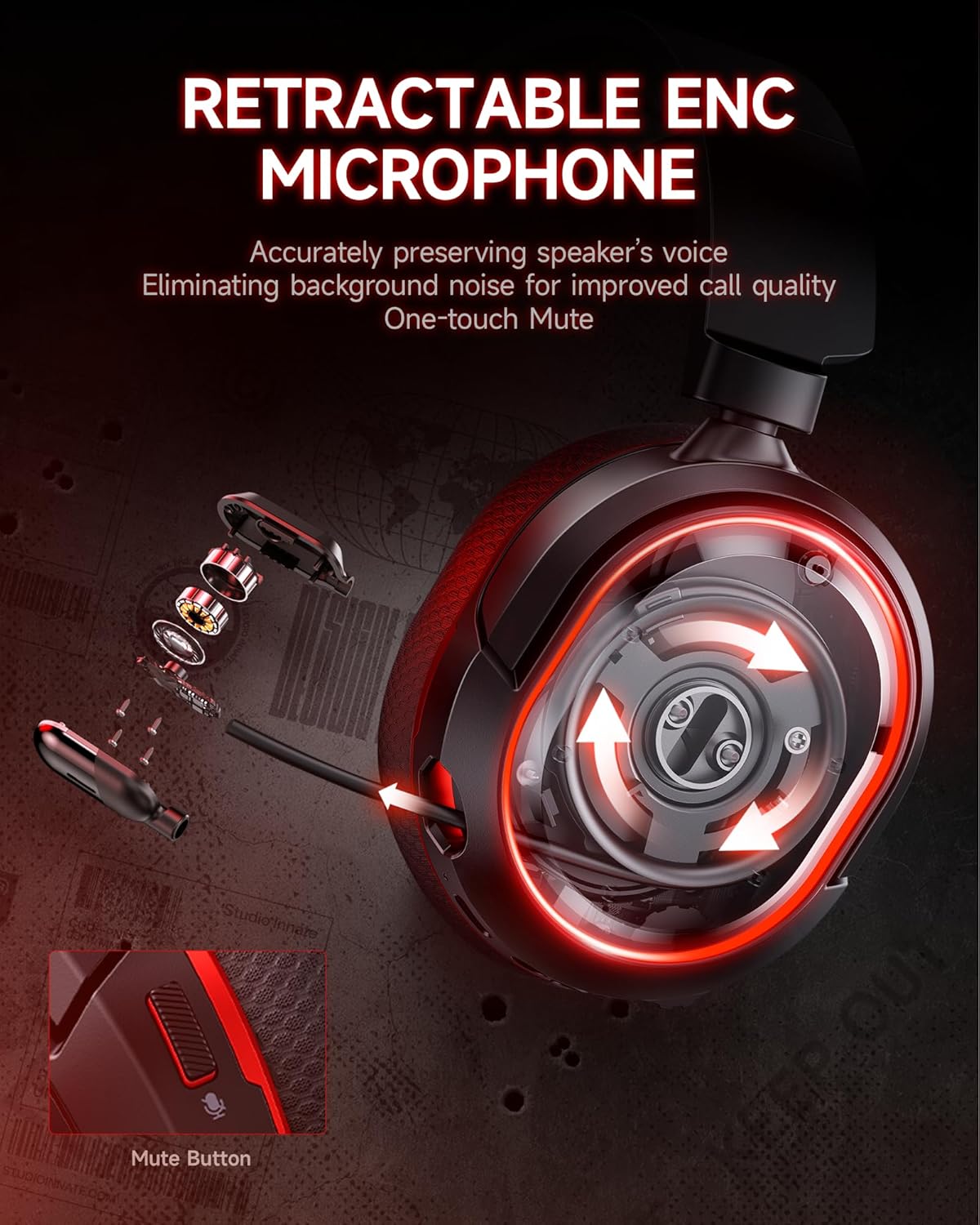
Figure 3: Retractable microphone with ENC technology.
The headset features a retractable omnidirectional microphone with Environmental Noise Cancellation (ENC) technology. This design allows you to extend or retract the microphone as needed. The ENC feature helps to reduce background noise, ensuring clear voice transmission during calls or gaming sessions. A visible LED indicator on the microphone shows its mute status.
4.3 Comfort and Adjustability

Figure 4: Headband and earcup adjustability for comfort.
The Picun G2 headset is designed for comfort during extended use. It features a firm metal bracket for durability, multi-gear rotation, and stretch adjustment for a personalized fit. The earcups are equipped with soft memory foam cushions and breathable fabric to prevent discomfort.
5. Setup
The Picun G2 headset offers three connectivity modes: 2.4GHz wireless, Bluetooth 5.4, and 3.5mm wired.

Figure 5: Overview of 2.4GHz, Bluetooth, and 3.5mm wired connections.
5.1 2.4GHz Wireless Connection (for PC, PS5, PS4, Mac, Laptop)
- Insert the 2-in-1 USB-A/Type-C transmitter into an available USB port on your device (PC, PS5, PS4, Mac, Laptop).
- Power on the headset by pressing and holding the Power Button until the indicator light illuminates.
- The headset will automatically pair with the transmitter. A blue indicator light on the headset will confirm a successful connection.
- On your device, ensure the Picun G2 (UG-08S) is selected as the audio output/input device in your sound settings.
5.2 Bluetooth 5.4 Connection (for Smartphones, Tablets, Other Bluetooth Devices)
- Power on the headset by pressing and holding the Power Button.
- Press the Mode Button (often labeled 'M' or similar) to switch to Bluetooth mode. The indicator light will blink, indicating pairing mode.
- On your smartphone or tablet, go to Bluetooth settings and search for "Picun G2" (or similar device name).
- Select the headset to pair. The indicator light on the headset will turn solid blue once connected.
5.3 3.5mm Wired Connection (for Devices with 3.5mm Audio Jack)
- Connect one end of the 3.5mm braided audio cable to the 3.5mm Audio Port on the headset.
- Connect the other end of the 3.5mm braided audio cable to the 3.5mm audio jack on your device.
- The headset will operate in wired mode. Power is not required for basic audio functionality in wired mode.
6. Operating Instructions
6.1 Power On/Off
- To Power On: Press and hold the Power Button for approximately 3 seconds until the indicator light illuminates.
- To Power Off: Press and hold the Power Button for approximately 3 seconds until the indicator light turns off.
6.2 Volume Control
- Rotate the Volume Wheel up to increase volume.
- Rotate the Volume Wheel down to decrease volume.
6.3 Microphone Mute
- Press the Mic Mute Button to toggle the microphone on or off.
- An LED indicator on the microphone will show its current status (e.g., green for active, off for muted).
6.4 7.1 Virtual Surround Sound & RGB Control
- Press the 7.1 Mode Light Control Button to activate or deactivate the 7.1 Virtual Surround Sound.
- This button may also control the RGB lighting effects. Refer to the quick start guide for specific RGB control functions.
7. Charging

Figure 6: Battery life indicators and charging information.
- Connect the included Type-C charging cable to the Charging Port on the headset and to a USB power source.
- The indicator light will show charging status (e.g., red while charging, blue when fully charged).
- A full charge typically takes 2-3 hours.
- The headset offers up to 100 hours of playtime in Bluetooth mode (RGB off) or 42–45 hours via 2.4GHz wireless.
- The headset can be used while charging.
8. Maintenance
- Clean the headset regularly with a soft, dry cloth.
- Avoid using harsh chemicals or abrasive materials.
- Store the headset in a cool, dry place away from direct sunlight and extreme temperatures.
- Do not attempt to disassemble or modify the headset, as this will void the warranty.
9. Troubleshooting
9.1 No Sound/Microphone Not Working
- Ensure the headset is powered on and fully charged.
- Check that the headset is correctly paired/connected to your device (2.4GHz, Bluetooth, or wired).
- Verify that the Picun G2 (UG-08S) is selected as the default audio input/output device in your device's sound settings.
- Ensure the microphone is not muted (check the LED indicator on the mic).
- Adjust the volume wheel on the headset and your device.
9.2 Connectivity Issues
- For 2.4GHz: Ensure the transmitter is securely plugged in. Try a different USB port.
- For Bluetooth: Ensure the headset is in pairing mode. Forget the device on your phone/tablet and try pairing again.
- Move closer to your device to avoid interference.
9.3 Short Battery Life
- Ensure the headset is fully charged before use.
- Turn off RGB lighting if not needed, as it consumes more power.
- Reduce volume levels, as higher volumes can drain the battery faster.
10. Specifications
| Feature | Detail |
|---|---|
| Model Name | Picun G2 |
| Connectivity Technology | 2.4GHz Wireless, Bluetooth 5.4, 3.5mm Wired |
| Audio Driver Type | Dynamic Driver (40mm) |
| Audio Latency | 5 Milliseconds (2.4GHz) |
| Battery Life | Up to 100 Hours (Bluetooth, RGB off) / 42-45 Hours (2.4GHz) |
| Microphone | Retractable ENC Noise-Canceling Omnidirectional |
| Noise Control | Sound Isolation, Microphone Noise Cancellation |
| Compatible Devices | PC, Mac, Laptop, Desktop, Phone, Pad, Tablet, PlayStation 4/5/Pro/Slim, Gaming Consoles, Switch |
| Material | ABS, Breathable Fabric, PC, Soft Memory Sponge Cushions |
| Item Weight | 1.26 pounds |
| Bluetooth Version | 5.4 |
| Bluetooth Range | 10 Meters |
11. Warranty & Support
The Picun G2 Wireless Gaming Headset comes with a manufacturer's warranty. For details regarding warranty coverage and to activate any extended warranty offers, please refer to the warranty card included in your package or visit the official Picun website.
For technical support, troubleshooting assistance, or any product-related inquiries, please contact Picun customer service through their official channels.


