
Introduction
Thank you for choosing the iGarden Pool Cleaner K Pro 100. This cordless robotic pool vacuum is designed to provide efficient and effortless cleaning for inground pools. Featuring advanced AI navigation, powerful suction, and smart control options, your pool maintenance will be simplified. Please read this manual thoroughly before operation to ensure proper use and longevity of your device.
What's in the Box
Upon unboxing your iGarden Pool Cleaner K Pro 100, verify that all the following items are included:
- iGarden Pool Cleaner K Pro 100 Main Unit
- User Manual
- Retrieval Hook
- Charging Cable
- Power Adapter

The package includes the robotic cleaner, a user manual for detailed instructions, a hook for easy retrieval from the pool, and the necessary cable and adapter for charging.
Setup
1. Charging the Unit
Before initial use, fully charge the iGarden Pool Cleaner K Pro 100. Locate the charging port on the unit, remove the silicone cover, and insert the charger plug. The status lights on the unit's display will pulse during charging. Once all three lights are solid, charging is complete. Always charge indoors and away from direct sunlight.
2. Powering On
Rotate the power switch located on the underside of the machine to the UNLOCK position. Then, press and hold the power button on the top display for 3 seconds to turn on the unit. After 3 minutes of inactivity, the machine will enter sleep mode. To wake it up, press and hold the power button for 3 seconds again.
3. App Control & Pairing
For enhanced control and scheduling, connect your iGarden Pool Cleaner K Pro 100 to the iGarden Robotics app. Ensure your mobile device has Bluetooth and 2.4GHz Wi-Fi enabled. Launch the app, select 'Add Device', and follow the on-screen prompts to pair your robot. Once configured, the robot will automatically execute programmed cleaning tasks.

The app allows you to set cleaning modes, AI timers, and cycles. Remember, app setup works only on land, as there is no signal underwater.
4. Placing in the Pool
After configuring your settings, gently place the machine into the pool within three minutes of powering on. Before placing the machine, ensure the pool is clear of people and obstacles. Turn off the pool pump and any other equipment to prevent interference with cleaning. Once submerged, the machine automatically dives, scans the pool floor, maps its route, and begins efficient cleaning.
Operating the Pool Cleaner
1. Cleaning Modes
The iGarden Pool Cleaner K Pro 100 offers multiple cleaning modes to suit your needs:
- Floor Only: Cleans only the pool floor.
- Walls & Waterline Only: Focuses on vertical surfaces and the waterline.
- Walls & Waterline First, Then Floor: Prioritizes vertical cleaning before moving to the floor.
- Full Coverage: Provides comprehensive cleaning of the entire pool, including floor, walls, and waterline.
You can select these modes via the touchscreen display on the unit or through the iGarden Robotics app. The unit also features a Turbo Mode for 200% suction power to tackle stubborn debris.

2. AI Navigation & Obstacle Avoidance
The K Pro 100 utilizes Smart 3D “S”-shaped path planning to continuously optimize cleaning routes in real-time, ensuring full pool coverage up to 5 times more efficiently than traditional inground pool vacuums. With adaptive torque control, it navigates steps, slopes, and walls effortlessly, preventing it from getting stuck and ensuring precise, uninterrupted cleaning on any terrain.
3. Auto-Parking & Retrieval
When the battery is low or the cleaning cycle ends, the robot automatically parks itself underwater along the pool wall for easy retrieval. Use the provided retrieval hook to lift the unit out of the water. The machine automatically drains water for lighter handling.
Maintenance
1. Cleaning the Filter Basket
The iGarden K Pro 100 features a 4L top-load debris basket with 180μm mesh. After each cleaning cycle, remove the filter basket from the unit. Empty the collected debris and rinse the basket thoroughly with a garden hose until all debris is washed away. Reinstall the clean filter basket into the machine.

2. Impeller Maintenance
Periodically inspect the impeller for any debris or blockages. Power off the machine and remove the filter basket. Using a Phillips screwdriver, loosen and remove the four screws securing the motor guard. Detach the guard to access the impeller assembly. Clean any debris from the impeller and inspect it for damage. Reassemble in reverse order.
3. Track Replacement
If the tracks show signs of wear or damage, they can be replaced. Power off the machine. Gently pry up the hub cover using a small flat-head screwdriver. Loosen the five screws on the track clamp with a Phillips screwdriver and remove the clamp. Slide off the damaged track and fit the new track into place. Reinstall the track clamp and tighten all five screws. Snap the hub cover back onto the wheel.
4. Roller Brush Sleeve Replacement
To replace the roller brush sleeve, power off the machine. Pry open the retention clips on the brush sleeve by hand. Remove the worn sleeve from the drum. Slide the new sleeve onto the drum, rotating it until it seats fully. Use needle-nose pliers to snap the clips closed and secure the sleeve.
Specifications
| Feature | Detail |
|---|---|
| Brand | iGarden |
| Model Name | K Pro 100 |
| Material | Acrylonitrile Butadiene Styrene (ABS), PC |
| Color | Red |
| Product Dimensions | 19.25"L x 15.31"W x 9.45"H |
| Power Source | Battery Powered |
| Battery Life | 10H (floor-only) or 6H (full pool) |
| Control Method | App, Touchscreen |
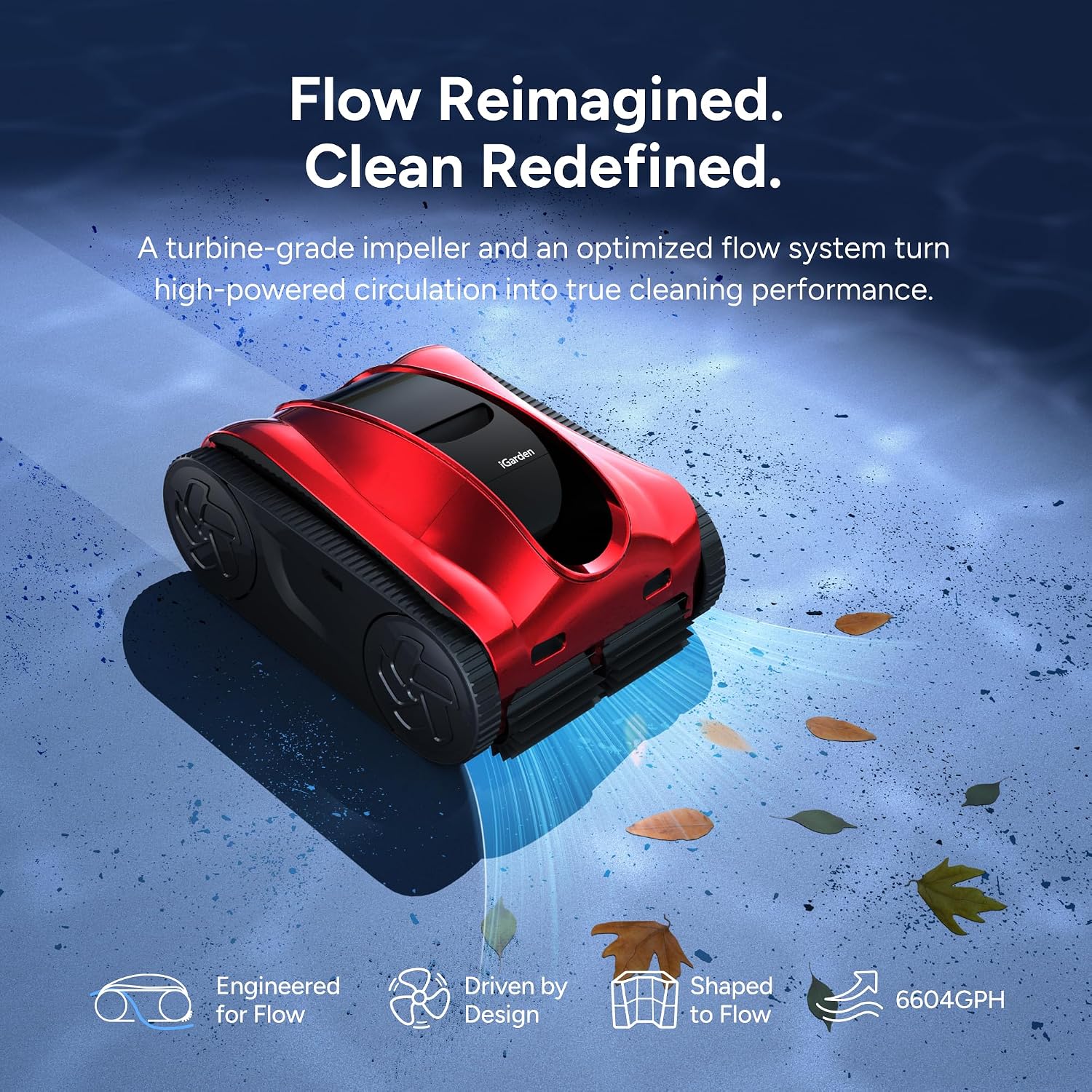
| Suction Power | 6604 GPH (200% Turbo Mode) |
| Filter Basket Capacity | 4 Liters |
| Filter Mesh Size | 180μm |
| Charging Time | 10 Hours |
| Item Weight | 24.3 Pounds |
| Special Features | AI Navigation, OTA Upgrades, Adaptive Mobility, Auto-Parking |
Troubleshooting
1. Unit Not Moving or Cleaning Effectively
- Ensure the unit is fully charged.
- Check the filter basket for excessive debris and clean if necessary.
- Inspect the impeller and brushes for any obstructions (e.g., hair, leaves) and remove them.
- Verify that the power switch on the underside is in the UNLOCK position and the unit is powered on.
2. App Connectivity Issues
- Ensure your mobile device's Bluetooth and 2.4GHz Wi-Fi are active.
- Make sure the robot is on land during the pairing process.
- Restart the iGarden Robotics app and try pairing again.
- If issues persist, refer to the detailed user manual for specific app troubleshooting steps.
3. Unit Getting Stuck
- The K Pro 100 is designed with adaptive mobility to avoid getting stuck. However, ensure there are no unusual obstacles in the pool.
- Check the tracks for any damage or debris that might impede movement.
- If the unit frequently gets stuck in specific areas, try adjusting the cleaning mode or manually repositioning it.
Warranty & Support
The iGarden Pool Cleaner K Pro 100 comes with a 3-year warranty, including full machine replacement protection. We also offer 30-day free returns for any reason and 24/7 customer support to ensure a worry-free experience. For assistance, please contact iGarden Direct customer service.


