
1. Introduction
Thank you for choosing the Cooler Master ELITE Gold 1000W Power Supply Unit. This manual provides essential information for the safe and efficient installation, operation, and maintenance of your new power supply. The ELITE Gold 1000W is designed for daily gaming and PC building enthusiasts, fully supporting the latest ATX 3.1 standard and offering flexible compatibility with RTX 50 series GPUs and future upgrades.
2. Safety Information
Please read and understand all safety instructions before installing or operating this product. Failure to do so may result in personal injury or damage to the product or connected devices.
- Electrical Shock Hazard: Do not open the power supply unit casing. High voltages are present inside, even when the unit is turned off. There are no user-serviceable parts inside.
- Proper Grounding: Ensure the power supply is properly grounded using the provided power cord.
- Ventilation: Do not block any ventilation openings of the power supply. Ensure adequate airflow around the unit to prevent overheating.
- Moisture: Do not expose the power supply to water or excessive humidity.
- Power Source: Connect the power supply only to a power source with the correct voltage and frequency as indicated on the unit's label.
- Cable Management: Route cables carefully to avoid pinching or damage.
- Temperature: Operate the power supply within the specified temperature range (up to 40°C high-load environments).
3. Package Contents
Verify that all items are present in your package:
- Cooler Master ELITE Gold 1000W Power Supply Unit
- Modular Cable Set (including 12+4 Pin, ATX24 Pin, EPS 4+4 Pin, EPS 8 Pin, SATA + Peripheral 4 Pin connectors)
- AC Power Cord (A/JP cord)
- Mounting Screws
- User Manual
4. Setup and Installation
Follow these steps to install your Cooler Master ELITE Gold 1000W Power Supply Unit:
- Prepare Your System:
Before installation, ensure your computer is completely powered off and unplugged from the wall outlet. Discharge any residual power by pressing the power button a few times.
- Install the PSU into the PC Case:
Position the ELITE Gold 1000W PSU into the designated power supply bay in your PC case. The compact design (under 150mm) facilitates easy installation in various PC cases. Secure the PSU with the provided mounting screws.

Image: The Cooler Master ELITE Gold 1000W Power Supply Unit installed within a computer chassis, viewed from above, highlighting its compact form factor and top-mounted fan grill.
- Connect Modular Cables:
The ELITE Gold 1000W features a full modular design. Connect only the necessary cables to the power supply unit first. Refer to the labels on the PSU for correct connector types (e.g., 10P MB, 18P MB, 8P PCI-E/CPU, 12V-2x6, 6P SATA/HDD).

Image: A detailed view of the Cooler Master ELITE Gold 1000W Power Supply Unit's modular cable interface, clearly showing labeled ports for various component connections such as motherboard, CPU, PCIe, and SATA/HDD.

Image: The Cooler Master ELITE Gold 1000W Power Supply Unit with its full suite of modular cables securely connected and neatly routed, demonstrating the full modular design.
- Connect to Components:
- Motherboard: Connect the 24-pin ATX cable to your motherboard.
- CPU: Connect the 4+4 pin or 8-pin EPS cable(s) to your motherboard's CPU power connector(s).
- Graphics Card (GPU): Connect the appropriate PCIe power cables (e.g., 8-pin, 12+4 pin for ATX 3.1/PCIe Gen 5.1) to your graphics card(s). This unit is optimized for RTX 50 series GPUs.
- Storage Devices: Connect SATA power cables to your SSDs, HDDs, and optical drives.
- Peripherals: Connect peripheral 4-pin cables to any other devices requiring power.
- Connect AC Power:
Connect the provided AC power cord to the power supply unit and then to a grounded wall outlet. Ensure the power switch on the PSU is in the OFF position before connecting to the wall outlet.
5. Operating Instructions
After successful installation, follow these steps to operate your system:
- Power On:
Flip the power switch on the back of the power supply unit to the ON (I) position.
- System Start-up:
Press the power button on your computer case to start your system. The ELITE Gold 1000W will provide stable and efficient power, thanks to its 80 Plus Gold certification and quiet, long-life rifle bearing fan.
- Power Off:
To power off your system, shut down your operating system normally. For complete power disconnection, flip the power switch on the back of the power supply unit to the OFF (O) position and unplug the AC power cord.
6. Maintenance
Proper maintenance ensures the longevity and optimal performance of your power supply unit.
- Dust Cleaning: Periodically clean dust from the power supply's fan and ventilation grilles using compressed air. Ensure the system is powered off and unplugged before cleaning.
- Ventilation: Ensure that the PC case has adequate airflow and that the power supply's fan intake and exhaust are not obstructed.
- Cable Inspection: Regularly check all modular cables for any signs of wear, fraying, or damage. Replace damaged cables immediately.
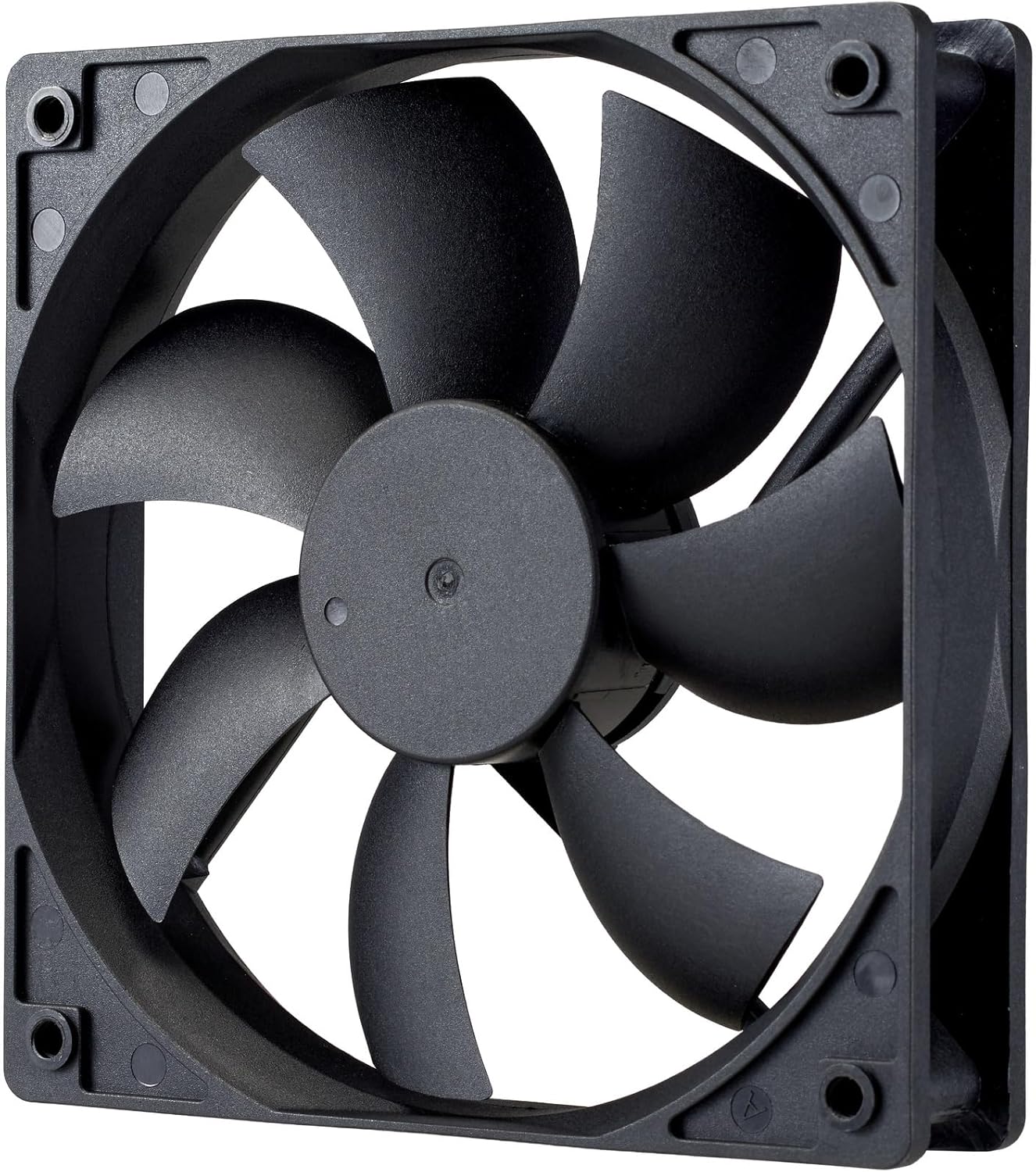
Image: A close-up view of the power supply's cooling fan, featuring five blades designed for efficient airflow and quiet operation.
7. Troubleshooting
If you encounter issues with your power supply, refer to the following troubleshooting steps:
- No Power:
- Ensure the AC power cord is securely connected to both the power supply and the wall outlet.
- Verify that the power switch on the back of the PSU is in the ON (I) position.
- Check all modular cables (24-pin ATX, EPS, PCIe) are firmly seated in both the PSU and the respective components.
- Test the wall outlet with another device to ensure it is functional.
- System Instability/Random Shutdowns:
- Ensure adequate ventilation within your PC case to prevent overheating.
- Verify that your system's power requirements do not exceed the 1000W capacity of the PSU.
- Check for any loose cable connections.
- Unusual Noises:
- A quiet rifle bearing fan is designed for minimal noise. If you hear unusual grinding or rattling, ensure no cables are obstructing the fan.
- If the noise persists, contact Cooler Master support.
If these steps do not resolve the issue, please contact Cooler Master customer support for further assistance.
8. Specifications
Detailed technical specifications for the Cooler Master ELITE Gold 1000W Power Supply Unit:
| Model Name | ELITE Gold |
| Manufacturer Model Number | MPX-A005-AFAG-BJP |
| Brand | Cooler Master |
| Output Wattage | 1000 Watts |
| 80 PLUS Certification | Gold |
| ATX Version | ATX 3.1 |
| PCIe Version | PCIe Gen 5.1 |
| Form Factor | ATX |
| Power Design | Full Modular |
| Connector Types | 12+4 Pin, ATX24 Pin, EPS 4+4 Pin, EPS 8 Pin, SATA + Peripheral 4 Pin |
| Number of Fans | 1 (Rifle Bearing Fan) |
| Maximum Input Voltage | 240 Volts (AC) |
| Minimum Input Voltage | 100 Volts (AC) |
| Product Dimensions (L x W x H) | 14 x 15 x 8.6 cm |
| Product Weight | 2230 grams |
| Operating Temperature | Up to 40°C |

Image: Top view of the Cooler Master ELITE Gold 1000W Power Supply Unit, showcasing its branding and honeycomb-patterned ventilation.

Image: The official 80 PLUS GOLD certification logo, indicating high power efficiency.
9. Warranty and Support
The Cooler Master ELITE Gold 1000W Power Supply Unit comes with a 5-year warranty from the date of purchase. This warranty covers defects in materials and workmanship under normal use.
For technical support, warranty claims, or further assistance, please visit the official Cooler Master website or contact your local Cooler Master distributor. Please have your product model number (MPX-A005-AFAG-BJP) and proof of purchase ready when contacting support.


