
Introduction
This manual provides detailed instructions for the KENNEAS Wireless Controller, designed for use with Nintendo Switch, Switch OLED, and Switch Lite consoles. Please read this manual carefully before use to ensure proper operation and to maximize your gaming experience.

Image: Front view of the KENNEAS Wireless Controller, showcasing its ergonomic design and button layout.
Setup
1. Charging the Controller
Before first use, fully charge the controller. Connect the provided USB-C charging cable to the controller's charging port and the other end to a USB power source (e.g., Switch dock, computer, or USB wall adapter).
- The LED indicators on the controller will flash during charging.
- Once fully charged, the LED indicators will turn off or show a solid light, depending on the controller's state.
- A full charge typically takes approximately 2-3 hours.

Image: The KENNEAS Wireless Controller with a charging cable connected, illustrating the charging process and battery capacity.
2. Pairing with Nintendo Switch/OLED/Lite
- From the Switch HOME Menu, select "Controllers" > "Change Grip/Order".
- On the controller, press and hold the SYNC button (usually a small button on the top edge or back) for 3-5 seconds until the LED indicators begin to flash rapidly.
- The controller will automatically pair with the console. Once paired, the player LED(s) corresponding to the controller number will remain lit.
- If pairing fails, ensure the controller is charged and try again. You may also need to restart your Switch console.
Operating Instructions
Basic Controls
The KENNEAS Wireless Controller features standard button layouts for intuitive gameplay:
- Action Buttons: A, B, X, Y
- Directional Pad (D-Pad): Up, Down, Left, Right
- Analog Sticks: Left and Right joysticks for precise movement and camera control.
- Shoulder Buttons: L, R
- Trigger Buttons: ZL, ZR
- System Buttons: HOME, Capture, Plus (+), Minus (-)
Programmable Buttons (MR/ML)
The controller includes two programmable back buttons (MR and ML) for custom key mapping, allowing you to assign single or multiple button functions for enhanced gameplay.
- Press and hold the M button (usually located near the programmable buttons) and the desired programmable button (MR or ML) simultaneously until the indicator light flashes.
- Press the button(s) you wish to map (e.g., A, B, X, Y, L, R, ZL, ZR, D-pad directions).
- Press the M button again to save the mapping. The indicator light will stop flashing.
- To clear a mapping, repeat step 1, then press the programmable button (MR or ML) twice.

Image: Rear view of the KENNEAS Wireless Controller, highlighting the MR and ML programmable buttons and non-slip grip texture.
Vibration Motor
Experience immersive feedback with the controller's 3-level HD vibration motor. The intensity of the vibration can often be adjusted through the Nintendo Switch system settings or within specific game options.

Image: Close-up of the KENNEAS Wireless Controller showing visual effects representing the 3-level HD vibration and precise stick movement.
LED Lights and Light Modes
The controller features customizable LED lights with 8 colors and 3 distinct light modes to personalize your gaming setup.
- To change LED color or mode, refer to the specific instructions provided with your controller packaging, as button combinations may vary. Typically, a dedicated LED button or a combination with the SYNC button is used.

Image: The KENNEAS Wireless Controller illuminated with blue LED lights, demonstrating the 8-color and 3-light mode feature.
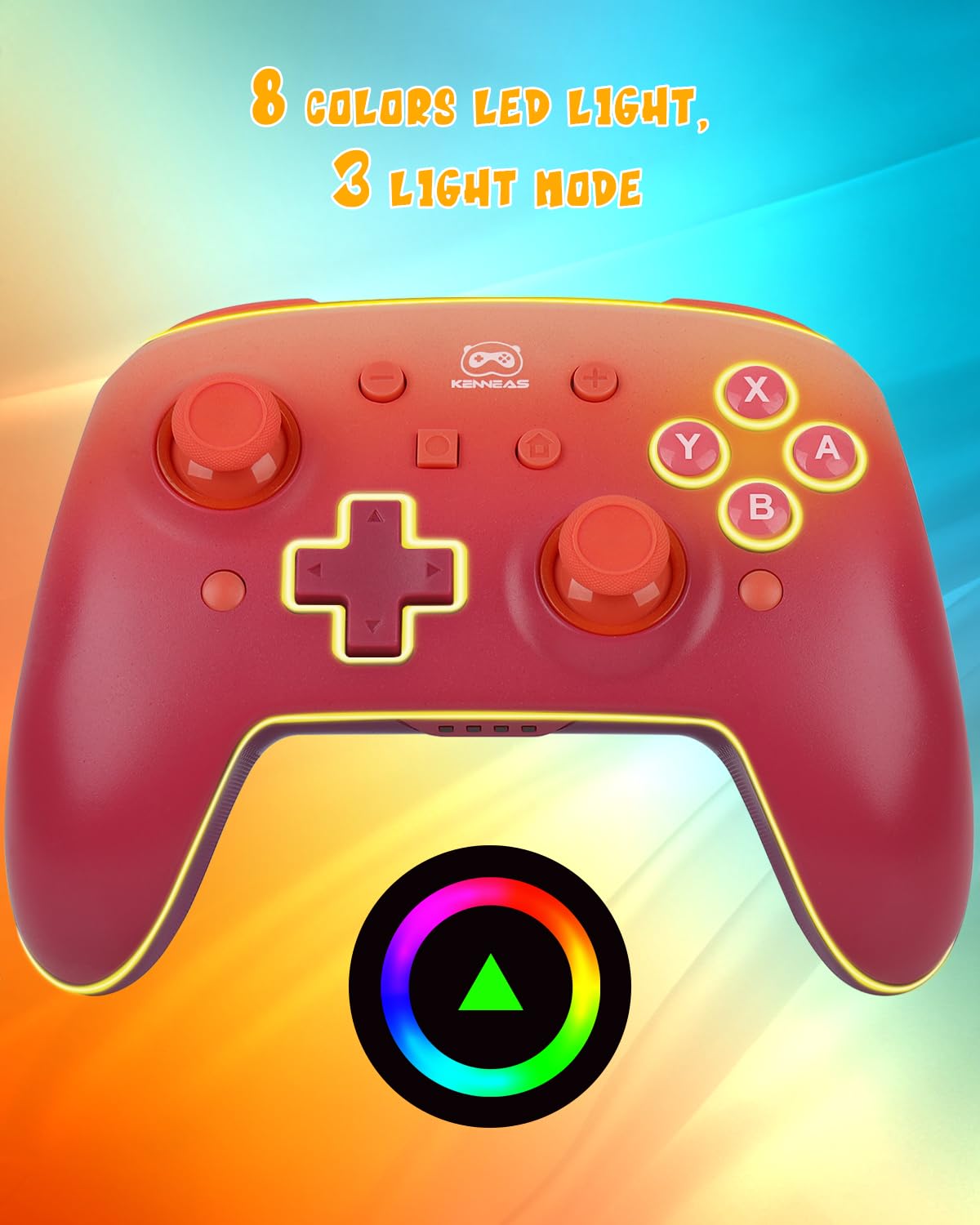
Image: The KENNEAS Wireless Controller displaying its LED lighting capabilities, accompanied by a color wheel graphic to illustrate the range of available colors.
Battery Life
The controller is equipped with an 850mAh battery, providing up to 15 hours of playtime on a single charge. The controller features an auto shut-off function to preserve battery life when idle.
Motion Control
The controller supports motion control functionality, allowing for immersive gameplay in compatible titles that utilize gyroscope and accelerometer input.
Turbo Function
The turbo function allows for rapid, repeated input of a button press. To activate or deactivate turbo for a specific button, consult the detailed instructions provided with your controller. This feature is particularly useful for games requiring fast, repetitive actions.
Maintenance
- Cleaning: Use a soft, dry cloth to clean the controller. For stubborn dirt, slightly dampen the cloth with water. Avoid using harsh chemicals or abrasive materials.
- Storage: Store the controller in a cool, dry place away from direct sunlight and extreme temperatures.
- Battery Care: To prolong battery life, avoid fully discharging the controller frequently. If storing for an extended period, charge the battery to about 50% every few months.
- Avoid Drops: While durable, repeated drops can damage internal components. Handle the controller with care.
Troubleshooting
Controller Does Not Connect/Pair
- Ensure the controller is fully charged.
- Verify that the Switch console is updated to the latest system software.
- Restart the Nintendo Switch console.
- Try re-pairing the controller by following the "Pairing with Nintendo Switch/OLED/Lite" steps in the Setup section.
- Ensure no other wireless devices are causing interference.
Buttons or Joysticks Are Unresponsive/Drifting
- Calibrate the joysticks and motion controls through the Nintendo Switch system settings: HOME Menu > System Settings > Controllers and Sensors > Calibrate Control Sticks / Calibrate Gyroscope.
- Ensure the controller's firmware is up to date (if applicable, check the manufacturer's website for instructions).
- Clean around the buttons and joysticks to remove any debris.
- If a specific button is sticking, gently press it multiple times to dislodge any obstruction.
Controller Does Not Charge
- Check the charging cable for damage and try a different USB-C cable.
- Try a different USB power source (e.g., a different USB port on the dock or a different wall adapter).
- Ensure the charging port on the controller is clean and free of debris.
Vibration Not Working
- Check the Nintendo Switch system settings to ensure controller vibration is enabled: HOME Menu > System Settings > Controllers and Sensors > Pro Controller Wired Communication (ensure it's off for wireless vibration) and check individual game settings.
- Some games may not support vibration or may have it disabled by default.
Specifications
| Brand | KENNEAS |
| Model | Wireless Controller |
| Compatibility | Nintendo Switch, Switch OLED, Switch Lite |
| Battery Capacity | 850mAh |
| Playtime | Up to 15 hours |
| Vibration | 3-level HD Vibration |
| LED Lighting | 8 Colors, 3 Light Modes |
| Special Features | Programmable Buttons (MR/ML), Motion Control, Turbo Function, Non-Slip Grip |
Warranty Information
KENNEAS products are designed for reliability and performance. For specific warranty details, including coverage period and terms, please refer to the warranty card included with your product packaging or visit the official KENNEAS website. Keep your proof of purchase for warranty claims.
Customer Support
If you encounter any issues not covered in this manual or require further assistance, please contact KENNEAS customer support. Contact information can typically be found on the product packaging, the official KENNEAS website, or through the retailer where the product was purchased.
When contacting support, please have your product model number (KENNEAS Wireless Controller) and a detailed description of the issue ready.
