
1. Product Overview
The MSXTTLY 2-in-1 Wireless CarPlay & Android Auto Adapter Mini Streaming Box is designed to convert your vehicle's existing wired CarPlay or Android Auto system into a wireless experience. This device also functions as a mini streaming box, allowing access to select video streaming applications directly on your car's display. It features a 5G chip, 5.8GHz WiFi, and 5.3 Bluetooth for stable and fast connectivity.

Image 1.1: The MSXTTLY 2-in-1 Wireless Adapter and Streaming Box, shown with a car display illustrating various compatible applications and connectivity options.
2. Setup Instructions
2.1 Initial Connection
- Plug In: Connect the MSXTTLY adapter to your car's USB port that supports wired CarPlay or Android Auto. Use the appropriate cable (USB-A or USB-C) provided.
- Activate Bluetooth & WiFi: On your mobile phone, ensure both Bluetooth and WiFi are turned on.
- Pair Device: On your car's display, select the MSXTTLY device from the Bluetooth pairing list and confirm the connection. The adapter will automatically connect to your phone via Bluetooth and WiFi.
After the initial activation, the adapter is designed to automatically connect to your phone within 5-10 seconds when your phone's Bluetooth and WiFi are enabled, even if your phone is in your pocket or on a call.
2.2 Switching Between Phones
To switch to a different phone:
- Turn off Bluetooth and WiFi on the currently connected phone.
- Turn on Bluetooth and WiFi on the phone you wish to connect.
- On the new phone, click and pair with the MSXTTLY device via Bluetooth. The connection will be established automatically.
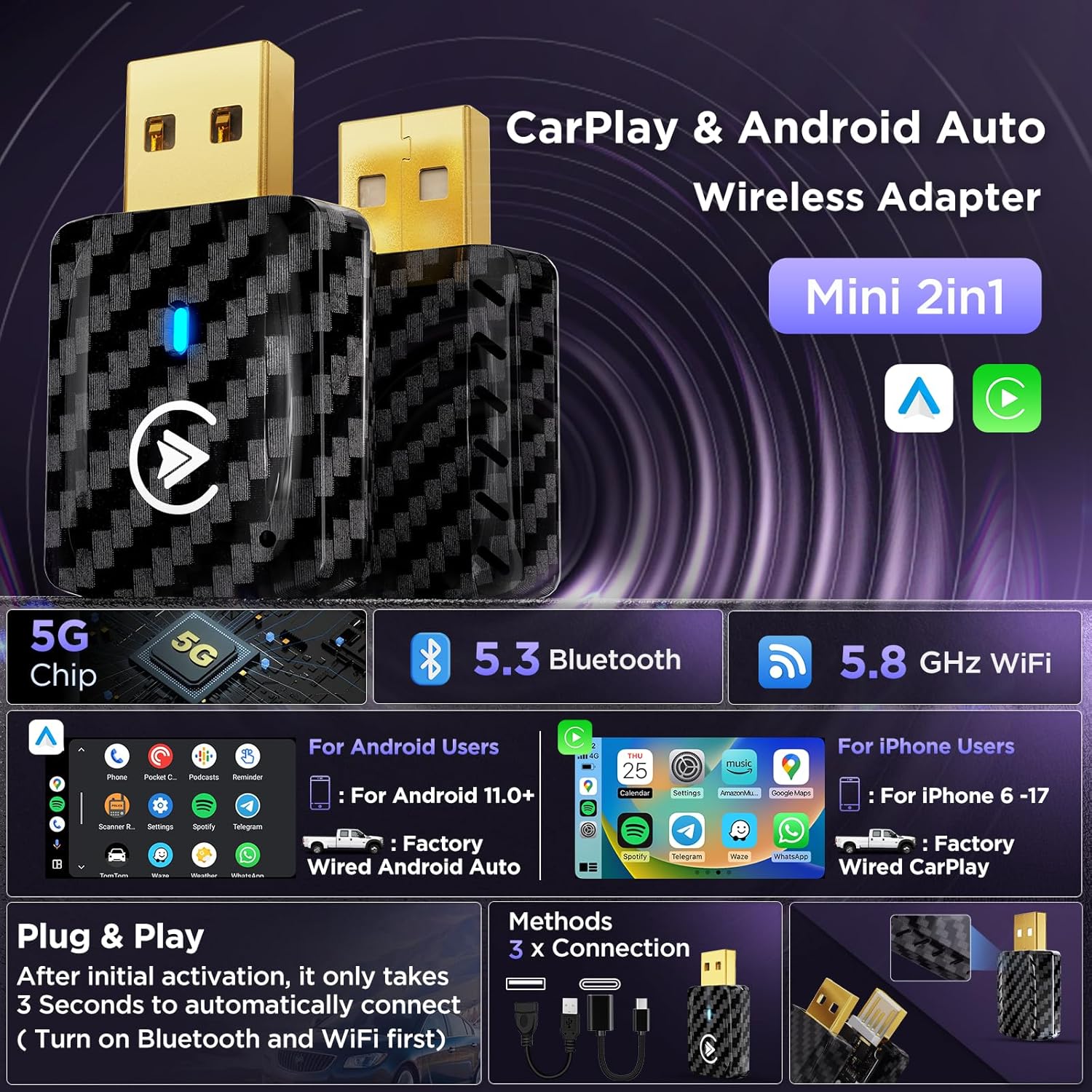
Image 2.1: Overview of the adapter's core technologies including 5G chip, Bluetooth 5.3, and 5.8 GHz WiFi, alongside connection methods for both Android and iPhone users.

Image 2.2: Visual guide for auto connection and easy setup, detailing steps to turn on Bluetooth & WiFi, pair Bluetooth, and enjoy the wireless experience.
3. Operating Instructions
3.1 Customizing Autostart Apps
You can customize how applications launch upon startup:
- Plug into Car: Connect the adapter to your car's USB port.
- Access Settings: On your car's display, navigate to 'System' then 'Personalization'.
- Select Mode: Choose your desired startup mode:
- Default Mode: Launches Quickstep on every startup.
- Last Memory Mode: Launches the last used app before shutdown on every startup.
- Specify App Mode: Launches a selected app (Quickstep) as the startup app.

Image 3.1: A visual guide demonstrating the 3 simple steps to customize autostart applications on your car's display, including explanations of Default, Last Memory, and Specify App modes.
3.2 Maintaining Original Car Operation
The adapter allows you to retain full functionality of your car's original controls, including:
- Touch Screen Control: Interact with the display as usual.
- Steering Wheel Control: Use your steering wheel buttons for audio, calls, and navigation.
- OEM Control Knob: Utilize your car's factory control knob for menu navigation.
- Voice Assistant: Access "Hey Siri" or "OK Google" for hands-free commands.

Image 3.2: Illustration of how the adapter integrates seamlessly with original car operations, including touch screen, steering wheel controls, and OEM control knob, along with voice assistant commands.
4. Streaming Applications
The MSXTTLY Mini Streaming Box supports direct streaming from the following applications on your car's display:
- Netflix
- YouTube
- TikTok
- Prime Video
Note: The adapter is ONLY compatible with these four listed streaming applications.

Image 4.1: The MSXTTLY adapter displayed alongside the logos of its supported streaming applications: YouTube, Netflix, TikTok, and Prime Video.
5. Compatibility
This adapter is designed for specific vehicle and phone configurations:
- Vehicle Compatibility: Only compatible with cars equipped with factory-installed WIRED CarPlay.
- Phone Compatibility:
- For Wireless CarPlay: iPhone with iOS 11 and above.
- For Wireless Android Auto: Android phones with Android 11.0 and above.
Important: This adapter is NOT compatible with car head units running an Android operating system, electric cars, BMW vehicles, or motorcycles.

Image 5.1: The MSXTTLY adapter shown with its various USB connection cables, illustrating its compact design and how it plugs into a car's USB port.
6. Design Features
The MSXTTLY adapter incorporates several design elements for enhanced performance and durability:
- Heat Dissipation Design: Engineered to ensure optimal performance and prevent overheating during extended operation.
- Gold Plated Design: Features gold-plated connectors to enhance conductivity and improve transmission stability.
- Compact Size: The adapter is designed to be significantly smaller, allowing for discreet placement in your vehicle.

Image 6.1: Detailed view of the adapter's design, showcasing its heat dissipation features for optimal performance and gold-plated connectors for improved signal stability.
7. Troubleshooting
- Connection Issues: If the adapter does not connect automatically, ensure your phone's Bluetooth and WiFi are both active. Try restarting your phone and the car's infotainment system.
- Slow Connection: While designed for quick connection, environmental factors can sometimes affect speed. Ensure no other devices are interfering with Bluetooth or WiFi signals.
- No Display/Functionality: Verify that your car supports wired CarPlay or Android Auto. Check the USB cable connection to ensure it is secure.
- Streaming App Problems: Confirm you are attempting to use one of the four supported streaming applications (Netflix, YouTube, TikTok, Prime Video). Other apps are not supported.
- Intermittent Disconnections: Ensure the adapter is firmly seated in the USB port. Check for any software updates for your car's infotainment system or your phone.
8. Specifications
- Model: MSXTTLY 2-in-1 Wireless CarPlay & Android Auto Adapter Mini Streaming Box
- ASIN: B0G4DC5QMQ
- Manufacturer: MSXTTLY
- Date First Available: July 2, 2025
- Wireless Connectivity: 5.8GHz WiFi, Bluetooth 5.3
- Processor: Equipped with 5G chip
- Ports: USB 3.0, Type-C
9. Warranty and Support
For warranty information, technical support, or service inquiries, please refer to the product packaging or contact MSXTTLY customer service directly. Contact details are typically available on the manufacturer's official website or through the retailer where the product was purchased.