
1. Product Overview
The OTTOCAST Mini Pico is a compact wireless adapter designed to convert your vehicle's factory-wired CarPlay or Android Auto system into a wireless experience. Featuring WiFi 6 and Bluetooth 5.4, it offers fast data transfer, low latency, and stable connectivity for a seamless in-car experience.
This device is ideal for enhancing your driving with wireless access to navigation, music, calls, and other essential applications directly on your car's display.
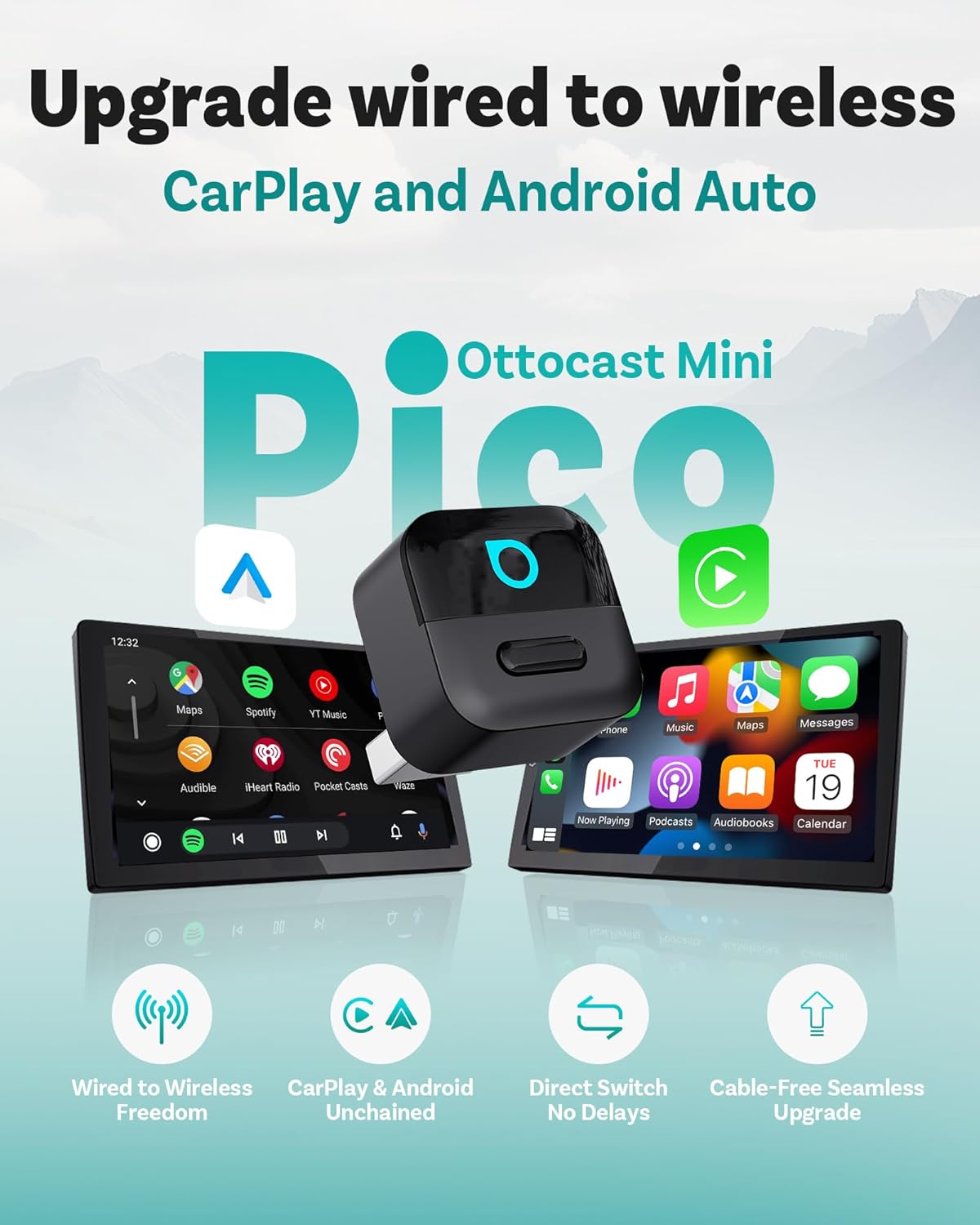
Image: The OTTOCAST Mini Pico adapter shown with car displays illustrating both CarPlay and Android Auto interfaces, highlighting the wireless upgrade from wired systems.
2. What's in the Box
- 1 x OTTOCAST Mini Pico Wireless CarPlay & Android Auto Adapter
- 1 x USB-A to USB-C Adapter
- 1 x User Manual (this document)
- Product Packaging

Image: An illustration of the contents included in the OTTOCAST Mini Pico package: the adapter, a USB-A to USB-C adapter, and the user manual.
3. Compatibility
The OTTOCAST Mini Pico is compatible with vehicles equipped with factory-wired CarPlay or Android Auto. It supports:
- iOS Devices: iOS 10+
- Android Devices: Android 11+
Note: This adapter is not compatible with BMW or Tesla vehicles.

Image: A visual guide to car and phone compatibility, showing various car brands and indicating support for iOS 10+ and Android 11+ devices.
For a detailed compatibility check, please visit the official compatibility checker: https://check.adaptermanual.com/AMZ/
4. Setup Instructions
The OTTOCAST Mini Pico is designed for true plug-and-play convenience. Follow these steps for initial setup:
- Plug into USB Port: Connect the Mini Pico adapter to your vehicle's USB-A or USB-C port that supports wired CarPlay or Android Auto. Use the provided USB-A to USB-C adapter if necessary.
- Bluetooth Pairing: On your car's infotainment screen, a prompt will appear. On your smartphone, enable Bluetooth and search for the device named "CAR2-XXXX" (where XXXX is a unique identifier). Select it to pair.
- Confirm Connection: Follow any on-screen prompts on your phone or car display to allow contacts sync and confirm the CarPlay or Android Auto connection.
- Automatic Connection: After the initial setup, the adapter will automatically connect to your paired phone each time you start your car.

Image: A visual representation of the three-step setup process: plugging the adapter into the USB port, pairing via Bluetooth on a smartphone, and the final connected screen on the car's display.
Video: An official unboxing and setup guide for the OTTOCAST Mini Pico, demonstrating the plug-and-play installation and Bluetooth pairing process.
5. Operating Instructions
5.1. Automatic Reconnection
Once paired, the Mini Pico will automatically reconnect to your smartphone every time you start your car, providing instant access to CarPlay or Android Auto without manual intervention.
5.2. Switching Between Devices (Smart Button)
The Mini Pico features a smart button for seamless switching between two paired devices. If two phones are paired, press the button on the adapter to disconnect the currently active phone. The system will then automatically attempt to connect to the next available paired device.

Image: A diagram illustrating the "One Tap to Switch" feature, showing how pressing the button on the adapter disconnects one phone and allows connection to another paired device.
5.3. Integrated Control
The adapter fully integrates with your vehicle's existing control interfaces, allowing you to use:
- Voice Control: Activate Siri or Google Assistant using voice commands ("Hey Siri," "OK Google") for navigation, calls, and music playback.
- Touchscreen: Interact directly with the CarPlay or Android Auto interface on your car's display.
- Steering Wheel Buttons: Control audio playback, answer calls, and manage other functions using your car's steering wheel controls.
- OEM Control Knob: Utilize your vehicle's factory control knob for navigation within the interface.

Image: A collage demonstrating the various ways to control CarPlay and Android Auto through the vehicle's integrated systems, including voice commands, touchscreen, OEM control knob, and steering wheel buttons.
6. Key Features
- Next-Gen Wireless Performance: Equipped with WiFi 6 for faster data transfer and ultra-low latency, and Bluetooth 5.4 for quick and stable pairing.
- Ultra-Compact Pico Design: Small and discreet, designed to blend seamlessly into your car's interior without cluttering the dashboard.
- Plug-and-Play: No complex installation or software updates required for basic functionality.
- Fast Auto-Reconnect: Automatically connects to your paired device upon vehicle startup.
- Smart Button: Allows for easy switching between two paired smartphones.
- OTA Updates: Supports Over-The-Air firmware updates to ensure optimal performance and compatibility.

Image: An overview of the OTTOCAST Mini Pico's core features, including support for Wireless CarPlay and Android Auto, WiFi 6, Bluetooth 5.4, and OTA updates.
7. Maintenance
7.1. Firmware Updates (OTA)
The OTTOCAST Mini Pico supports Over-The-Air (OTA) firmware updates. These updates provide performance improvements, bug fixes, and enhanced compatibility. To check for and install updates:
- Connect your phone to the Mini Pico adapter.
- Access the adapter's web interface (usually via a specific IP address displayed on your car screen or found in the manual).
- Follow the on-screen instructions to check for and apply any available updates.

Image: A smartphone displaying the OTA update interface for the OTTOCAST Mini Pico, showing options to check for new versions and upload fault logs.
7.2. Cleaning
Wipe the adapter with a soft, dry cloth. Do not use liquid cleaners or abrasive materials.
8. Troubleshooting
- No Connection / Intermittent Connection:
- Ensure your car supports factory-wired CarPlay or Android Auto.
- Verify the adapter is securely plugged into the USB port.
- Check your phone's Bluetooth settings to ensure it's paired with "CAR2-XXXX".
- Restart your phone and the car's infotainment system.
- Try a different USB port in your vehicle if available.
- Audio Issues (No Sound, Distorted Audio):
- Check the volume levels on both your phone and car's infotainment system.
- Ensure no other Bluetooth devices are interfering.
- Disconnect and reconnect the adapter.
- Unable to Switch Devices:
- Ensure both devices have been previously paired with the adapter.
- Press the smart button firmly and briefly.
- If issues persist, try unpairing and re-pairing both devices.
- Firmware Update Failure:
- Ensure a stable internet connection during the update process.
- Do not disconnect the adapter or turn off the car during an update.
- If an update fails, try again or contact customer support.
9. Specifications
| Model Number | CA525 |
| Product Dimensions | 0.87 x 1.02 x 0.87 inches |
| Item Weight | 0.226 ounces |
| Connectivity Technology | Bluetooth 5.4, Wi-Fi 6 |
| Power Source | USB Port |
| Material | Acrylonitrile Butadiene Styrene (ABS) |
| Special Features | CD-quality Audio, Hands-Free Calls, Low Latency |
10. Warranty and Support
For warranty information and technical support, please refer to the official OTTOCAST website or contact their customer service directly. Keep your purchase receipt for warranty claims.
Online resources and FAQs may also be available on the manufacturer's website to assist with common queries and issues.


