
Introduction
This manual provides essential instructions for the proper setup, operation, maintenance, and troubleshooting of your TizzyToy MT11-GPS Drone Accessories. Please read this manual thoroughly before using the product to ensure safe and efficient operation.
Setup
1. Unboxing and Component Identification
Carefully unpack all components from the packaging. Verify that all items listed below are present.
- MT11-GPS Module
- Connection Cables
- Mounting Hardware
- User Manual (this document)
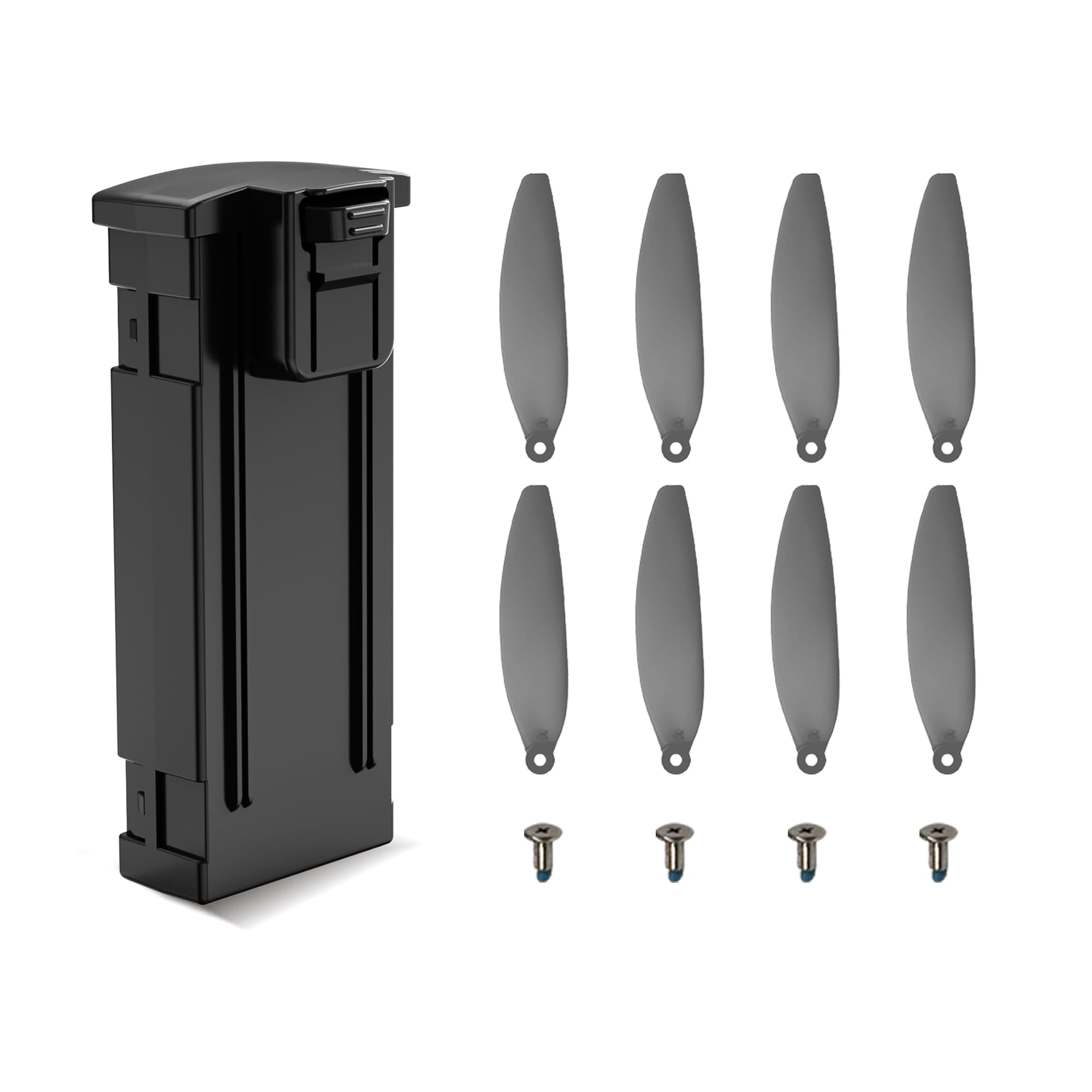
Image: The TizzyToy MT11-GPS drone accessory module, showing its compact design and connection ports.
2. Installation
- Power Off Drone: Ensure your drone is completely powered off and its battery is disconnected before beginning installation.
- Locate Mounting Point: Identify the designated mounting location on your drone for GPS modules. Refer to your drone's specific manual for guidance.
- Secure Module: Use the provided mounting hardware to securely attach the MT11-GPS module to the drone. Ensure it is stable and does not obstruct any moving parts or sensors.
- Connect Cables: Carefully connect the provided cables from the MT11-GPS module to the appropriate ports on your drone's flight controller. Pay close attention to polarity and pin assignments as specified in your drone's manual. Incorrect connection can cause damage.
- Initial Power-Up: Reconnect the drone battery and power on the drone. Observe any indicator lights on the MT11-GPS module for initial status.
Operating Instructions
1. GPS Signal Acquisition
For optimal performance, operate the drone in an open outdoor area with a clear view of the sky, away from tall buildings or dense foliage that may obstruct GPS signals.
- Power On: Power on your drone with the MT11-GPS module connected.
- Wait for Satellite Lock: The MT11-GPS module will begin searching for satellites. This process can take several minutes on the first use or if the drone has been moved a significant distance.
- Indicator Status: Refer to your drone's flight controller software or indicator lights for GPS lock status. Typically, a solid green light or a specific message on the controller indicates a successful GPS lock.
2. Integration with Flight Controller
The MT11-GPS module provides precise positioning data to your drone's flight controller, enabling advanced features such as:
- Position Hold: Maintains the drone's position automatically.
- Return-to-Home (RTH): Automatically guides the drone back to its takeoff point.
- Waypoint Navigation: Allows the drone to follow a pre-programmed flight path.
Consult your drone's flight controller manual for specific instructions on how to enable and utilize these GPS-dependent features.
Maintenance
1. Cleaning
- Gently wipe the exterior of the MT11-GPS module with a soft, dry cloth.
- Do not use liquid cleaners, solvents, or abrasive materials, as these can damage the module.
- Ensure no dust or debris accumulates in the connection ports.
2. Storage
- Store the MT11-GPS module in a cool, dry place when not in use.
- Avoid exposing the module to extreme temperatures, direct sunlight, or high humidity.
- Keep the module away from strong magnetic fields, which can interfere with GPS functionality.
3. Firmware Updates
Periodically check the TizzyToy official website or your drone's flight controller manufacturer's website for any available firmware updates for the MT11-GPS module. Firmware updates can improve performance, add features, or fix bugs.
Troubleshooting
| Problem | Possible Cause | Solution |
|---|---|---|
| No GPS lock / Slow GPS acquisition | Poor satellite visibility, interference, incorrect connection. | Operate in an open area. Check cable connections. Ensure no strong magnetic fields nearby. Allow more time for acquisition. |
| Inaccurate positioning | Weak GPS signal, multi-path interference, module not properly calibrated. | Ensure clear sky view. Perform compass calibration if supported by your drone. Check for firmware updates. |
| Module not detected by drone | Incorrect wiring, faulty cable, module failure, software configuration issue. | Verify all cable connections are secure and correct. Try a different cable if available. Check drone's flight controller software settings for GPS module detection. |
| Drone features (e.g., RTH) not working | No GPS lock, feature not enabled in flight controller, insufficient satellites. | Ensure a strong GPS lock (sufficient satellites). Enable the specific feature in your drone's flight controller settings. |
Specifications
| Feature | Detail |
|---|---|
| Brand | TizzyToy |
| Model | MT11-GPS |
| Product Dimensions (L x W x H) | 1"L x 1"W x 1"H |
| Manufacturer | tizzytoy |
| ASIN | B0G48PSPX9 |
Warranty and Support
Warranty Information
TizzyToy products are covered by a limited warranty against defects in materials and workmanship. The specific warranty period and terms may vary. Please retain your proof of purchase for warranty claims. For detailed warranty information, please refer to the official TizzyToy website or contact customer support.
Customer Support
If you encounter any issues not covered in this manual or require further assistance, please contact TizzyToy customer support. You can typically find contact information (email, phone, or support portal) on the official TizzyToy website.
Note: No official product videos from the seller were available for embedding in this manual.