
1. Introduction
The OTTOCAST P3 Pro is an advanced adapter designed to convert your vehicle's wired CarPlay system into a wireless CarPlay and wireless Android Auto experience. This device enhances your in-car connectivity, allowing seamless integration of your smartphone's features onto your car's infotainment display without the need for cables. Enjoy navigation, music, calls, and more with improved convenience.
2. Package Contents
Please verify that all items listed below are included in your package:
- OTTOCAST P3 Pro Wireless Adapter
- USB Type-A to Type-C Adapter
- USB Y Cable
- User Manual
3. Product Overview
The OTTOCAST P3 Pro is a compact and lightweight device, designed for discreet integration into your vehicle. It features a sleek black finish and is controlled via your car's existing touch screen interface.
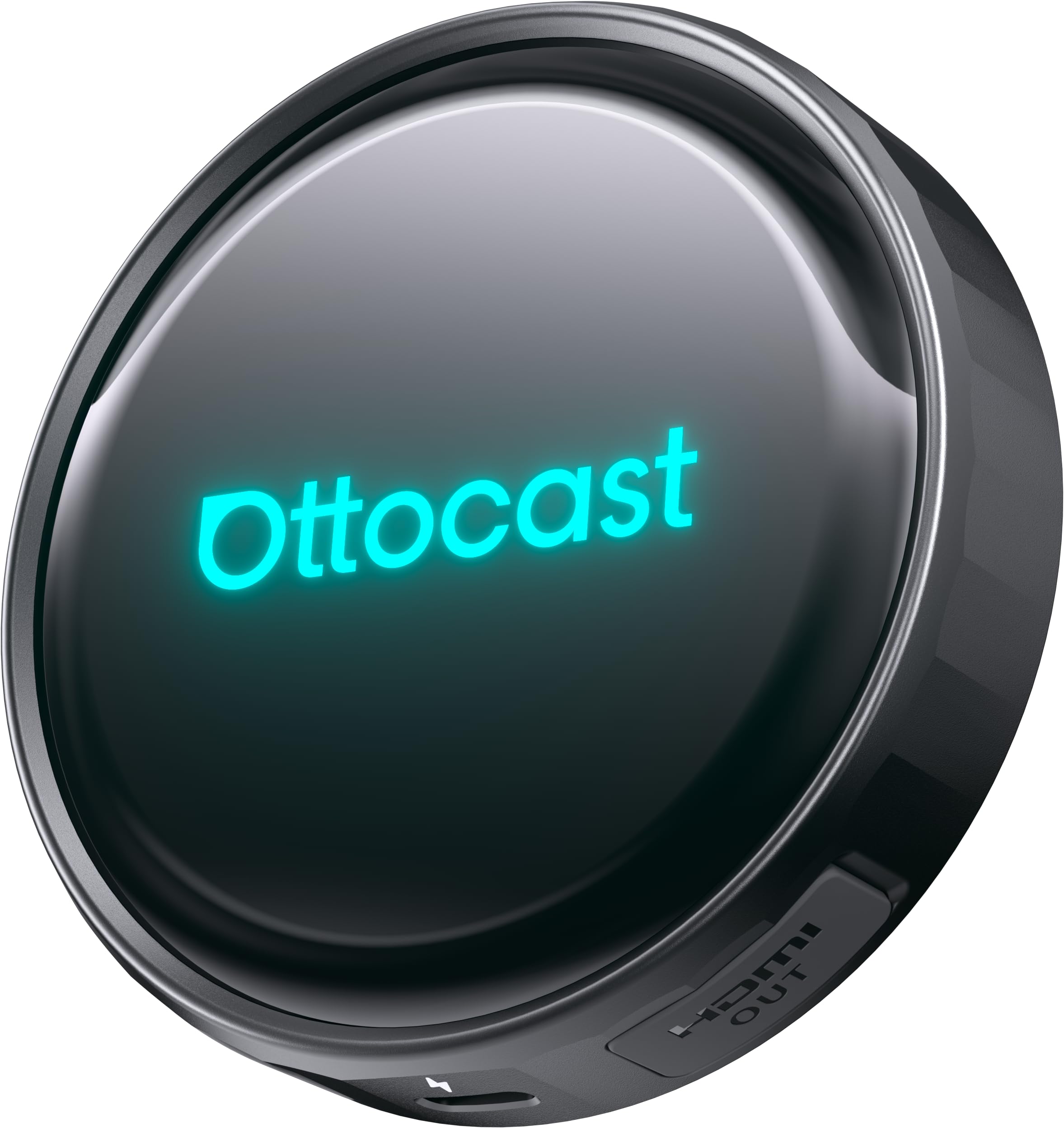
Figure 1: The OTTOCAST P3 Pro adapter. This image shows the compact, black device, typically connecting to your car's USB port to enable wireless CarPlay and Android Auto functionality.
4. Setup Instructions
4.1. Compatibility Requirements
Before setup, ensure your vehicle and smartphone meet the following requirements:
- Vehicle: Must have factory-installed wired CarPlay. Note: Not compatible with vehicles that only have wired Android Auto, BMW, or Tesla models.
- iPhone: iOS 10 or later for wireless CarPlay.
- Android Phone: Android 11 or later for wireless Android Auto.
4.2. Initial Connection
- Start Vehicle: Ensure your vehicle is turned on and the infotainment system is active.
- Connect Adapter: Plug the OTTOCAST P3 Pro into your car's USB port that supports wired CarPlay. Use the provided USB Type-A to Type-C adapter or USB Y cable if necessary.
- Wait for Indicator: The adapter will power on. Observe the indicator light (if present) for status.
- Access CarPlay/Android Auto: On your car's infotainment screen, navigate to the CarPlay or Android Auto interface. The P3 Pro should now be detected.
- Pair Smartphone: On your smartphone, enable Bluetooth and Wi-Fi. Search for the OTTOCAST P3 Pro device in your Bluetooth settings and pair with it. Follow any on-screen prompts on both your phone and car display to complete the connection.
- Confirm Connection: Once paired, your car's display should switch to the wireless CarPlay or Android Auto interface.
5. Operating Instructions
After successful setup, the OTTOCAST P3 Pro will automatically connect to your paired smartphone when you start your vehicle. The primary control method is through your car's touch screen.
5.1. Wireless CarPlay
- Once connected, your iPhone's CarPlay interface will appear on your car's display.
- Use the car's touch screen to navigate apps, make calls, send messages, and control music.
- Siri voice commands are supported; activate by pressing the voice button on your steering wheel or the CarPlay interface.
5.2. Wireless Android Auto
- Upon connection, your Android phone's Android Auto interface will be displayed.
- Interact with navigation, media, and communication apps using your car's touch screen.
- Google Assistant voice commands are available; activate via the steering wheel button or the Android Auto interface.
5.3. Disconnecting
To disconnect, simply turn off your vehicle. The P3 Pro will power down automatically. To manually disconnect, you can turn off Bluetooth on your smartphone or unplug the adapter from the car's USB port.
6. Maintenance
To ensure the longevity and optimal performance of your OTTOCAST P3 Pro, follow these simple maintenance guidelines:
- Cleaning: Use a soft, dry cloth to wipe the device. Avoid liquid cleaners or abrasive materials.
- Storage: When not in use for extended periods, store the device in a cool, dry place away from direct sunlight and extreme temperatures.
- Handling: Handle the device with care. Avoid dropping it or subjecting it to strong impacts.
- Environment: Do not expose the device to water, excessive humidity, or corrosive substances.
7. Troubleshooting
If you encounter issues with your OTTOCAST P3 Pro, please refer to the following common problems and solutions:
| Problem | Possible Cause / Solution |
|---|---|
| Device does not power on. |
|
| Cannot connect to wireless CarPlay/Android Auto. |
|
| Intermittent connection or audio issues. |
|
| CarPlay/Android Auto does not launch automatically. |
|
8. Specifications
| Feature | Detail |
|---|---|
| Model Number | OTTOCAST P3 Pro |
| Brand | OTTOCAST |
| Color | Black |
| Item Weight | 0.12 Kilograms |
| Control Method | Touch (via car's infotainment screen) |
| Compatible Devices (Vehicle) | Vehicles with factory wired CarPlay (Not compatible with wired Android Auto only, BMW, or Tesla) |
| Compatible Devices (Smartphone) | iOS 10+ for wireless CarPlay, Android 11+ for wireless Android Auto |
| Number of Items | 1 (Adapter) |
9. Warranty Information
The OTTOCAST P3 Pro comes with a 12-month guarantee from the date of purchase. This warranty covers manufacturing defects and malfunctions under normal use. It does not cover damage caused by misuse, accidents, unauthorized modifications, or improper installation. Please retain your proof of purchase for warranty claims.
10. Customer Support
For further assistance, technical support, or warranty inquiries, please visit the official OTTOCAST website or contact their customer service department. You can often find contact information and FAQs on the brand's dedicated support pages.
Online Resources: Visit the OTTOCAST Store on Amazon


