
Introduction
This manual provides essential information for setting up, operating, and maintaining your UPERFECT 14-inch 3K OLED Touchscreen Portable Monitor. This monitor features a stunning 2880x1800 3K OLED display with a 120Hz refresh rate and 0.1ms response time, offering vibrant colors and precise touch interaction. Its ultra-slim and lightweight design makes it ideal for various applications, from professional work to gaming on the go.
Setup
Follow these steps to connect your UPERFECT portable monitor to your device.
1. Connecting to Devices
The monitor supports connectivity via USB-C and HDMI. Ensure your device has compatible ports.
- USB-C Connection (Full Feature): For devices with a full-featured USB-C port (supporting DisplayPort Alternate Mode and power delivery), a single USB-C to USB-C cable can provide video, audio, power, and touch functionality.
- HDMI Connection: For devices using HDMI, connect an HDMI cable for video and audio. A separate USB-C to USB-A or USB-C power adapter (5V/3A or higher recommended) must be connected to the monitor's power input USB-C port for operation. For touch functionality, an additional USB-A to USB-C cable may be required to connect the monitor to your device's USB-A port.

Figure 1: Connection options for the UPERFECT portable monitor.

Figure 2: Monitor ports for connecting cables.
2. Powering the Monitor
The monitor requires power to operate. When using a full-featured USB-C connection, power is typically supplied directly from the connected device. If your device cannot provide sufficient power, or if you are using an HDMI connection, connect the monitor to an external power source using a USB-C power adapter (not always included, check package contents).
3. Initial Configuration (Windows Touchscreen)
For optimal touchscreen functionality on Windows, it is recommended to set the portable monitor as the main display. This ensures precise, pixel-accurate touch input without offset.
Operating
Understand the features and controls of your UPERFECT portable monitor.
1. Touchscreen Functionality
The monitor supports 10-point multi-touch interaction, providing a responsive and intuitive user experience. Gestures include tapping, double-tapping, swiping, pinching, and rotating.

Figure 3: Pixel-accurate touch technology.

Figure 4: Supported 10-point multi-touch gestures.
2. Display Settings
The monitor offers a high-quality visual experience with the following characteristics:
- Resolution: 3K (2880x1800) for crisp and detailed images.
- Refresh Rate: Up to 120Hz via Type-C connection for smooth motion. Via HDMI, the maximum refresh rate at 3K resolution is 100Hz.
- Response Time: 0.1ms for ultra-fast pixel transitions, reducing motion blur.
- Brightness: Up to 500 Nits, ensuring clear visibility in various lighting conditions.
- Color Gamut: 120% DCI-P3 for vivid and accurate color reproduction.
- Contrast Ratio: 500000:1 for deep blacks and bright whites, enhancing image depth.

Figure 5: OLED display technology benefits.

Figure 6: Wide color gamut for enhanced visuals.

Figure 7: Maximum brightness capability.
3. Physical Controls
The monitor features physical buttons, typically located on the side, to access the On-Screen Display (OSD) menu. This menu allows you to adjust various settings such as brightness, contrast, color modes, input source, and more. Refer to the on-screen prompts for navigation.
4. Adjustable Stand and VESA Mount
The integrated adjustable stand allows for versatile viewing angles, adapting to your preferred setup. For more permanent installations or specific ergonomic needs, the monitor supports 75mm VESA mounting standards.
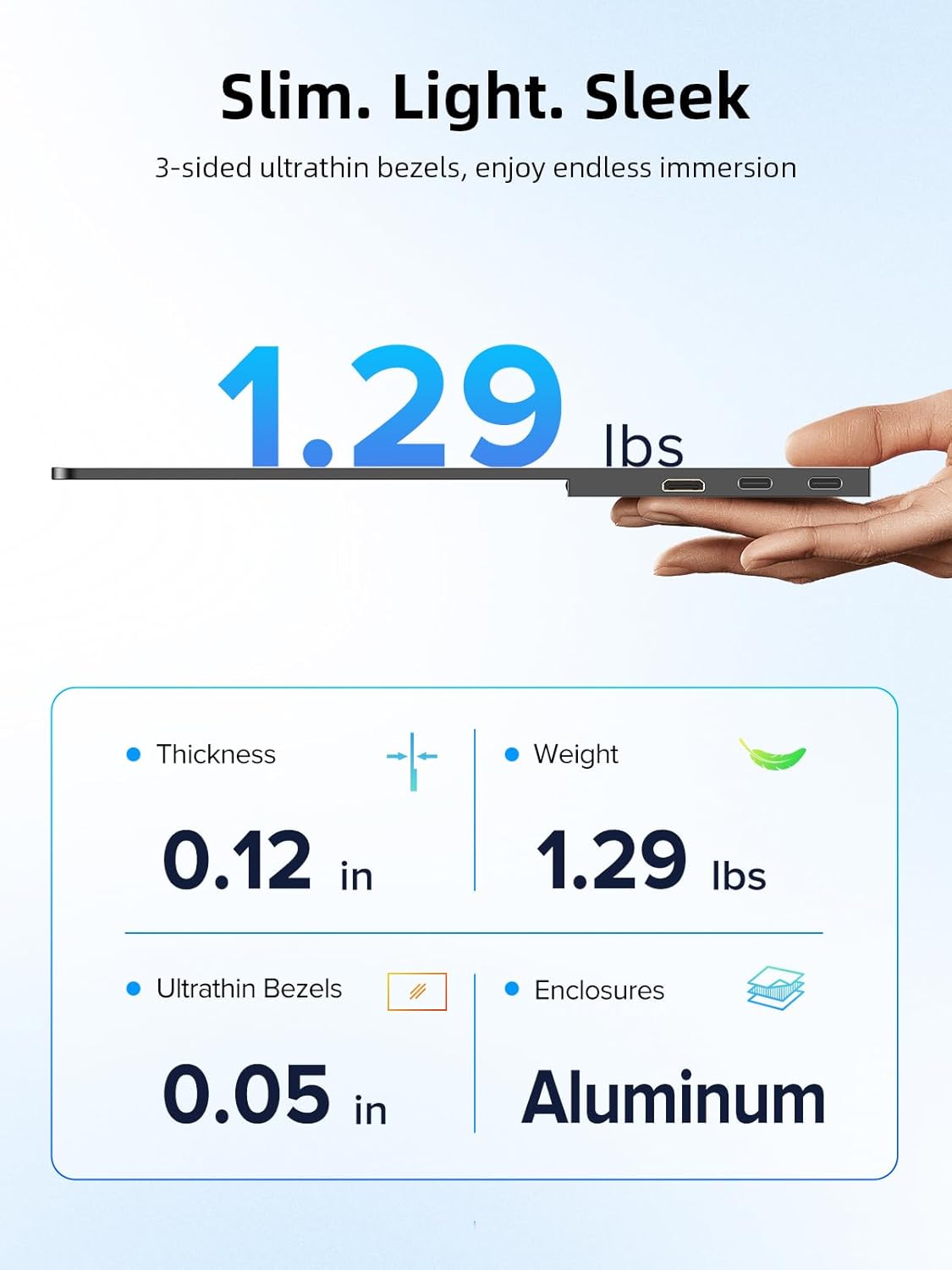
Figure 8: Monitor dimensions and construction.

Figure 9: Kickstand and VESA mounting options.
5. Usage Scenarios
The monitor's portability and features make it suitable for various uses:
- On-the-Go Productivity: Extend your laptop screen for increased workspace while traveling.
- Mobile Entertainment: Connect to smartphones or game consoles for a larger viewing experience.
- Desktop Extension: Integrate into a multi-monitor desktop setup for enhanced workflow.

Figure 10: Portable use with a smartphone.

Figure 11: Flexible use in various environments.

Figure 12: Integration into a desktop setup.

Figure 13: VESA mount usage for vertical display.
Maintenance
Proper care ensures the longevity and performance of your monitor.
- Cleaning the Screen: Use a soft, lint-free cloth slightly dampened with water or a screen-cleaning solution. Avoid harsh chemicals, abrasive materials, or direct spraying onto the screen.
- General Cleaning: Wipe the monitor's body with a dry, soft cloth. Keep vents clear of dust.
- Storage: When not in use, store the monitor in a cool, dry place, preferably in its original packaging or a protective sleeve to prevent scratches and damage.
Troubleshooting
If you encounter issues, refer to the following common solutions.
No Signal / Black Screen
- Check Cables: Ensure all video and power cables are securely connected to both the monitor and your source device.
- Power Source: Verify the monitor is receiving adequate power. If using HDMI, ensure a separate USB-C power adapter is connected.
- Input Source: Use the monitor's OSD menu to confirm the correct input source (USB-C or HDMI) is selected.
- Device Output: Ensure your source device (laptop, phone, console) is configured to output video to an external display.
Touchscreen Not Responding
- USB-C Connection: For touch functionality via USB-C, ensure you are using a full-featured USB-C cable that supports data transfer.
- HDMI Connection: If using HDMI, a separate USB-A to USB-C cable must connect the monitor to your device's USB-A port for touch data.
- Windows Settings: In Windows, go to 'Tablet PC Settings' and click 'Setup...' to identify and configure the touchscreen. Ensure the portable monitor is designated as the touch input device.
- Driver Installation: Some operating systems may require specific drivers for touchscreen functionality. Check the manufacturer's website for driver downloads.
Incorrect Resolution or Refresh Rate
- Device Compatibility: Ensure your source device supports the desired 3K (2880x1800) resolution and 120Hz refresh rate.
- Cable Type: For 120Hz at 3K, a full-featured USB-C cable is required. HDMI connections will support 3K at a maximum of 100Hz.
- Display Settings: Adjust the resolution and refresh rate in your device's display settings.
Specifications
| Brand | UPERFECT |
| Model Number | UP22011 |
| Screen Size | 14 Inches |
| Resolution | 3K (2880x1800) |
| Display Type | OLED |
| Refresh Rate | 120 Hz (via Type-C), 100 Hz (via HDMI at 3K) |
| Response Time | 0.1 Milliseconds |
| Brightness | 500 Candela (Nits) |
| Contrast Ratio | 500000:1 |
| Color Gamut | 120% DCI-P3 |
| Viewing Angle | 178 Degrees |
| Touchscreen | Yes, 10-Point Multi-Touch |
| Connectivity | HDMI, USB-C (2x), USB 2.0 (1x), USB 3.0 (2x), Thunderbolt (1x) |
| Audio | Built-In Speakers |
| Adaptive Sync | FreeSync |
| Dimensions (D x W x H) | 14"D x 8"W x 0.2"H |
| Item Weight | 1.28 Pounds |
| Mounting Type | Desk Mount, VESA (75mm) |
Warranty & Support
Your UPERFECT portable monitor comes with a 1-Year Limited Warranty. This warranty covers manufacturing defects and ensures your product functions as intended under normal use. For detailed terms and conditions, please refer to the warranty card included with your product or visit the official UPERFECT website.
For technical assistance, troubleshooting, or warranty claims, please contact UPERFECT customer support. The brand aims to provide 24/7 support to assist you with any inquiries.


