
1. Introduction
This manual provides detailed instructions for the operation and maintenance of your ZAQE X20 128GB Clip MP3 Player. Please read this manual thoroughly before using the device to ensure proper function and to maximize your user experience. Keep this manual for future reference.
2. Package Contents
Verify that all items listed below are included in your package:
- 1 x ZAQE X20 128GB MP3 Player
- 1 x USB Type-C Charging Cable
- 1 x Wired Earphones
- 1 x User Manual (this document)

Image: Contents of the ZAQE X20 MP3 Player package.
3. Device Overview
The ZAQE X20 is a compact and lightweight MP3 player designed for portability and ease of use. It features a 2.0-inch color display and intuitive physical buttons.
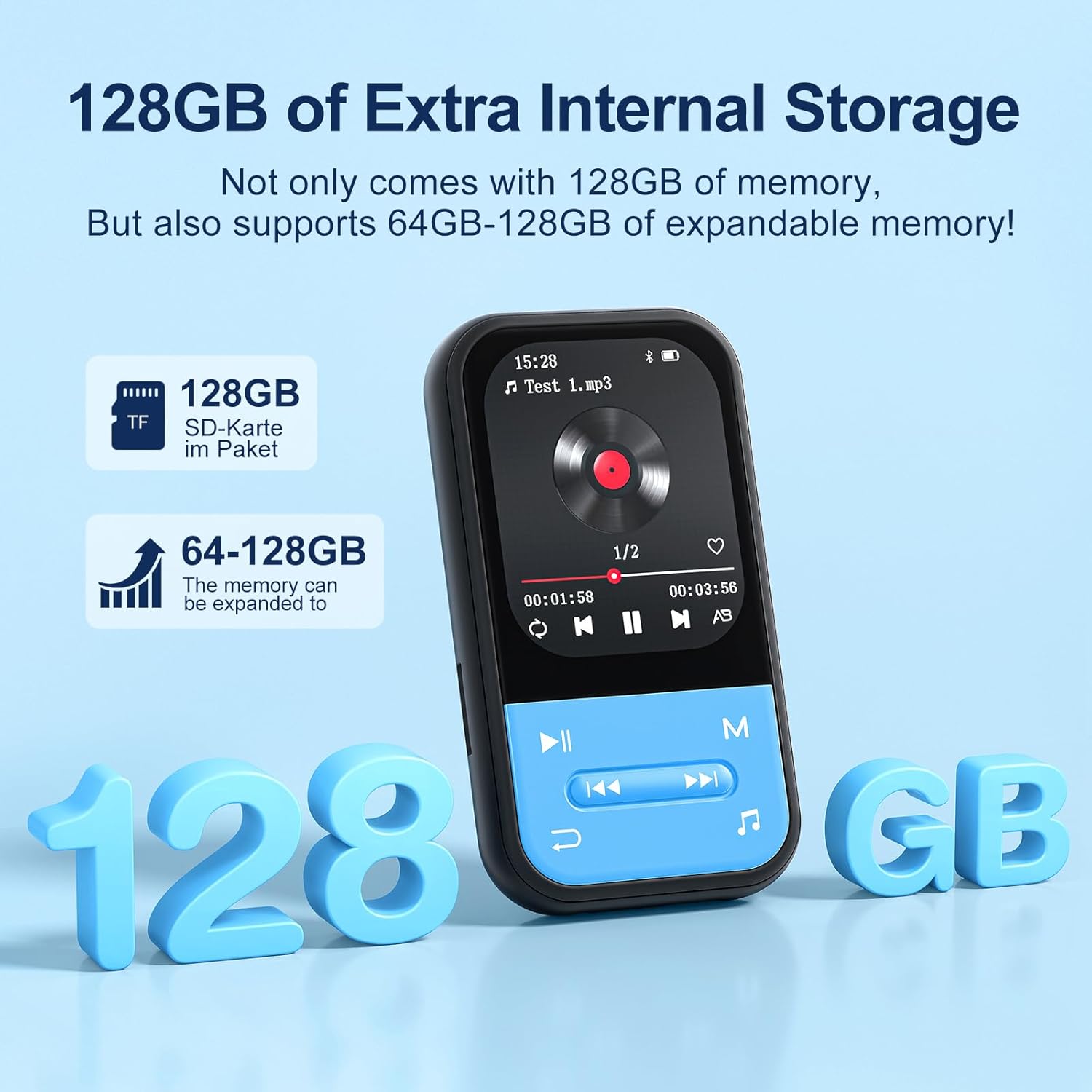
Image: Front view of the ZAQE X20 MP3 Player, highlighting the screen and navigation buttons.
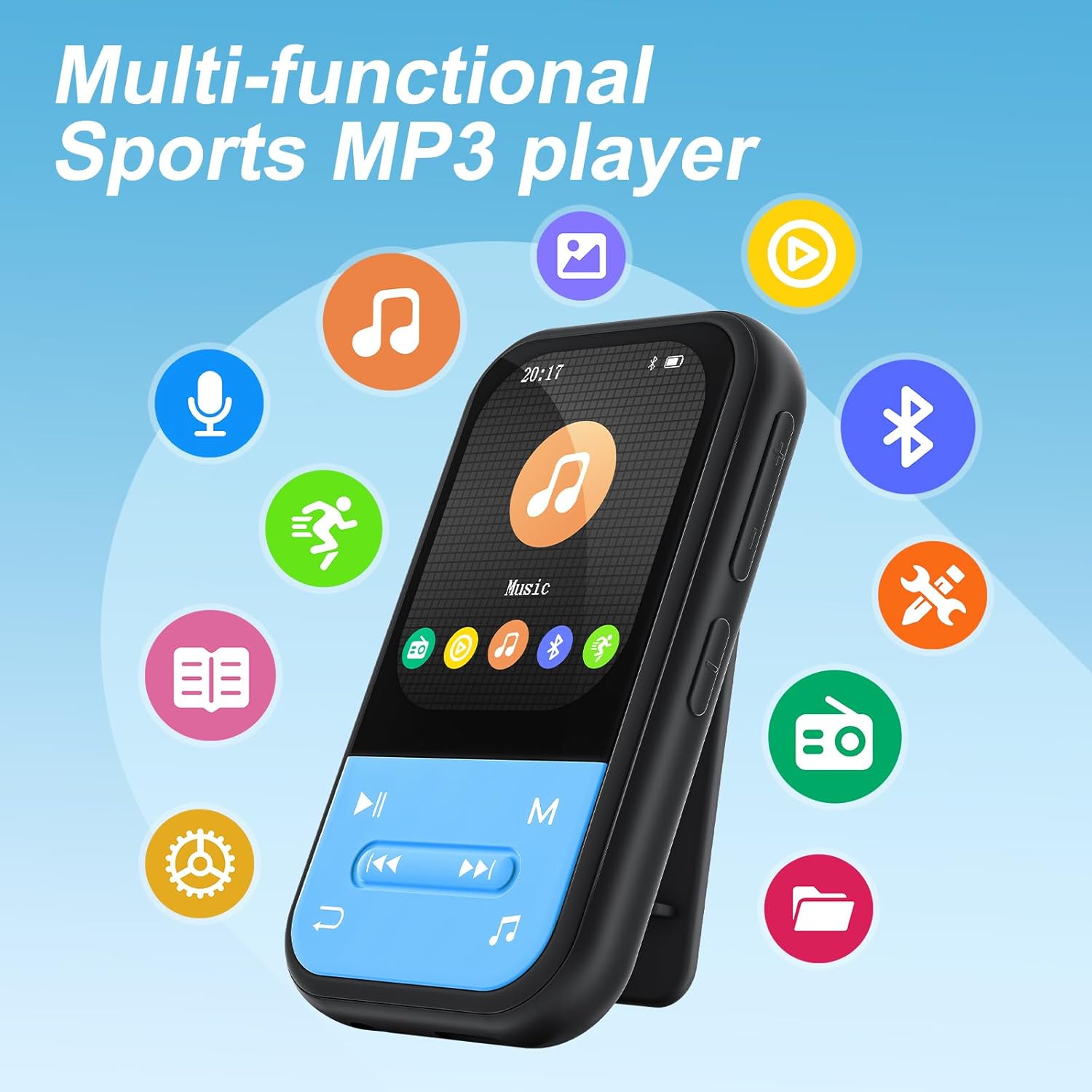
Image: Back view of the ZAQE X20 MP3 Player, illustrating the integrated clip for attaching to clothing.
4. Setup
4.1 Charging the Device
Before first use, fully charge the MP3 player. Connect the provided USB Type-C cable to the player's charging port and the other end to a USB power adapter (not included) or a computer's USB port. The battery indicator on the screen will show charging status.
4.2 Inserting a MicroSD Card
The ZAQE X20 comes with 128GB of internal storage and supports expandable memory up to 512GB via a microSD card (not included). Locate the microSD card slot on the side of the player. Gently insert the card until it clicks into place. To remove, push the card in slightly until it springs out.

Image: Illustration of the ZAQE X20 MP3 Player's 128GB internal storage and microSD card expansion capability.
4.3 Transferring Files
Connect the MP3 player to your computer using the USB Type-C cable. The player will appear as a removable disk drive. You can drag and drop music, video, and e-book files directly into the appropriate folders on the player or the inserted microSD card.
4.4 Connecting Headphones
Wired Headphones: Plug the included wired earphones or any standard 3.5mm audio jack headphones into the player's headphone port.
Bluetooth Headphones/Speakers:
- Ensure your Bluetooth headphones or speaker are in pairing mode.
- On the MP3 player, navigate to the Bluetooth menu.
- Select 'Search for devices' and choose your device from the list to pair.
Note: The ZAQE X20 MP3 player cannot pair with smartphones or tablets via Bluetooth. It is designed for audio output to Bluetooth headphones or speakers only.
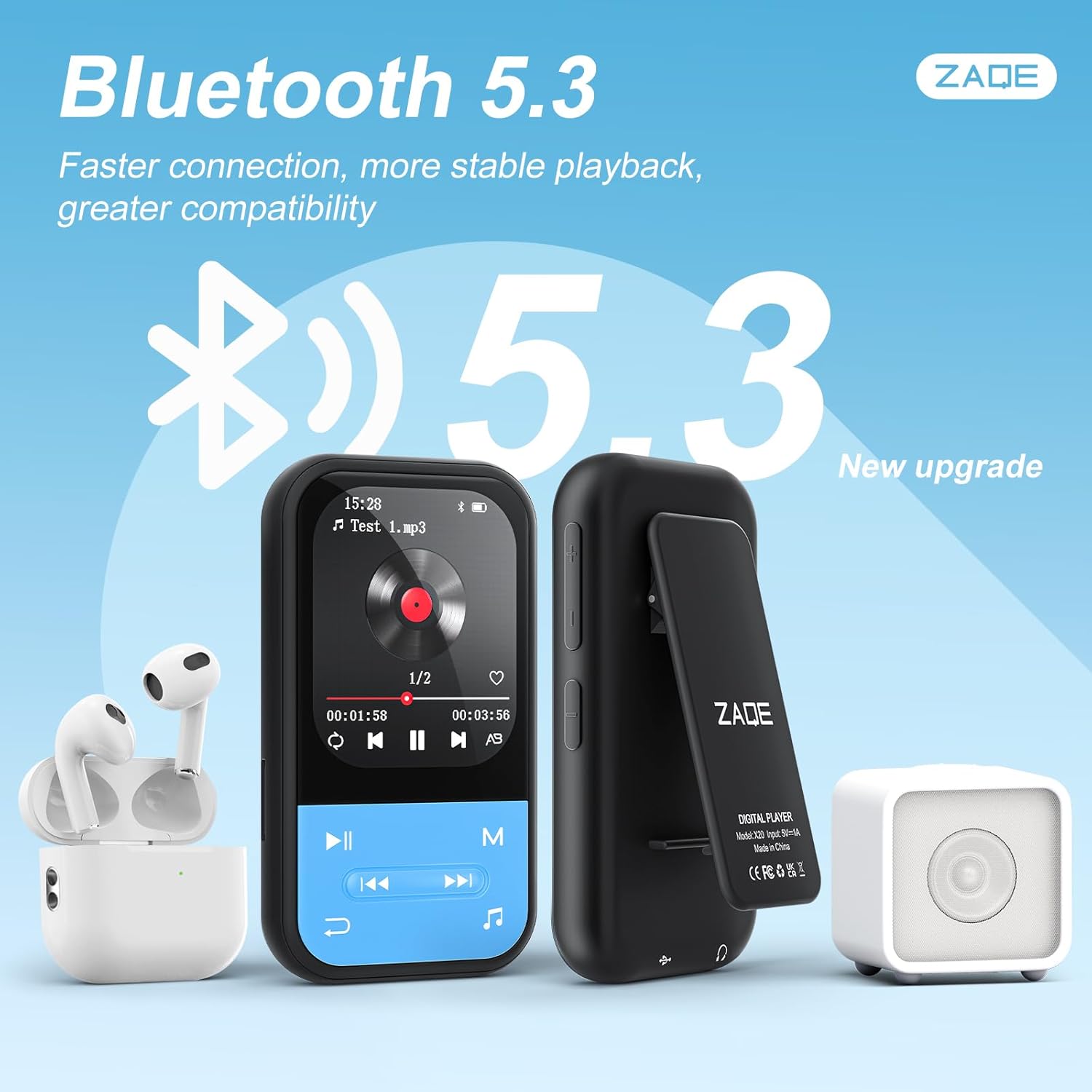
Image: The ZAQE X20 MP3 Player showcasing its Bluetooth 5.3 capability with various wireless audio devices.
5. Operating Instructions
5.1 Power On/Off
- Power On: Press and hold the power button until the screen lights up.
- Power Off: Press and hold the power button until the 'Power Off' option appears, then confirm.
5.2 Navigation
Use the physical buttons below the screen to navigate through menus and control playback. The central button typically acts as 'Enter' or 'Play/Pause', while surrounding buttons control direction, volume, and menu access.
5.3 Music Playback
The player supports MP3, OGG, APE, FLAC, WAV, AAC, and ACELP audio formats. Navigate to the 'Music' icon on the main menu to access your audio files.
Playback Modes:
- Sequential Play: Plays tracks in order.
- Repeat All: Repeats the entire playlist.
- Shuffle: Plays tracks in random order.
- Single Repetition: Repeats the current track.

Image: The ZAQE X20 MP3 Player displaying its various music playback modes.
5.4 FM Radio
To use the FM radio function, ensure wired headphones are plugged into the 3.5mm jack, as they serve as the antenna. Navigate to the 'FM Radio' icon, then use the menu options to scan for stations or manually tune.

Image: A user enjoying the FM Radio feature of the ZAQE X20 MP3 Player, emphasizing the need for wired headphones as an antenna.
5.5 Voice Recorder
Select the 'Recording' icon to access the voice recorder. You can record audio in WAV or MP3 format. Use the on-screen controls to start, pause, and save recordings.
5.6 E-Book Reader
The player supports e-book files. Transfer your e-book files to the player and select the 'E-Book' icon to read. Use the navigation buttons to turn pages.

Image: The ZAQE X20 MP3 Player functioning as an e-book reader, showing text on its display.
5.7 Pedometer
Activate the 'Pedometer' function to track your steps during physical activity. The device can record your step count and history.

Image: A user utilizing the pedometer feature of the ZAQE X20 MP3 Player during a run.
5.8 Useful Tools
The ZAQE X20 includes several utility tools:
- Alarm Clock: Set alarms for reminders.
- Calendar: View the current date.
- Stopwatch: Measure time intervals.

Image: The ZAQE X20 MP3 Player's 'Tools' menu, showing the Alarm Clock, Calendar, and Stopwatch functions.
5.9 Video Playback
The player supports AVI video files with a resolution of 320x240. Transfer compatible video files to the player and select the 'Video' icon to play them.
6. Maintenance
6.1 Cleaning
Wipe the device with a soft, dry cloth. Do not use liquid cleaners or abrasive materials, as they may damage the screen or casing.
6.2 Battery Care
- Avoid fully discharging the battery frequently.
- Do not expose the device to extreme temperatures.
- If storing the device for an extended period, charge it to about 50% to prolong battery life.
6.3 Storage
Store the MP3 player in a cool, dry place away from direct sunlight and moisture when not in use.
7. Troubleshooting
- Device does not power on: Ensure the battery is charged. Connect to a power source and try again.
- No sound: Check if headphones are properly connected (wired or Bluetooth). Adjust volume levels. Remember, the player does not have built-in speakers.
- Cannot transfer files: Ensure the USB cable is securely connected to both the player and the computer. Try a different USB port or cable.
- Bluetooth pairing issues: Ensure the target device is in pairing mode and within range. Restart both devices and try pairing again.
- FM Radio not working: Ensure wired headphones are plugged in, as they function as the antenna. Try rescanning for stations.
- Screen frozen or unresponsive: Press and hold the power button for about 10-15 seconds to force a restart.
8. Specifications
| Feature | Specification |
|---|---|
| Brand | ZAQE |
| Model | X20 |
| Internal Memory | 128 GB |
| Expandable Storage | Up to 512 GB (MicroSD card) |
| Connectivity | Bluetooth 5.3, USB Type-C |
| Screen Size | 2.0 Inches |
| Supported Audio Formats | MP3, OGG, APE, FLAC, WAV, AAC, ACELP |
| Supported Video Formats | AVI (320x240 resolution) |
| Supported Recording Formats | WAV, MP3 |
| Battery Life | Up to 40 Hours |
| Dimensions | Approx. 2.99 x 1.67 x 0.63 inches |
| Weight | Approx. 35g |
9. Warranty and Support
9.1 Warranty Information
Please refer to the product packaging or the official ZAQE website for specific warranty terms and conditions applicable to your device. Retain your proof of purchase for warranty claims.
9.2 Customer Support
For technical assistance, troubleshooting, or other inquiries, please visit the official ZAQE store on Amazon: ZAQE Store.


