
1. Introduction
Thank you for choosing the TCL 55T6C 4K UHD Smart QLED Google TV. This manual provides essential information for the safe and efficient use of your television. Please read it thoroughly before operating the device and retain it for future reference.
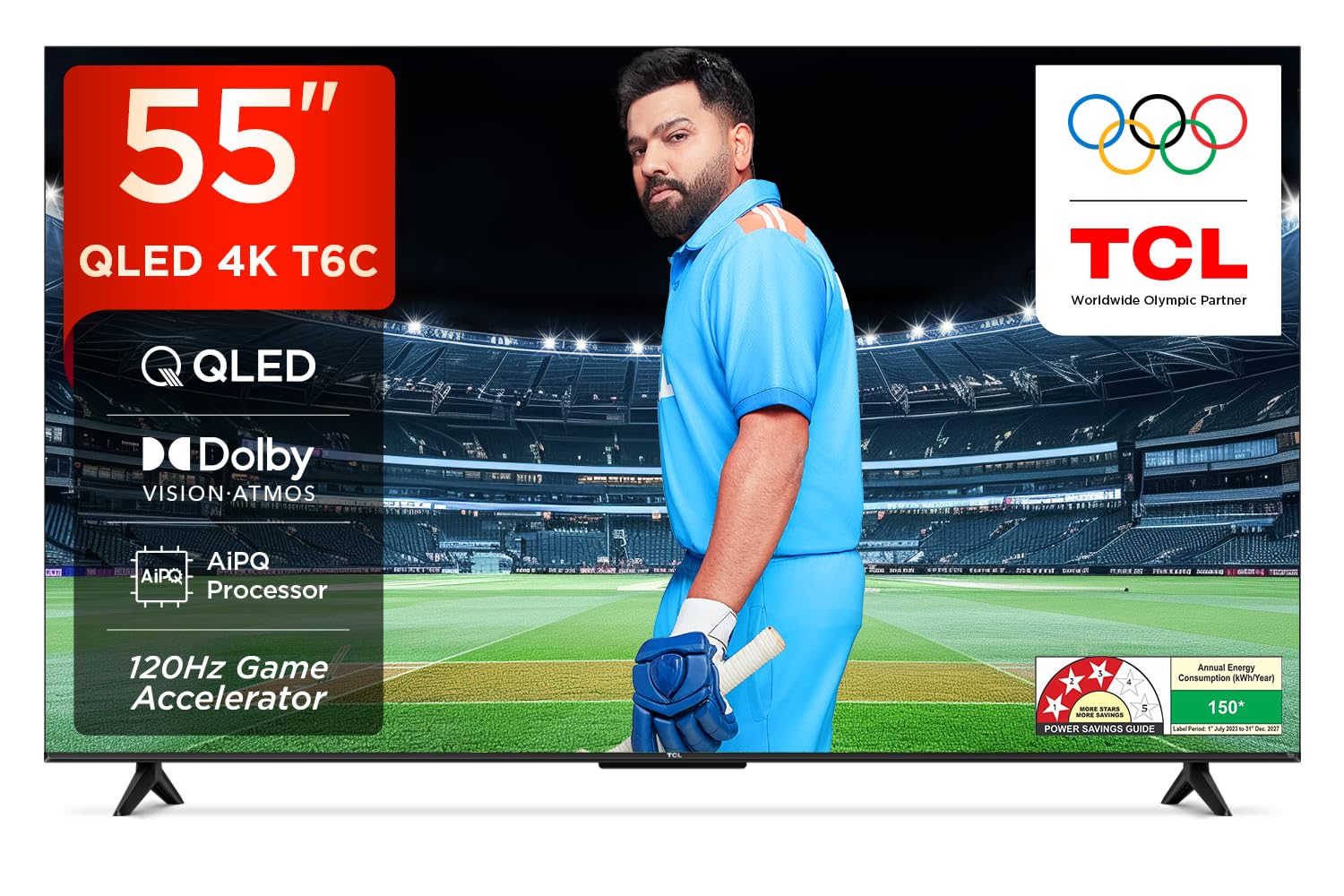
Image: Front view of the TCL 55T6C television, highlighting its sleek design and energy efficiency rating.
2. Safety Information
Always observe the following basic safety precautions when using your television:
- Do not block ventilation openings. Ensure adequate space around the TV for proper airflow.
- Do not place the TV on an unstable cart, stand, tripod, bracket, or table.
- Protect the power cord from being walked on or pinched.
- Do not expose the TV to rain or moisture to prevent fire or electric shock.
- Refer all servicing to qualified service personnel.
3. What's in the Box
Carefully unpack your television and check that all items are present:
- 1N LED TV (TCL 55T6C)
- 1N Audio Cable
- 1N Stand (for tabletop mounting)
- 1N Remote Control
- 2N AAA Batteries (for remote control)
Note: A fixed or adjustable wall mount is not included and must be purchased separately if wall mounting is desired.

Image: Illustration of the items included in the product packaging.
4. Physical Setup
4.1 Attaching the Stand
- Place the TV screen-down on a soft, flat surface to prevent damage.
- Align the stand with the mounting holes on the bottom of the TV.
- Secure the stand using the provided screws.
4.2 Wall Mounting (Optional)
If you choose to wall mount your TV, please use a compatible VESA wall mount (not included) and follow the instructions provided with the wall mount. Ensure the wall can support the weight of the TV (approximately 9.2 kg with stand, 9 kg without stand).

Image: Rear view of the television, indicating the VESA mounting pattern for wall installation.
4.3 Connecting Devices
Your TCL 55T6C TV offers various connectivity options:
- HDMI Ports (3): Connect Blu-ray players, gaming consoles, or set-top boxes. One port supports eARC for enhanced audio return.
- USB Port (1): Connect USB storage devices for media playback.
- Antenna/Cable In: Connect an antenna or cable TV signal.
- AV IN Adapter: For older devices using composite video and stereo audio.
- LAN: For wired internet connection.
- Digital Audio Out (Optical): For connecting to external audio systems.

Image: Detailed view of the television's side panel, showing all available input and output ports with numerical labels.
5. Initial Setup
- Power On: Connect the power cord to the TV and a power outlet. Press the power button on the remote control.
- Language Selection: Follow the on-screen prompts to select your preferred language.
- Network Connection: Connect your TV to the internet via Wi-Fi or Ethernet.
- Google Account Setup: Sign in with your Google account to access Google TV features, apps, and personalized recommendations.
- Channel Scan: If using an antenna or cable, perform an automatic channel scan.

Image: Screenshot of the Google TV home screen, displaying popular streaming applications and content suggestions.
6. Operating Your TV
6.1 Remote Control
The smart remote control allows you to navigate the TV's features. It includes dedicated hotkeys for popular streaming services and a Google Assistant button for voice commands.
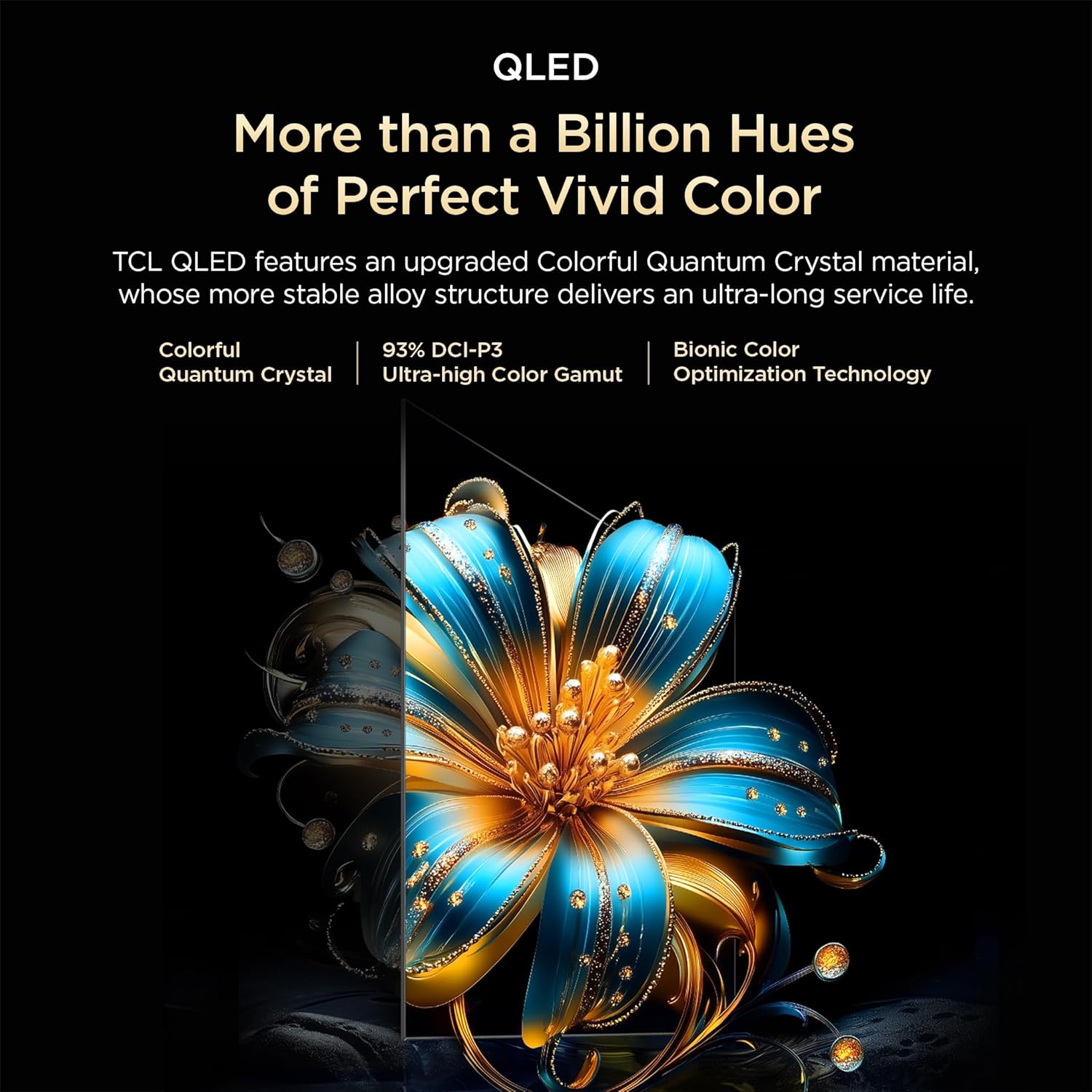
Image: Close-up of the remote control, highlighting the Google Assistant microphone button and quick access buttons for streaming services.
6.2 Smart TV Features (Google TV)
- Google Assistant: Use voice commands to search for content, control smart home devices, and get information.
- Streaming Apps: Access pre-installed apps like Prime Video, Netflix, Hotstar, Zee5, and download more from the Google Play Store.
- Screen Mirroring: Cast content from your smartphone or tablet to the TV.
- Watchlist: Create a unified watchlist across various streaming services.

Image: The Google TV interface demonstrating the Watchlist feature and its integration with mobile devices.
6.3 Picture and Sound Settings
Adjust picture and sound settings to optimize your viewing experience:
- Picture Modes: Select from various preset modes (e.g., Standard, Vivid, Movie, Game) or customize settings like brightness, contrast, and color.
- Sound Modes: Choose audio presets (e.g., Standard, Music, Movie) or adjust equalizer settings.
- Dolby Atmos: Experience immersive, three-dimensional audio.
- DTS Virtual:X: Enjoy virtualized 3D sound without additional speakers.
Image: Visual representation of Dolby Atmos technology delivering immersive sound from the television.
6.4 Gaming Features (Game Master)
The Game Master feature enhances your gaming experience:
- 120Hz Game Accelerator: Reduces latency and provides a higher refresh rate for smoother gameplay.
- Low Input Lag: Optimized for responsive gaming.

Image: A gaming scene displayed on the television, illustrating the benefits of the Game Master feature for an optimized gaming experience.
7. Maintenance
7.1 Cleaning the TV
- Always unplug the TV before cleaning.
- Use a soft, dry cloth to wipe the screen and cabinet.
- For stubborn marks, use a screen cleaner specifically designed for TVs, applied to the cloth, not directly to the screen.
- Do not use abrasive cleaners, waxes, or solvents.
7.2 Software Updates
Your TV may receive automatic software updates. Ensure your TV is connected to the internet to receive these updates, which can improve performance and add new features.
8. Troubleshooting
If you encounter issues with your TV, refer to the following common solutions:
| Problem | Possible Solution |
|---|---|
| No power | Check if the power cord is securely plugged into the TV and the power outlet. Ensure the outlet is active. |
| No picture, but sound is present | Check the input source. Ensure external devices are properly connected and powered on. |
| No sound, but picture is present | Check volume levels. Ensure mute is not activated. Check audio output settings if using external speakers. |
| Remote control not working | Replace the batteries. Ensure there are no obstructions between the remote and the TV's IR sensor. |
| Wi-Fi connection issues | Restart your router and modem. Re-enter the Wi-Fi password. Ensure the TV is within range of the router. |
For more complex issues, please contact TCL customer support.
9. Specifications
| Feature | Detail |
|---|---|
| Model | 55T6C |
| Display Size | 139 cm (55 inches) |
| Resolution | 4K UHD (3840 x 2160) |
| Display Technology | QLED, HDR 10+, HVA Panel, Dynamic Color Enhancement |
| Refresh Rate | 60 Hz (120Hz Game Accelerator) |
| Processor | 64-bit Quad Core, AiPQ Processor |
| Operating System | Google TV |
| RAM / ROM | 2 GB / 16 GB |
| Audio Output | 24 Watts, Dolby Atmos, DTS Virtual:X |
| Connectivity | 3 HDMI (1 eARC), 1 USB, Wi-Fi 5, Ethernet, Bluetooth |
| Dimensions (with stand) | 25.5 x 122.6 x 75 cm |
| Weight (with stand) | 9.2 kg |
| Power Consumption | 135 Watts |
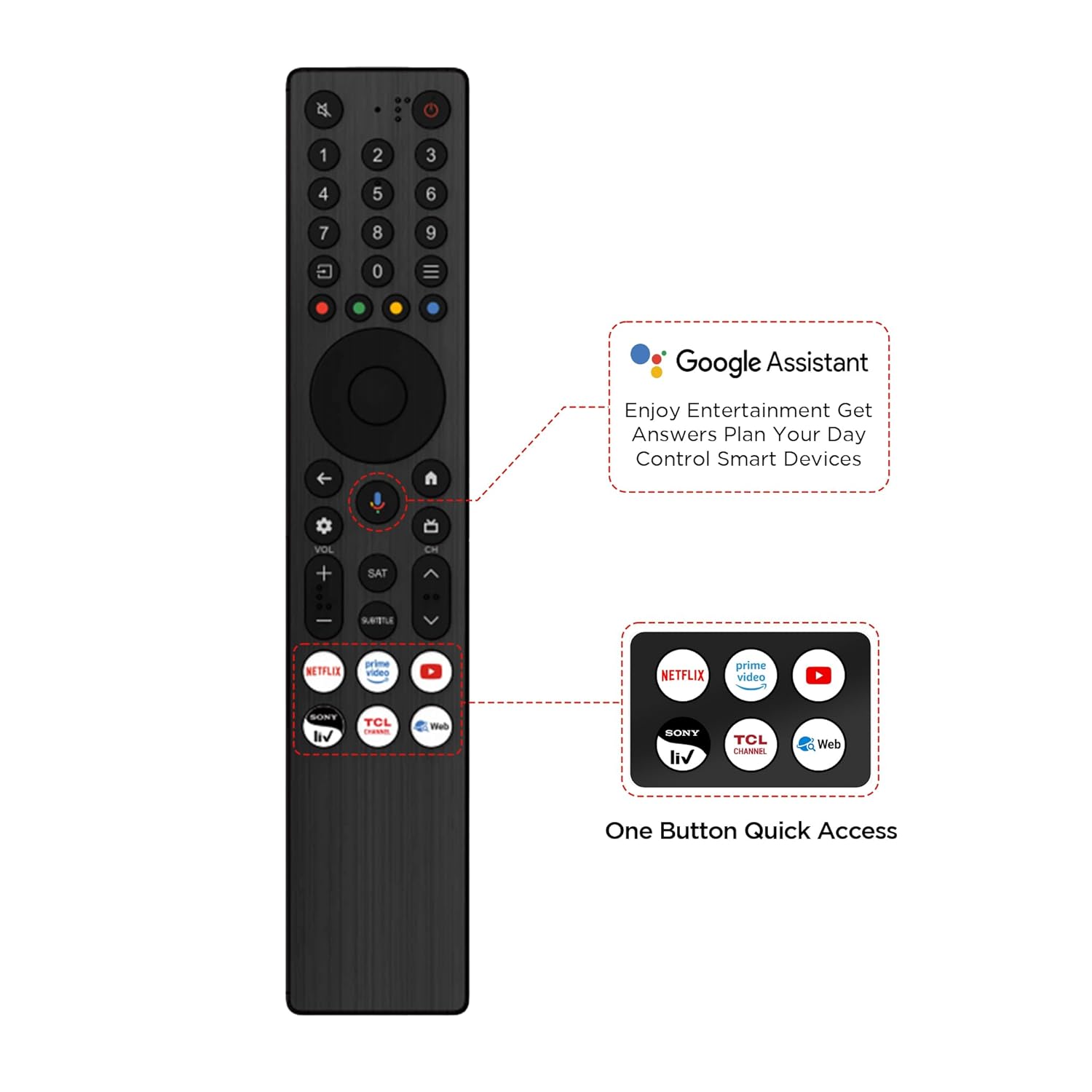
Image: Diagram illustrating the physical dimensions of the TCL 55T6C television, both with and without its stand.
10. Warranty and Support
10.1 Warranty Information
Your TCL 55T6C television comes with a 2-year manufacturer's warranty from the date of purchase. The remote control has a separate 6-month warranty. Warranty claims can be processed using your Amazon e-invoice.
10.2 Customer Support
For technical assistance, service requests, or further inquiries, please visit the official TCL support website or contact their customer service helpline. Refer to the product packaging or TCL's official website for the most current contact information.