
Introduction
The OTTOCAST P3 Pro OttoAibox is an advanced Android 13 Smart AI Box designed to enhance your in-car experience. It integrates Wireless CarPlay and Android Auto functionalities, along with a car video player and split-screen capabilities, transforming your vehicle's display into a comprehensive entertainment and navigation hub.
What's in the Box
- 1 x Ottocast P3 Pro Device
- 1 x User Manual
- 1 x Y Cable (for stable connection)
- 1 x USB-A to USB-C Adapter
- 1 x USB-A to USB-C Cable
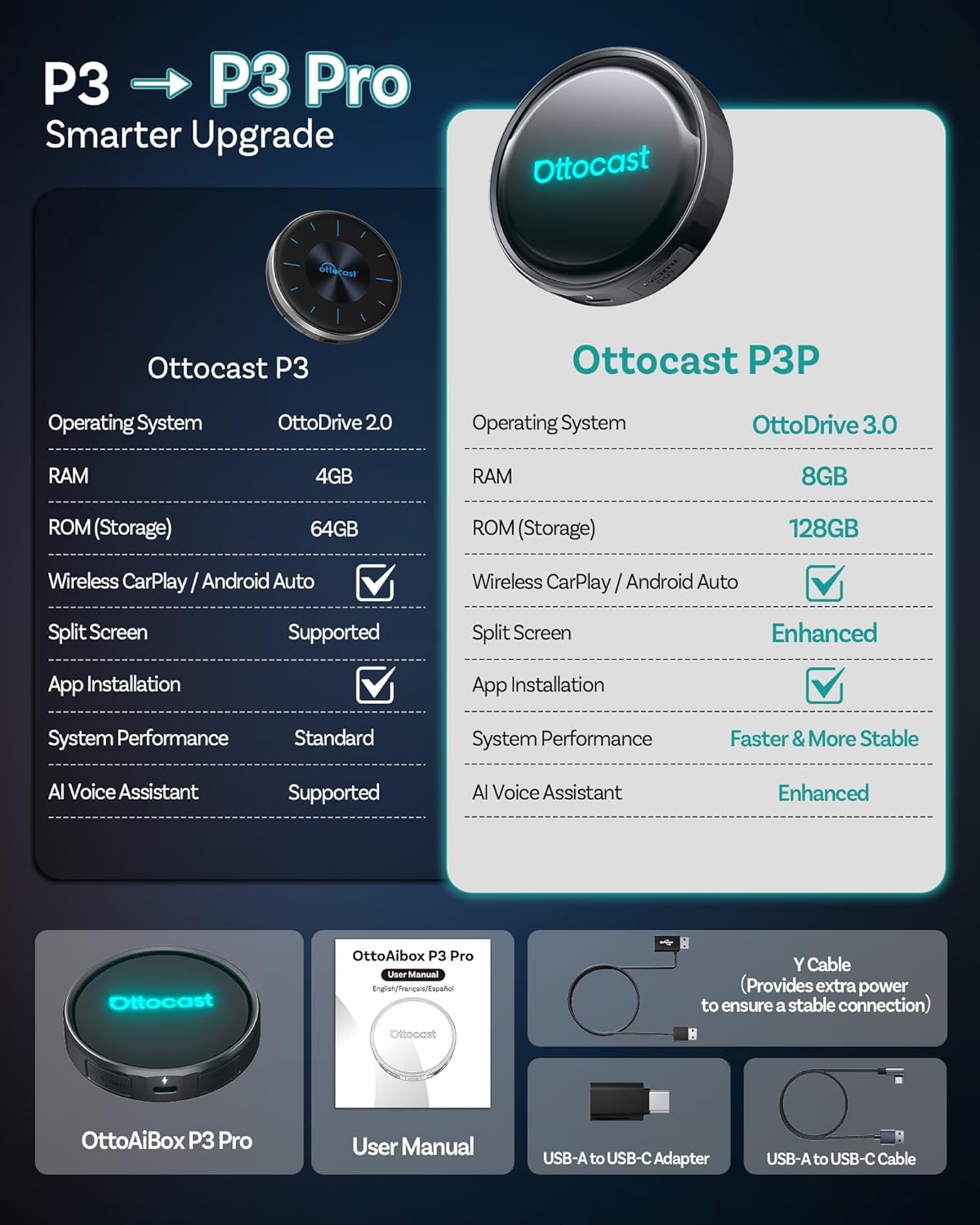
Image: The Ottocast P3 Pro device and its accompanying accessories, including cables and the user manual.
Setup Instructions
- Step 1: Plug in the Device
Connect the OTTOCAST P3 Pro to your car's USB port using the provided cables. Ensure a stable connection. - Step 2: Connect to Car's Wi-Fi or Hotspot
Once powered on, navigate to the device's settings on your car's display and connect to your car's Wi-Fi or a mobile hotspot for internet access. - Step 3: Start Driving
The device is now ready for use. It will auto-connect after the initial setup for convenient daily use.

Image: Visual guide for connecting the Ottocast P3 Pro to your vehicle and establishing an internet connection.
For initial connection to Wireless CarPlay or Android Auto, open the multimedia interface on your car screen. Search for and connect to the Bluetooth name displayed by the car system via your phone's Bluetooth settings. Once connected, CarPlay or Android Auto will launch automatically.
Operating Instructions
OttoDrive 3.0 OS and User Interface
The P3 Pro features the OttoDrive 3.0 OS, offering a seamless UI with swipe/touch gestures. It is optimized for one-touch app access and includes Day & Night Driving Comfort Mode. The quick access control center mimics smartphone ease for a zero learning curve.

Image: The OttoDrive 3.0 operating system interface with widgets for weather, speed, and music, along with app shortcuts.
Wireless CarPlay and Android Auto
The device supports both Wireless CarPlay and Wireless Android Auto, allowing for seamless integration of your smartphone's features onto your car's display without physical cables.

Image: Demonstrates the quick 10-second connection for wireless CarPlay and Android Auto.
Split-Screen Multitasking
Run two applications side-by-side on your car's display. You can adjust the screen ratio (e.g., 5:5, 7:3, 3:7) to suit your needs, such as navigating while streaming music or watching videos (for passengers). Custom layouts can be saved and switched with a tap.

Image: Examples of split-screen configurations, combining navigation with music or video for enhanced multitasking.
AI Voice Assistant
Control various functions using voice commands. The upgraded AI Assistant allows you to manage apps, make calls, play music, and get navigation directions hands-free, promoting safer driving.

Image: The AI Voice Assistant responding to commands like finding a coffee shop or playing a driving playlist.
HDMI Output
Mirror your car's screen to an external display, such as a rear-seat entertainment system. This feature allows front passengers to use navigation while backseat passengers watch movies, ideal for family trips.
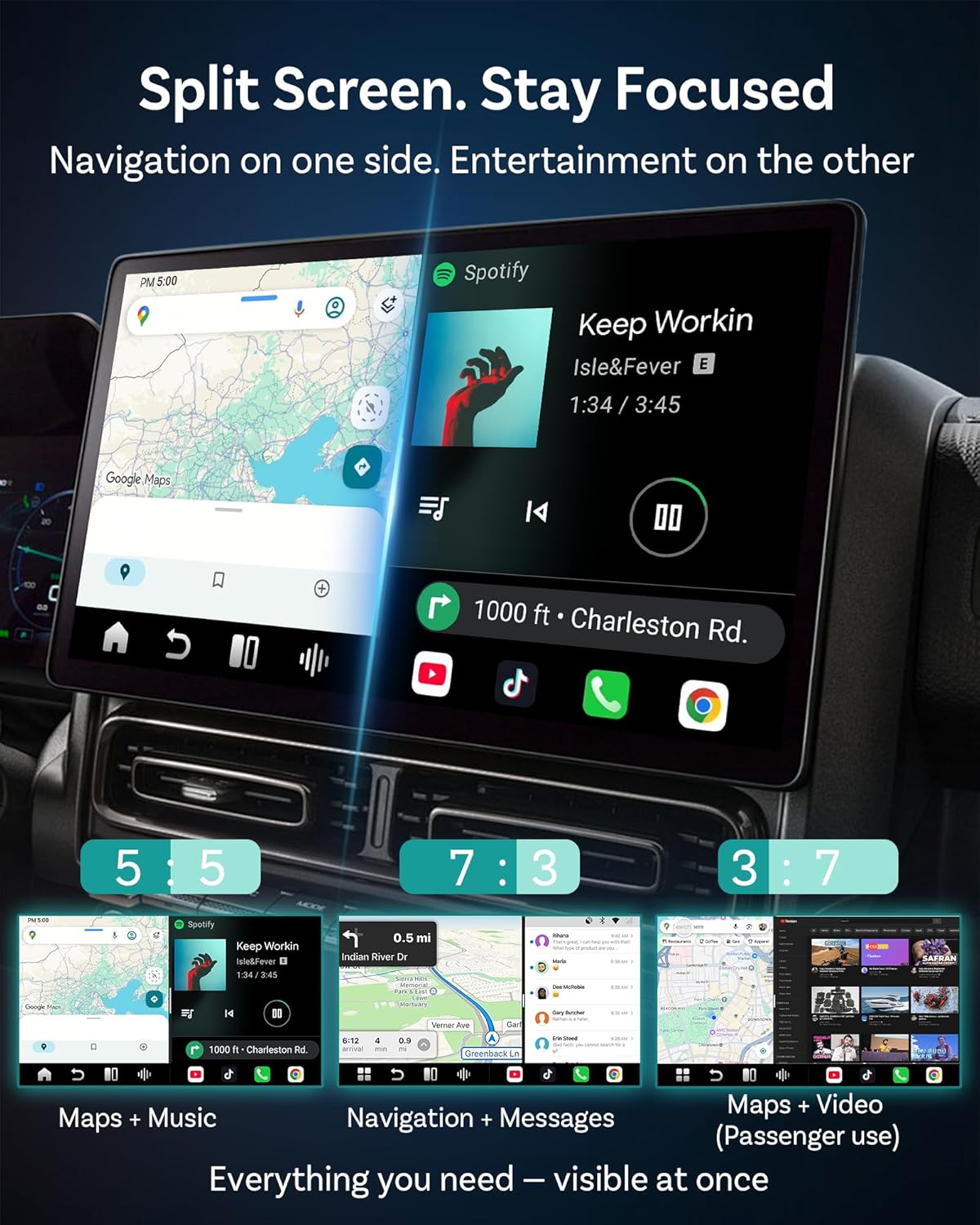
Image: Demonstrates the HDMI output feature, enabling dual-screen entertainment for both front and rear passengers.
App Installation and Control
Download and stream from popular applications like YouTube, Netflix, Amazon Video, and Spotify directly on your car's display. If your car lacks a touchscreen, you can use the AiControl app on your phone to control the interface.

Image: Instructions for downloading the AiControl app via QR code or app stores to control the device remotely. Download the app here: AiControl App Download
Features
- Processor: Equipped with the Qualcomm 6225 chip for enhanced responsiveness and stability.
- Memory: 8GB RAM and 128GB ROM for smooth performance and ample storage.
- Storage Expansion: Supports TF (MicroSD) cards up to 512GB for additional media storage.
- Connectivity: Dual-Band Wi-Fi built-in for stable streaming, Bluetooth device support for smartphones, keyboards, and game controllers.
- GPS: Integrated QZSS (Quasi-Zenith Satellite System) for higher GPS accuracy, beneficial for city driving and real-time rerouting.
- Auto-Fit Display: Smart auto-fit display adapts perfectly to various car screen shapes (horizontal, vertical, floating, or built-in).

Image: Illustration of the Qualcomm 6225 chip, emphasizing its contribution to the device's performance.
Image: The device's TF card and SIM card slots, detailing storage expansion and connectivity options.

Image: Demonstrates the smart auto-fit display feature, showing compatibility with diverse car screen models.
Maintenance
To ensure optimal performance and longevity of your OTTOCAST P3 Pro, keep the device clean and free from dust. Avoid exposing it to extreme temperatures or direct sunlight for extended periods. Regularly check for and install system updates to benefit from the latest features and improvements.
Troubleshooting
If you encounter any issues with your OTTOCAST P3 Pro, try the following basic troubleshooting steps:
- Ensure all cables are securely connected.
- Restart your car's infotainment system and the P3 Pro device.
- Verify your Wi-Fi or hotspot connection is active and stable.
- Check for available software updates for the device.
For more complex issues, refer to the support section for assistance.
Specifications
| Feature | Detail |
|---|---|
| Product Dimensions | 3.35 x 0.81 x 3.35 inches |
| Item Weight | 4.2 ounces |
| Item Model Number | PCS61 |
| Date First Available | September 14, 2025 |
| Manufacturer | OTTOCAST |
| Language | English |
| Compatible Devices | Android Phone, iPhone |
| Connector Type | USB Type C |
| Color | Black |
Warranty Information
For detailed warranty information regarding your OTTOCAST P3 Pro, please refer to the official OTTOCAST website or the warranty card included with your product. Warranty terms and conditions may vary by region and purchase location.
Support
OTTOCAST offers 24/7 AI Customer Support to assist you with any setup or usage questions. You can access support through the device's interface or the official OTTOCAST channels.

Image: Visual representation of the available 24/7 AI customer support for the Ottocast P3 Pro.
Product Video
Video: An unboxing and demonstration video of the OTTOCAST P3 Pro, showcasing its features and ease of use.


