
Introduction
Thank you for choosing the Salange 2026 Mini Projector. This portable smart projector is designed to deliver a high-quality visual experience with its 4K support, Android 14 operating system, and advanced connectivity features like WiFi 6 and Bluetooth 5.4. This manual provides essential information for safe and efficient use of your device. Please read it thoroughly before operation and retain it for future reference.
Safety Information
- Do not look directly into the projector lens when the lamp is on.
- Ensure proper ventilation around the projector to prevent overheating.
- Use only the power adapter supplied with the projector.
- Keep the projector away from water, moisture, and flammable materials.
- Avoid placing the projector on unstable surfaces.
- Do not attempt to disassemble or repair the projector yourself. Contact qualified service personnel.
Setup
1. Unboxing and Initial Placement
Carefully remove the projector and all accessories from the packaging. Place the projector on a stable, flat surface. For optimal viewing, position the projector perpendicular to the projection surface. The projector features a 270° rotatable design for flexible placement.
2. Power Connection
Connect the power cord to the projector's power input port and then plug it into a power outlet. The projector will typically power on automatically or can be turned on using the power button on the device or remote control.

Image: Rear view of the Salange 2026 Mini Projector with power, HDMI, and USB ports.
3. Focus and Keystone Adjustment
The Salange 2026 Mini Projector supports manual focus adjustment. Rotate the focus ring on the projector to achieve a sharp image. It also features automatic vertical keystone correction (±45°) to eliminate image distortion, ensuring a rectangular picture even when the projector is not perfectly aligned. For more precise adjustments, 4-point correction may be available in the settings.

Image: Automatic vertical keystone correction and manual focus adjustment.
4. Network Connection (WiFi 6)
Navigate to the settings menu on the projector. Select 'Network' or 'Wi-Fi' and choose your desired network from the list. Enter the password if prompted. The projector supports dual-band (2.4 GHz + 5 GHz) Wi-Fi 6 for stable and fast connections.
5. Bluetooth Pairing
To connect Bluetooth audio devices, go to the settings menu and select 'Bluetooth'. Turn on Bluetooth and search for available devices. Select your device from the list to pair. This allows for wireless audio output to speakers or headphones.
Operating Instructions
1. Power On/Off
Press the power button on the projector or the remote control to turn the device on or off. A short press typically puts the projector into standby mode, while a long press performs a full shutdown.
2. Navigating the Android 14 Interface
The projector runs on Android 14.0, providing access to a wide range of applications. Use the remote control to navigate through the home screen, app drawer, and settings. The interface is similar to a smart TV, allowing for intuitive use.
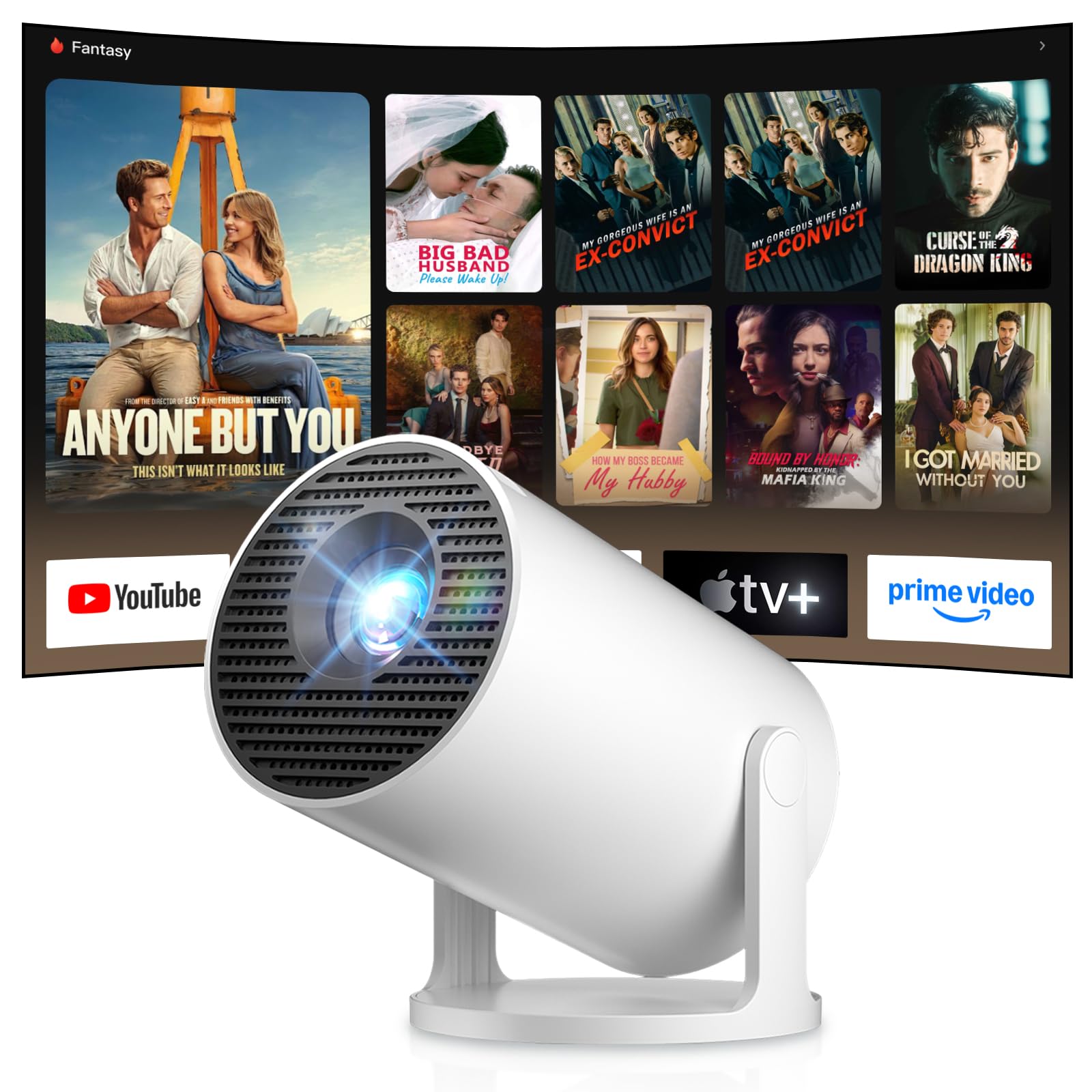
Image: Android TV 14.0 interface with streaming applications.
3. App Installation
With Android 14, you can install over 8,000 applications directly onto the projector. Access the app store (e.g., Google Play Store) from the home screen, search for desired apps (video players, games, office software), and install them.
4. Screen Mirroring (iOS/Android)
The projector supports screen mirroring for both iOS and Android devices. Ensure your mobile device and the projector are connected to the same Wi-Fi network. On your mobile device, activate the screen mirroring function (e.g., AirPlay for iOS, Cast for Android) and select the projector from the list of available devices.

Image: Wireless casting from mobile devices to the projector.
5. Connecting External Devices (HDMI, USB)
Use the HDMI port to connect devices such as laptops, game consoles (PS5, Switch), or TV sticks. Use the USB port to connect USB drives for media playback or other peripherals. Select the appropriate input source from the projector's input menu.
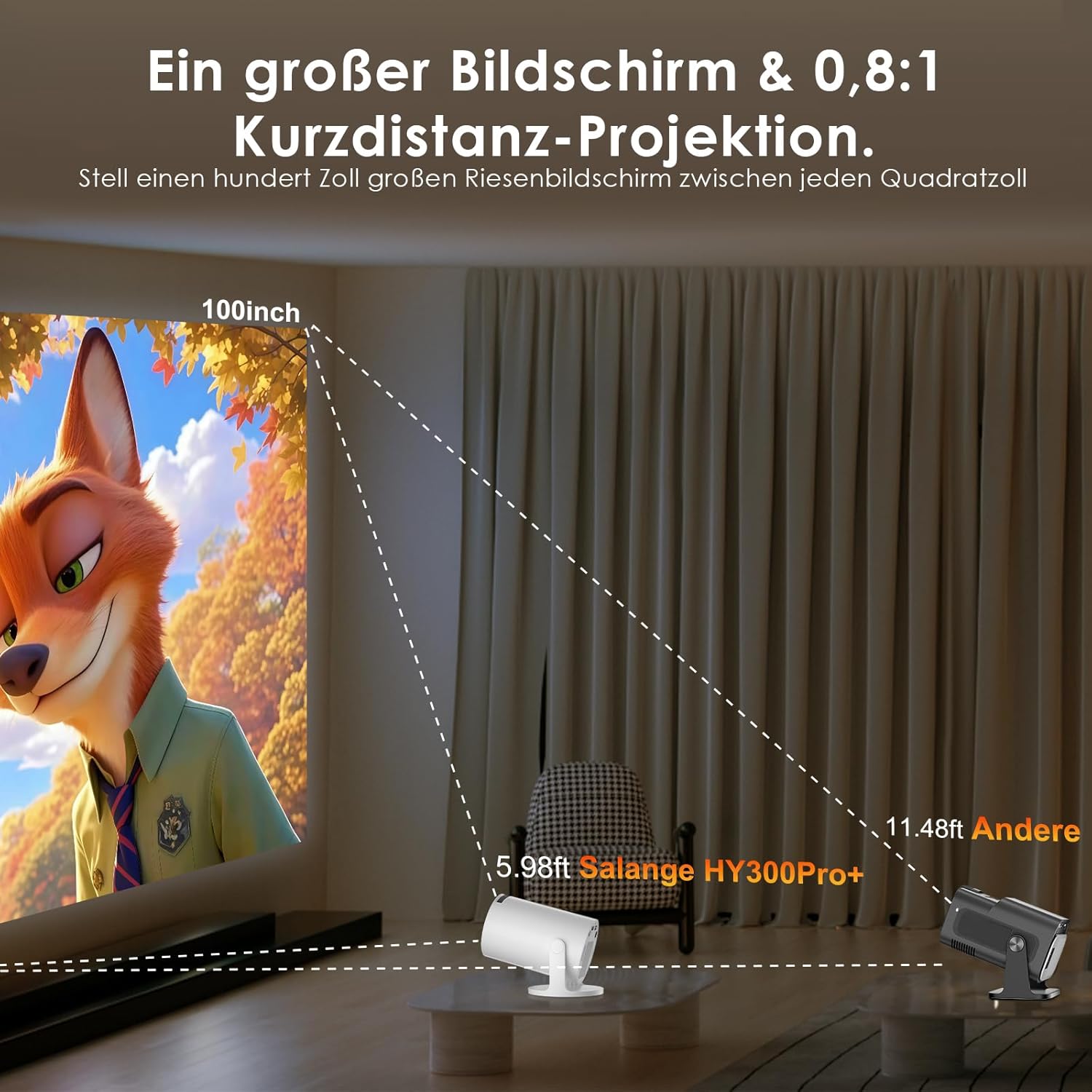
Image: Connectivity options for HDMI, Audio, and USB devices.
6. Audio Output
The projector has built-in speakers. For enhanced audio, connect external speakers or headphones via Bluetooth or the 3.5mm audio jack.
Maintenance
1. Cleaning the Lens
Use a soft, lint-free cloth specifically designed for optical lenses to gently wipe the projector lens. Avoid using abrasive cleaners or excessive pressure, which can scratch the lens.
2. Cleaning the Exterior
Wipe the projector's exterior with a soft, dry cloth. For stubborn dirt, a slightly damp cloth can be used, followed by a dry cloth. Do not use harsh chemicals or solvents.
3. Storage
When not in use for extended periods, store the projector in a cool, dry, and dust-free environment. Use the original packaging or a protective case to prevent damage.
Troubleshooting
- No Power: Ensure the power cord is securely connected to both the projector and the power outlet. Try a different outlet.
- No Image: Check if the projector is powered on. Verify the input source is correctly selected (e.g., HDMI 1, USB). Ensure the lens cap is removed.
- Blurred Image: Adjust the manual focus ring until the image is sharp. Check if the projector is too close or too far from the screen.
- Image Distortion (Trapezoid): The projector has automatic keystone correction. If manual adjustment is needed, check the display settings for keystone correction options.
- No Sound: Check the volume level on both the projector and the connected source device. Ensure external audio devices are correctly connected and selected as the output.
- Wi-Fi/Bluetooth Connection Issues: Ensure the projector is within range of your router or Bluetooth device. Restart the projector and your network devices. Re-pair Bluetooth devices.
- Remote Control Not Responding: Check the batteries in the remote control. Ensure there are no obstructions between the remote and the projector's IR receiver.
Product Specifications
| Feature | Specification |
|---|---|
| Manufacturer | Salange |
| ASIN | B0G43FF84L |
| Country of Origin | China |
| Recommended Uses | Business, Home Cinema, Gaming, Education |
| Special Features | Wi-Fi Compatible, Digital Keystone Correction, Lightweight, Portable |
| Connectivity Technology | Bluetooth, HDMI, USB, Wi-Fi |
| Native Display Resolution | 1280 x 720 pixels |
| Maximum Display Resolution | 3840 x 2160 pixels (4K supported) |
| Display Type | LCD |
| Product Dimensions (L x W x H) | 10.1 x 10.1 x 17 cm |
| Form Factor | Portable |
| Mounting Type | Table Mount |
| Brightness | 8000 Lumens |
| Color | White |
| Compatible Devices | Game Console, Speaker, Laptop, Smartphone, Television |
| Contrast Ratio | 1500:1 |
| Maximum Image Size | 150 Inches |
| Minimum Image Size | 30 Inches |
| Video Encoding | H.265 |
| Image Enhancement Technology | HDR |
| Box Contents | 1 Projector, 1 Power Cord, 1 Remote Control, 1 User Manual |
Warranty Information
The Salange 2026 Mini Projector comes with a standard manufacturer's warranty. Please refer to the warranty card included in your product packaging for specific terms, conditions, and duration. Keep your proof of purchase for warranty claims.
Customer Support
For technical assistance, troubleshooting, or any questions regarding your Salange 2026 Mini Projector, please contact Salange customer support. Contact details can typically be found on the official Salange website or in the warranty information provided with your product.


