
Introduction
The HiDock P1 is an advanced AI voice recorder designed to enhance productivity in various settings, including meetings, lectures, and personal notes. It features innovative BlueCatch technology for seamless integration with wireless earbuds, offering clear audio recording and high-precision transcription in multiple languages. This manual provides essential information for setting up, operating, and maintaining your HiDock P1 device.
What's in the Box
Verify that all items are present in the package:
- HiDock P1 Device (Space Gray)
- USB-C Touch Control Cable
- Metal Mounting Plate
- Quick Start Guide
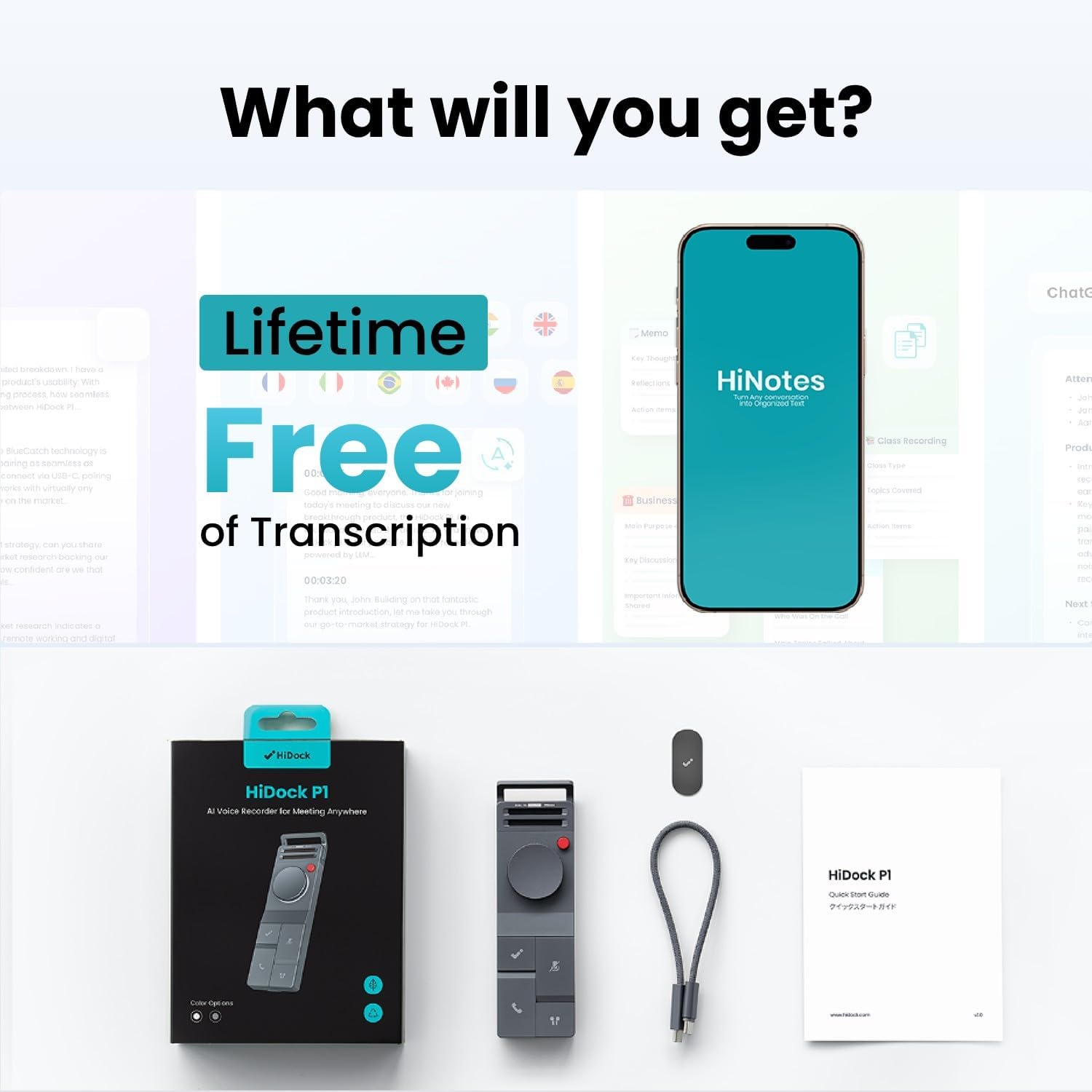
Image: HiDock P1 package contents, showing the device, USB-C cable, metal plate, and quick start guide.
Video: An unboxing of the HiDock P1, showcasing the device and its accessories.
Setup
Initial Power On/Off
To power on the HiDock P1, locate the ON/OFF switch on the side of the device and slide it to the 'ON' position. A blue indicator light will illuminate, signifying that the device is active. To power off, slide the switch to 'OFF'.
Connecting to Devices
The HiDock P1 connects to your computer or smartphone via the included USB-C Touch Control Cable. Simply plug the USB-C end into the HiDock P1 and the other end into your device. For Bluetooth earbuds, utilize the exclusive BlueCatch technology for seamless pairing and recording.

Image: The HiDock P1 connected to a laptop via its USB-C cable, illustrating instant recording functionality.
Video: Demonstration of recording and playback using the HiDock P1.
Operating Modes
The HiDock P1 offers three smart recording modes to suit different environments:
- Call Mode: Designed for online meetings and phone calls. When used with Bluetooth earbuds, it records clear audio directly through your headphones, ensuring privacy and a smooth recording experience.
- Room Mode: Utilizes the device's dual high-performance ECM microphones to capture audio from interviews, conferences, and group discussions.
- Whisper Mode: Ideal for capturing spontaneous ideas or personal memos discreetly.

Image: Visual representation of the three smart recording modes: Call Mode for earphone recording, Room Mode for group settings, and Whisper Mode for personal notes.
Video: Demonstrates the HiDock P1's functionality with wireless earbuds for recording.
Key Features
BlueCatch Technology
The HiDock P1 is the first recorder to work seamlessly with your own Bluetooth earbuds using BlueCatch technology. This allows for clear audio recording directly through your headphones during calls or conversations, providing unparalleled privacy and a natural recording experience.

Image: A person using the HiDock P1 with wireless earbuds, demonstrating the BlueCatch technology for recording.
HiNotes App & AI Transcription
The companion HiNotes App serves as your command center for recordings. It provides high-precision transcription in 75 languages using top-tier AI models (including GPT-5, GPT-4, Gemini 3.0 Pro, Claude 4.1). The app can automatically generate meeting minutes, action lists, or custom summaries from multiple templates. Recordings are stored locally first, and transcriptions use secure API calls without training on your data. All data is encrypted end-to-end and stored on Microsoft Azure's SOC & ISO 27001 certified platform.
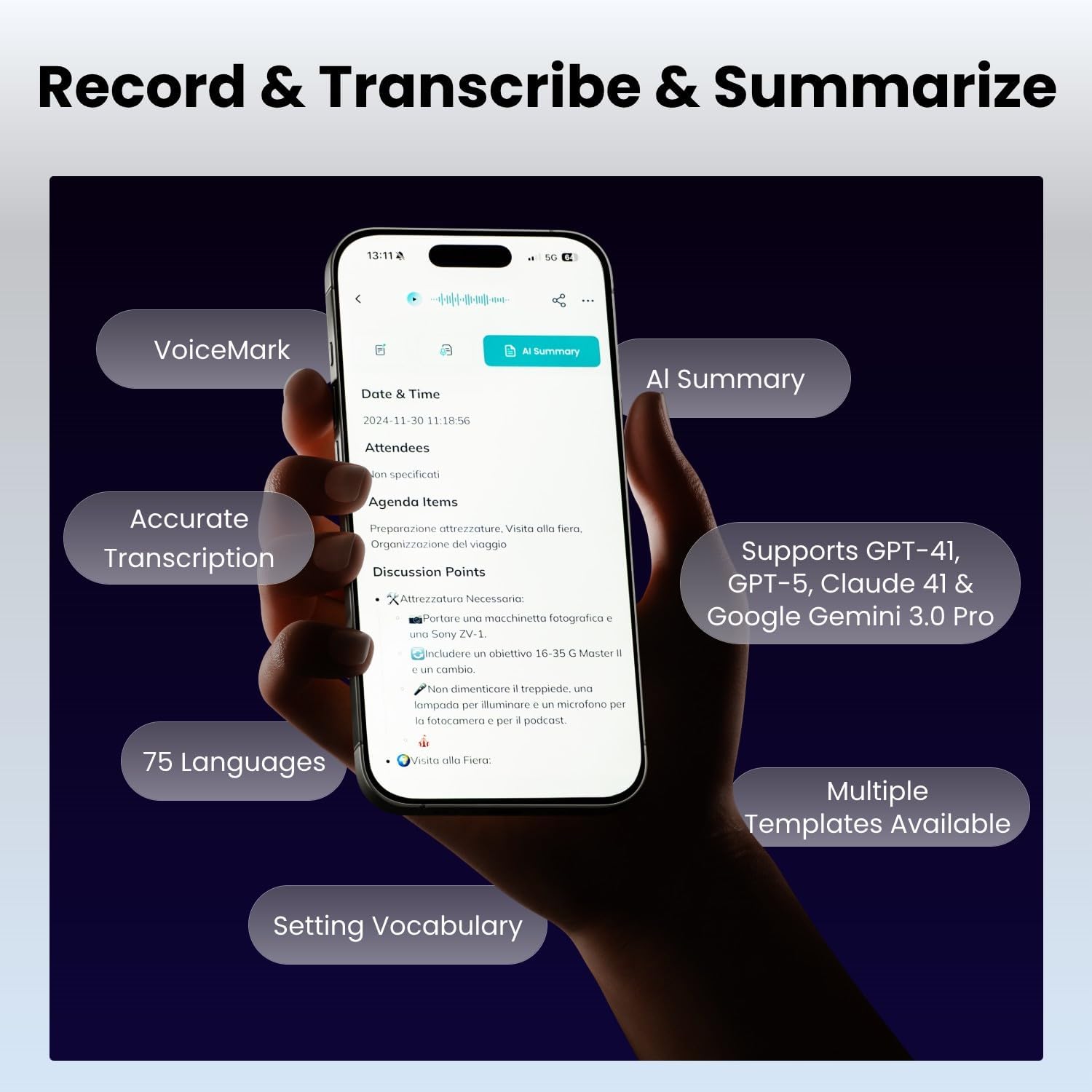
Image: A smartphone displaying the HiNotes app interface, highlighting features like AI summary, accurate transcription, and support for 75 languages.
Video: An overview of the HiDock P1 AI Voice Recorder's features and design.
Controls and Interface
The HiDock P1 is designed for effortless control through intuitive buttons and a touch-sensitive USB-C cable. Key controls include:
- Power Button: For turning the device on and off.
- BNC Button: (Functionality not detailed in provided data, typically for noise cancellation or specific recording modes)
- Wheel Button: For navigation and selection within menus.
- HiDock Key: A dedicated button for specific HiDock functions.
- Answer Key: Supports Zoom call answering (sync with HiNotes calendar for Teams/Webex).
- Mute Key: To mute the microphone during calls or recordings.
- BlueCatch™ Key: For activating and managing Bluetooth earbud connections.
- USB-C Port: For charging, data transfer, and connecting the Touch Control Cable.

Image: A detailed diagram of the HiDock P1, labeling its various buttons and ports for user reference.
Connectivity
The HiDock P1 offers versatile connectivity options:
- USB Type C: For fast data transfer and charging. The touch-sensitive USB-C cable provides additional control.
- Bluetooth 5: For wireless earbud connectivity via BlueCatch technology, enabling private and clear call recording.

Image: A comparison showing the faster audio transfer speed of HiDock P1 via USB-C (0.5 min for 1-hour 60MB file) compared to Bluetooth (25 min).
Specifications
| Feature | Detail |
|---|---|
| Brand | HiDock |
| Model | P1 |
| Memory Storage Capacity | 64 GB |
| Digital Recording Time | 360 hours |
| Microphone Form Factor | Built-In |
| Microphone Operation Mode | Multiple (Call Mode, Room Mode, Whisper Mode) |
| Hardware Interface | Bluetooth 5, USB Type C |
| Headphones Jack | Bluetooth Earphone |
| Compatible Devices | Laptop, Personal Computer, Smartphone, Tablet |
| Item Weight | 7.4 ounces |
| Package Dimensions | 7.13 x 4.88 x 1.14 inches |
Maintenance
To ensure the longevity and optimal performance of your HiDock P1, follow these maintenance guidelines:
- Keep the device clean by wiping it with a soft, dry cloth. Avoid abrasive cleaners or solvents.
- Store the device in a cool, dry place away from direct sunlight and extreme temperatures.
- Avoid dropping the device or exposing it to strong impacts.
- Ensure the USB-C port is free of dust and debris to maintain proper connectivity.
Troubleshooting
If you encounter issues with your HiDock P1, consider the following:
- Device not turning on: Ensure the battery is charged. Connect the device to a power source using the USB-C cable.
- Recording issues: Check that the device is in the correct recording mode (Call, Room, or Whisper). Ensure the microphone is not muted.
- Connectivity problems: Verify that the USB-C cable is securely connected to both the HiDock P1 and your computer/smartphone. For Bluetooth, ensure your earbuds are in pairing mode and within range.
- Transcription accuracy: Ensure clear audio input. Background noise can affect transcription quality.
- App issues: Ensure the HiNotes App is updated to the latest version. Restart the app or your device if necessary.
Warranty and Support
For warranty information, technical support, or any inquiries regarding your HiDock P1, please refer to the official HiDock website or contact the HiDock Official Store. The device receives future features via OTA updates, ensuring its AI capabilities remain cutting-edge.

Image: A customer support representative wearing a headset, symbolizing available assistance and support for HiDock products.


