
1. Product Overview
The MOFII Wireless Keyboard and Mouse Combo provides a convenient and stylish input solution for your computer. Featuring a retro typewriter-inspired design with colorful round keycaps, this combo connects wirelessly via a 2.4GHz USB receiver, offering a clutter-free workspace. It is designed for ease of use with plug-and-play functionality and includes power-saving features.

Image: The MOFII Wireless Keyboard and Mouse Combo, showcasing the Berry Pink color variant with its retro round keycaps and matching mouse.
2. Package Contents
- Wireless Keyboard
- Wireless Mouse
- 2.4GHz USB Nano Receiver (located in the mouse battery compartment)
- User Manual
- Cleaning Brush (for keyboard maintenance)
3. Setup Instructions
3.1. Battery Installation
The keyboard and mouse require batteries for operation. Open the battery compartment on the underside of both the keyboard and the mouse. Insert the required batteries (typically AA for keyboard, AAA for mouse, not included) ensuring correct polarity.
3.2. Connecting the USB Receiver
- Locate the USB nano receiver, usually stored in the battery compartment of the mouse.
- Plug the USB receiver into an available USB port on your computer (PC, Laptop, Smart TV).
- Allow a few seconds for your operating system to automatically detect and install the necessary drivers. No additional software installation is required.
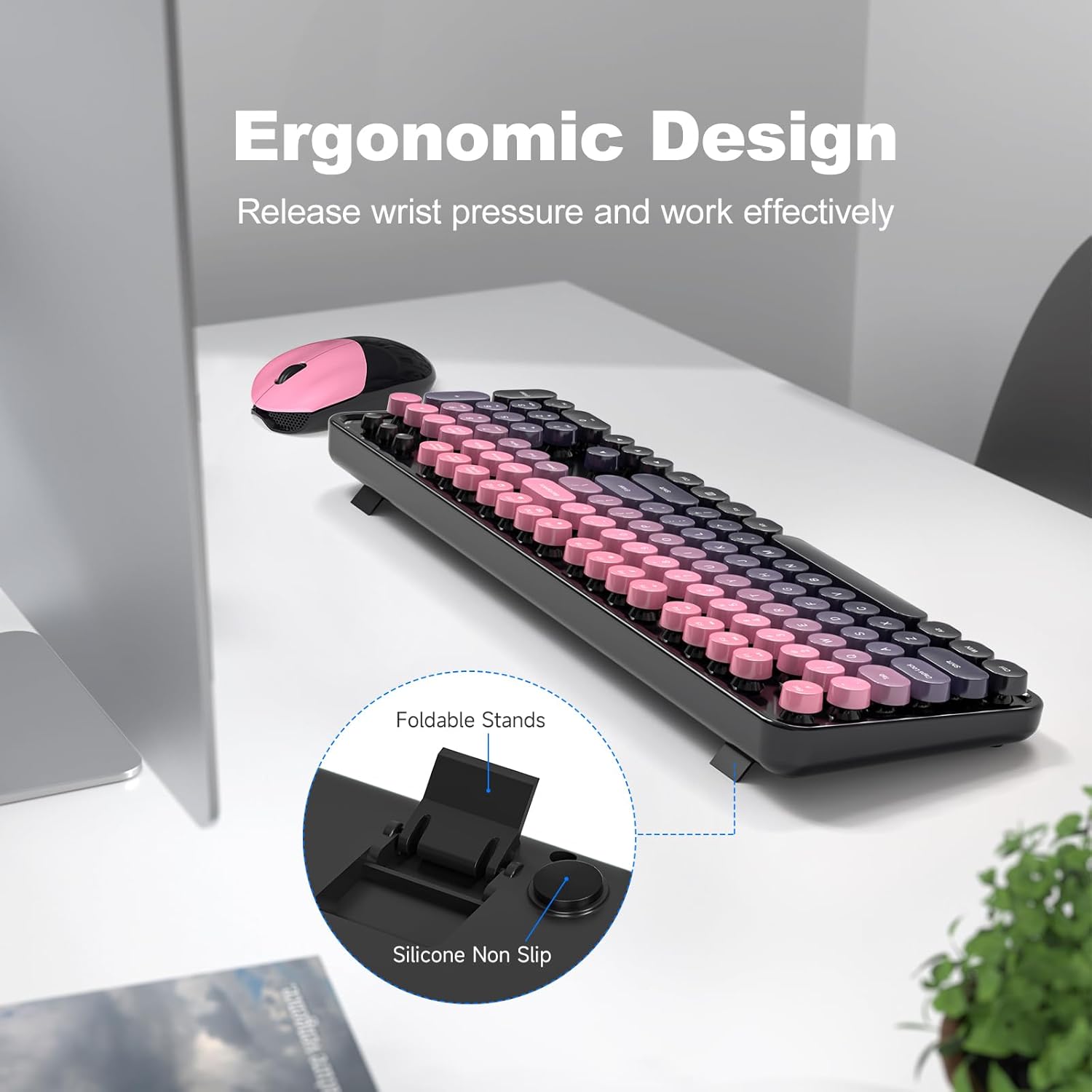
Image: A close-up view of the USB nano receiver being plugged into a laptop, illustrating the 2.4GHz wireless connection range of up to 33 feet.
3.3. Compatibility
This keyboard and mouse combo is compatible with Windows 7, 8, 10, XP, and Vista operating systems. It works with PCs, Laptops, and Smart TVs. Please note that it is not fully compatible with Apple systems.
4. Operating Instructions
4.1. Keyboard Features
- Retro Typewriter Design: The round keycaps provide a unique tactile experience and aesthetic.
- Full-Size Layout: Includes a numeric keypad for comprehensive data entry.
- Hotkey Functions: The keyboard features 13 hotkey functions for quick access to multimedia and system controls. These are typically accessed using the 'Fn' key in combination with the F1-F12 keys.

Image: The keyboard layout highlighting the 13 hotkey functions (F1-F12 and Esc) for enhanced productivity and entertainment.
4.2. Mouse Features
- High-Sensitivity Optical Tracking: Provides precise cursor control.
- Ergonomic Design: Shaped for comfortable use.
4.3. Ergonomic Design
The keyboard is designed with foldable stands on the underside, allowing you to adjust the typing angle for improved comfort and to reduce wrist pressure during extended use. The base also includes silicone non-slip pads to keep the keyboard stable.

Image: The keyboard viewed from the side, showing the foldable stands extended and highlighting the silicone non-slip features for ergonomic positioning.
4.4. Indicator Lights
The keyboard features indicator lights for:
- Number Lock: Indicates when the numeric keypad is active.
- Caps Lock: Indicates when capital letters are being typed.
- Power Indicator / Low Battery Indicator: Shows the power status and alerts you when batteries need replacement.

Image: A top-down view of the keyboard, pointing out the locations of the Number Lock, Caps Lock, and Power/Low Battery indicator lights.
5. Maintenance
5.1. Cleaning
The keyboard features detachable keycaps, making cleaning easier. Use the included cleaning brush to remove dust and debris from between the keys. For general cleaning, wipe the surfaces of the keyboard and mouse with a soft, damp cloth. Avoid using harsh chemicals or abrasive materials.

Image: Detachable keycaps shown next to the keyboard, with a cleaning brush, illustrating the ease of cleaning the device.
5.2. Auto Power Saving
To conserve battery life, both the keyboard and mouse will enter sleep mode after 5 minutes of inactivity. To wake them up, simply press any key on the keyboard or click the mouse. This feature helps reduce the frequency of battery replacement.

Image: The keyboard and mouse on a desk in a dimly lit room, indicating the intelligent auto-sleep feature that saves battery life when not in use.
6. Troubleshooting
- No Connection: Ensure the USB receiver is securely plugged into a working USB port. Check that the batteries in both the keyboard and mouse are correctly installed and have sufficient charge. Try plugging the receiver into a different USB port.
- Lagging or Intermittent Connection: Move the keyboard and mouse closer to the USB receiver. Ensure there are no large metal objects or other wireless devices interfering with the 2.4GHz signal.
- Keys Not Responding: Check if the keyboard is in sleep mode and press any key to wake it. Verify battery levels. If specific keys are not working, ensure they are properly seated after cleaning.
- Mouse Not Responding: Check if the mouse is in sleep mode and click to wake it. Verify battery levels. Ensure the optical sensor on the bottom of the mouse is clean and unobstructed.
- Compatibility Issues: If using with an Apple system, note that full compatibility is not guaranteed. Functionality may be limited.
7. Specifications
| Brand | MOFII |
| Model | B0G418L3W9 |
| Color | Berry Pink |
| Connectivity Technology | 2.4GHz USB Wireless |
| Special Features | Ergonomic, Round Keycaps, Auto-Sleep |
| Compatible Devices | Laptop, Personal Computer, Tablet |
| Movement Detection | Optical (Mouse) |
| Power Source | Battery Powered |
| Keyboard Layout | QWERTY |
| Compatible Operating System Family | Windows (XP/7/8/10) |
| Number of Keys | 104 |
| Item Weight | 0.84 kg |
8. Warranty and Support
This product comes with a 12-month warranty from the date of purchase. For any issues or support inquiries, please refer to the contact information provided with your product packaging or visit the official MOFII website.


