
1. Introduction
This manual provides detailed instructions for the setup, operation, maintenance, and troubleshooting of your NGTeco 15.3 Inch Triple Screen Extender. Please read this manual thoroughly before using the product to ensure optimal performance and longevity.
The NGTeco S8 PRO MAX is an upgraded triple-screen monitor designed to expand your laptop's display area, enhancing productivity and multitasking capabilities. It features a 15.3-inch 1200P 16:10 IPS display, ultra-slim design, and broad compatibility with various operating systems and devices.
2. What's in the Box
Carefully unpack your NGTeco Triple Screen Extender and verify that all components are present. The package includes:
- 1x NGTeco 15.3 Inch Triple Screen Extender (S8 PRO MAX)
- 1x H5-T Adapter
- 2x USB-C to USB-C Cables
- 1x USB-A to USB-C Cable
- 1x HDMI to Type-C Cable
- 1x User Manual
- 1x Quick Guide
- 1x Carrying Bag

Image: All components included in the NGTeco Triple Screen Extender package.
Video: An unboxing demonstration of the S8Promax Triple Laptop Screen Extender, showing the contents and initial setup steps.
3. Setup and Installation
Follow these steps to set up your NGTeco Triple Screen Extender:
- Unfold the Extender: Gently unfold the screen extender. Ensure the central bracket is securely positioned on top of your laptop screen.
- Connect to Laptop:
- Two Full-Featured Type-C Ports: If your laptop has two full-featured Type-C ports (supporting video output/DisplayPort/Thunderbolt), connect each screen of the extender using the provided USB-C to USB-C cables.

Image: Connecting the extender via two full-featured Type-C ports.
- One Full-Featured Type-C and One HDMI Port: If your laptop has one full-featured Type-C port and one HDMI port, use a USB-C to USB-C cable for one screen and the HDMI to Type-C cable for the other.

Image: Connecting the extender via one full-featured Type-C and one HDMI port.
- No Full-Featured Type-C Port (Older Laptops/Apple M1/M2/M3/M4): For laptops without full-featured Type-C ports, use the H5-T adapter. Connect the H5-T adapter to your laptop's USB-A or USB-C port and an HDMI port. Then connect the extender screens to the H5-T adapter.

Image: Connecting the extender using the H5-T adapter for laptops without full-featured Type-C ports.
- Two Full-Featured Type-C Ports: If your laptop has two full-featured Type-C ports (supporting video output/DisplayPort/Thunderbolt), connect each screen of the extender using the provided USB-C to USB-C cables.
- Power Connection: If the screen flickers or is unresponsive due to insufficient power, connect an external power supply (not included) to the extender. The extender supports up to 100W PD power pass-through (requires a 100W certified cable and adapter).
- Adjust Position: The S8 PRO MAX offers 0–180° screen adjustment and 0–90° stand tilt for customized optimal viewing angles.

Image: The extendable bracket and 90° rotating bracket for optimal viewing angles.
4. Operating Instructions
Once connected, configure your display settings for optimal use.
4.1 Display Modes (Windows/Mac)
Your NGTeco Triple Screen Extender supports various display modes:
- Extend Mode: Expands your desktop across all three screens, providing maximum workspace.
- Duplicate Mode: Mirrors your main laptop screen onto the extender screens.
- Portrait Mode: Allows you to orient the external screens vertically.
- Mirror Mode: Duplicates the content of one screen onto another.

Image: Visual representation of different display modes.
4.2 Adjusting Display Settings (Windows)
To configure display settings on Windows:
- Right-click on your desktop and select "Display settings".
- Under "System > Display", you will see representations of your connected displays (1, 2, 3).
- Resolution: Scroll down to "Display resolution" and select "1920 x 1200 (Recommended)" for optimal clarity.
- Orientation: Under "Display orientation", choose "Landscape" or "Portrait" as desired.
- Refresh Rate: For smoother motion, go to "Advanced display settings" and set the "Refresh rate" to 60 Hz for each external display.
- Arrangement: Drag and drop the display representations to match their physical arrangement. Select a display and click "Apply" to save changes.
- Main Display: To set a screen as the main display, select it and check the "Make this my main display" box.
Video: A demonstration of adjusting display settings on Windows for the S8 Triple Laptop Screen Extender, including resolution, refresh rate, and display arrangement.
4.3 Power Pass-Through
The extender supports up to 100W PD power pass-through. Connect a 100W certified power adapter and cable to the extender's power input port. This allows the extender to power itself and charge your laptop simultaneously through its power cable.

Image: Reverse charging feature, powering the laptop through the extender.
5. Compatibility
The NGTeco S8 PRO MAX is designed for 14-17.3 inch laptops and offers wide compatibility:
- Operating Systems: Windows, Mac, Android, Linux, Chrome OS.
- Processors: Compatible with Apple M1/M2/M3/M4 chips.
- Devices: Laptops, phones, Macs, gaming consoles (e.g., Switch, PS4).
6. Specifications
| Feature | Detail |
|---|---|
| Brand | NGTeco |
| Model Number | S8PROMAX |
| Screen Size | 15.3 Inches |
| Resolution | FHD 1920 x 1200 Pixels (1200p) |
| Aspect Ratio | 16:10 |
| Screen Surface Description | Matte |
| Refresh Rate | 60 Hz |
| Item Weight | 1.2 Kilograms |
| Dimensions (D x W x H) | 14.3"D x 0.8"W x 9.3"H |
| Connectivity Technology | USB Type C, HDMI |
| Additional Features | Anti Glare Screen, Eye Care, Lightweight, Portable, Ultra-Slim |
| Power Consumption | ≤15W (ultra-low) |

Image: Key specifications of the NGTeco Triple Screen Extender.
7. Troubleshooting
If you encounter issues with your NGTeco Triple Screen Extender, refer to the following common solutions:
- Screen Flickering or Unresponsive: This often indicates insufficient power. Connect an external power supply to the extender. Ensure you are using a 100W certified cable and adapter if utilizing PD pass-through.
- "No Signal" or "Flickering":
- Verify all cables are securely connected to both the extender and your laptop.
- Ensure your laptop's ports are functioning correctly.
- If your laptop has only one video output port (HDMI or full-featured Type-C), use the H5-T cable to generate a second video signal for the second external screen.
- Check your laptop's display settings to ensure the external monitors are detected and configured correctly (Extend or Duplicate mode).
- Display Orientation Issues: Adjust the display orientation (Landscape/Portrait) in your operating system's display settings.
- Sound Quality: The built-in speakers are suitable for casual use. For higher quality audio, connect external speakers or headphones to your laptop.
For persistent issues, contact NGTeco Support for assistance.
8. Maintenance
To ensure the longevity and optimal performance of your NGTeco Triple Screen Extender:
- Cleaning: Use a soft, lint-free cloth to gently wipe the screen and exterior surfaces. Avoid abrasive cleaners or solvents.
- Storage: When not in use, fold the extender carefully and store it in the provided carrying bag to protect it from dust and scratches. Always fold the right screen first, then the left screen.
- Handling: Handle the extender with care. Avoid dropping it or applying excessive force, especially to the screens and hinges.
- Temperature: Operate and store the device within recommended temperature ranges to prevent damage.
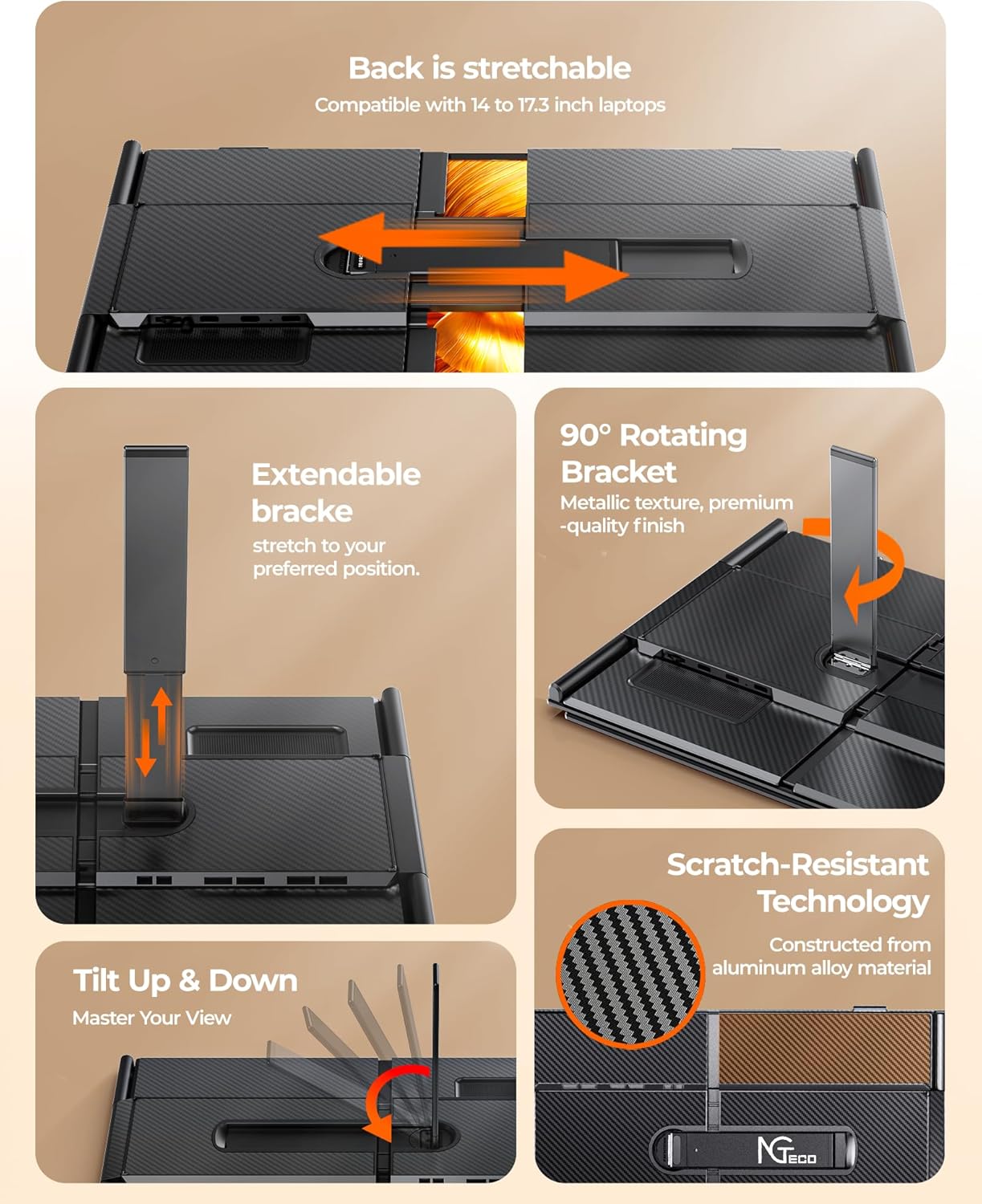
Image: Proper folding instructions for storage.
9. Warranty and Support
Your NGTeco Triple Screen Extender comes with a 1-year warranty from the manufacturer, NGTeco.
For technical support, warranty claims, or any product-related inquiries, please contact NGTeco Support. Refer to the contact information provided in your Quick Guide or visit the official NGTeco website.