Introduction
Thank you for choosing the SVBONY SA206 Night Vision Binoculars. This device is designed to provide clear vision in total darkness, capturing high-resolution 4K videos and 36MP images. Featuring an 8x digital zoom, a 3-inch HD screen, and a powerful 5000mAh rechargeable battery, it is ideal for outdoor activities such as patrol detection, camping, and wildlife observation. Please read this manual carefully to ensure proper operation and maintenance of your device.
What's in the Box
- 1 x SVBONY SA206 Night Vision Binoculars
- 1 x Neck Strap
- 1 x 32GB TF Card
- 1 x USB Cable
- 1 x Cleaning Cloth
- 1 x User Manual

Image: All items included in the SVBONY SA206 Night Vision Binoculars package, neatly arranged.
Product Overview

Image: A detailed diagram highlighting the key features and components of the SVBONY SA206 Night Vision Binoculars, including the HD display, 8x digital zoom, 4K video capability, 36MP photos, 32GB TF card slot, 5000mAh battery, and 250-meter night vision range.
The SVBONY SA206 features an intuitive button layout for easy operation. Key controls include power, menu, IR adjustment, zoom, and snap buttons. The device is equipped with a 3-inch HD screen for comfortable viewing and a manual focus wheel for sharp images.
Setup
1. Battery Charging
The device has a built-in 5000mAh rechargeable lithium battery. Use the provided Type-C USB cable to charge the binoculars. Connect the cable to the Type-C port on the device and a suitable power source (e.g., wall adapter, power bank, computer USB port). A full charge allows for up to 14 hours of continuous use.

Image: The SVBONY SA206 Night Vision Binoculars with an illustration highlighting its 5000mAh battery and Type-C charging capability.
2. Inserting TF Card
The binoculars come with a 32GB TF card. The device supports TF cards up to 128GB. Locate the TF card slot, typically protected by a rubber cover, and insert the card with the gold contacts facing down until it clicks into place.

Image: The SVBONY SA206 Night Vision Binoculars connected to a laptop via USB, with a close-up of the 32GB TF card inserted into its slot.
3. Adjusting Focus
To achieve a clear image, adjust the manual focus wheel located on the device. Rotate the wheel until the image on the screen appears sharp and distinct.

Image: A visual representation of the focus wheel on the SVBONY SA206 Night Vision Binoculars, showing how adjusting it brings a blurred image into sharp focus.
Operating Instructions
1. Power On/Off
To power on the device, long press the Power button. To power off, long press the Power button again.
2. Day/Night Mode
The binoculars are designed for both day and night use. In daylight, images are displayed in full color. In low-light or total darkness, the device automatically switches to infrared night vision mode, displaying images in black and white.
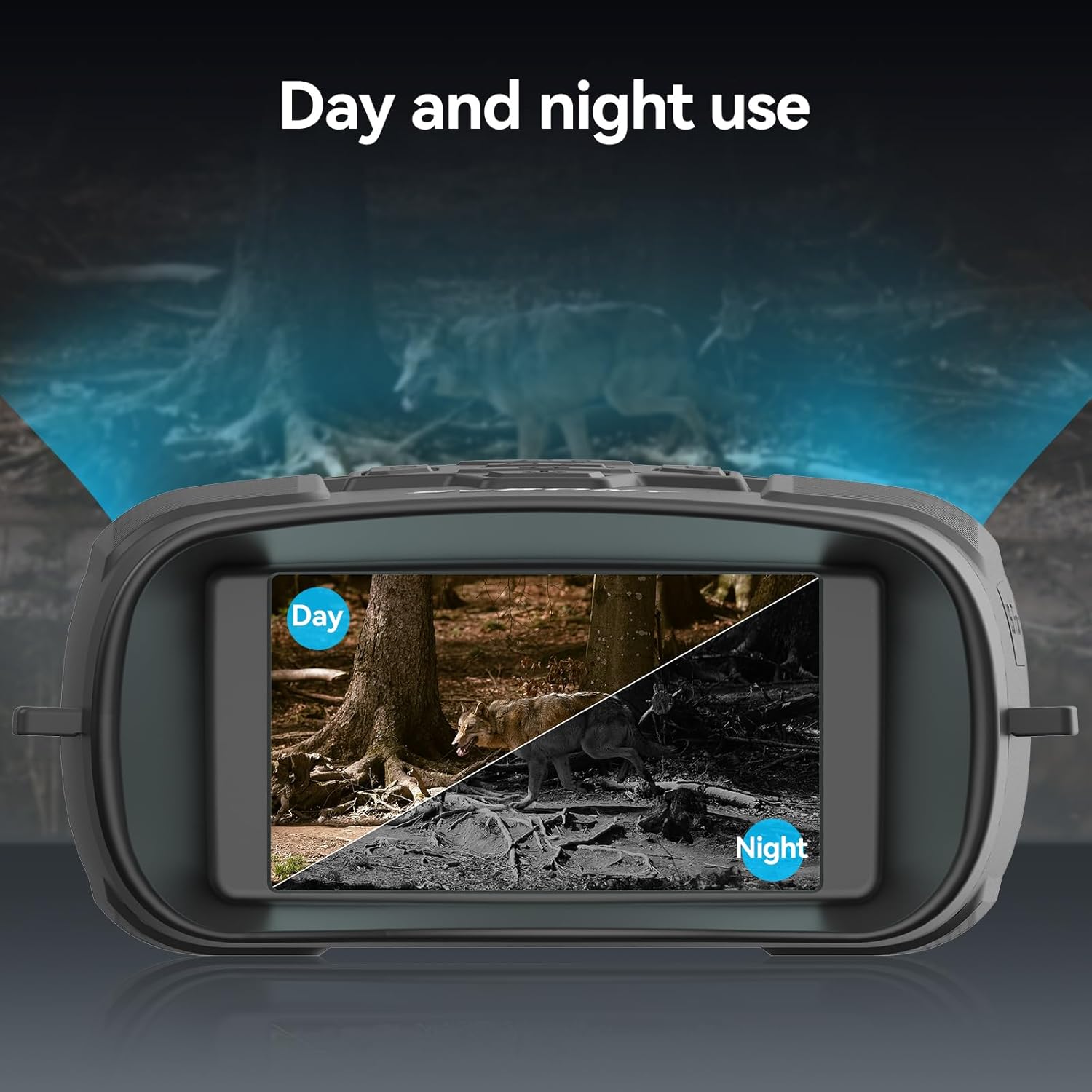
Image: A split image demonstrating the difference between day mode (color) and night mode (black and white infrared) when using the SVBONY SA206 Night Vision Binoculars.
3. IR Adjustment
The device features a 3W 850nm infrared light with seven adjustable levels. Use the IR+/- buttons to cycle through the brightness levels to optimize visibility in varying dark environments.

Image: The SVBONY SA206 Night Vision Binoculars with an overlay demonstrating the seven adjustable levels of 3W 850nm infrared light, showing how image clarity improves with higher IR settings.
4. Zoom Function
Utilize the 8x digital zoom to magnify distant objects. Long press the IR+/- buttons to zoom in or out, allowing for closer observation of targets and details.

Image: The SVBONY SA206 Night Vision Binoculars illustrating the 8x digital zoom capability, showing a scene magnified from 1x to 8x for clearer night vision.
5. Taking Photos
To capture a 36MP photo, short press the 'SNAP' button. The image will be saved to the inserted TF card.
6. Recording Videos
To record 4K, FHD, or HD videos, long press the 'SNAP' button to start recording. Short press it again to stop recording. Videos are saved to the TF card.
7. Playback Mode
To review captured photos and videos, enter Playback Mode via the menu. Use the navigation buttons to browse through your media. Short press the 'SNAP' button to play videos.
8. Menu Settings
Short press the 'MENU' button to access device settings. Here you can adjust resolution, image quality, screen savers, flicker settings, auto power-off duration, and time settings. Use the IR+/- buttons to navigate and the 'SNAP' button to confirm selections.
9. Screen Brightness Adjustment
The 3-inch HD TFT screen offers 15 levels of brightness adjustment. Use the dedicated brightness button to cycle through these levels for optimal viewing comfort in various lighting conditions.

Image: The SVBONY SA206 Night Vision Binoculars displaying its 3-inch HD screen with a visual representation of the 15 levels of brightness adjustment.
10. Connecting to PC
Connect the binoculars to your computer using the provided Type-C USB cable to transfer photos and videos. The device will appear as a removable storage device on your computer.
11. Video Autofocus & Firmware Update
The device supports video autofocus. For optimal performance and to ensure all features are working correctly, it is recommended to regularly check for and apply firmware updates. Please refer to the details page or contact SVBONY customer support for firmware packages and update instructions.
Official Product Video: SVBONY SA206 4K Night Vision Binoculars
Video: An official product video from SVBONY Direct showcasing the features and capabilities of the SA206 4K Night Vision Binoculars.
Official Product Video: SVBONY SA206 4K Night Vision Binoculars-LCD Screen
Video: An official product video from SVBONY Direct highlighting the LCD screen features of the SA206 4K Night Vision Binoculars.
Maintenance
1. Cleaning
Use the provided cleaning cloth to gently wipe the lenses and screen. Avoid using abrasive materials or harsh chemicals that could damage the optics or display. For stubborn dirt, lightly dampen the cloth with lens cleaning solution.
2. Storage
Store the binoculars in a cool, dry place away from direct sunlight and extreme temperatures. The silicone material provides excellent waterproof performance, but prolonged exposure to moisture should be avoided. Use the storage bag to protect the device when not in use.
Troubleshooting
- Device not powering on: Ensure the battery is fully charged.
- Blurred image: Adjust the manual focus wheel until the image is clear.
- No recording: Check if the TF card is correctly inserted and has sufficient storage space.
- Poor night vision: Adjust the IR brightness levels to suit the ambient darkness.
For further assistance or issues not covered here, please contact SVBONY customer support.
Specifications
| Feature | Detail |
|---|---|
| Brand | SVBONY |
| Model Name | SA206 |
| Color | Black |
| Product Dimensions | 4.4"L x 5.6"W x 2.2"H |
| Item Weight | 456 Grams (1.01 pounds) |
| Material | Rubber |
| Magnification Maximum | 8x (Digital Zoom) |
| Objective Lens Diameter | 25 Millimeters |
| Night Vision Range | Up to 250 meters |
| Infrared Light | 3W 850nm, 7 adjustable levels |
| Screen | 3-inch HD TFT, 15 brightness levels |
| Video Resolution | 4K, FHD, HD |
| Image Resolution | 36MP |
| Storage | 32GB TF card included (supports up to 128GB) |
| Battery | Built-in 5000mAh rechargeable lithium battery |
| Charging Interface | USB Type-C |
Warranty and Support
For warranty information, product registration, or technical support, please refer to the official SVBONY website or contact the seller directly. Keep your purchase receipt as proof of purchase for any warranty claims.


