
owltron C5
Contents
owltron Window Camera C5 User Manual
3MP, 5G & 2.4GHz WiFi Indoor Camera for Home Security
1. Introduction
Thank you for choosing the owltron Window Camera C5. This indoor security camera is designed to provide comprehensive surveillance with advanced features such as 3MP ultra-high-definition video, AI Color Night Vision, and dual-band WiFi connectivity. This manual will guide you through the installation, operation, and maintenance of your camera to ensure optimal performance and security.
2. What's in the Box
Please verify that all items are present in your package:
- owltron Window Camera C5
- Mounting Sticker(s)
- USB-C Charging Cable
- Power Adapter
- User Manual (this document)
3. Product Overview
The owltron Window Camera C5 is an advanced indoor security solution offering:
- 3MP Ultra HD & AI Color Night Vision: Captures clear details day and night with anti-glare technology.
- Dual-band Stable Connection: Supports both 2.4GHz and 5GHz WiFi networks for reliable data transmission.
- 24/7 Continuous Recording: Ensures constant surveillance with complete video records.
- Easy Installation: Peel-and-stick design for quick, drill-free setup on glass surfaces.
- Smart Detection & Real-Time Alerts: Features human shape, motion, and sound detection with customizable zones and instant phone alerts.
- Flexible Storage: Supports local SD card (up to 256GB, not included) and U.S.-based cloud storage (optional subscription).
- Multi-User Sharing: Allows seamless access sharing with family and friends.
4. Setup and Installation
4.1 Tool-Free Installation Steps
Follow these steps for quick and easy installation:

- Clean Window: Clean both the inside and outside surfaces of the window where the camera will be mounted. Ensure the surface is dry and free of dust or grease.
- Install Mounting Sticker: Peel off the protective film from the mounting sticker. Carefully apply the sticker onto the clean window surface, pressing firmly to remove any air bubbles.
- Install Memory Card (Optional): If using local storage, insert a microSD card (up to 256GB, not included) into the camera's designated slot.
- Power on Camera: Connect the camera to the power adapter using the provided USB-C cable, then plug the adapter into a power outlet. The camera will power on.
- Mount Camera: Attach the camera firmly onto the mounting sticker on the window. Ensure it is securely in place.
4.2 App Download and Connection
To connect your camera to your smartphone, follow these steps:

- Download App: Search for and download the "Owltron" app from the Google Play Store (for Android) or the Apple App Store (for iOS).
- Register/Login: Open the app and register a new account or log in if you already have one.
- Add Device: Follow the in-app instructions to add your new camera. This typically involves scanning a QR code on the camera or manually selecting the device type.
- Connect to Wi-Fi: Select your 2.4GHz or 5GHz Wi-Fi network and enter the password. The camera will connect to your network.
- Live View: Once connected, you can access the live view of your camera and configure settings.
5. Operating Instructions
5.1 AI Color Night Vision
The camera features AI-enhanced color night vision, providing clear, full-color visibility even in low-light conditions. This technology ensures that important details like faces and license plates are captured accurately at night.

5.2 Dual-Band WiFi and 24/7 Recording
The camera supports both 2.4GHz and 5GHz Wi-Fi bands, offering a more stable and faster connection. It also provides 24/7 continuous recording, ensuring that all activity is captured and stored for review.

5.3 Smart Detection Features
The camera is equipped with advanced detection technologies to minimize false alarms and provide timely alerts:
- Human Detection: Identifies human shapes, sending alerts only when a person is detected.
- Motion Detection: Detects general movement within the camera's field of view.
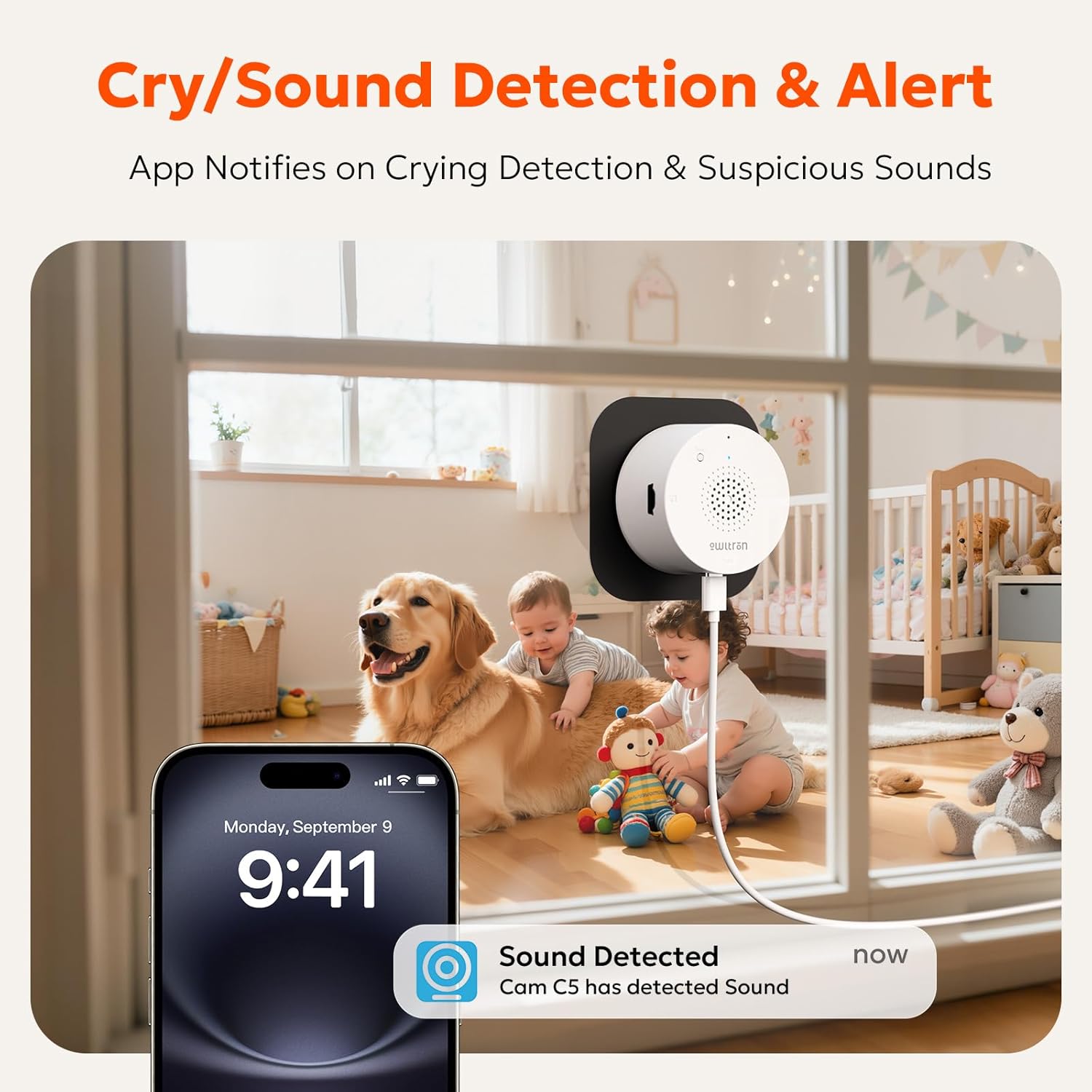
- Sound Detection: Notifies you of unusual sounds, including crying.
- Vehicle Detection: Specifically identifies vehicles entering or leaving a monitored area.
- Zone Detection: Allows you to customize specific monitoring areas within the app to receive alerts only for activity in those zones.

5.4 Flexible Storage Options
Your owltron camera offers two storage methods for your recordings:
- Local Storage: Supports a microSD card up to 256GB (not included). Recordings are stored directly on the card.
- Cloud Storage: An optional subscription service provides secure U.S.-based cloud storage for your video footage.

5.5 Smart Home Integration
The owltron Window Camera C5 is compatible with Amazon Alexa and Google Assistant, allowing for hands-free control and integration into your smart home ecosystem. Use voice commands to view feeds or adjust settings.

5.6 Multi-User Sharing
Share access to your camera's live feed and recordings with up to 3 users simultaneously. This feature allows family members or trusted individuals to monitor your home security from their own devices.

5.7 Multi-Scenario Use
The versatile design of the owltron Window Camera C5 allows it to be used in various indoor scenarios, including windows, glass walls, fish tanks, and meeting rooms, adapting to your diverse monitoring needs.

6. Troubleshooting
If you encounter issues with your owltron Window Camera C5, please refer to the following common problems and solutions:
- Camera not powering on:
- Ensure the USB-C cable is securely connected to both the camera and the power adapter.
- Verify that the power adapter is plugged into a working electrical outlet.
- Try using a different USB-C cable and power adapter if available.
- Unable to connect to Wi-Fi:
- Ensure your Wi-Fi network is 2.4GHz or 5GHz. The camera supports both.
- Verify that you have entered the correct Wi-Fi password.
- Move the camera closer to your Wi-Fi router to improve signal strength.
- Restart your router and the camera, then attempt to connect again.
- Poor video quality:
- Ensure the camera lens is clean and free from dust or smudges.
- Check your Wi-Fi connection speed. A slow connection can affect streaming quality.
- Adjust the video resolution settings within the app if available.
- False alerts:
- Adjust the detection sensitivity settings in the app.
- Configure specific detection zones to monitor only relevant areas.
- Ensure the camera is positioned to avoid detecting irrelevant movements (e.g., tree branches swaying).
- RTSP stream security concern:
- If using RTSP, ensure your network is secure and not exposed to the internet without proper firewall rules or VPN. Consult your network administrator for advanced security configurations.
7. Specifications
| Feature | Detail |
|---|---|
| Brand | owltron |
| Model Name | C5 |
| Connectivity Technology | Wired (Power), Wi-Fi (Data) |
| Connectivity Protocol | Wi-Fi (2.4GHz & 5GHz) |
| Video Capture Resolution | 1440p (3MP) |
| Indoor/Outdoor Usage | Indoor |
| Mount Type | Window Mount |
| Power Source | Corded Electric |
| Item Dimensions | 2.36 x 2.36 x 1.42 inches |
| Item Weight | 3.2 ounces |
| Storage Options | MicroSD (up to 256GB, not included), Cloud Storage (optional) |
| Compatible Devices | Amazon Alexa, Google Assistant |
8. Warranty and Support
For warranty information, technical support, or any inquiries regarding your owltron Window Camera C5, please refer to the official owltron website or contact their customer service directly. Contact details are typically provided in the product packaging or on the manufacturer's website.
You can also visit the owltron Store on Amazon for more information and support resources.
Documents and downloads
Ask a question about this manual
Ask about setup, troubleshooting, compatibility, parts, safety, or missing instructions. Manuals+ will review the question and use this page’s manual context to help answer it.