
SMALLRIG 5464
Contents
SmallRig 59" Selfie Stick Tripod with Remote & Phone Clamp (Model 5464) - Instruction Manual
Model: 5464 | Brand: SMALLRIG
1. Product Overview
The SmallRig 59" Selfie Stick Tripod (Model 5464) is a versatile accessory designed for both action cameras and smartphones. It functions as an extendable selfie stick and a stable tripod, featuring a detachable wireless remote control for convenient operation. This product is constructed from durable ABS material, ensuring a lightweight yet stable design for various shooting scenarios.

Figure 1: All-in-One Support System - The device can be used as a handheld selfie stick or a stable tripod.
2. What's in the Box
- Selfie Stick x 1
- 1/4"-20 Adapter x 1
- Wireless Remote Controller x 1
- Phone Holder x 1
- 7.87in USB-C Charging Cable x 1
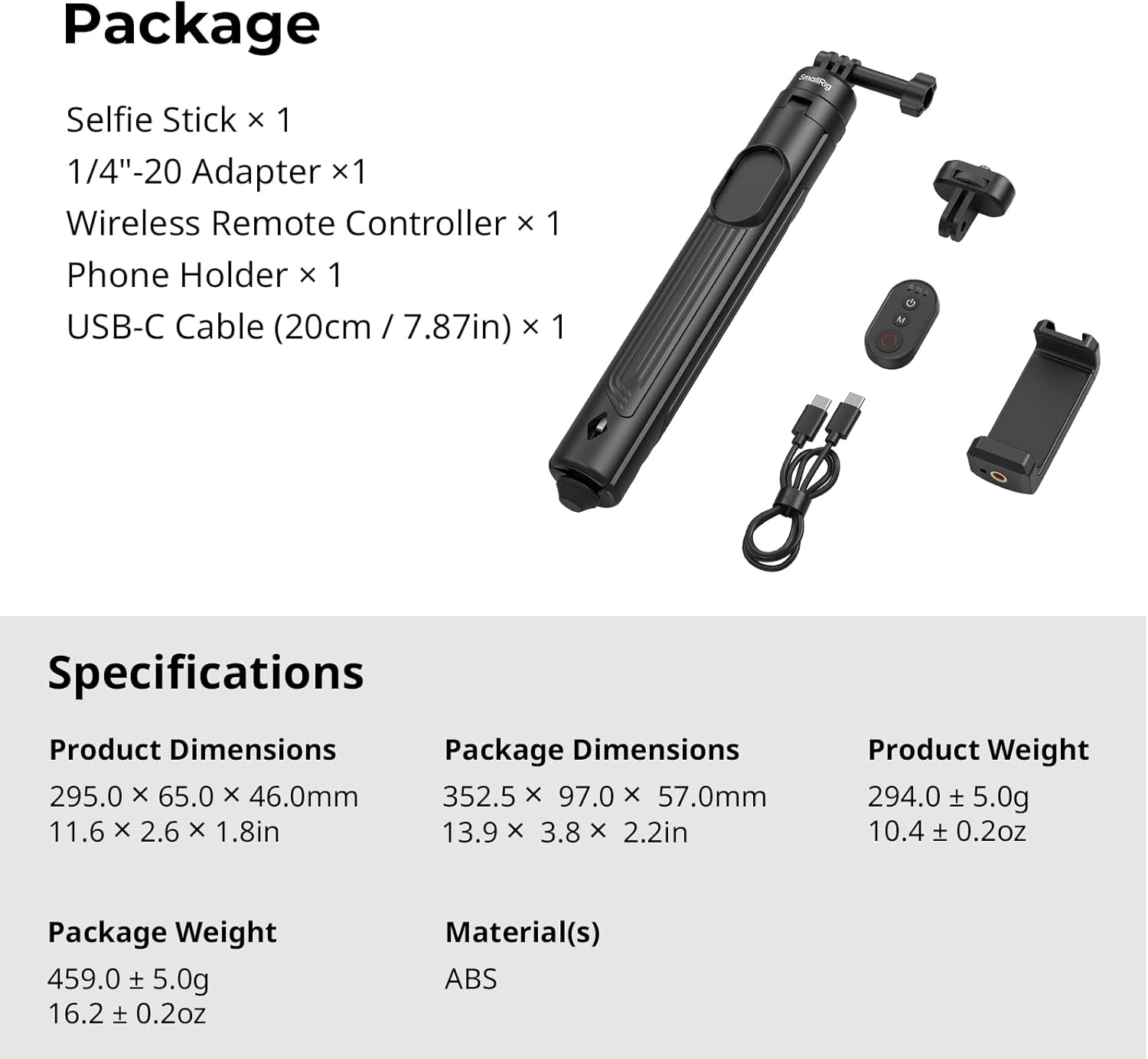
Figure 2: Package Contents - All items included with your SmallRig 5464.
3. Specifications
| Feature | Detail |
|---|---|
| Product Dimensions | 2.6 x 1.8 x 11.6 inches (29.5 x 6.5 x 4.6 cm folded) |
| Item Weight | 10.4 ounces (294g) |
| Model Number | 5464 |
| Batteries | 1 A battery required (included) |
| Brand | SMALLRIG |
| Color | Black |
| Compatible Devices | Action Cameras, Smartphones (iPhone, Android, DJI Osmo Action, GoPro, Insta360) |
| Special Feature | Telescopic |
| Material | Acrylonitrile Butadiene Styrene (ABS) |
| Maximum Height | 59 Inches (150 cm) |
| Minimum Height | 11.6 Inches (29.5 cm) |
| Tripod Head Type | Ball Heads |
4. Setup Instructions
4.1 Deploying the Tripod
To deploy the tripod legs, simply press the button at the bottom of the handle. The legs will automatically extend, providing a stable base for your device. To retract, push the legs back into the handle until they click into place.

Figure 3: One-touch tripod deployment for quick and easy setup.
4.2 Extending the Selfie Stick
Gently pull the top section of the stick upwards to extend it to your desired length. The stick can extend from 11.6 inches (29.5 cm) to 59 inches (150 cm). Ensure all sections are securely locked before use.

Figure 4: Selfie stick extended to its maximum length with a phone attached.
4.3 Attaching Your Device
The tripod comes with a phone clamp and a 1/4"-20 adapter. Use the phone clamp for smartphones (clamping range 60-95mm / 2.4-3.7"). For action cameras, use the provided 1/4"-20 adapter. Securely fasten your device to the top mount.

Figure 5: Adjustable Phone Clamp - Supports various smartphone sizes and orientations.
5. Operating Instructions
The SmallRig 5464 is designed for versatile usage, whether you're taking self-portraits, group photos, time-lapses, or vlogging. The integrated ball head allows for flexible angle adjustments.

Figure 6: Versatile Usage for Better Shots - Examples of how the tripod can be used.
5.1 Wireless Remote Controller
The detachable wireless remote controller allows you to start/stop recording, power on/off, and switch modes from up to 30 meters (98.4 feet) away. It is compatible with popular action cameras (GoPro 13/12/11, DJI Osmo Action 5 Pro/4, Insta360 Ace Pro/ X5/X4/X3) and smartphones (iPhone 16/15/14, Samsung, Xiaomi, Huawei).

Figure 7: Wireless Remote Controller - Magnetic attachment for convenience and extended control range.

Figure 8: Universal Remote Control - Compatible with a wide range of action cameras and smartphones.
6. Remote Control Pairing
The following video demonstrates how to pair the wireless remote controller with various devices.
Video 1: SmallRig Wireless Remote Controller for Action Cam & Phones - Pairing Guide.
6.1 Pairing with Mobile Devices
- Press and hold the remote control's Power On/Off button for 3 seconds to power it on.
- Double-click the Power On/Off button to put the remote control into pairing mode (blue light will flash).
- On your mobile phone, open "Settings" > "Bluetooth".
- Find "SmallRig CG546X" (or similar) and tap it to establish the connection.
- Once connected, a single press of the Shooting Button will start/stop photos or videos. Note: The Mode Switch (M) button is ineffective with smartphones; mode switching must be done manually on the device.
6.2 Pairing with GoPro Devices
- Press and hold the remote control's Power On/Off button for 3 seconds to power it on.
- Double-click the Power On/Off button to put the remote control into pairing mode (blue light will flash).
- On the GoPro camera, navigate to "Settings" > "Connect Device" > "THE REMOTE".
- The camera will search for the remote. Once found, select it to pair.
- After pairing, use the Shooting Button to start/stop recording and the Mode Button to cycle through different shooting modes.
6.3 Pairing with Insta360 X Series, ACE Series, and Go Series Devices
- Press and hold the remote control's Power On/Off button for 3 seconds to power it on.
- Double-click the Power On/Off button to put the remote control into pairing mode (blue light will flash).
- On the Insta360 camera, select "Settings" > "Connect Device" > "THE REMOTE" (or "Insta360 GPS Remote" if applicable) to establish a connection.
- After pairing, use the Shooting Button to start/stop recording and the Mode Button to cycle through different shooting modes.
6.4 Remote Control Reset
To reset the remote control to factory settings, press and hold both the Mode Button (M) and the Shooting Button (red circle) simultaneously for 5 seconds. The indicator lights will flash to confirm the reset.
7. Troubleshooting
- Remote not connecting: Ensure the remote is charged and in pairing mode. Check your device's Bluetooth settings and forget any previous connections to the remote before attempting to pair again. Make sure the remote is within the 30m operating range.
- Tripod instability: When fully extended, ensure the tripod legs are spread wide on a flat, stable surface. Avoid using in windy conditions or on uneven terrain with heavy devices.
- Phone clamp not holding: Verify your phone's dimensions are within the 60-95mm clamping range. Ensure the phone is centered and securely gripped by the clamp.
- Mode button not working with smartphone: This is expected behavior. The mode switch (M) button on the remote is designed for action cameras. For smartphones, adjust shooting modes directly on your phone's camera app.
8. Maintenance
- Cleaning: Wipe the selfie stick and remote with a soft, dry cloth. Avoid using harsh chemicals or abrasive materials.
- Storage: Store the product in a cool, dry place away from direct sunlight and extreme temperatures. Ensure the remote control is powered off when not in use to conserve battery.
- Battery Care: Charge the remote control regularly, even if not in frequent use, to maintain battery health. Use the provided USB-C cable for charging.
9. Warranty and Support
For warranty information, technical support, or service inquiries, please refer to the official SmallRig website or contact their customer service directly. Keep your purchase receipt as proof of purchase for warranty claims.
You can visit the official SmallRig store for more information: SmallRig Store
Ask a question about this manual
Ask about setup, troubleshooting, compatibility, parts, safety, or missing instructions. Manuals+ will review the question and use this page’s manual context to help answer it.