
1. Introduction
Thank you for choosing the MOKiN 7-in-1 USB C Hub. This device expands the connectivity of your USB-C enabled laptop or device, providing essential ports for display, data transfer, and power delivery. Please read this manual carefully to ensure proper usage and optimal performance.
2. Product Features
- 7-in-1 Connectivity: Integrates HDMI, 2x USB-A 3.0, 1x USB-C 3.0, PD 100W, SD Card Reader, and MicroSD (TF) Card Reader.
- 4K@60Hz HDMI Output: Supports high-resolution video output for external monitors.
- Smart LCD Display: Provides real-time status updates for port connections, charging, and HDMI output.
- 100W Power Delivery: Allows charging of your laptop while using the hub, with up to 85W continuous power.
- High-Speed Data Transfer: USB 3.0 ports (USB-A and USB-C) offer data transfer speeds up to 5Gbps.
- Dual Card Reader: Supports simultaneous reading and writing for SD and MicroSD (TF) cards at speeds up to 104MB/s.

3. Package Contents
Please check the package for the following items:
- MOKiN 7-in-1 USB C Hub (Model: MOUC0551)
- User Manual
4. Setup Guide
4.1. Compatibility Requirements
For optimal performance, especially for video output and power delivery, ensure your laptop's USB-C port supports one of the following:
- Fully functional USB-C port (with DisplayPort Alternate Mode and Power Delivery)
- Thunderbolt 3/4 port
- USB4 port
Note: If your USB-C port only supports charging or data transfer, certain functions like video output may not work.

4.2. Connecting the Hub
- Connect the integrated USB-C cable of the MOKiN Hub to a compatible USB-C port on your laptop.
- The Smart LCD display on the hub will illuminate, indicating a successful connection.
5. Operating Instructions
5.1. Smart LCD Display
The integrated Smart LCD display provides real-time information about the hub's status. Press the "KEY" button on the hub to cycle through different display modes:
- Connecting Status: Indicates the hub is connected to your device.
- Charging Status: Shows the power delivery wattage (e.g., 85W).
- HDMI Status: Displays the resolution and refresh rate of the connected monitor (e.g., 4K@60Hz).
- Port Status: Shows the connection status and data speed of the USB and card reader ports.
Long-press the "KEY" button to turn off the screen. The hub's functions will continue to operate normally even with the screen off.

5.2. HDMI Video Output
Connect an HDMI cable from the hub's HDMI port to your external monitor or TV. The hub supports resolutions up to 4K (3840x2160) at 60Hz. The actual resolution and refresh rate depend on your laptop's capabilities, the monitor, and the HDMI cable used.
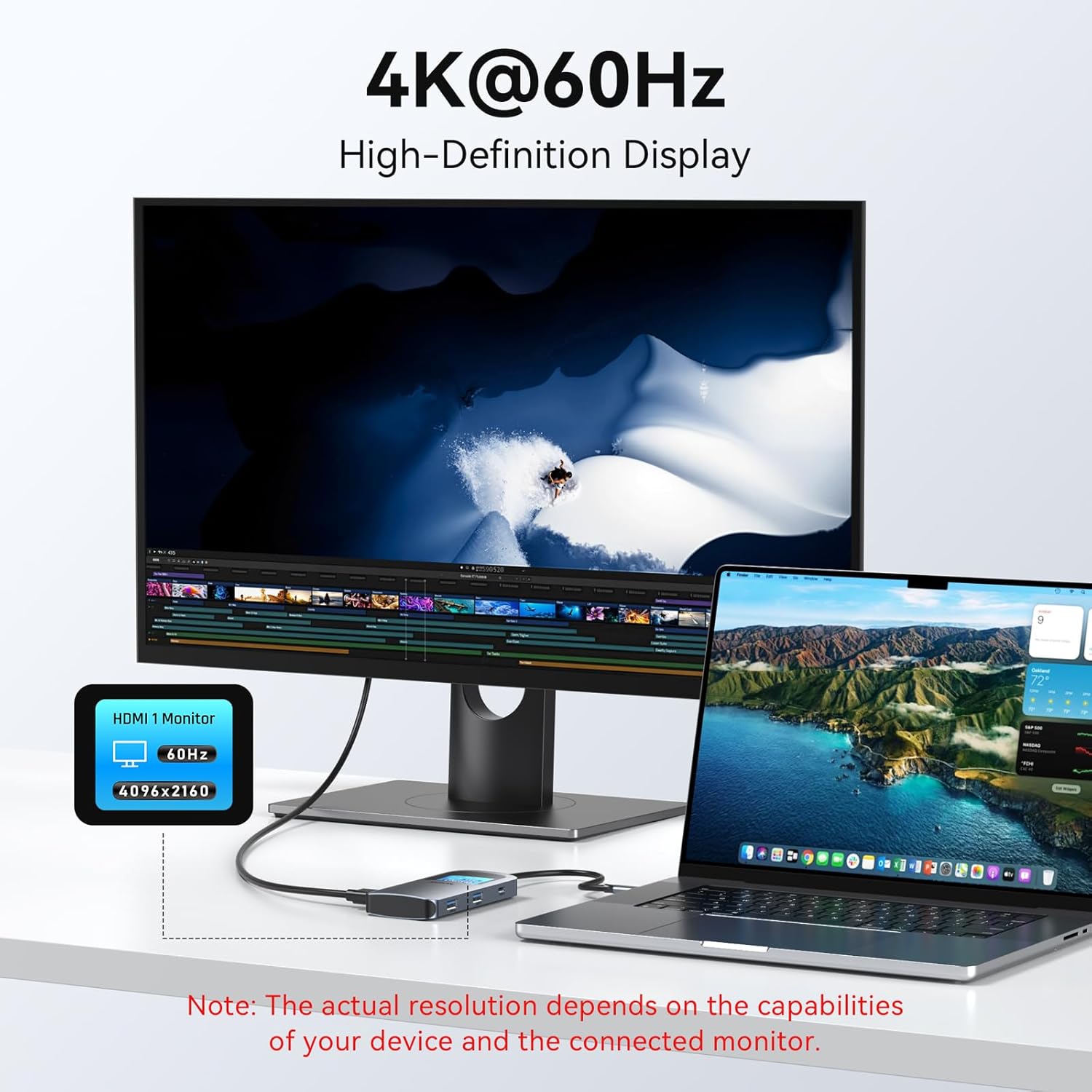
Your operating system (Windows/macOS) will allow you to configure the display mode:
- Mirror Mode: Duplicates your laptop's screen onto the external display.
- Extend Mode: Extends your desktop across both displays, allowing for more workspace.

5.3. USB Data Ports
The hub includes two USB-A 3.0 ports and one USB-C 3.0 port. These ports support data transfer speeds up to 5Gbps, suitable for connecting external hard drives, USB flash drives, keyboards, mice, and other USB peripherals.

5.4. SD/TF Card Reader
Insert your SD or MicroSD (TF) card into the corresponding slot. The card reader supports speeds up to 104MB/s, allowing for fast access to photos, videos, and other files.

5.5. Power Delivery (PD) Charging
Connect your laptop's USB-C power adapter to the PD 100W port on the hub. This allows you to charge your laptop while simultaneously using the other ports on the hub. The hub can deliver up to 85W of power to your laptop.
Note: A power adapter is not included. Ensure your power adapter is 65W or higher for optimal charging performance. The actual charging speed depends on your laptop's power requirements.

6. Specifications
| Feature | Specification |
|---|---|
| Model Number | MOUC0551 |
| Ports | 1x HDMI, 2x USB-A 3.0, 1x USB-C 3.0, 1x PD 100W, 1x SD Card Reader, 1x MicroSD (TF) Card Reader |
| HDMI Resolution | Up to 4K@60Hz |
| USB 3.0 Data Speed | Up to 5Gbps |
| Power Delivery | Input: 100W, Output: Up to 85W to host device |
| Card Reader Speed | Up to 104MB/s (SD/MicroSD) |
| Material | Aluminum |
| Item Weight | 0.14 Kilograms |
7. Troubleshooting
- No video output:
- Ensure your laptop's USB-C port supports DisplayPort Alternate Mode (refer to Section 4.1).
- Check the HDMI cable connection to both the hub and the monitor.
- Verify the monitor input source is correctly selected.
- Try restarting your laptop.
- Slow data transfer speeds:
- Ensure you are using USB 3.0 compatible devices and cables.
- Avoid connecting multiple high-bandwidth devices simultaneously if performance is critical.
- Laptop not charging:
- Ensure your USB-C power adapter is connected to the hub's PD port.
- Verify your laptop's USB-C port supports Power Delivery.
- Use a power adapter of 65W or higher for optimal charging.
- Smart LCD display is off:
- Press the "KEY" button to turn the display back on. Long-pressing the button turns the screen off, but the hub remains functional.
8. Maintenance
To ensure the longevity and proper functioning of your MOKiN USB C Hub:
- Keep the device dry and away from moisture.
- Avoid extreme temperatures.
- Clean the device with a soft, dry cloth. Do not use liquid cleaners or aerosols.
- Avoid dropping or subjecting the device to strong impacts.
9. Warranty and Support
MOKiN provides an 18-month warranty for this product. If you encounter any issues or require assistance, please contact MOKiN customer support through your purchase platform or the official MOKiN website. Please have your model number (MOUC0551) and purchase details ready when contacting support.


