
Introduction
Thank you for choosing the Basike Ba-FON340 Pro Gaming Headset. This manual provides essential information for the proper setup, operation, maintenance, and troubleshooting of your new headset. Please read it carefully to ensure optimal performance and longevity of your device.
Product Overview
The Basike Ba-FON340 is a professional gaming headset designed for immersive audio experiences and clear communication. It features 50mm drivers, 7.1 surround sound, and an ENC (Environmental Noise Cancellation) microphone.
Key Features:
- 50mm Audio Drivers: Delivers powerful and immersive 7.1 surround sound.
- ENC Microphone: Dual microphone system with Environmental Noise Cancellation for clear voice communication.
- FPS/Music Modes: Switch between gaming (FPS) and music modes with LED indicators (red for FPS, blue for Music).
- In-line Controls: Easy access to volume adjustment, microphone mute, and mode switching.
- USB Connectivity: Standard USB interface for broad compatibility.
- Comfortable Design: Leather ear cushions and an adjustable headband for extended wear.
- Durable Construction: Reinforced internal metallic component and UV matte finish for durability.
Components:
- Basike Ba-FON340 Pro Gaming Headset with integrated USB cable and in-line control.
- User Manual (this document).
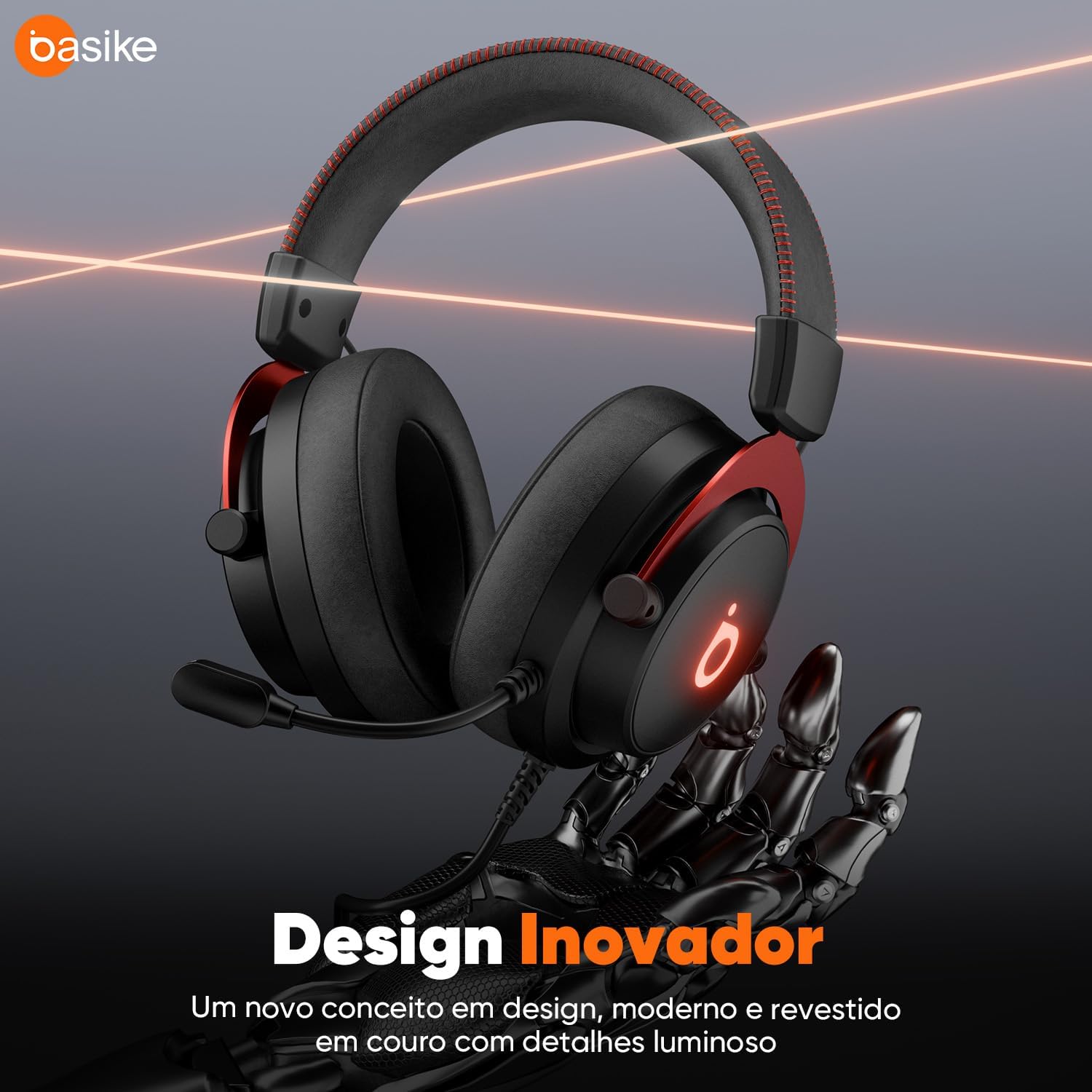
Image: The Basike Ba-FON340 Pro Gaming Headset showcasing its innovative design with red accents and illuminated logo.

Image: The headset's USB connection and the in-line control unit, highlighting its broad compatibility with various devices.
Setup Instructions
- Connect the Headset: Plug the USB connector of the Basike Ba-FON340 headset into an available USB port on your computer (Windows 7/10/11, macOS), PS4, or PS5 console.
- Driver Installation (Plug-and-Play): The headset is designed for plug-and-play functionality. Your operating system should automatically detect and install the necessary drivers. No manual driver installation is typically required.
- Audio Settings Configuration:
- For PC/Mac: Navigate to your system's sound settings. Select "Basike Ba-FON340" as the default output device (for playback) and input device (for microphone).
- For PS4/PS5: Go to Settings > Sound > Audio Output. Select "Headset (USB Headset)" as the output device. For microphone, go to Settings > Sound > Microphone and select "USB Headset".
- Adjust Headband and Microphone: Adjust the headband for a comfortable fit. Position the flexible microphone boom approximately 2-3 cm from your mouth for optimal voice pickup.
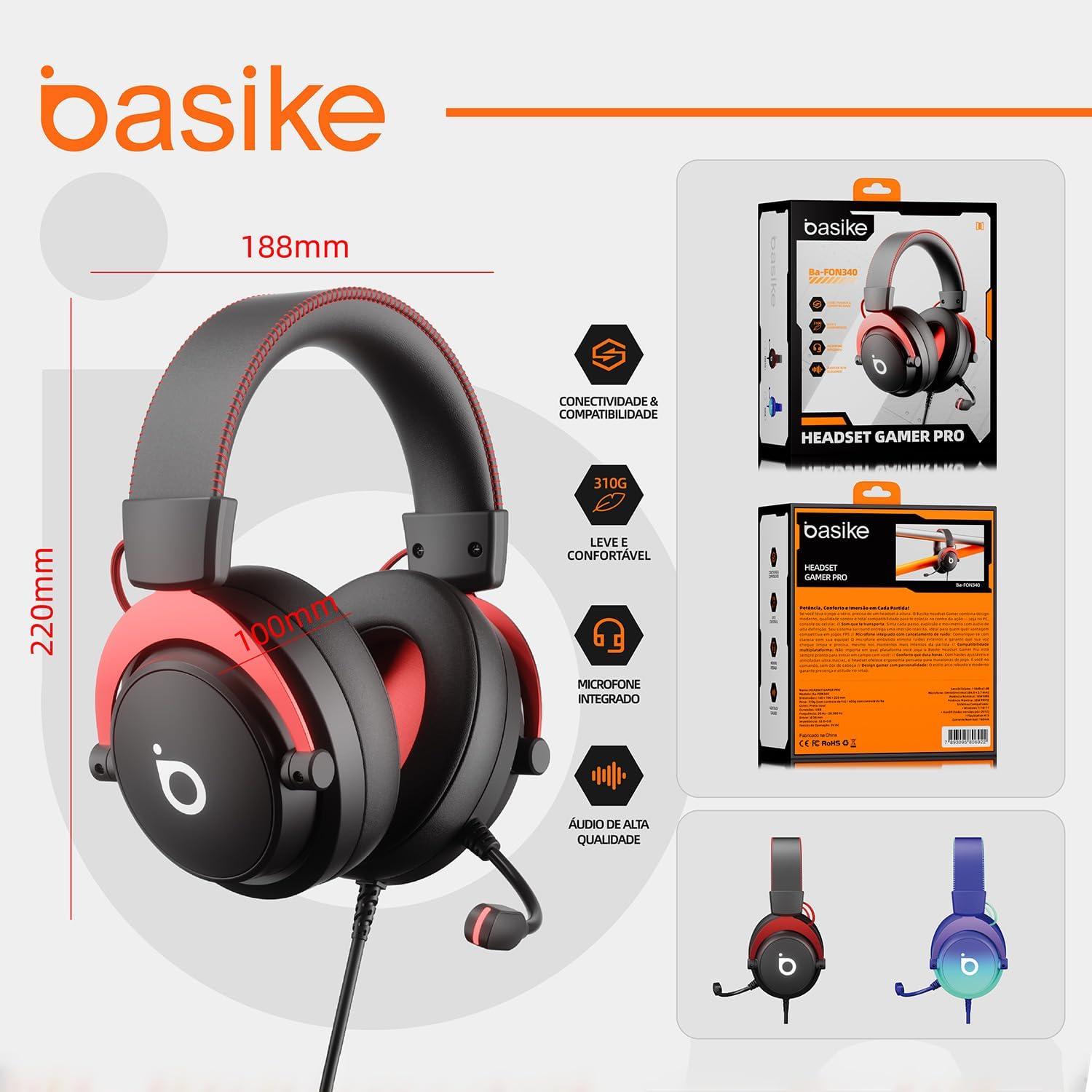
Image: Visual representation of the headset's dimensions and its retail packaging, providing a reference for physical size.
Operating Instructions
Your Basike Ba-FON340 headset features intuitive in-line controls for easy management of audio and microphone functions.
In-line Control Functions:
- Volume Up/Down: Use the '+' and '-' buttons on the in-line control to adjust the listening volume.
- Microphone Mute: Press the microphone icon button to mute or unmute the microphone. An LED indicator on the control unit will show the microphone status.
- Mode Switching (FPS/Music): Press the dedicated mode button to switch between FPS (Gaming) mode and Music mode.
- FPS Mode (Red LED): Optimized for gaming, enhancing directional audio cues like footsteps and gunshots.
- Music Mode (Blue LED): Provides a balanced audio profile for listening to music and general entertainment.

Image: A user wearing the headset, demonstrating the clear communication enabled by the ENC microphone and the functionality of the in-line controls for noise reduction.

Image: Close-up view of the 50mm audio driver, illustrating the technology behind the 7.1 surround sound for an immersive audio experience.

Image: A gamer using the headset, depicting the 360-degree spatial audio feature that provides precise sound localization in games.
Maintenance
Proper maintenance ensures the longevity and optimal performance of your headset.
- Cleaning: Use a soft, dry cloth to wipe the headset. For ear cushions, a slightly damp cloth with mild soap can be used, but ensure they are completely dry before use. Do not use harsh chemicals or abrasive cleaners.
- Storage: Store the headset in a cool, dry place away from direct sunlight and extreme temperatures. Avoid placing heavy objects on the headset.
- Cable Care: Avoid sharp bends or twists in the USB cable. Do not pull the cable to disconnect the headset; always grasp the USB plug.
- Microphone Care: Keep the microphone clean and free from dust. Avoid bending the microphone boom excessively.
Troubleshooting
If you encounter issues with your Basike Ba-FON340 headset, refer to the following common solutions:
No Sound or Low Volume:
- Ensure the headset is securely plugged into the USB port.
- Check the volume levels on the in-line control and your device's operating system.
- Verify that "Basike Ba-FON340" is selected as the default audio output device in your system's sound settings.
- Test the headset on another USB port or another compatible device to rule out a port issue.
Microphone Not Working:
- Ensure the microphone is not muted via the in-line control button. Check the LED indicator.
- Verify that "Basike Ba-FON340" is selected as the default input device in your system's sound settings.
- Check application-specific microphone settings (e.g., in gaming software, communication apps).
- Ensure the microphone boom is properly positioned.
Compatibility Issues (e.g., with PS5):
- While the product is advertised as compatible with PS4/PS5, some users have reported issues. Ensure your console's firmware is up to date.
- Try connecting the headset to different USB ports on the console.
- Verify audio settings on the console as described in the Setup section.
- If issues persist, consult the Basike support channels for further assistance.
Specifications
| Audio System Drivers | 50mm diameter |
| Frequency Response | 20Hz-20kHz |
| Sensitivity | 118dB±3dB |
| Impedance | 32Ω±15% |
| Output Power | 18mW (max. 30mW) |
| Max Sound Pressure Level | 103dB±3dB |
| Audio Resolution | 16bit/192kHz |
| Microphone Type | Dual microphone with ENC (Environmental Noise Cancellation) |
| Microphone Dimensions | 6mm×2.7mm |
| Microphone Sensitivity | -42±3dB |
| Microphone Impedance | 2.2KΩ |
| Connectivity | Standard USB interface with sound card |
| Working Voltage | DC 5V |
| Working Current | 160mA |
| Cable Length | 2.2 meters |
| Compatibility | Windows 7/10/11, macOS, PS4, PS5 |
| Dimensions (L×W×H) | 188mm × 100mm × 220mm |
| Weight (without control) | 310g |
| Weight (with control) | 390g |
| Materials | ABS, metal, leather, fabric cable |
| Finish | UV matte, laser engraving |

Image: Close-up of the comfortable leather ear cushions, designed for extended gaming sessions.
Warranty Information
Basike is not responsible for damages caused by improper use of the product or use with an incompatible electrical device. Please refer to your purchase documentation for specific warranty periods and terms provided by your retailer.
Support
For further assistance, technical support, or warranty claims, please contact the retailer where you purchased the Basike Ba-FON340 Pro Gaming Headset. You may also visit the official Basike website for additional resources and contact information.
Basike Brand Store: Visit Basike Store on Amazon.com.br


