Introduction
The Brother MFC-L3780CDW is a versatile digital color all-in-one laser printer designed for home offices and small businesses. This device integrates print, copy, scan, and fax functionalities, offering high-performance productivity with fast print speeds and advanced features. This manual provides essential information for setting up, operating, maintaining, and troubleshooting your printer.
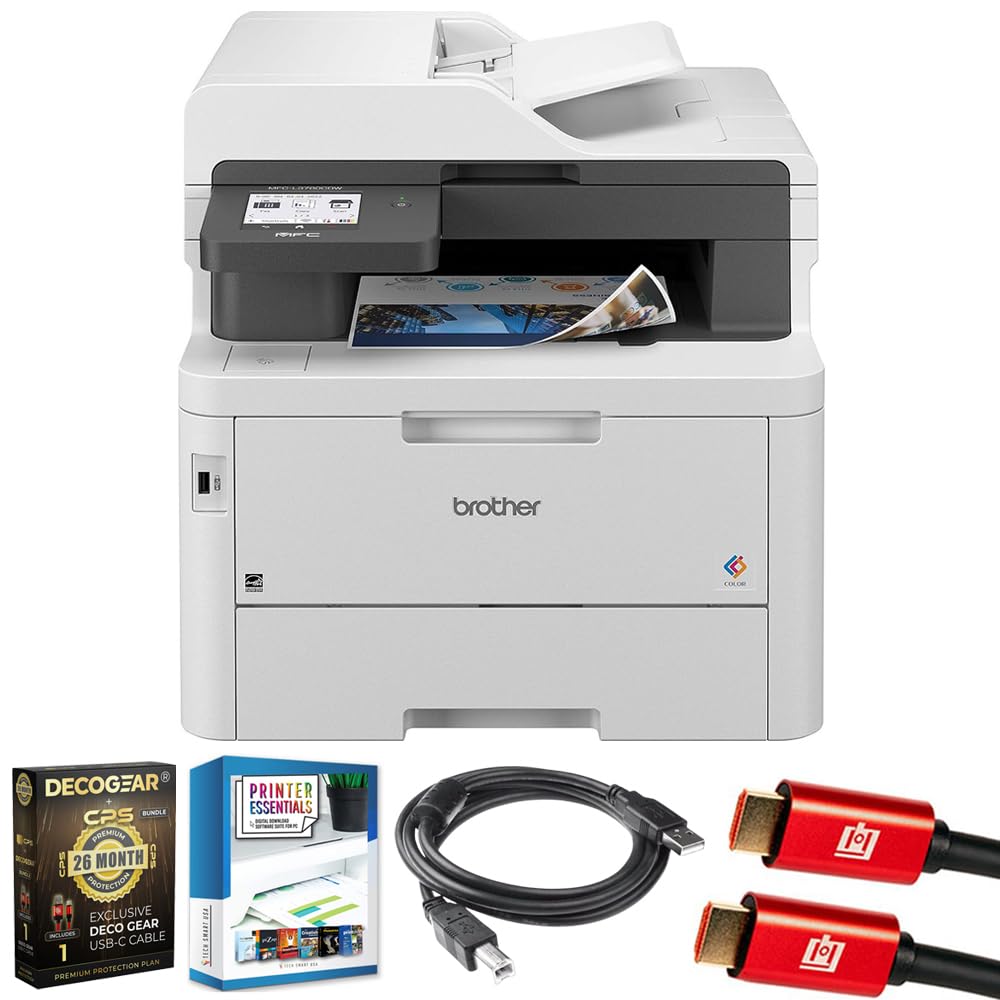
Image: Front view of the Brother MFC-L3780CDW printer, showcasing its compact design and output tray.
Setup
1. Unpacking and Component Check
Carefully remove the printer from its packaging. Ensure all protective tapes and materials are removed from the exterior and interior of the device. Verify that the following components are included:
- Brother MFC-L3780CDW Printer
- Starter Black Toner Cartridge
- Starter Cyan Toner Cartridge
- Starter Magenta Toner Cartridge
- Starter Yellow Toner Cartridge
- Drum Unit
- AC Power Cord
- Quick Setup Guide and Documentation

Image: The Brother MFC-L3780CDW printer shown alongside its dimensions and the included starter toner cartridges, drum unit, power cord, and documentation.
2. Power Connection
Connect the supplied AC power cord to the printer's power input and then to a standard electrical outlet. Do not connect the printer to a computer yet.
3. Toner Cartridge and Drum Unit Installation
- Open the front cover of the printer.
- Remove the drum unit assembly from its protective bag.
- Gently insert each toner cartridge into its corresponding slot in the drum unit assembly until it clicks into place. Ensure the colors match the labels.
- Slide the combined drum unit and toner cartridge assembly into the printer until it locks.
- Close the front cover.
4. Paper Loading
Open the main paper tray (Tray 1) and adjust the paper guides to fit your paper size. Load up to 250 sheets of standard paper. The multipurpose tray can hold up to 30 sheets for various media types.
5. Network Connection and Software Installation
Turn on the printer. Follow the on-screen instructions on the 3.5-inch color touchscreen to select your language and set up the network connection (Wi-Fi or Ethernet). For computer printing, download the latest drivers and software from the official Brother support website. For mobile printing, download the Brother Mobile Connect app.
Operating the Printer
1. Printing Documents
From your computer, select the Brother MFC-L3780CDW as your printer in the print dialog box. Adjust settings such as color, duplex, and paper type as needed. For mobile devices, use the Brother Mobile Connect app or compatible print services like Apple AirPrint or Mopria.
2. Copying Documents
Place your document face-up in the Automatic Document Feeder (ADF) or face-down on the flatbed scanner glass. On the printer's touchscreen, select the 'Copy' function. You can adjust settings for quantity, color/mono, and duplex copying (single-pass duplex is supported for the ADF).
3. Scanning Documents
Place your document in the ADF or on the flatbed. Select the 'Scan' function on the touchscreen. Choose your scan destination (e.g., computer, email, cloud service, USB drive) and adjust scan settings like resolution and file format. The printer supports single-pass duplex scanning.
4. Faxing Documents
Connect a telephone line to the printer's LINE jack. Place your document in the ADF or on the flatbed. Select the 'Fax' function on the touchscreen, enter the recipient's fax number, and press Start.
5. Using the 3.5-inch Color Touchscreen
The touchscreen provides intuitive navigation for all printer functions, settings, and direct access to cloud services. Customize shortcuts for frequently used tasks.

Image: Close-up view of the Brother MFC-L3780CDW's 3.5-inch color touchscreen, showing options for printing, scanning, and checking toner levels.
6. Brother Mobile Connect App
The Brother Mobile Connect app allows you to manage your printer, print from almost anywhere, scan to your mobile device, and monitor toner levels directly from your smartphone or tablet.

Image: A smartphone displaying the Brother Mobile Connect app interface, illustrating its capabilities for document printing, scanning, and toner monitoring.
Maintenance
1. Toner Cartridge Replacement
When a toner cartridge is low or empty, the printer will display a message. To replace, open the front cover, remove the drum unit assembly, then remove the empty toner cartridge from the drum unit. Install a new Brother Genuine toner cartridge into the drum unit until it clicks, then reinsert the assembly into the printer.

Image: The Brother MFC-L3780CDW printer surrounded by various Brother genuine toner cartridges, emphasizing the use of authentic supplies for optimal performance.
2. Drum Unit Replacement
The drum unit is a consumable item that needs replacement after a certain number of pages. The printer will notify you when replacement is due. Follow the instructions in the Quick Setup Guide for safe replacement.
3. Cleaning the Printer
- Exterior: Wipe the exterior of the printer with a soft, lint-free cloth.
- Scanner Glass: Clean the scanner glass with a soft, dry cloth to prevent streaks on scanned documents.
4. Clearing Paper Jams
If a paper jam occurs, the printer's display will show instructions on how to clear it. Always turn off the printer before attempting to remove jammed paper. Carefully pull the paper in the direction of the paper path to avoid tearing.
Troubleshooting
This section addresses common issues you might encounter. For detailed troubleshooting, refer to the full user manual available on the Brother support website.
Common Issues and Solutions:
- Printer Not Responding: Check power connections, USB/Ethernet cables, and Wi-Fi connection. Restart both the printer and your computer/device.
- Poor Print Quality: Check toner levels. Ensure you are using Brother Genuine toner and drum units. Clean the drum unit wires if streaks appear.
- Paper Jams: Follow on-screen instructions to locate and carefully remove jammed paper. Ensure paper is loaded correctly and not overfilled.
- Network Connectivity Problems: Verify Wi-Fi password and network settings. Ensure the printer is within range of your router. Try restarting your router.
- Error Messages: Refer to the printer's display for specific error codes and consult the online manual for detailed solutions.
Specifications
| Feature | Specification |
|---|---|
| Functions | Print, Copy, Scan, Fax |
| Printing Technology | Digital Color Laser |
| Max Print Speed (Color/Mono) | Up to 31 ppm |
| Max Print Resolution | 2400 x 600 dpi |
| Duplex Printing | Automatic (2-sided) |
| Scanner Type | Flatbed with Single-Pass Duplex ADF |
| ADF Capacity | 50 sheets |
| Standard Paper Tray Capacity | 250 sheets |
| Multipurpose Tray Capacity | 30 sheets |
| Display | 3.5-inch Color Touchscreen |
| Connectivity | Dual-band Wi-Fi, Gigabit Ethernet, USB 2.0, Wi-Fi Direct, NFC |
| Compatible Cartridges | TN229BK, TN229M, TN229C, TN229Y, TN229XLBK, TN229XLM, TN229XLC, TN229XLY, TN229XXLBK, TN229XXLM, TN229XXLC, TN229XXLY, DR229CL |
| Product Dimensions (W x D x H) | 18.2" x 16.1" x 15.8" |
Warranty Information
The Brother MFC-L3780CDW printer comes with a 1-Year Limited Warranty from the manufacturer. This warranty covers defects in materials and workmanship under normal use. Please refer to the warranty documentation included with your product for full terms and conditions, including specific coverage details and limitations.
Support
For further assistance, detailed manuals, driver downloads, and frequently asked questions, please visit the official Brother support website. You can also contact Brother customer support directly for technical assistance.
- Brother Support Website: www.brother-usa.com/support
- Contact Information: Refer to the support website for phone numbers and chat options.


