
1. Introduction
Thank you for choosing the Ezonetronics RM-PCD025 Wireless CarPlay & Android Auto Motorcycle Display. This device provides seamless integration of your smartphone's navigation, music, and communication features directly onto your motorcycle's handlebars. Featuring a 5-inch IP67 waterproof touchscreen, integrated TPMS, and voice control, it ensures a safe and connected riding experience in various conditions. This manual provides detailed instructions for installation, operation, and maintenance.
2. Safety Information
Always prioritize safety while operating your motorcycle. Ensure the device is securely mounted and does not obstruct your view or control of the motorcycle. Do not attempt to operate complex functions or make extensive adjustments while riding. Use voice commands for navigation and calls whenever possible to minimize distractions. Always wear appropriate safety gear, including a helmet and protective clothing.
3. Package Contents
Please check the box for the following items:
- Motorcycle Display Unit x1
- Power Cable x1
- User Manual x1
- Mounting Bracket Kit (includes two fasteners, fixing bracket, 3 screws: short, medium, long, and 3 pairs of gaskets: thin, medium, thick)
- TPMS Sensors (integrated)
Note: The TPMS system is integrated into the device. External sensors transmit real-time data to the display.

Figure 3.1: Product Accessories
4. Setup & Installation
Follow these steps to install your Ezonetronics Motorcycle Display:
- Prepare Mounting Bracket: Remove the bracket and buckle components from the product.
- Align Interfaces: Align the threaded interfaces of the bracket components up and down on your motorcycle's handlebar.
- Secure Bracket: Take the longest screw from the accessories and use it to secure the retention bracket and fastener to the handlebar.
- Install Second Screw: After securing the first side, install the medium-sized screw on the other side of the bracket to further secure it.
- Attach Display to Stand: Connect the display screen to the stand from the product.
- Finalize Display Attachment: Insert the nut while removing the shortest screw from the accessories to secure the display to the stand.
- Route Power Cord: Thread the power cord from top to bottom, ensuring it is clear of moving parts and heat sources.
- Organize Wires: Use the included cable ties to organize and secure any tangled wires for a neat and safe installation.
- Connect Power: Simply plug the power cord into the USB port for use.

Figure 4.1: Installation Diagram
Installation Video Guide
Video 4.1: Motorcycle Navigation Installation Guide. This video demonstrates the step-by-step process of mounting the display unit and connecting its power cable to the motorcycle.
5. Operating Instructions
5.1 Wireless CarPlay Connection
- Ensure your iPhone's Bluetooth and Wi-Fi are enabled.
- On the motorcycle display, tap the "CarPlay" icon.
- On your iPhone, go to Bluetooth settings and find the corresponding device name displayed on the motorcycle screen.
- Tap the device name to connect. Once paired, your iPhone will automatically connect to CarPlay when the display starts.
5.2 Wireless Android Auto Connection
- If previously connected to an Apple device, disconnect its Bluetooth connection first.
- Ensure your Android phone's Bluetooth and Wi-Fi are enabled.
- On the motorcycle display, tap the "Android Auto" icon.
- On your Android phone, go to Bluetooth settings and find the corresponding device name displayed on the motorcycle screen.
- Tap the device name to pair. Upon successful connection, the display will automatically enter the Android Auto application interface.
The display supports various functions including calling, music playback, navigation, and other applications accessible via CarPlay or Android Auto.

Figure 5.1: Wireless CarPlay and Android Auto Interfaces
5.3 Cycling Demonstration
Video 5.2: Cycling Demonstration. This video shows the display unit in use on a motorcycle, demonstrating navigation and interface interaction while riding.
6. Features
- 5-inch HD Touchscreen: High-resolution display with vibrant colors for optimal visual experience.
- Wireless CarPlay & Android Auto: Automatic connection via Bluetooth and Wi-Fi for access to apps, maps, music, and voice control (Siri/Google Assistant).
- Integrated TPMS: Real-time tire pressure and temperature monitoring displayed on the screen, alerting to potential issues for enhanced safety.
- IP67 Waterproof & Dustproof: Certified to withstand rain, snow, and dust, ensuring reliable performance in all weather conditions.
- Wide Operating Temperature: Designed to function reliably from -20°C to 70°C.
- Easy Installation & Flexible Mounting: Comes with a complete kit for quick installation, featuring a dual-screw design for secure or quick-release mounting.
- Online Navigation & Music Support: Access the latest maps and stream music directly through the display.
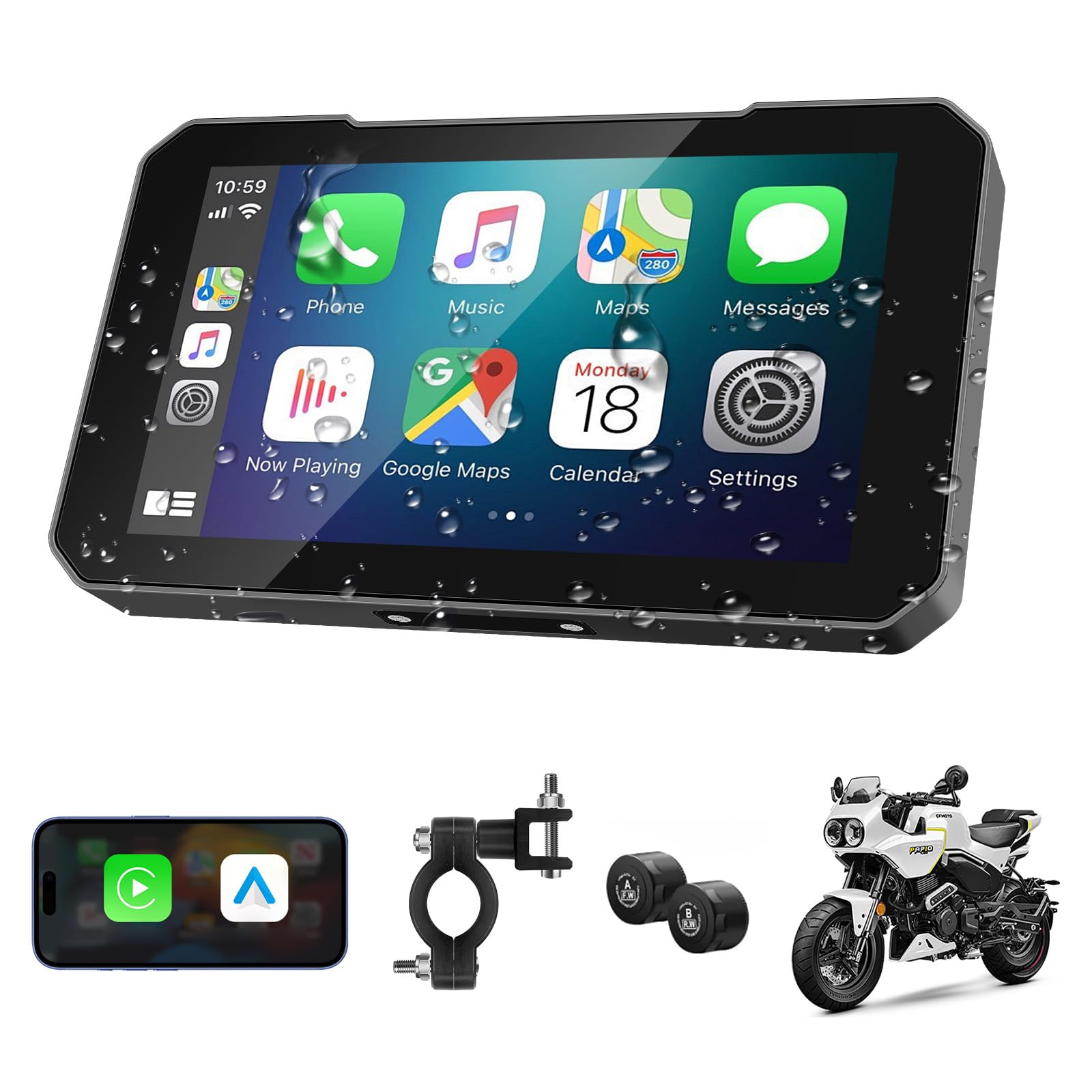
Figure 6.1: Online Navigation Interface

Figure 6.2: IP67 Waterproof Feature

Figure 6.3: Integrated TPMS Display
7. Specifications
| Attribute | Detail |
|---|---|
| Brand | Ezonetronics |
| Model Number | RM-PCD025 |
| Connectivity Technology | Bluetooth |
| Manufacturer | Rhythm Electronics Limited |
| Country of Origin | China |
| Screen Size | 5 inches |
| Waterproof Rating | IP67 |
8. Maintenance
To ensure the longevity and optimal performance of your Ezonetronics Motorcycle Display, follow these maintenance guidelines:
- Cleaning: Use a soft, damp cloth to clean the screen and exterior. Avoid abrasive cleaners or solvents that may damage the surface.
- Water Exposure: While the device is IP67 waterproof, avoid prolonged submersion. Ensure all ports are securely covered when exposed to water.
- Temperature: Operate and store the device within the specified temperature range (-20°C to 70°C) to prevent damage.
- Cable Management: Periodically check the power cable and connections for any signs of wear or damage. Ensure cables are securely tied and not exposed to excessive vibration or friction.
9. Troubleshooting
If you encounter issues with your device, refer to the following common solutions:
- Device Not Powering On: Check the power cable connection to the USB port and ensure the motorcycle's power is on. Verify the cable is not damaged.
- Bluetooth Connectivity Issues: Ensure Bluetooth is enabled on both your smartphone and the motorcycle display. Try forgetting the device on your phone and re-pairing. Make sure no other devices are interfering with the connection.
- CarPlay/Android Auto Not Launching: Confirm your phone's Bluetooth and Wi-Fi are active. Ensure the correct CarPlay or Android Auto icon is selected on the display. Restart both your phone and the display unit.
- Screen Unresponsive: Try restarting the device. If the issue persists, ensure the screen is clean and free from moisture or debris.
- TPMS Data Not Displaying: Check that the TPMS sensors are correctly installed and functioning. Ensure the device is receiving a signal from the sensors.
10. Warranty & Support
The Ezonetronics RM-PCD025 Motorcycle Display comes with a 1-year warranty from the date of purchase, covering manufacturing defects. Please retain your proof of purchase for warranty claims.
For technical support, warranty inquiries, or further assistance, please contact Ezonetronics customer service through the retailer where you purchased the product or visit the official Ezonetronics website for contact information.


