
1. Introduction
The MILESEEY TR256i Thermal Imaging Camera is a compact and powerful device designed to transform your Android smartphone into an advanced thermal imager. Connecting via USB-C, it provides real-time thermal imagery with high resolution and precision, suitable for a wide range of applications including electrical, HVAC, building, and automotive inspections.
Key Features
- Plug-and-Play Design with High Performance: Connects directly to Android devices via USB-C for instant use with the MILESEEY THERMAL app. Features low power consumption, photo and video recording, and a 25 Hz refresh rate for low-latency operation. Wide FOV (>56°) for rapid inspections.
- High Thermal Resolution & Precision: 256 × 192 (49,152 pixels) IR resolution, delivering ultra-fine thermal details. Accuracy of ±2% or ±3°F and a large F1.1 aperture. Wide temperature range of 5°F–1112°F.
- Intelligent Temperature Tracking: Automatically tracks maximum, minimum, and central temperatures in real time. Supports custom area analysis with points, lines, or rectangular boxes.
- Color Highlight Display for Quick Detection: Isotherm Mode colorizes hot areas while keeping the rest in grayscale. Six selectable color palettes enhance readability.
- Precision Calibration: Allows manual input of ambient temperature, target emissivity, and target distance for algorithmic compensation and accurate readings.
2. What's in the Box
- TR256i Thermal Camera
- USB-C Extension Cable
- Protective Bag
- Lens Cleaning Cloth
- User Manual
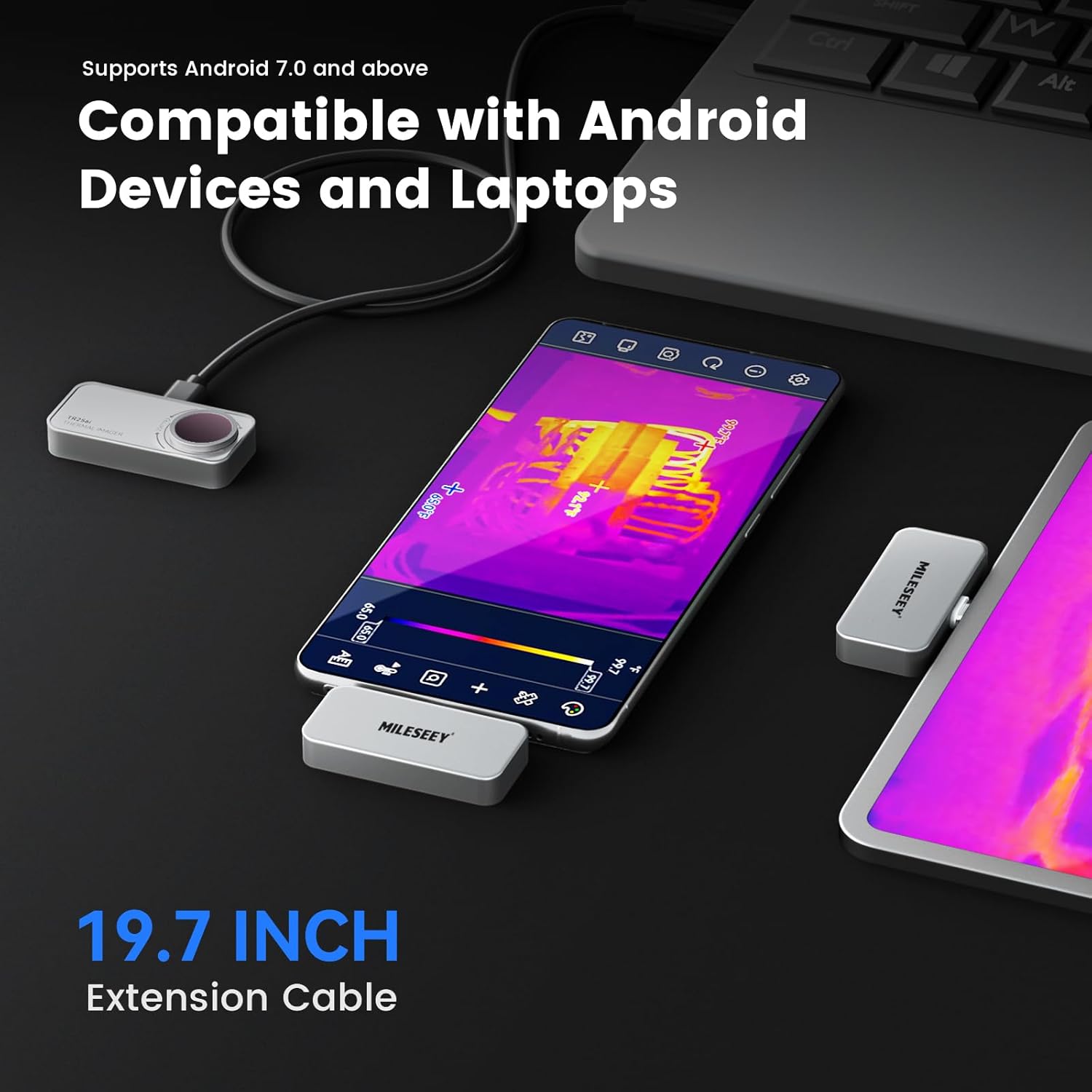
Figure 2.1: Contents of the MILESEEY TR256i Thermal Imaging Camera package, including the camera, USB-C extension cable, protective bag, lens cleaning cloth, and user manual.
3. Setup
3.1 System Requirements
- Android 7.0 and above
- USB-C port on your Android device
3.2 App Installation
To use the TR256i, you must install the official "MILESEEY THERMAL" app. Download it directly from the Google Play Store.

Figure 3.1: Screenshot showing the MILESEEY THERMAL app icon on an Android phone, with instructions to download from Google Play.
3.3 Connecting the Device
Plug the TR256i thermal imager securely into your Android device's USB-C port. The "MILESEEY THERMAL" app should automatically launch or prompt you to open it. If it does not, open the app manually.
Video 3.1: Official tutorial demonstrating how to quickly connect the MILESEEY TR256i to an Android phone and start using the app.
4. Operating Instructions
4.1 Basic Operation
Once the TR256i is connected and the app is running, your smartphone screen will display real-time thermal imagery. You can rotate your phone for horizontal or vertical viewing.

Figure 4.1: A smartphone screen displaying real-time thermal imaging with hot, center, and cold spot tracking, showing temperature readings.
4.2 Temperature Tracking and Analysis
- Automatic Tracking: The app automatically identifies and tracks the maximum, minimum, and central temperatures within the field of view.
- Custom Area Analysis: Utilize the app's tools to add specific points, lines, or rectangular boxes to monitor temperature readings in user-defined regions.

Figure 4.2: An infographic showing various features of the thermal imager app, including real-time custom area analysis, temperature alarm, color highlight for set temp range, and six color palettes.
4.3 Color Palettes and Display Modes
The app offers six selectable color palettes to visualize thermal data. The Isotherm Mode is particularly useful for quickly identifying heat anomalies by colorizing hot areas while rendering cooler regions in grayscale.

Figure 4.3: An image illustrating different color palettes available in the thermal imaging app, allowing users to customize the thermal view.
4.4 Photo and Video Recording
Capture thermal images and record videos directly through the app. This feature is essential for documenting findings, performing post-inspection analysis, and demonstrating thermal patterns.

Figure 4.4: Two thermal images side-by-side, one labeled 'Photo' showing excellent image sharpness and another labeled 'Video' indicating low-latency recording.
5. Precision Calibration
To ensure the most accurate temperature readings, especially in challenging environments, the TR256i allows for precision calibration. You can manually input the following parameters within the app:
- Ambient Temperature: The temperature of the surrounding environment.
- Target Emissivity: A measure of an object's ability to emit infrared energy. Different materials have different emissivity values.
- Target Distance: The distance between the thermal imager and the object being measured.
The device uses algorithmic compensation based on these inputs to refine its temperature calculations.

Figure 5.1: An infographic detailing custom measurement and precision calibration features, including point/line/rectangular temp analysis, temperature alarm, and compensation settings.
6. Specifications
| Feature | Detail |
|---|---|
| IR Resolution | 256 × 192 (49,152 pixels) |
| Super Resolution | 512 × 384 |
| Temperature Range | 5°F–1112°F (-15°C to 600°C) |
| Accuracy | ±2% or ±3°F |
| Refresh Rate | 25 Hz |
| FOV (Field of View) | >56° |
| Aperture | F1.1 |
| System Compatibility | Android 7.0 and above |
| Dimensions | 1.0 × 2.4 × 0.4 inches |
| Weight | 0.7 oz (20 g) |
| Connector | USB-C |

Figure 6.1: An image highlighting the advanced imaging quality of the TR256i, showing NETD < 50 mK, 512x384 Super Resolution, F1.1 Aperture, and 25 Hz Refresh Rate.
7. Troubleshooting
Common Issues and Solutions
- Device not recognized: Ensure the TR256i is securely plugged into the USB-C port. Verify your Android device is running Android 7.0 or higher. Restart the app or your phone.
- App not launching automatically: Manually open the "MILESEEY THERMAL" app after connecting the device. Check app permissions to ensure it has access to USB devices.
- Inaccurate temperature readings: Ensure proper calibration by manually inputting ambient temperature, target emissivity, and target distance in the app settings. Clean the lens with the provided microfiber cloth.
- Image quality issues: Ensure the lens is clean and free from obstructions. Check app settings for Super-Resolution toggle and other display options.
- No thermal image: Confirm the device is properly connected and the app is open. Check for any error messages within the app or on your device.
8. Maintenance
- Cleaning: Use the provided microfiber cloth to gently clean the thermal imager's lens. Avoid abrasive materials, harsh chemicals, or excessive force, as this can damage the lens.
- Storage: Always store the TR256i in its protective bag when not in use. This helps prevent dust accumulation and physical damage.
- Handling: Handle the device with care. Avoid dropping it or exposing it to extreme temperatures, high humidity, or direct water contact.
9. Warranty and Support
9.1 Warranty Information
The MILESEEY TR256i Thermal Imaging Camera comes with a 2-year warranty. Please refer to the warranty card included in the package for full terms and conditions.
9.2 Customer Support
For technical assistance, product inquiries, or support, please contact MILESEEY customer service through the following channels:
- Website: www.mileseeytools.com
- Email: service@mileseey.com


