1. Introduction
This manual provides essential information for setting up, operating, and maintaining your Aiwa AW50RKQ 50-inch QLED 4K Ultra HD Roku TV. Please read these instructions carefully before using the product to ensure safe and optimal performance.
The Aiwa AW50RKQ is designed to deliver a powerful streaming experience and superior image quality with its QLED panel and 3840 x 2160 pixel (4K) resolution. It features Roku TV for quick access to applications and streaming channels, along with Dolby Digital sound and a slim design.
2. Package Contents
Verify that all items listed below are included in your package:
- Aiwa AW50RKQ 50-inch QLED 4K Ultra HD Roku TV
- Remote Control
- TV Stand
- Screws for Stand Assembly
- Power Cable
- Power Adapter
- User Manual (this document)
- Warranty Card
3. Setup
3.1 Attaching the TV Stand
Carefully place the TV screen-down on a soft, clean surface to prevent scratches. Align the TV stand with the mounting holes on the bottom of the TV. Secure the stand using the provided screws.
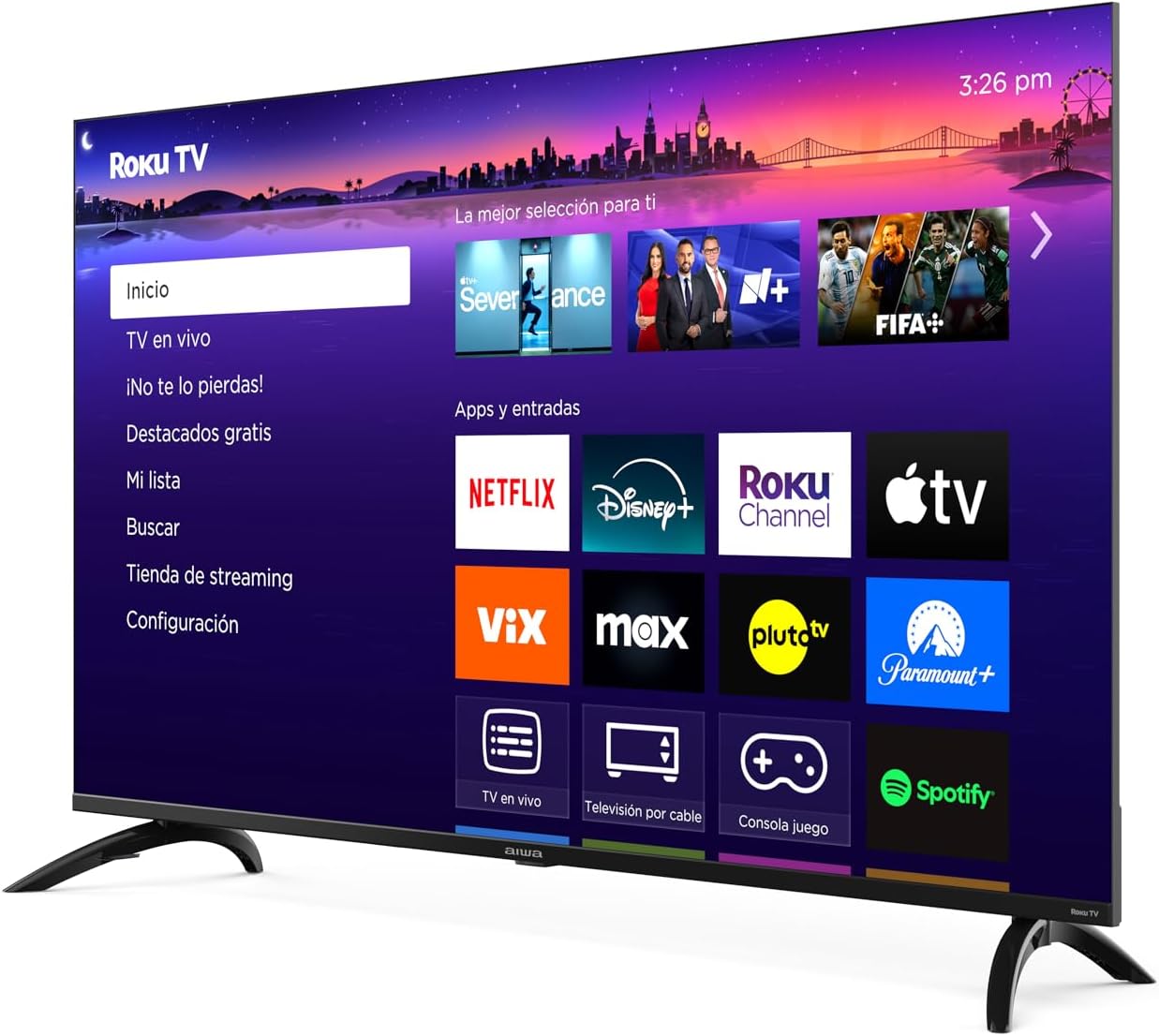
Image: Front view of the Aiwa AW50RKQ 50-inch QLED 4K Ultra HD Roku TV with its stand attached, displaying the Roku TV interface.
3.2 Connecting Power
Connect the power cable to the TV's power input and then plug it into a wall outlet. Ensure the power adapter is securely connected if provided separately.
3.3 Connecting External Devices
Your Aiwa AW50RKQ TV offers various connectivity options:
- HDMI: Connect up to 4 HDMI devices (e.g., Blu-ray player, game console, cable box). One HDMI port supports eARC for enhanced audio return channel functionality.
- USB: Connect a USB drive for media playback.
- Composite A/V: For older devices, use the composite audio/video input.
- Optical Digital Output: Connect to a soundbar or home theater system for digital audio.
- Headphone Output: Connect headphones for private listening.

Image: Rear view of the Aiwa AW50RKQ TV, showing the various input and output ports including HDMI, USB, and audio connections.
3.4 Initial Power On and Roku TV Setup
Press the power button on the remote control or the TV. Follow the on-screen instructions to complete the initial setup, including connecting to your Wi-Fi network and activating your Roku account.
4. Operating Instructions
4.1 Remote Control
The included remote control provides access to all TV functions. Familiarize yourself with the buttons for power, volume, channel selection, navigation, and dedicated app buttons.
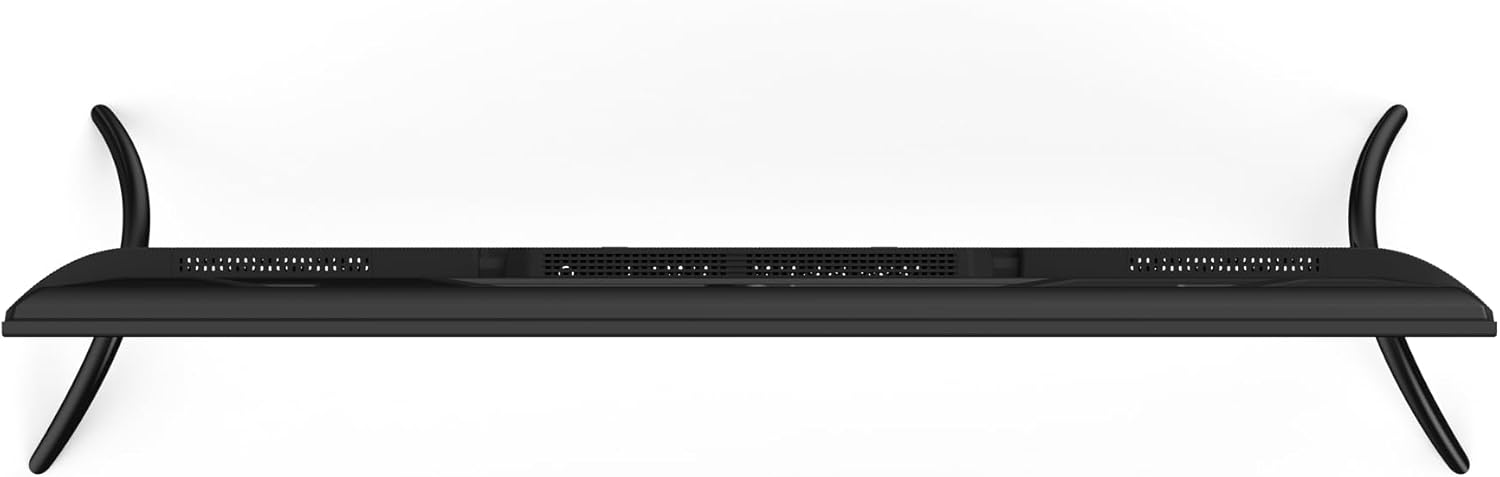
Image: Close-up of the Aiwa AW50RKQ TV remote control, showing its buttons and layout.
4.2 Roku TV Interface
The Roku TV operating system provides a simple and fluid navigation experience. From the home screen, you can access:
- Streaming Channels: Browse and add thousands of free or paid streaming apps.
- Live TV: Access over-the-air broadcasts via the integrated ATSC tuner.
- Inputs: Switch between connected HDMI and other input sources.
- Search: Find movies, shows, and actors across various streaming services.
- Settings: Adjust picture, sound, network, and system settings.
4.3 Voice Assistant
The TV supports a compatible voice assistant for convenient control. Refer to the Roku TV on-screen guide for specific instructions on enabling and using voice commands.
5. Features and Specifications
5.1 Display
- Screen Size: 50 inches
- Panel Type: QLED
- Resolution: 3840 x 2160 (4K UHD)
- Aspect Ratio: 16:9
- Brightness: 330 nits (minimum)
- Contrast Ratio: 1200:1 (typical)
- Viewing Angle: 178° horizontal / 178° vertical
- Refresh Rate: 60 Hz
- HDR Support: Yes
5.2 Audio
- Audio Output Power: 2 x 10 W
- Sound Technology: Dolby Digital
5.3 Connectivity
- HDMI Inputs: 4 (1 with eARC)
- USB Input: 1
- Composite A/V Input: Yes
- Optical Digital Output: Yes
- Headphone Output: Yes
- Wireless Connectivity: Wi-Fi 802.11 b/g/n/ac, Bluetooth
5.4 Internal Hardware
- Processor: CPU CA55 x4
- GPU: Mali 470 MP3
- RAM: 1.5 GB
- Internal Storage: 16 GB eMMC
- Operating System: Roku TV
5.5 Physical Characteristics
- Dimensions without Stand: 1118 x 652 x 70 mm
- Dimensions with Stand: 1118 x 735 x 210 mm
- Weight: 12.1 kg
- Power Consumption: 90 W
- Standby Consumption: Less than 0.5 W
6. Maintenance
To ensure the longevity and optimal performance of your TV, follow these maintenance guidelines:
- Cleaning the Screen: Use a soft, lint-free cloth specifically designed for electronics. Do not use abrasive cleaners or solvents. Lightly dampen the cloth with water if necessary, and wipe gently.
- Cleaning the Cabinet: Wipe the TV cabinet with a soft, dry cloth. Avoid using harsh chemicals.
- Ventilation: Ensure the ventilation openings on the back of the TV are not blocked. Allow adequate space around the TV for proper airflow.
- Power Cord: Regularly check the power cord for any damage. If damaged, contact customer support for a replacement.
- Storage: If storing the TV for an extended period, disconnect it from power and cover it to protect against dust.
7. Troubleshooting
If you encounter issues with your TV, refer to the following common solutions:
| Problem | Possible Cause | Solution |
|---|---|---|
| No power | Power cable disconnected or no power from outlet. | Ensure power cable is securely connected and the outlet is functional. Try a different outlet. |
| No picture, but sound is present | Incorrect input source selected or external device issue. | Press the "Input" button on the remote to select the correct source. Check the external device's power and connections. |
| No sound, but picture is present | Volume muted or too low, or audio settings incorrect. | Increase volume. Check if mute is active. Verify audio output settings in the TV menu. |
| Cannot connect to Wi-Fi | Incorrect password, router issue, or TV too far from router. | Double-check Wi-Fi password. Restart your router. Move the TV closer to the router or use a Wi-Fi extender. |
| Remote control not working | Dead batteries or obstruction. | Replace batteries. Ensure no obstructions between the remote and the TV's IR sensor. |
For further assistance, please refer to the official Aiwa support website or contact customer service.
8. Warranty and Support
Your Aiwa AW50RKQ TV comes with a standard manufacturer's warranty. Please refer to the included warranty card for details on coverage, terms, and conditions. Keep your proof of purchase for warranty claims.
For technical support, service, or additional product information, please visit the official Aiwa website or contact their customer support line. Contact information can typically be found on the warranty card or the manufacturer's website.


