
Introduction
Thank you for choosing the ASHATA GPS Bike Computer. This device is designed to provide essential cycling data with high accuracy and convenience. Featuring a 2.4-inch large screen, long battery life, and multi-satellite positioning support, it enhances your cycling experience. This manual provides detailed instructions for setup, operation, maintenance, and troubleshooting.
Package Contents
Please verify that all items are present in the package:
- 1 x ASHATA GPS Bike Computer
- 1 x Mounting Bracket
- 1 x Bracket Spacer
- 2 x Bracket Rubber Rings
- 1 x Type-C Charging Cable
- 1 x Instruction Manual (this document)
Setup
1. Mounting the Bike Computer
Attach the mounting bracket to your bicycle's handlebars or stem using the provided bracket spacer and rubber rings. Ensure the bracket is securely fastened and positioned for optimal viewing during your ride.

Image: The ASHATA GPS Bike Computer features a quick-release design for easy attachment and removal from the mounting bracket.
2. Initial Charging
Before first use, fully charge the bike computer. Connect the provided Type-C charging cable to the charging port on the device and a suitable USB power source. The device has a 1200mAh lithium-ion battery, providing approximately 28 hours of battery life on a full charge.
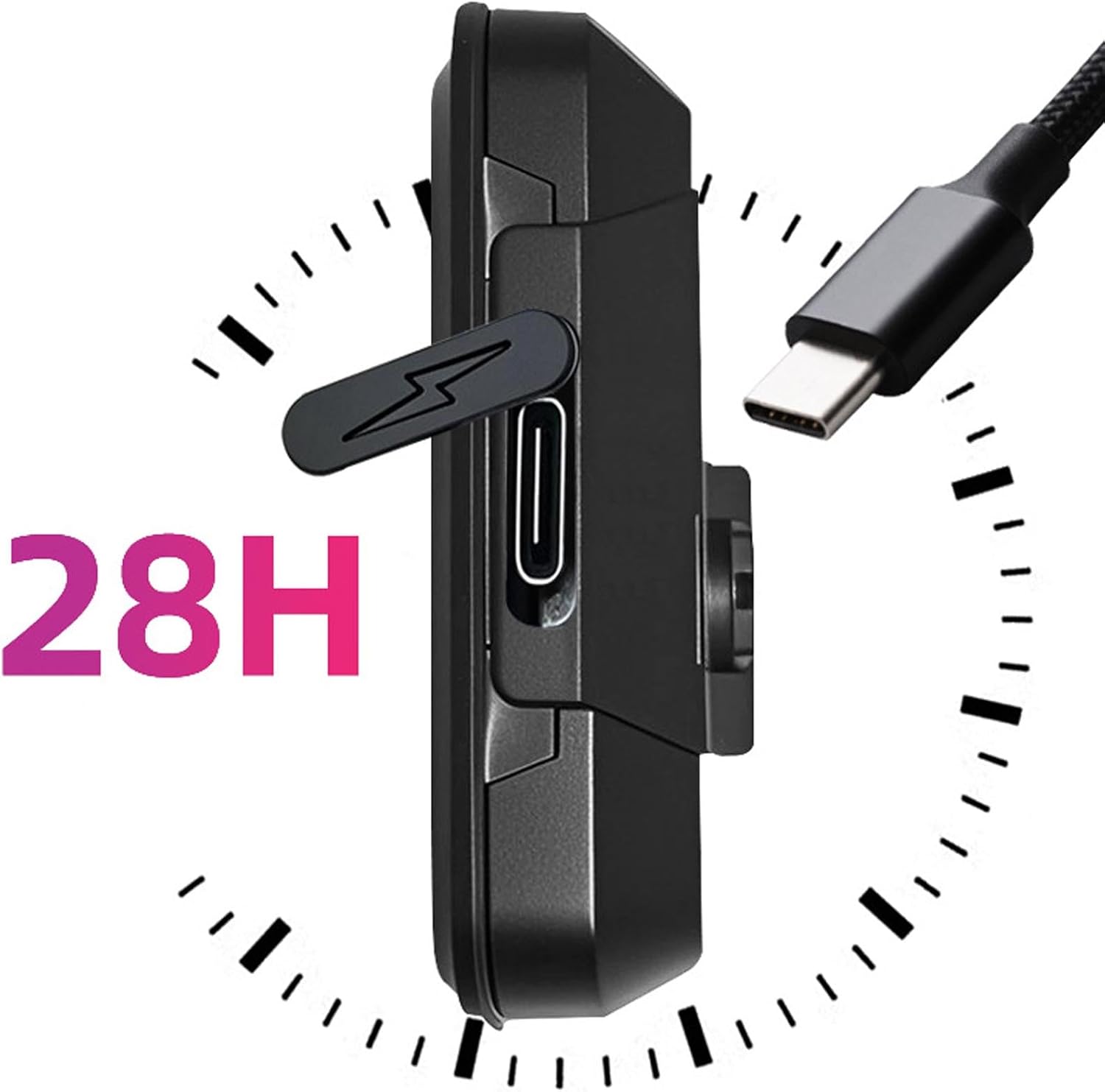
Image: Close-up of the Type-C charging port on the ASHATA GPS Bike Computer, indicating its 28-hour battery life.
Operating Instructions
1. Power On/Off
To power on the device, press and hold the power button (usually located on the side or bottom) for a few seconds until the screen illuminates. To power off, press and hold the same button until the screen turns off. The device automatically powers off after 20 minutes of inactivity to conserve battery.
2. Display Overview
The 2.4-inch screen displays various cycling data, including current speed, trip distance, clock, and battery status. The layout is designed for clear readability during your ride.

Image: Detailed view of the ASHATA GPS Bike Computer screen, showing time, speed, trip distance, and indicators for satellite status and backlight control.
3. Backlight Control
The device features a manual backlight that can be set to always-on. To toggle the backlight, long press the left 'Up' button for 3 seconds. This ensures clear visibility in low-light conditions or during nighttime rides.
4. Satellite Acquisition and Time Calibration
The ASHATA GPS Bike Computer supports multiple satellite systems including Beidou, GPS, GLONASS, Galileo, and QZSS for accurate positioning. Upon powering on, the device will automatically search for satellites. A flashing satellite icon indicates searching, while a steady icon means a successful satellite lock. The device also performs automatic satellite time calibration to ensure accurate timekeeping.
5. Data Recording
Once satellites are acquired, the computer will begin recording your ride data, including speed, distance, and time. Refer to the on-screen indicators for real-time information.
Maintenance
1. Charging
Recharge the device using the provided Type-C cable when the battery indicator is low. Avoid using damaged cables or chargers. Do not expose the charging port to moisture.
2. Cleaning
Wipe the device with a soft, damp cloth. Do not use harsh chemicals or abrasive cleaners, as these can damage the screen or casing. Ensure the charging port cover is closed to prevent dust and water ingress.
3. Storage
Store the bike computer in a cool, dry place away from direct sunlight and extreme temperatures. If storing for an extended period, ensure the battery is partially charged (around 50%) to prolong its lifespan.
Troubleshooting
- Device not powering on: Ensure the battery is charged. Connect to a power source and try again. If still unresponsive, perform a soft reset by holding the power button for 10-15 seconds.
- No GPS signal: Ensure you are in an open area with a clear view of the sky. Avoid dense tree cover or tall buildings. Allow a few minutes for the device to acquire satellites.
- Inaccurate speed/distance: Verify that the GPS signal is strong (steady satellite icon). Ensure the device is securely mounted and not obstructed.
- Backlight not working: Check if the backlight feature is enabled by long-pressing the left 'Up' button.
- Battery draining quickly: Ensure the backlight is not constantly on unless necessary. Reduce screen brightness if adjustable. Ensure the device is fully charged before each ride.
Specifications
| Feature | Specification |
|---|---|
| Model Name | ASHATAnkcuy02568 |
| Screen Size | 2.4 Inches |
| Battery Type | Lithium Ion Battery |
| Battery Capacity | 1200mAh |
| Battery Life | Approximately 28 Hours |
| Charging Port | Type-C |
| Backlight | Manual, Always-on option |
| Positioning Support | Beidou, GPS, GLONASS, Galileo, QZSS |
| Material | ABS |
| Dimensions (L x W x H) | 83mm x 50mm x 20mm (approximate) |
| Weight | 115 Grams (approximate) |

Image: Diagram showing the approximate dimensions of the ASHATA GPS Bike Computer: 83mm height, 50mm width, and 20mm thickness.
Warranty Information
This ASHATA GPS Bike Computer is covered by a manufacturer's warranty for 90 days from the date of purchase. This warranty covers manufacturing defects. It does not cover damage caused by misuse, accidents, unauthorized modifications, or normal wear and tear. Please retain your proof of purchase for warranty claims.
Support
For further assistance, technical support, or warranty inquiries, please contact ASHATA customer service through the retailer where the product was purchased. Provide your product model number (ASHATAnkcuy02568) and a detailed description of the issue to expedite support.