
1. Introduction
Thank you for choosing the MINISFORUM MS-02 Ultra Mini Workstation. This powerful and compact barebone PC is designed for demanding tasks, featuring an Intel Core Ultra9 285HX processor, extensive memory and storage options, and high-speed networking. This manual provides essential information for setting up, operating, maintaining, and troubleshooting your device to ensure optimal performance and longevity.
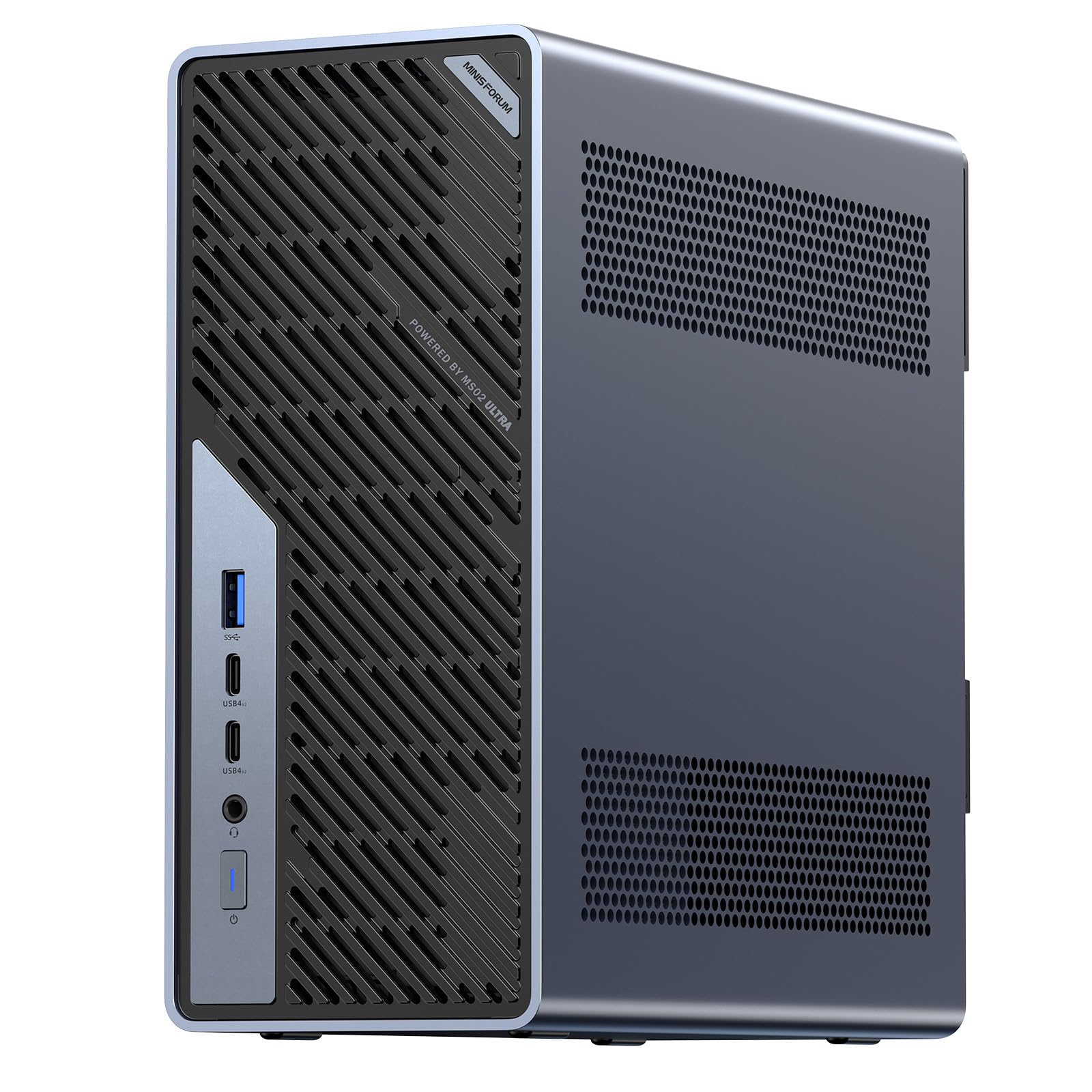
Figure 1: MINISFORUM MS-02 Ultra Mini Workstation
The MS-02 Ultra is a versatile system suitable for various applications, including video editing, AI development, enterprise IT, and power user scenarios. Its compact 4.8L design and robust internal components make it an ideal solution for space-constrained environments without compromising performance.
2. Safety Information
Please read the following safety guidelines carefully before using the device:
- Always disconnect the power cable before performing any maintenance or installation procedures.
- Do not expose the device to water, moisture, or extreme temperatures.
- Ensure proper ventilation to prevent overheating. Do not block ventilation openings.
- Use only the provided power adapter or a compatible replacement.
- Avoid placing heavy objects on the device.
- Keep the device away from strong magnetic fields.
3. Package Contents
Verify that all items are present in your package:
- MINISFORUM MS-02 Ultra Mini Workstation (Barebone Kit)
- Power Adapter
- User Manual (this document)
- Screws for M.2 SSD installation
- Additional accessories may vary based on specific configuration.
4. Physical Overview
Familiarize yourself with the ports and components of your MS-02 Ultra.

Figure 2: Front and Rear Port Layout
Front Panel
- USB 3.2 Type-A Port (10Gbps, Gen 2)
- USB4 V2 Ports x2 (80Gbps, DP 2.0 Alt Mode, 15W PD)
- 3.5mm Combo Jack
- Power Switch
Rear Panel
- PCIe x16 + PCIe x4 Slots
- Kensington Lock Slot
- USB 3.2 Type-A Ports x3 (USB 3.2 Gen 2)
- 10GbE RJ45 Port (Realtek RTL8127)
- 2.5GbE RJ45 Port (Intel I226-LM, vPro compatible)
- HDMI 2.1 FRL Port
- USB4 Port (40Gbps, DP 2.0 Alt Mode, 15W PD)
- 2x 25GbE SFP+ Ports (Intel E810)
- AC Power Input
5. Setup
5.1 Hardware Installation (Barebone Kit)
As a barebone kit, the MS-02 Ultra requires installation of RAM and M.2 SSDs. Follow these steps:
- Accessing the Interior: The MS-02 Ultra features a slide-out chassis design for easy access. Refer to Figure 3 for visual guidance.
- RAM Installation: Locate the DDR5 SODIMM slots. Gently insert the RAM modules into the slots, ensuring they are correctly oriented, until the clips on both sides lock them into place. The system supports up to 256GB ECC DDR5 SODIMM memory.
- M.2 SSD Installation: The MS-02 Ultra supports four M.2 PCIe 4.0 SSD slots. Insert your M.2 SSDs into the available slots and secure them with the provided screws. Refer to Figure 4 for M.2 slot locations.
- PCIe Expansion: The system supports up to three PCIe slots, including an x16 dual-slot GPU. The primary slot supports PCIe 5.0. Install any additional PCIe cards as needed, securing them properly. Refer to Figure 5 for PCIe expansion slots.

Figure 3: Compact Form Factor and Slide-out Design

Figure 4: M.2 Storage Slots

Figure 5: PCIe Expansion Slots
5.2 Connecting Peripherals
- Display: Connect your monitor(s) to the HDMI or USB4 ports. The device supports multiple displays.
- Keyboard and Mouse: Connect your USB keyboard and mouse to the available USB Type-A ports.
- Network: Connect an Ethernet cable to the 2.5GbE, 10GbE, or 25GbE SFP+ ports for wired network access.
- Power: Connect the power adapter to the AC power input on the rear panel, then plug it into a power outlet.
5.3 Power On
Press the power switch on the front panel to turn on the device. The power indicator light will illuminate.
6. Operating System Installation
Since the MS-02 Ultra is a barebone kit, an operating system (OS) is not pre-installed. You will need to install your preferred OS, such as Windows or Linux. Follow the standard OS installation procedures, typically involving creating a bootable USB drive and booting from it.
7. Operating Instructions
7.1 Basic Operation
- Power On/Off: Press the power button to turn on. To turn off, use the OS shutdown function or press and hold the power button for 5 seconds.
- Restart: Use the OS restart function.
- Sleep Mode: Use the OS sleep function.
7.2 Advanced Features
The MS-02 Ultra offers several advanced features for enhanced performance and connectivity:
- High-Speed Networking: Utilize the dual 25GbE SFP+ ports and 2.5+10GbE RJ45 ports for ultra-fast network connections, ideal for large data transfers and parallel computing.
- RAID Support: The four M.2 PCIe 4.0 SSD slots support RAID 0/1/5/10 configurations, providing scalable storage with high throughput and data redundancy.
- Intel vPro Technology: For enterprise deployments, vPro support enables remote management and enhanced security features.
- Multi-Engine Core: The Intel Core Ultra 9 285HX processor with 24 cores (8P+16E) and 13 TOPS NPU delivers high performance for AI and media workloads.

Figure 6: Dual 25GbE SFP+ Ports

Figure 7: Intel Core Ultra 9 285HX Processor
8. Maintenance
8.1 Cooling System
The MS-02 Ultra features a server-grade airflow design with 6 heat pipes and dual fans to ensure efficient and quiet cooling for the 350W internal power supply and CPU. Regular cleaning of dust from the vents is recommended.

Figure 8: Efficient Cooling System
8.2 Cleaning
Use a soft, dry cloth to clean the exterior of the device. For dust accumulation in vents, use compressed air. Do not use liquid cleaners or solvents.
9. Troubleshooting
If you encounter issues with your MS-02 Ultra, refer to the following common troubleshooting steps:
- No Power: Ensure the power cable is securely connected to both the device and the power outlet. Verify the power outlet is functional.
- No Display: Check that the monitor is properly connected and powered on. Try a different display cable or port.
- System Not Booting: Verify that RAM and M.2 SSDs are correctly installed. If you recently made changes, revert them.
- Network Connectivity Issues: Check Ethernet cable connections. Ensure network drivers are installed and updated in the OS.
- Overheating: Ensure the device has adequate ventilation. Clean any dust from the vents.
For further assistance, please contact MINISFORUM support.
10. Specifications
| Feature | Specification |
|---|---|
| Brand | MINISFORUM |
| Model Name | MS-02U-285HX |
| CPU Model | Intel Core Ultra 9 285HX |
| CPU Speed | 5.5 GHz |
| Graphics Coprocessor | Intel UHD Graphics (Integrated) |
| RAM Memory Technology | DDR5 SODIMM |
| Max Memory Size | 256 GB (ECC Memory Support) |
| Hard Disk Description | SSD |
| Storage Expansion | 4x M.2 PCIe 4.0 SSD slots (RAID 0/1/5/10 support) |
| Expansion Slots | 3 (including 1x PCIe 5.0 x16 for dual-slot GPU) |
| Video Output Interface | HDMI 2.1 FRL, DisplayPort (via USB4) |
| USB Ports | 2x USB4 V2 (80Gbps), 1x USB4 (40Gbps), 4x USB 3.2 Type-A (10Gbps) |
| Network Interfaces | 2x 25GbE SFP+, 1x 10GbE RJ45, 1x 2.5GbE RJ45 (vPro) |
| Power Supply | 350W Internal PSU |
| Form Factor | Mini PC (4.8L compact design) |
| Operating System | Windows (Barebone Kit, OS not included) |
| Product Use | Video Editing, AI Development, Enterprise IT |
11. Warranty and Support
MINISFORUM products come with a standard warranty. Please refer to the warranty card included in your package or visit the official MINISFORUM website for detailed warranty terms and conditions. For technical support, driver downloads, or service inquiries, please contact MINISFORUM customer service through their official channels.
Online Support: www.minisforum.com/support


