
Introduction
This manual provides detailed instructions for the setup, operation, maintenance, and troubleshooting of your Relndoo TB02 Android Tablet. Please read this manual thoroughly before using your device to ensure proper functionality and to maximize your user experience. Keep this manual for future reference.
Package Contents
Please verify that all items listed below are included in your package:
- 1 x 10.1 inch Relndoo Android Tablet
- 1 x Bluetooth Keyboard
- 1 x Wireless Mouse
- 1 x Stylus Pen
- 1 x Foldable Protective Case
- 1 x Screen Protector (pre-applied or separate)
- 1 x Charging Adapter
- 1 x USB-C Charging Cable
- 1 x User Manual (this document)

Image: Contents of the Relndoo TB02 Tablet package, showing the tablet, keyboard, mouse, stylus, protective case, charging adapter, and USB-C cable.
Product Overview
Key Features
- Operating System: Android 15 with Gemini AI integration for intelligent task optimization and faster app response.
- Processor: 3562 Octa-core processor (RK3562) for efficient and smooth performance.
- Memory & Storage: Up to 26GB RAM (6GB physical + 20GB virtual) and 256GB ROM, expandable up to 2TB via microSD card (FAT32 format, sold separately).
- Display: 10.1-inch IPS display with 1280x800 pixel resolution, Widevine L1 certified for 1080P HD streaming.
- Battery: 8000mAh high-capacity battery for extended usage.
- Connectivity: Dual-band 2.4G/5G Wi-Fi and Bluetooth 5.0 for stable and fast connections.
- Cameras: 8MP front camera and 16MP rear camera.
- Audio: High-quality dual speakers.
- Additional Features: GMS certified, GPS for navigation, wireless projection support, independent 3.5mm headphone jack.
- Accessories: Includes Bluetooth keyboard, wireless mouse, stylus pen, and foldable protective case for 2-in-1 functionality.

Image: Visual summary of the Relndoo TB02 Tablet's key features, including connectivity, processor, display, memory, storage, battery, cameras, and operating system.
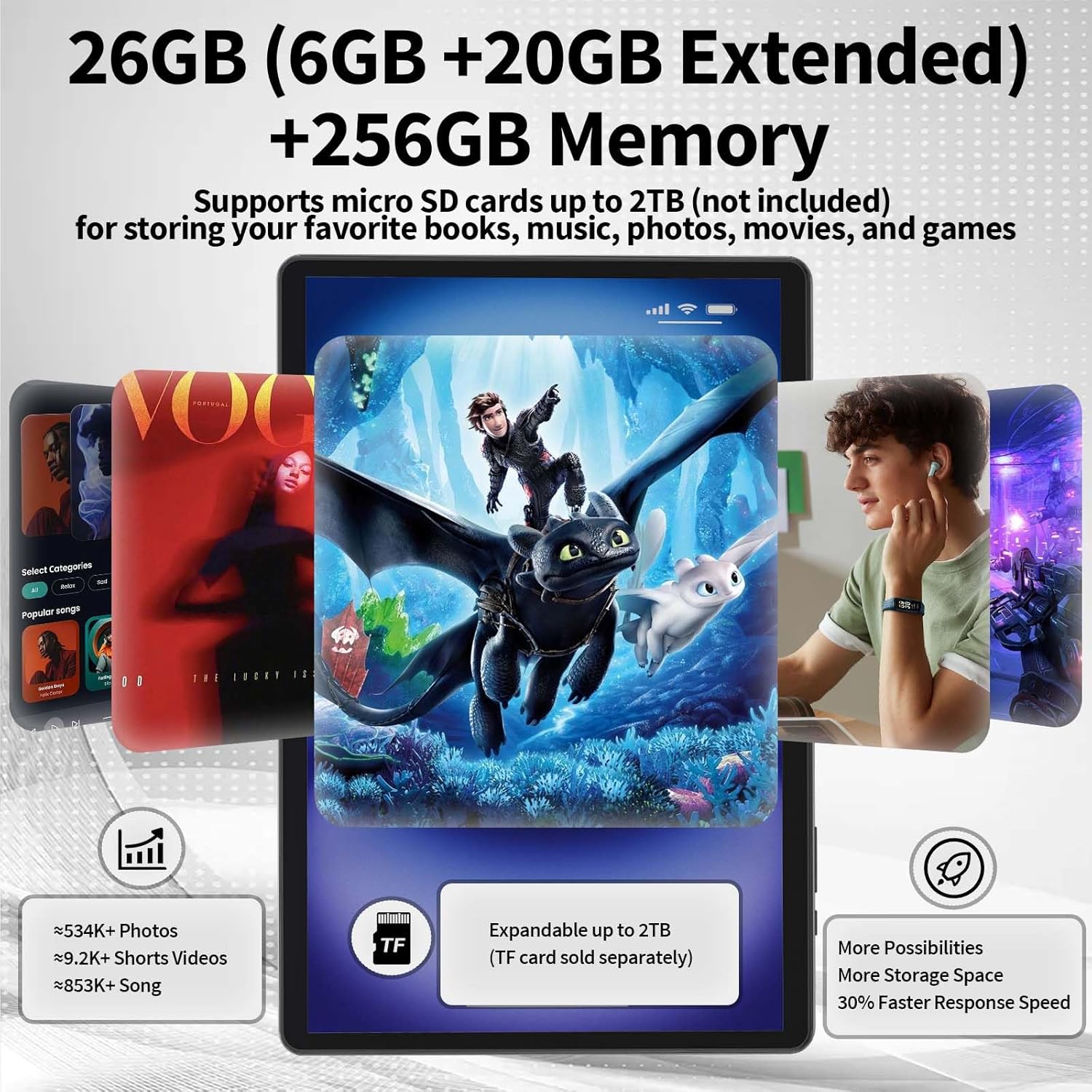
Image: Illustration of the tablet's memory and storage capabilities, highlighting 26GB RAM, 256GB ROM, and 2TB microSD expansion.

Image: Diagram illustrating the 8000mAh battery capacity and estimated usage times for various activities like gaming, video playback, and standby.
Setup Guide
1. Initial Power On and Basic Configuration
- Charge the Tablet: Before first use, connect the tablet to the charging adapter and USB-C cable provided. Allow it to charge fully.
- Power On: Press and hold the power button located on the side of the tablet until the screen lights up.
- Language Selection: Follow the on-screen prompts to select your preferred language.
- Wi-Fi Connection: Select your Wi-Fi network from the list and enter the password to connect to the internet.
- Google Account: Sign in with your Google account or create a new one. This is necessary to download apps from the Google Play Store.
- Date and Time: Confirm the date and time settings.
- Complete Setup: Follow any remaining prompts to finalize the initial setup.
2. Connecting Accessories (Keyboard and Mouse)
The included Bluetooth keyboard and wireless mouse enhance the tablet's versatility.
- Enable Bluetooth: Go to Settings > Connected devices > Bluetooth and turn it on.
- Pair Keyboard:
- Turn on the Bluetooth keyboard.
- Press the pairing button on the keyboard (refer to the keyboard's specific instructions if needed).
- On your tablet, select the keyboard from the list of available devices and follow any pairing prompts.
- Pair Mouse:
- Turn on the wireless mouse.
- If it's a Bluetooth mouse, follow similar steps as the keyboard. If it's a 2.4GHz wireless mouse, insert the USB receiver into the tablet's USB-C port via an adapter (if needed).

Image: The Relndoo TB02 Tablet configured with its Bluetooth keyboard, wireless mouse, and stylus, showcasing its laptop-like setup.
Operating Instructions
Basic Navigation
- Touch Gestures: Use taps, swipes, and pinch-to-zoom for interacting with the screen.
- Home Screen: Swipe up from the bottom to access the app drawer.
- Notifications: Swipe down from the top of the screen to view notifications and quick settings.
App Management
Install new applications from the Google Play Store. To uninstall, long-press the app icon and drag it to the uninstall option.
Using App Split-Screen
The tablet supports split-screen multitasking, allowing you to use two apps simultaneously.
- Open the first app you wish to use.
- Tap the recent apps button (usually a square icon) to view open applications.
- Long-press the icon of the first app at the top of its card in the recent apps view.
- Select "Split screen" from the options.
- Choose a second app from the recent apps list or app drawer to occupy the other half of the screen.
Video: Demonstrates the steps to activate and use the app split-screen feature on the Relndoo TB02 Android Tablet.
Changing the System Language
To change the tablet's display language:
- Go to Settings.
- Scroll down and tap on System.
- Select Languages & input.
- Tap Languages, then Preferred language.
- Add your desired language and drag it to the top of the list to set it as the primary system language.
Video: A step-by-step guide on how to change the system language settings on the Relndoo TB02 Android Tablet.
Camera Usage
The tablet features an 8MP front camera and a 16MP rear camera for photos and video calls.
- Open the Camera app from your home screen or app drawer.
- Tap the shutter button to take a photo.
- Switch between front and rear cameras using the camera flip icon.
- Explore various modes like video, portrait, or panorama if available.

Image: Visual representation of the tablet's camera specifications and an example of image capture.
Maintenance
Cleaning Your Tablet
- Use a soft, lint-free cloth to clean the screen and body of the tablet.
- For stubborn smudges, slightly dampen the cloth with water or a screen-safe cleaning solution.
- Avoid using harsh chemicals, abrasive materials, or excessive moisture.
Battery Care
- To prolong battery life, avoid fully discharging the tablet frequently.
- Do not expose the tablet to extreme temperatures.
- Use only the provided charging adapter and cable.
Software Updates
Regularly check for and install system updates to ensure optimal performance, security, and access to new features.
- Go to Settings > System > System updates.
- Tap Check for updates and follow the on-screen instructions if an update is available.
Video: Instructions on how to check for and upgrade your system version on the Relndoo TB02 Android Tablet.
Troubleshooting
Camera Permissions Issue
If the camera app is not functioning or displays a permission error:
- Long-press the Camera app icon on the home screen or app drawer.
- Tap App info (usually an 'i' in a circle).
- Go to Permissions and ensure Camera permission is allowed.
- If the issue persists, go to Storage & cache within App info and tap Clear storage and Clear cache. Note: Clearing storage will delete app data.
Video: Guide on how to resolve camera permission issues by adjusting settings and clearing app data on the Relndoo TB02 Android Tablet.
Wi-Fi Connectivity Issues
If your tablet is having trouble connecting to Wi-Fi or frequently disconnects:
- Restart Router: Power cycle your Wi-Fi router and modem.
- Forget Network: On the tablet, go to Settings > Network & internet > Internet. Tap the gear icon next to your Wi-Fi network and select Forget. Then try reconnecting.
- Reset Wi-Fi Settings: Go to Settings > System > Reset options > Reset Wi-Fi, mobile & Bluetooth. This will reset all network settings.
- Check for Interference: Ensure there are no physical obstructions or other electronic devices causing interference.
Video: Steps to troubleshoot and fix Wi-Fi connectivity issues, such as not connecting or frequent disconnections, on the Relndoo TB02 Android Tablet.
General Performance Issues
- Restart Tablet: A simple restart can often resolve minor software glitches.
- Close Background Apps: Close unused applications running in the background to free up RAM.
- Clear Cache: Regularly clear app caches from Settings > Apps > [App Name] > Storage & cache.
- Free Up Storage: Delete unnecessary files, photos, or apps to improve performance.
Factory Reset (Last Resort)
If persistent issues cannot be resolved, a factory reset may be necessary. Warning: This will erase all data on your tablet. Back up important data before proceeding.
- Go to Settings > System > Reset options.
- Select Erase all data (factory reset) and follow the on-screen instructions.
Specifications
| Feature | Detail |
|---|---|
| Brand | Relndoo |
| Model Name | TB02 |
| Operating System | Android 15 |
| Processor | ARM Octa-Core (RK3562) |
| RAM | 26GB (6GB physical + 20GB virtual) |
| Internal Storage (ROM) | 256 GB |
| Expandable Storage | Up to 2TB via microSD card (FAT32) |
| Screen Size | 10.1 Inches |
| Max Screen Resolution | 1280*800 Pixels |
| Battery Capacity | 8000mAh |
| Average Battery Life | 12 Hours (usage dependent) |
| Wi-Fi | 2.4G/5G Dual-Band AC Wi-Fi |
| Bluetooth | Bluetooth 5.0 |
| Front Camera | 8MP |
| Rear Camera | 16MP |
| Dimensions (LxWxH) | 10.7 x 7.5 x 2.5 inches |
| Item Weight | 3.01 pounds |
Warranty and Support
For warranty information and technical support, please refer to the contact details provided with your purchase documentation or visit the official Relndoo website. Keep your proof of purchase for warranty claims.