
1. Safety Information
Please read this manual carefully before using the BOTSLAB G300H Plus Dashcam. Keep it for future reference.
- Do not operate the dashcam or access its settings while driving.
- Ensure the dashcam is installed in a location that does not obstruct the driver's view or interfere with vehicle safety features.
- Use only the original power adapter and cables provided to prevent damage and ensure optimal performance.
- Avoid exposing the dashcam to extreme temperatures, direct sunlight for prolonged periods, or moisture.
- Regularly check the dashcam's mounting to ensure it remains securely attached to the windshield.
- Format the Micro SD card regularly to maintain optimal recording performance.
2. Package Contents
Verify that all items listed below are included in your package:

Image: Contents of the BOTSLAB G300H Plus Dashcam package.
- Front Camera x 1
- Rear Camera (6.5m cable) x 1
- 3M Adhesive Tape x 2
- 64GB TF Card x 1
- Installation Pry Tool x 1
- Car Charger x 1
- USB-C Cable (3.5m) x 1
- Electrostatic Film x 2
- User Manual x 1
3. Product Overview
Familiarize yourself with the main components and controls of your dashcam.
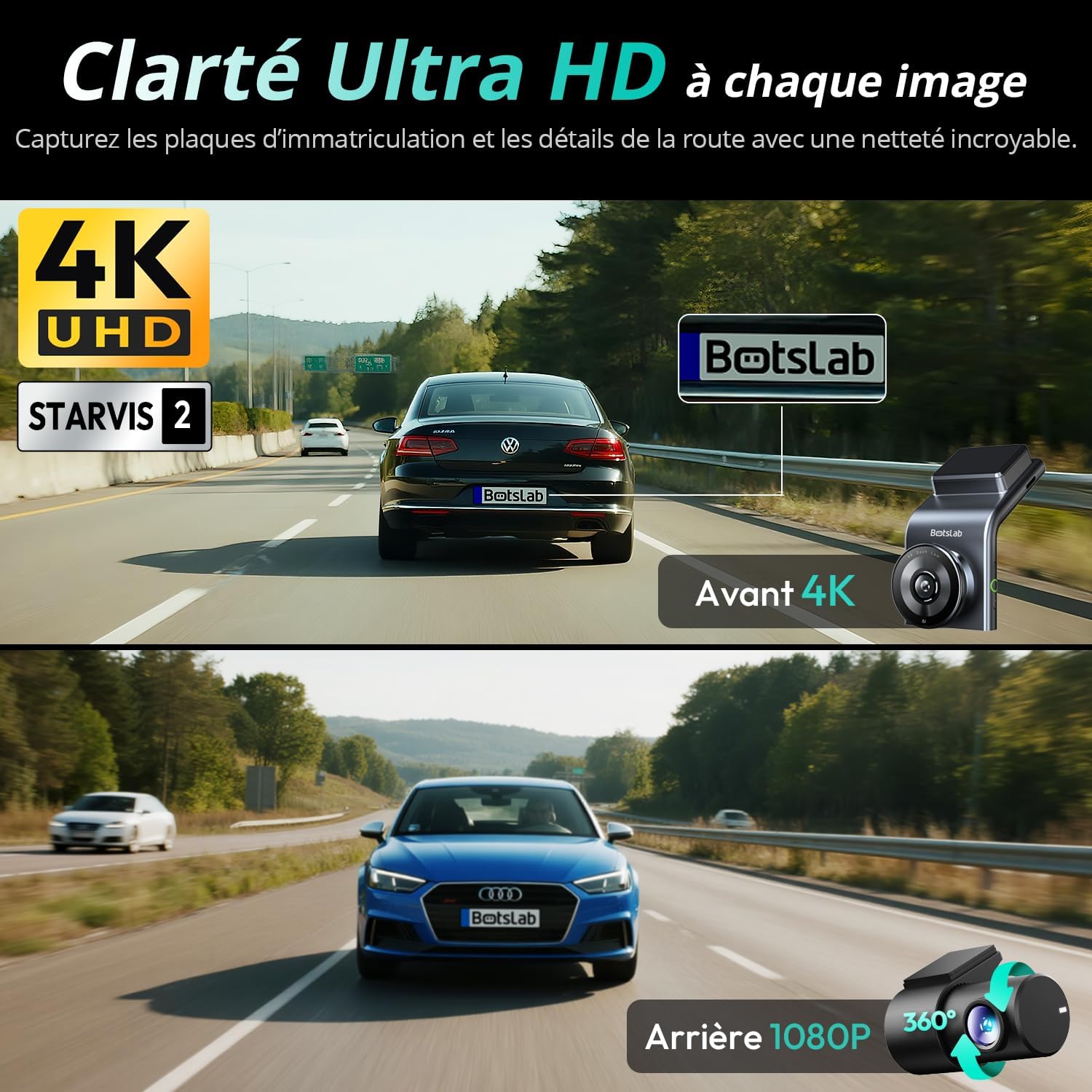
Image: Front view of the main dashcam unit.

Image: Side view of the dashcam with labeled ports and buttons.
Main Unit Features:
- Lens: Captures front-facing video.
- Screen: Displays live view, settings, and playback.
- Power Port: Connects to the car charger.
- Micro SD Card Slot: Insert the provided 64GB Micro SD card here.
- Display Button: Controls screen display.
- Power Button: Turns the device on/off.
- Switch Button: For various functions and navigation.
Rear Camera:

Image: The compact rear camera unit.
The rear camera provides a 150° wide-angle view to capture events behind your vehicle.
4. Installation Guide
Follow these steps for proper installation of your dashcam system.
Video: Installation guide for the BOTSLAB G300H Plus Dashcam.
4.1 Preparation
- Clean the Windshield: Ensure the area where the dashcam will be mounted is clean and dry for optimal adhesion.
- Insert Micro SD Card: Remove the protective film from the dashcam. Insert the provided 64GB Micro SD card into the designated slot on the main unit.
- Connect Power: Plug the car charger into your vehicle's cigarette lighter socket. Connect the dashcam's main unit to the car charger using the provided USB-C cable.
- Format SD Card: Upon first use, or if you encounter issues, format the Micro SD card through the dashcam's settings menu. This ensures proper functionality.
4.2 Front Camera Installation
- Apply Electrostatic Film: Place the electrostatic film on the cleaned windshield, just below the rearview mirror and away from any tinted areas.
- Mount Dashcam: Attach the main dashcam unit to the electrostatic film using its 3M adhesive. Press firmly to ensure secure adhesion.
- Adjust Angle: Power on the dashcam and use its screen to preview the view. Adjust the camera angle to ensure optimal coverage of the road ahead.
- Route Power Cable: Use the provided pry tool to neatly tuck the power cable along the headliner and vehicle trim, avoiding any loose sections.

Image: Simplified diagram of dashcam installation in a vehicle.
4.3 Rear Camera Installation
- Connect Rear Camera: Plug the rear camera cable into the main dashcam unit.
- Mount Rear Camera: Position the rear camera on the rear windshield, ensuring the glass is clean for optimal adhesion.
- Route Rear Camera Cable: Route the rear camera cable along the interior trim of the vehicle to the main unit, ensuring a tidy installation.
5. Initial Setup & App Connection
To unlock full features and manage your recordings, connect your dashcam to the BOTSLAB app.
Video: Guide on connecting the dashcam to the BOTSLAB app.
- Download the BOTSLAB App: Scan the QR code provided in the manual or search for "BOTSLAB" in your app store (iOS/Android) to download the application.
- Register/Log In: Create an account or log in to the BOTSLAB app.
- Add Device: In the app, select "Add device" and choose the "Dashcam" category. Select the G300H Plus series.
- Connect to Wi-Fi: Follow the in-app instructions to connect your phone to the dashcam's Wi-Fi network. The default password is typically "12345678".
- Pairing: Once connected, the app will guide you through the pairing process.
6. Operation
6.1 Recording Modes
Loop Recording

Image: Loop recording ensures continuous coverage.
The dashcam continuously records video in short segments (e.g., 1, 3, or 5 minutes). When the Micro SD card is full, the oldest unlocked files are overwritten automatically. This ensures you always have the most recent footage.
Emergency Recording (G-Sensor)

Image: G-Sensor automatically locks critical footage during impacts.
The built-in G-sensor detects sudden movements or impacts (e.g., collisions). When triggered, it automatically locks the current video segment, preventing it from being overwritten by loop recording. These files are stored in a separate folder.
24-Hour Parking Monitoring

Image: 24/7 Parking Monitoring features time-lapse and collision-triggered recording.
With an optional hardwire kit (not included, ASIN: B0DSZR126N), the dashcam can monitor your vehicle 24/7. It supports:
- Time-lapse Recording: Captures one image per second for up to 24 hours, condensing long periods into short videos.
- Collision-triggered Recording: If an impact is detected while parked, the dashcam will record a one-minute video segment.
6.2 Voice Control

Image: Hands-free voice control for safe driving.
Control your dashcam with simple voice commands, keeping your hands on the wheel and eyes on the road. Supported commands include:
- "Take Photo"
- "Video Start"
6.3 GPS Tracking

Image: Integrated GPS tracking with Google Maps integration.
The integrated GPS module records your driving route, speed, and location data. This information can be viewed and analyzed through the BOTSLAB app, providing crucial context for your video recordings.
6.4 App Features
Video: Overview of the BOTSLAB app functionalities.
The BOTSLAB app enhances your dashcam experience with several features:
- Live View: View real-time footage from both front and rear cameras on your smartphone.
- Playback: Access and review all recorded videos (loop, emergency, time-lapse) directly from your phone.
- Video Editing: Utilize smart clipping and video merging functions to quickly create and export edited video segments (up to 16 seconds).
- Data Transfer (5G Wi-Fi): Enjoy ultra-fast transfer speeds for downloading videos from the dashcam to your phone.
- Sharing: Easily share your recorded videos to social media platforms.
7. Maintenance
- SD Card Formatting: To ensure stable recording and prevent data corruption, it is recommended to format the Micro SD card every 2-4 weeks.
- Cleaning the Lens: Gently wipe the camera lenses with a soft, lint-free cloth to remove dust or smudges that may affect video quality.
- Firmware Updates: Regularly check the BOTSLAB app for available firmware updates to ensure your dashcam has the latest features and performance improvements.
8. Troubleshooting
If you encounter any issues with your dashcam, refer to the following common problems and solutions:
| Problem | Possible Cause | Solution |
|---|---|---|
| Dashcam does not power on. | No power, faulty cable, or car charger issue. | Check car charger connection. Ensure vehicle's cigarette lighter socket is working. Try a different USB-C cable. |
| Recording stops or freezes. | SD card full, corrupted, or incompatible. | Format the SD card. Replace with a high-quality, compatible Micro SD card if issues persist. |
| Poor video quality (blurry, grainy). | Dirty lens, protective film still on, or low light conditions. | Clean the lens. Ensure all protective films are removed. Night vision performance is optimized with STARVIS 2 sensor. |
| App connection issues. | Incorrect Wi-Fi password, phone too far from dashcam, or app glitch. | Re-enter Wi-Fi password. Ensure phone is close to the dashcam. Restart the app and dashcam. |
| Voice control not responding. | Commands not clear, or language setting issue. | Speak clearly. Ensure the dashcam's voice control language is set correctly (currently English only). |
For further assistance, please contact BOTSLAB customer support via the app's live chat or email.
9. Specifications
| Feature | Detail |
|---|---|
| Brand | BOTSLAB |
| Model Name | G300H Plus |
| Color | Black |
| Connectivity Technology | Wi-Fi (5G) |
| Video Recording Resolution | Front: 4K (2160p), Rear: 1080p |
| Special Features | GPS, 64GB SD Card Included, 170° Wide Angle (Front), 150° Wide Angle (Rear), Night Vision (STARVIS 2 Sensor, F1.5 Front, F2.0 Rear), WDR, G-Sensor, Voice Control, Loop Recording, 24H Parking Mode, APP Control |
| Compatible Devices | Car |
| Mounting Type | Windshield Mount |
| Field of View | 170 Degrees (Front) |
10. Warranty and Support
Your BOTSLAB G300H Plus Dashcam comes with a comprehensive warranty and dedicated customer support.
- Manufacturer's Warranty: Enjoy a 2-year warranty from the date of purchase.
- Extended Warranty: Benefit from an additional 6-month warranty extension, including free replacement for quality issues.
- Customer Support: For any questions or assistance, download the "BOTSLAB" app, register and log in, then navigate to "Me" > "Support" > "Live Chat" for 24-hour online customer support.
- Accessories: Important accessories are available through customer service.