
Introduction
Thank you for choosing the OMOTON Foldable Bluetooth Keyboard. This manual provides detailed instructions for setting up, operating, maintaining, and troubleshooting your new keyboard. Designed for portability and multi-device compatibility, this keyboard enhances productivity for remote work, travel, and office use across various operating systems.
Product Overview
The OMOTON Foldable Bluetooth Keyboard is a versatile input device featuring a full-size layout with an integrated number pad. It supports connection to up to three devices simultaneously, allowing seamless switching between them. Its compact, foldable design makes it ideal for transport.
Key Features:
- Connects to up to 3 devices (iPad, iPhone, Android tablets, Windows laptops, Mac devices).
- Full-size keyboard with integrated number pad.
- Compact and foldable design for portability.
- Rechargeable battery via USB-C with auto-sleep function.
- Includes a foldable phone stand for convenience.

Figure 1: Keyboard dimensions in folded (7.24 x 4.52 x 0.43 inches) and unfolded states, demonstrating its portable size.
Setup
1. Charging the Keyboard
Before initial use, fully charge the keyboard. Connect the provided USB-C cable to the keyboard's charging port and to a power source. A full charge typically takes approximately 2 hours. The keyboard features a long standby time of up to 90 days.

Figure 2: The keyboard's battery life and charging time, highlighting its suitability for travel.
2. Bluetooth Pairing
The keyboard can pair with up to three devices. Follow these steps for each device:
- Select a Bluetooth Channel: Press the BT1, BT2, or BT3 key once to select an available channel.
- Enter Pairing Mode: Press and hold the selected BT key (e.g., BT1) for 3 seconds. The indicator light above the BT keys will flash rapidly, indicating the keyboard is in pairing mode.
- Connect on Your Device: On your device (smartphone, tablet, laptop), navigate to its Bluetooth settings. Locate and select "Bluetooth Keyboard" from the list of available devices.
- Confirm Connection: Once successfully paired, the indicator light on the keyboard will turn off.
Repeat these steps to pair with additional devices using the other BT channels.

Figure 3: Bluetooth connection keys and indicators on the keyboard, illustrating the pairing process.
3. Selecting System Layout
To ensure proper key functionality, select the correct operating system layout after pairing:
- For iOS devices (iPad/iPhone): Press Fn + Q
- For Android devices: Press Fn + W
- For Windows devices: Press Fn + E
- For macOS devices: Press Fn + R

Figure 4: Key combinations for selecting the appropriate operating system layout.
Operating Instructions
1. Switching Between Paired Devices
Once paired with multiple devices, you can switch between them by simply pressing the corresponding Bluetooth channel key (BT1, BT2, or BT3). The keyboard will connect to the selected device within seconds.

Figure 5: The keyboard's ability to connect and switch between three devices.
2. Auto-Sleep Function
To conserve battery life, the keyboard will automatically enter sleep mode after 30 minutes of inactivity. To wake it up, simply press any key. The keyboard will reconnect to the last active device.
3. Checking Battery Status
To check the current battery level, press Fn + B. An indicator light will blink to show the charge status (e.g., 4 blinks for fully charged).
4. Using the Included Phone Stand
The foldable phone stand provides an ergonomic viewing angle for your smartphone or tablet, enhancing comfort during typing. It features 5 adjustable angles to suit your preference.
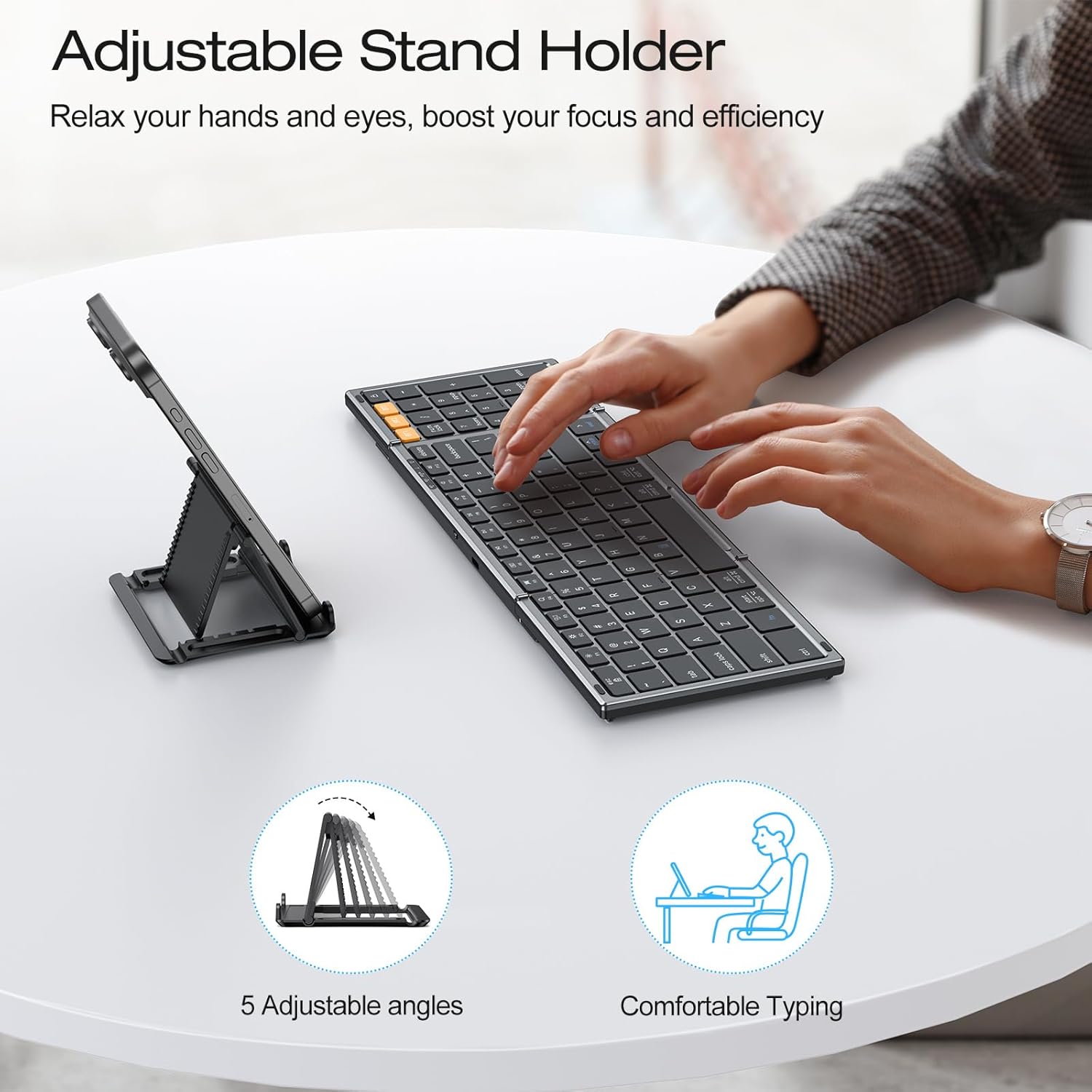
Figure 6: The adjustable stand holder in use, providing an ergonomic setup.
Maintenance
To ensure the longevity and optimal performance of your OMOTON Foldable Bluetooth Keyboard, follow these maintenance guidelines:
- Cleaning: Use a soft, dry, lint-free cloth to clean the keyboard surface. For stubborn dirt, slightly dampen the cloth with water or a mild cleaning solution. Avoid excessive moisture.
- Storage: When not in use, fold the keyboard to protect the keys and store it in a dry, cool place away from direct sunlight and extreme temperatures.
- Avoid Liquids: Do not expose the keyboard to liquids. In case of accidental spills, immediately power off the keyboard and allow it to dry completely before use.
- Handle with Care: Avoid dropping the keyboard or subjecting it to strong impacts, which can damage internal components.
Troubleshooting
If you encounter issues with your OMOTON Foldable Bluetooth Keyboard, refer to the following common solutions:
- Keyboard Not Connecting/Responding:
- Ensure the keyboard is charged. Check battery status by pressing Fn + B.
- Verify that Bluetooth is enabled on your device.
- Ensure the correct Bluetooth channel (BT1, BT2, or BT3) is selected on the keyboard.
- Try re-pairing the keyboard with your device. Forget the device in your device's Bluetooth settings and repeat the pairing steps in the Setup section.
- Restart both the keyboard (by folding and unfolding it, or turning it off and on if applicable) and your device.
- Incorrect Key Output:
- Ensure you have selected the correct operating system layout using Fn + Q/W/E/R as described in the Setup section.
- Keyboard Randomly Stops Responding:
- This may occur if the keyboard enters auto-sleep mode. Press any key to wake it up.
- If the issue persists, try re-pairing the keyboard.
Specifications
| Brand | OMOTON |
| Model Number | B0G39BP4ML |
| Connectivity Technology | Bluetooth |
| Compatible Devices | iOS, Android, Windows, MacOS, iPad, iPhone, Samsung Tablets, PC, Laptop, Computer |
| Keyboard Description | Full Size Keyboard |
| Special Features | 3 Bluetooth Channels, Foldable, Includes a Phone Stand, Rechargeable |
| Color | Space Grey |
| Product Dimensions (Folded) | 7.24"L x 4.52"W x 0.43"H |
| Material | Plastic |
| Power Source | Battery Powered |
| Keyboard Layout | QWERTY |
| Number of Keys | 104 |
Warranty
The OMOTON Foldable Bluetooth Keyboard comes with a 12-month warranty from the date of purchase. This warranty covers manufacturing defects and ensures the product meets its specified performance standards under normal use. Please retain your proof of purchase for warranty claims.
Support
For further assistance, technical support, or inquiries not covered in this manual, please refer to the OMOTON official website or contact their customer service. Contact details are typically found on the product packaging or the brand's official online presence.


