
1. Introduction
The Samsung Galaxy Tab A11+ (model SM-X230) is a versatile Wi-Fi tablet designed for entertainment, productivity, and family use. Featuring an 11-inch 90Hz display, an Octa-Core (4nm) processor, 8GB RAM, and 256GB storage, it delivers smooth performance for various tasks. Enjoy immersive audio with its quad speakers powered by Dolby Atmos. This manual will guide you through the features and functions of your new tablet, ensuring you get the most out of your device.
2. What's in the Box
Upon opening your Samsung Galaxy Tab A11+ package, you should find the following items:
- Samsung Galaxy Tab A11+ Tablet (SM-X230)
- USB-C Charging Cable
- SIM Ejector Tool (for accessing the microSD card slot, as this is a Wi-Fi only model)
- 20W UL Fast Charger Cube
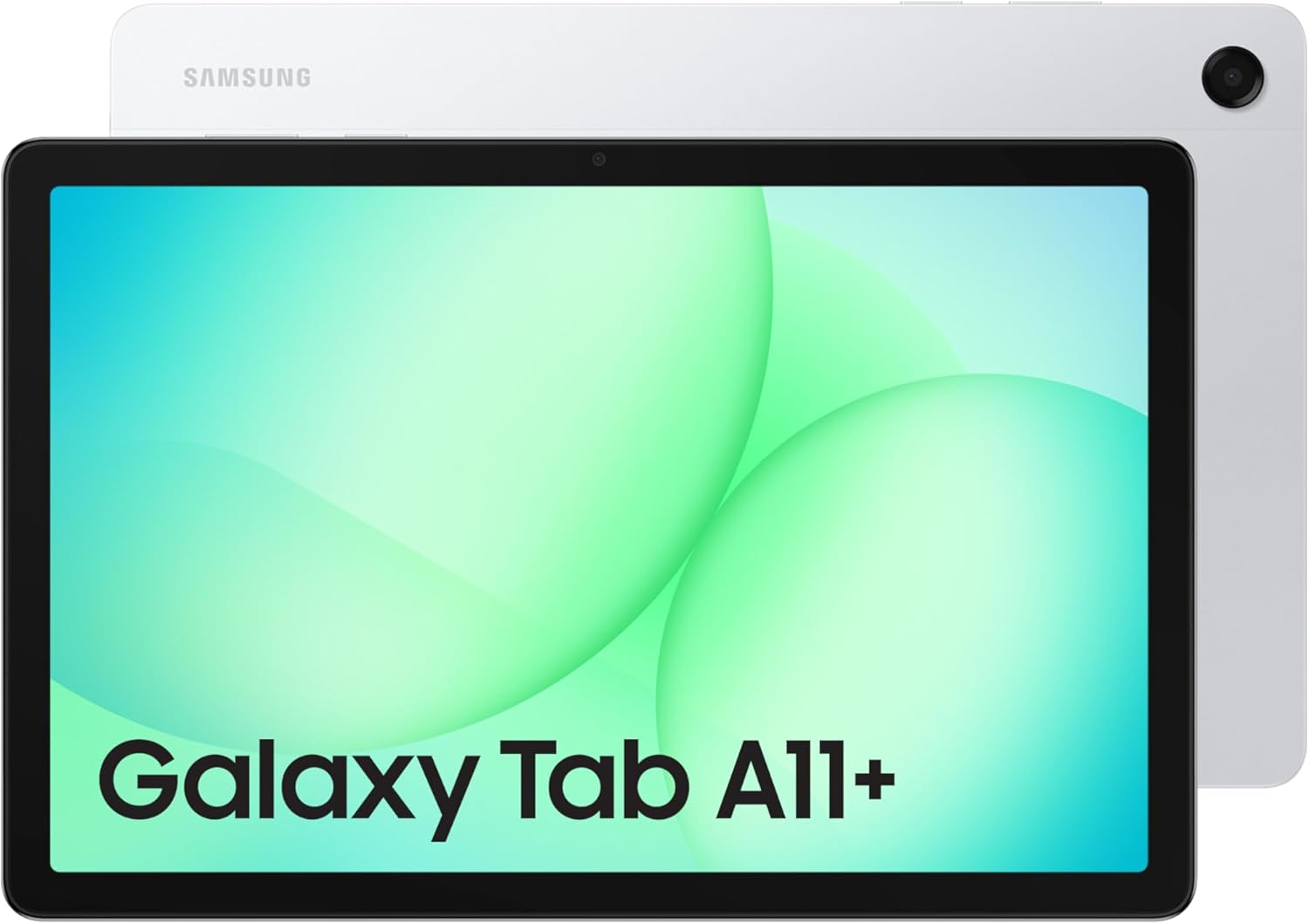
This image displays the back of the Samsung Galaxy Tab A11+ tablet, highlighting its sleek silver finish and camera module. The package contents typically include the tablet, a USB-C cable, a SIM ejector tool, and a 20W fast charger cube.
3. Setup
3.1 Initial Power On
- Press and hold the Power button (located on the side of the tablet) until the Samsung logo appears.
- Follow the on-screen prompts to select your language, region, and agree to the terms and conditions.
3.2 Charging the Device
Before first use, it is recommended to fully charge your tablet.
- Connect the USB-C cable to the tablet's charging port.
- Plug the other end of the cable into the provided 20W UL Fast Charger Cube, and then into a wall outlet.
- The charging indicator will appear on the screen.
3.3 Connecting to Wi-Fi
- From the Home screen, swipe down from the top to open the Quick Panel.
- Tap the Wi-Fi icon to turn it on.
- Go to Settings > Connections > Wi-Fi.
- Select your desired Wi-Fi network from the list and enter the password if prompted.
3.4 Google Account Setup
A Google account is required to download apps from the Google Play Store and access many Android services.
- During initial setup, you will be prompted to sign in with an existing Google account or create a new one.
- If you skipped this step, go to Settings > Accounts and backup > Manage accounts > Add account > Google.
4. Operating Your Tablet
4.1 Basic Navigation
- Touchscreen Gestures: Tap to select, swipe to scroll, pinch to zoom, and long-press for additional options.
- Home Screen: Access your apps, widgets, and notifications.
- Navigation Bar: Use the Back, Home, and Recents buttons (or gestures) to navigate the interface.
4.2 Using Applications
- Opening Apps: Tap an app icon on the Home screen or in the Apps drawer.
- Switching Apps: Tap the Recents button (or swipe up and hold from the bottom) to view and switch between recently used apps.
- Downloading Apps: Open the Google Play Store app to browse and download new applications.
4.3 Camera Functions
Your tablet features an 8MP autofocus rear camera and a 5MP front camera for photos and 1080p video recording.
- Open the Camera app.
- Tap the Shutter button to take a photo.
- Switch between front and rear cameras using the camera switch icon.
- Select Video mode to record videos.
4.4 Audio and Entertainment
The Galaxy Tab A11+ features four stereo speakers with Dolby Atmos support for an enhanced audio experience.
- Volume Control: Use the Volume buttons on the side of the tablet.
- Dolby Atmos: Enable or disable Dolby Atmos in Settings > Sounds and vibration > Sound quality and effects.
4.5 Multitasking
Utilize the tablet's multitasking features to enhance productivity.
- Split Screen View: From the Recents screen, tap the app icon at the top of an app card, then select Open in split screen view. Choose a second app to open alongside it.
- Pop-up View: From the Recents screen, tap the app icon at the top of an app card, then select Open in pop-up view.
4.6 Samsung Kids App
The preloaded Samsung Kids app provides a safe and engaging digital environment for children.
- Access Samsung Kids from the Quick Panel by swiping down from the top of the screen.
- Set up parental controls to manage screen time, app access, and content.
5. Maintenance
5.1 Battery Care
To maximize the lifespan of your 7040mAh battery:
- Avoid extreme temperatures.
- Do not let the battery drain completely regularly.
- Use the original charger and cable.
- Enable power-saving modes in Settings > Battery and device care > Battery.
5.2 Software Updates
Keep your tablet's software up to date for optimal performance and security. The tablet runs on Android 16 with One UI 8.
- Go to Settings > Software update.
- Tap Download and install to check for and apply available updates.
5.3 Cleaning the Device
Use a soft, lint-free cloth to clean the screen and body of your tablet. Avoid harsh chemicals or abrasive materials.
5.4 Storage Management
Your tablet comes with 256GB of internal storage. To manage storage effectively:
- Go to Settings > Battery and device care > Storage to view usage and free up space.
- Consider using a microSD card (sold separately) for additional storage. Insert the microSD card into the dedicated slot using the SIM ejector tool.
6. Troubleshooting
If you encounter issues with your tablet, try the following troubleshooting steps:
- Device Not Responding: Press and hold the Power button for about 10 seconds to force a restart.
- Wi-Fi Connectivity Issues: Ensure Wi-Fi is enabled, restart your router, or forget and reconnect to the network in Wi-Fi settings.
- App Crashing/Freezing: Close the app from the Recents screen, clear its cache in Settings > Apps > [App Name] > Storage > Clear cache. If the issue persists, try Clear data (this will delete app data).
- Tablet Entering Safe Mode: If your tablet frequently enters Safe Mode (indicated by 'Safe mode' on the screen), it might be due to a third-party app. Restart the tablet normally. If it re-enters Safe Mode, uninstall recently installed apps one by one to identify the problematic app.
- Slow Performance: Close unnecessary background apps, clear cache, or restart the device. Check for software updates.
- Factory Reset: As a last resort, you can perform a factory reset. Warning: This will erase all data on your tablet. Back up important data before proceeding. Go to Settings > General management > Reset > Factory data reset.
7. Specifications
| Feature | Specification |
|---|---|
| Model Name | Galaxy Tab A11+ |
| Model Number | SM-X230 |
| Display | 11.0" TFT LCD, 90Hz, 1920x1200 (WUXGA) |
| Processor | Mediatek Dimensity 7300 (4 nm), Octa-core |
| RAM | 8GB |
| Internal Storage | 256GB |
| Operating System | Android 16, One UI 8 |
| Rear Camera | 8MP, Autofocus |
| Front Camera | 5MP |
| Video Recording | 1080p |
| Battery Capacity | 7040mAh |
| Audio | 4x Dolby Atmos Stereo Speakers |
| Connectivity | Wi-Fi (802.11ac, 802.11ax), Bluetooth 5.1, USB Type-C 2.0 |
| Dimensions (LxWxTh) | 6.64" x 10.12" x 0.27" |
| Weight | 1.5 Pounds |
| Color | Silver |
8. Warranty and Support
8.1 Warranty Information
Please note that this is an International Model and does not come with a domestic warranty. However, the device is covered by the Seller's Return Policy. For specific details regarding returns or seller-provided guarantees, please refer to your purchase documentation or contact the seller directly.
8.2 Customer Support
For further assistance, technical support, or service inquiries, please refer to the following resources:
- Samsung Official Support: Visit the official Samsung website for your region to find support articles, FAQs, and contact information for customer service.
- Seller Support: For issues related to your purchase or the seller's return policy, contact the seller directly through the platform where you purchased the device.


