
Introduction
This manual provides detailed instructions for the setup, operation, and maintenance of your MOKiN 17-in-1 USB C Triple Display Docking Station. Please read this manual thoroughly before using the product to ensure proper functionality and to prevent damage.
Package Contents
Verify that all items are present in the package:
- MOKiN 17-in-1 USB C Triple Display Docking Station (Model: MODK)
- User Manual
- USB-C to USB-C Cable (for host connection)
- USB-A to USB-C Cable (for host connection)
Note: A power adapter is not included. A 65W or higher USB-C PD power adapter is recommended, with a 100W adapter required for full-load charging.
Product Overview
The MOKiN 17-in-1 docking station offers extensive connectivity for your laptop, expanding its capabilities with multiple display outputs, high-speed data transfer ports, and power delivery. Below is a diagram illustrating the various ports and features of the device.
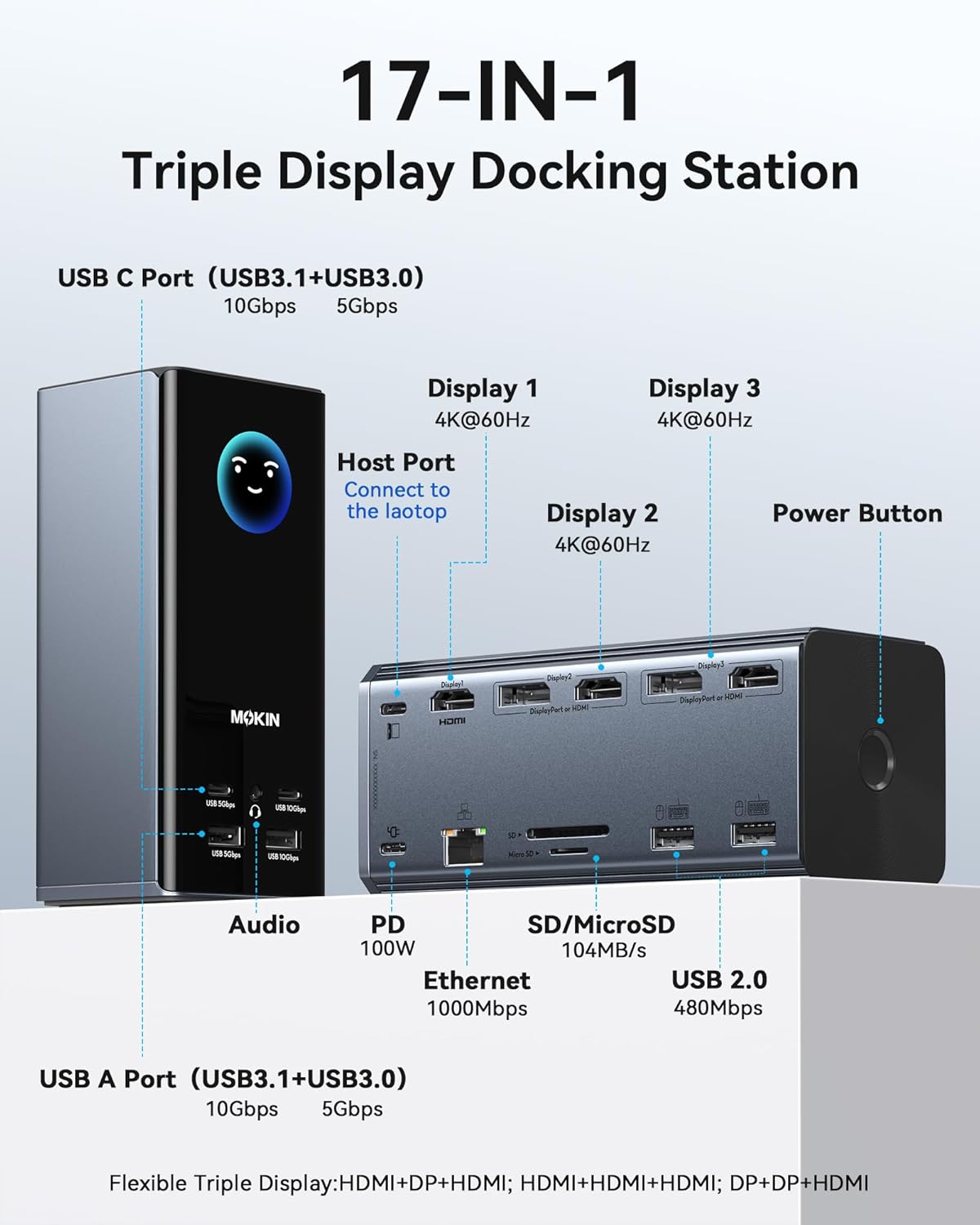
Image: Front and rear view of the MOKiN docking station, highlighting its 17 ports including USB-C, USB-A, HDMI, DisplayPort, Ethernet, SD/MicroSD, Audio, and Power Button. The host port for laptop connection is also indicated.
Port Configuration:
- Host Port: 1x USB-C (connects to laptop)
- Display Outputs: 3x HDMI, 2x DisplayPort (DP)
- High-Speed USB: 2x USB-C (10Gbps), 2x USB-A (10Gbps)
- Standard USB: 2x USB-C (5Gbps), 2x USB-A (5Gbps), 2x USB 2.0 (480Mbps)
- Network: 1x Gigabit Ethernet (1000Mbps)
- Card Reader: 1x SD Card Slot, 1x TF (MicroSD) Card Slot (up to 104 MB/s)
- Audio: 1x 3.5mm Audio Jack
- Power Delivery (PD): 1x USB-C PD Input (up to 100W)
Setup Instructions
- Connect Power: Connect a compatible USB-C PD power adapter (not included) to the PD input port on the docking station. For optimal performance and laptop charging, a 100W power adapter is recommended.
- Connect to Laptop: Use the provided USB-C to USB-C cable or USB-A to USB-C cable to connect the docking station's host port to your laptop's USB-C, USB4, or Thunderbolt port.
- Install Drivers (if necessary): For certain functionalities, especially video output on macOS, driver installation may be required. Refer to the 'Driver Installation' section for detailed steps.
- Connect Peripherals: Connect your monitors, USB devices, Ethernet cable, and audio devices to the corresponding ports on the docking station.
- Power On: Press the power button on the docking station to turn it on.
Driver Installation
For full functionality, particularly for multi-display support on macOS, driver installation may be necessary. Follow these steps:

Image: Step-by-step guide for downloading and installing the necessary drivers for the docking station, including specific steps for macOS security settings.
- Step 1: Open your web browser and navigate to siliconmotion.com.
- Step 2: Locate the SM770 driver. This is typically found in the 'Support' or 'Downloads' section of the website. Click to download the driver.
- Step 3: Select the driver corresponding to your operating system (Windows, macOS, or ChromeOS).
- Step 4: Download and install the driver package. Follow the on-screen prompts.
- Step 5 (for macOS only): After installation, go to your Mac's System Settings > Privacy & Security. Under 'Screen Recording', allow 'macOS Instant View' to join. This permission is required for the driver to enable USB to HDMI video output. No personal information is stored or recorded.
Display Configuration
The docking station supports up to three independent 4K@60Hz monitors simultaneously on compatible Windows, macOS, and Linux systems. This feature is particularly beneficial for expanding screen space for creative work, programming, or multitasking.

Image: A user working with a laptop and two external monitors connected via the MOKiN docking station, demonstrating an extended desktop setup.
Flexible Triple Display Setups:
- HDMI & DisplayPort & HDMI
- HDMI & HDMI & HDMI
- DisplayPort & DisplayPort & HDMI
Note: For optimal performance, ensure your laptop's USB-C port supports DisplayPort Alternate Mode (DP Alt Mode) or is a Thunderbolt/USB4 port. Only DP1.4 ports on your laptop support extending to three different monitors; DP1.2 ports support a maximum of two external monitors.
Power Delivery
The USB-C PD input port supports up to 100W power input, allowing up to 85W pass-through charging for your connected laptop. This enables you to power your laptop and all connected peripherals through a single connection.

Image: Illustration of the power flow, indicating a 100W input to the docking station from a wall adapter and an 85W output to charge a connected laptop.
Important: A power adapter is not included. We recommend using a 65W or higher USB-C PD adapter. For scenarios where the device is under full load with multiple peripherals and displays, a 100W USB-C PD adapter is required to meet charging demands.
Data Transfer
The docking station provides a range of USB ports and a card reader for high-speed data transfer, supporting various peripherals and storage devices.

Image: Visual representation of the ultra-fast data transfer capabilities, highlighting 10Gbps for USB 3.1 ports and up to 104MB/s for the SD/TF card reader.
- 10Gbps USB Ports: Two USB-C and two USB-A ports support data transfer speeds of up to 10 Gigabits per second, ideal for external SSDs and other high-bandwidth devices.
- 5Gbps USB Ports: Two USB-C and two USB-A ports offer speeds of up to 5 Gigabits per second for general peripherals.
- USB 2.0 Ports: Two USB 2.0 ports provide 480Mbps for keyboards, mice, and other low-bandwidth devices.
- Gigabit Ethernet: The RJ45 port provides a stable and fast wired network connection at 1000Mbps.
- SD/TF Card Reader: Integrated SD and TF card slots support data transfer speeds of up to 104 MB/s, facilitating quick access to media files.
Smart Digital Display & Privacy Features
The docking station is equipped with a smart LED digital display and a screen lock button for enhanced user experience and privacy.
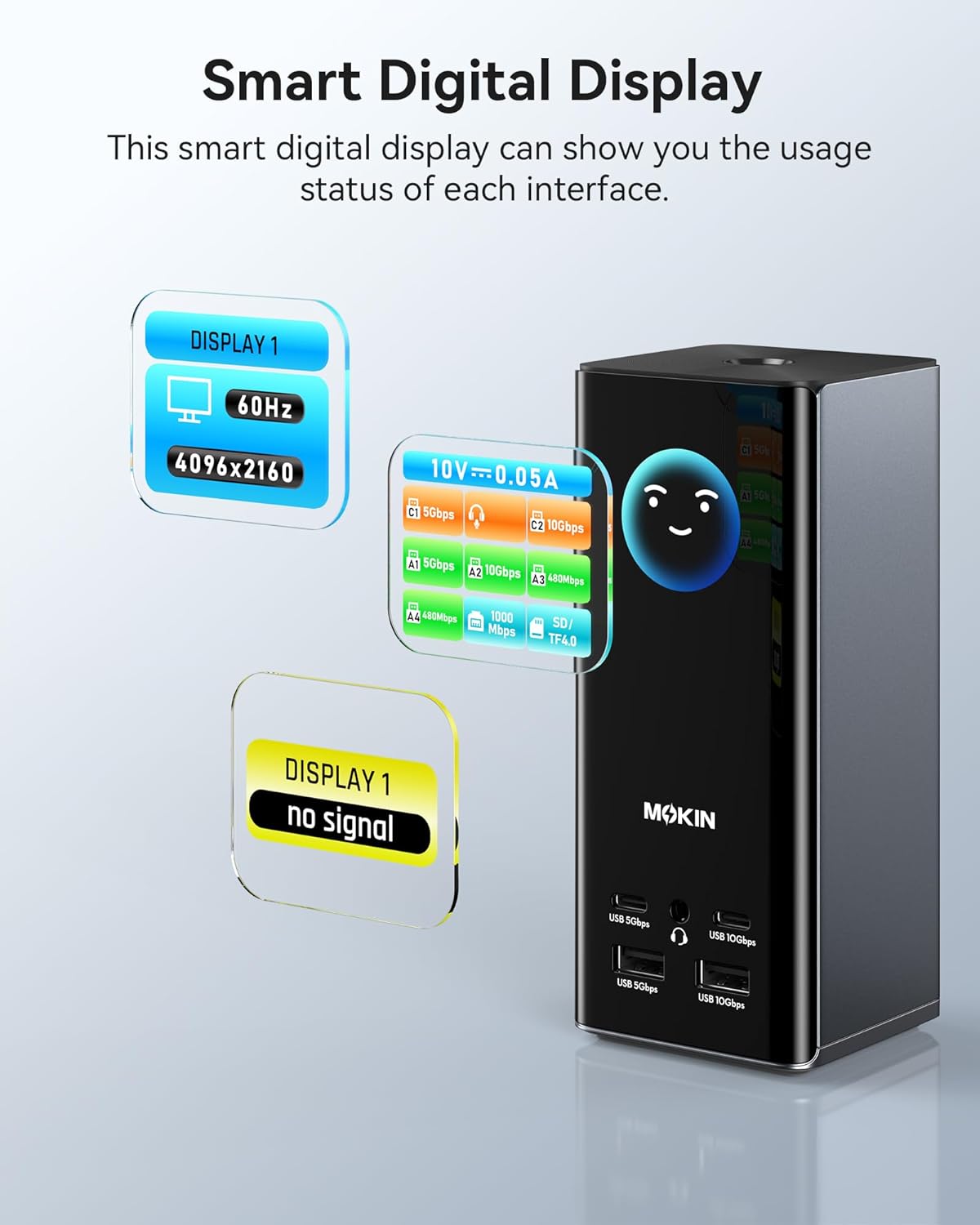
Image: Close-up of the docking station's smart digital display, showing real-time information such as display resolution, refresh rate, and power usage for connected interfaces.
- Smart Digital Display: This display provides real-time feedback on the status of various interfaces, including charging power, display resolution, and connection status. This allows for easy monitoring of the docking station's operation.

Image: A hand pressing the screen lock button on the docking station, demonstrating the privacy feature in an office setting with a laptop and external monitor.
- Screen Lock Button: A dedicated button allows for instant screen locking, protecting sensitive information and ensuring privacy with a double-click. Press and hold the button for more than 2 seconds to turn off the power to most functions, while the laptop charging function remains active.
Specifications
| Brand | MOKiN |
| Model Number | MODK |
| Colour | Black-A |
| Number of Ports | 17 |
| HDMI Ports | 3 |
| DisplayPort (DP) | 2 |
| Total USB Ports | 6 (2x USB-C 10Gbps, 2x USB-A 10Gbps, 2x USB 2.0) |
| Ethernet | Gigabit (1000Mbps) |
| Card Reader | SD/TF (up to 104 MB/s) |
| Audio Jack | 3.5mm |
| Power Delivery (PD) | Up to 100W input, 85W output |
| Data Transfer Rate | 10 Gigabits Per Second (USB 3.1) |
| Compatible Operating Systems | Windows 10/11, macOS 10.15.x and later, ChromeOS 100.x and later |
| Compatible Devices | Laptops with full-featured USB-C, USB4, or Thunderbolt 3/4 ports (e.g., M1/M2/M3 Macs, Dell XPS, HP Spectre, Lenovo ThinkPad, Microsoft Surface) |
| Item Weight | 0.56 Kilograms |
Troubleshooting
- No Display Output:
- Ensure the docking station is powered and correctly connected to your laptop.
- Verify that the correct input source is selected on your monitor.
- Check if the necessary drivers are installed, especially for macOS.
- Test with different cables or monitors to rule out faulty components.
- Ensure your laptop's USB-C port supports DisplayPort Alternate Mode.
- Laptop Not Charging:
- Confirm that a USB-C PD power adapter is connected to the docking station's PD input port.
- Ensure the power adapter meets the minimum 65W requirement, or 100W for full load.
- Check the connection cable between the docking station and your laptop.
- USB Devices Not Recognized:
- Reconnect the USB device.
- Try a different USB port on the docking station.
- Ensure the docking station is properly connected to your laptop.
- Ethernet Connection Issues:
- Check the Ethernet cable connection to both the docking station and your router/modem.
- Verify network settings on your computer.
Safety Information
- Do not expose the device to water, moisture, or extreme temperatures.
- Avoid dropping or subjecting the device to strong impacts.
- Do not attempt to disassemble or repair the device yourself. Contact qualified service personnel.
- Use only compatible power adapters and cables.
- Keep out of reach of children.
Warranty and Support
For warranty information and technical support, please refer to the official MOKiN website or contact their customer service directly. Details can typically be found on the product packaging or the manufacturer's website.


