
1. Product Overview
This manual provides instructions for the Joysea OP1 Label Maker and the Joysea E41 Bluetooth Shipping Label Printer. This dual-printer solution offers versatility for both personal organization and business logistics. The OP1 is a compact, portable label maker ideal for small labels, while the E41 is a high-speed thermal printer designed for shipping labels and larger tasks.

Image 1.1: The Joysea OP1 Label Maker (left) and E41 Shipping Label Printer (right) as a combined solution.
2. Setup Instructions
2.1. Joysea OP1 Label Maker Setup
- Charging: Before first use, fully charge the OP1 label maker using a standard USB charger (not included). The built-in rechargeable battery ensures portability.
- Loading Label Tape: Open the label compartment, insert the label roll with the printing surface facing up, and ensure the tape feeds smoothly through the output slot.
- App Installation: Download the official Joysea label printing application from your device's app store (iOS/Android).
- Bluetooth Pairing: Turn on the OP1. Open the Joysea app on your smartphone or tablet and follow the in-app instructions to connect via Bluetooth.

Image 2.1: The Joysea OP1 Label Maker connected to a smartphone displaying the printing density settings within the application.
2.2. Joysea E41 Shipping Label Printer Setup
- Power Connection: Connect the E41 printer to a power outlet using the provided power adapter.
- Loading Shipping Labels: Open the top cover, place the thermal shipping labels into the compartment, ensuring they are aligned correctly and the print side is facing up. Close the cover.
- Connectivity:
- USB Connection (Windows/Mac): Connect the E41 to your computer using the USB cable. Install the necessary drivers from the official Joysea website.
- Bluetooth Connection (Android/iOS): Download the official Joysea label printing application. Turn on the E41 and pair it with your mobile device via Bluetooth through the app.

Image 2.2: The Joysea E41 Shipping Label Printer demonstrating dual connectivity options: USB for computers and Bluetooth for mobile devices. Note: Mac OS users connect via USB cable.
3. Operating Instructions
3.1. Operating the Joysea OP1 Label Maker
The OP1 label maker is controlled via its dedicated mobile application. This app provides a wide range of customization options for creating various labels.
- Accessing Templates: The app features over 100 preset templates for different uses, including home organization, office tasks, and school items. Navigate through categories like Home, Kitchen, Parenting, and Office.
- Customizing Labels: Within the app, you can add text, icons, borders, 1D barcodes (e.g., 11112025040921), QR codes, and even small images to your labels. Adjust font styles, sizes, and alignment as needed.
- Printing: Once your label design is complete, select the print option within the app. Ensure the OP1 is connected via Bluetooth and has sufficient battery.
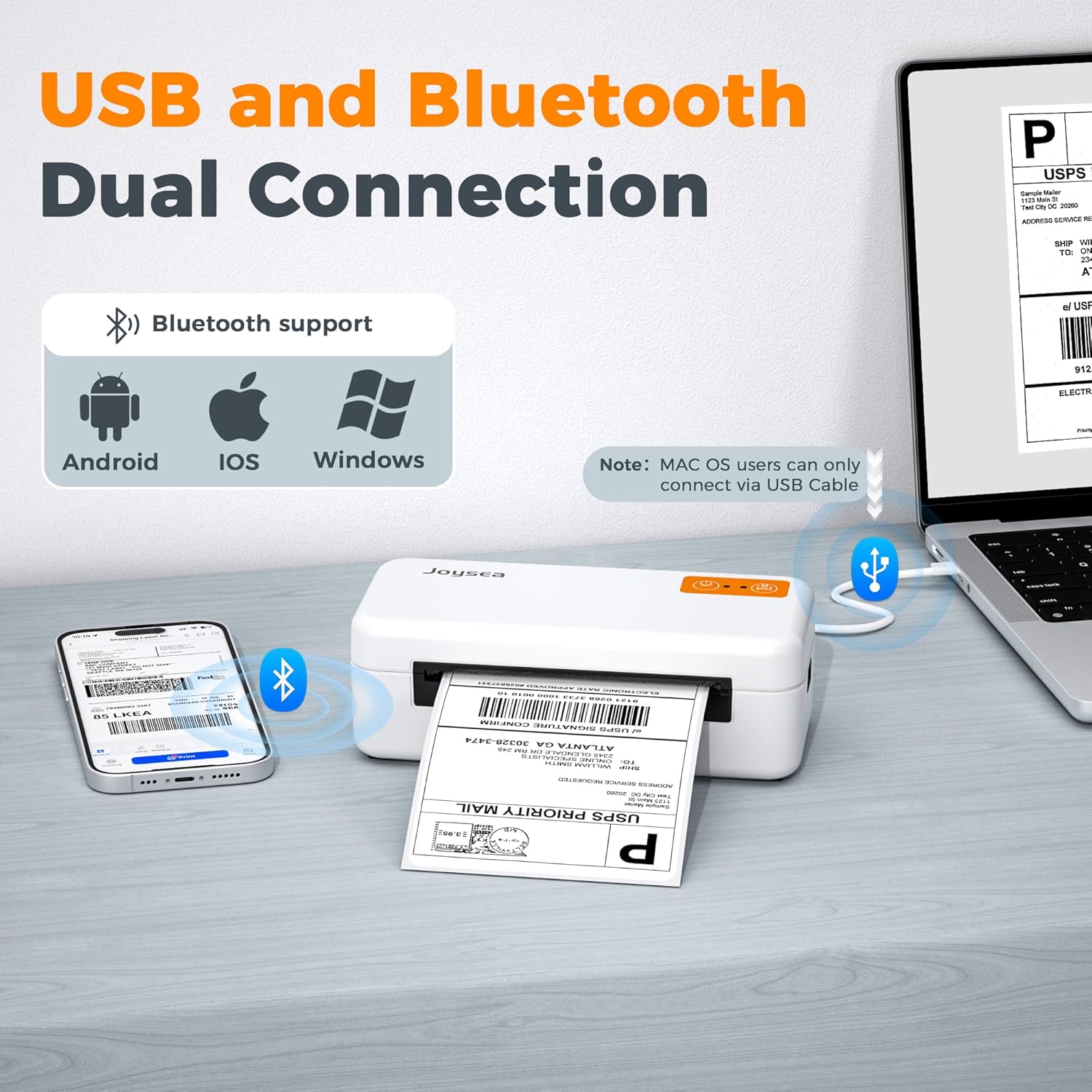
Image 3.1: The Joysea OP1 app interface, showcasing a variety of preset templates and customization options for text, icons, borders, 1D codes, QR codes, and images.
3.2. Operating the Joysea E41 Shipping Label Printer
The E41 printer is designed for high-speed printing of shipping labels and other larger format labels from various platforms.
- Printing from Computer: After connecting via USB and installing drivers, you can print shipping labels directly from your computer. The E41 is compatible with major shipping platforms and e-commerce sites.
- Printing from Mobile Device: Use the Joysea app to print labels wirelessly from your Android or iOS device. This is useful for printing PDF shipping labels or other documents.
- Platform Compatibility: The E41 supports printing from platforms such as Amazon, UPS, FedEx, USPS, Shopify, Etsy, ShipStation, Stamps.com, and more. Ensure your label files are in a compatible format (e.g., PDF). An example tracking number is 9121026837331000001010.

Image 3.2: The Joysea E41 Shipping Label Printer demonstrating its ability to print labels from various e-commerce and shipping platforms, including UPS, FedEx, USPS, and Shopify.

Image 3.3: A close-up view of a shipping label printed by the Joysea E41, highlighting the clear 203 DPI print quality.
4. Maintenance
Proper maintenance ensures the longevity and optimal performance of your Joysea printers.
- Cleaning Print Heads: Regularly clean the thermal print heads with an alcohol wipe or a specialized print head cleaning pen to prevent residue buildup and ensure clear prints. Ensure the printer is off and cooled down before cleaning.
- Label Storage: Store label rolls in a cool, dry place away from direct sunlight to prevent degradation of the thermal coating.
- Battery Care (OP1): For the OP1, avoid fully discharging the battery frequently. Charge it regularly, even if not in constant use, to maintain battery health.
- Exterior Cleaning: Wipe the exterior of both printers with a soft, dry cloth to remove dust and smudges. Avoid using harsh chemicals.
5. Troubleshooting
If you encounter issues with your Joysea printers, refer to the following common troubleshooting steps:
- No Power: Ensure the E41 is properly plugged into a working power outlet. For the OP1, check if it is charged.
- Connectivity Issues:
- Bluetooth: Ensure Bluetooth is enabled on your device and the printer. Try unpairing and re-pairing the device. Restart both the printer and your mobile device.
- USB: Verify the USB cable is securely connected to both the printer and computer. Reinstall printer drivers if necessary.
- Poor Print Quality:
- Check if the label roll is inserted correctly and is not expired or damaged.
- Clean the print head as described in the Maintenance section.
- Adjust print density settings within the application or printer preferences.
- Paper Jams: Turn off the printer, carefully open the cover, and remove any jammed labels. Ensure labels are loaded correctly and are not creased or bent.
- Printer Not Responding: Try restarting the printer. If the issue persists, perform a factory reset if available (refer to the in-app help or online resources for specific instructions).
6. Specifications
| Feature | Specification |
|---|---|
| Brand | Joysea |
| Model Series | OP1 & E41 |
| Connectivity Technology | Bluetooth, USB |
| Printing Technology | Thermal |
| Special Feature | Portable (OP1) |
| Printer Output | Monochrome |
| Unit Count | 2 Count (OP1 & E41) |
7. Warranty and Support
For warranty information, technical support, or service inquiries, please refer to the official Joysea website or contact Joysea customer service directly. Details regarding specific warranty periods and support channels are typically provided with your purchase documentation or on the manufacturer's website.