
1. Introduction
The JEDEL KL69 is a compact 61-key USB mechanical keyboard designed for both gaming and office use. It features vibrant rainbow LED backlighting with multiple effects, durable double-shot injection ABS keycaps, and supports multiple operating systems including Windows, Android, and Mac. This manual provides detailed instructions to help you get the most out of your keyboard.
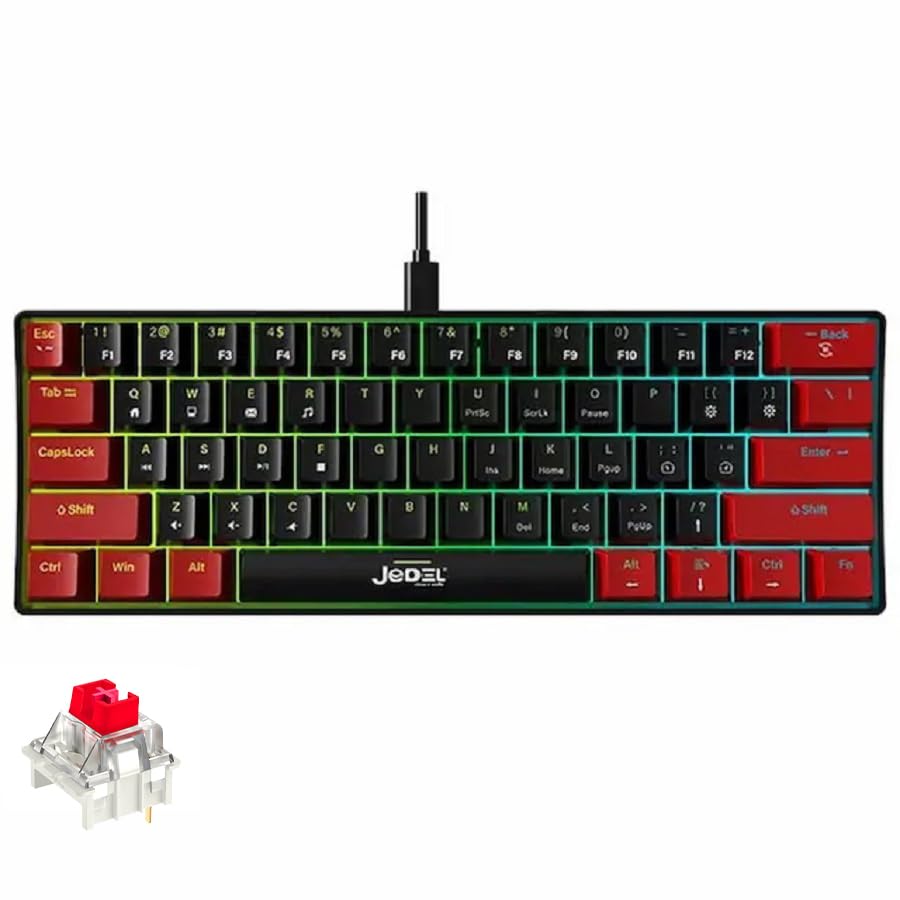
Image: The JEDEL KL69 mechanical keyboard showcasing its RGB lighting and compact design.
2. Setup
Setting up your JEDEL KL69 keyboard is straightforward. Follow these steps to connect it to your device:
- Unpack the Keyboard: Carefully remove the keyboard from its packaging.
- Connect the USB Cable: Locate the USB Type-A cable attached to the keyboard.
- Plug into Device: Insert the USB Type-A connector into an available USB port on your computer, laptop, tablet, or smartphone.
- System Recognition: Your operating system (Windows, Android, or Mac) should automatically detect and install the necessary drivers. No additional software installation is typically required.

Image: The JEDEL KL69 keyboard, highlighting its USB connection and key features like RGB backlight, ABS double-shot keycaps, 50 million key life, and ergonomic design.
3. Operating Instructions
The JEDEL KL69 keyboard features a compact 61-key layout with dual-language (Arabic and English) keycaps. It offers full anti-ghosting on all keys for precise input during fast-paced activities.
3.1 Basic Typing
Simply connect the keyboard, and it will function as a standard input device. The keys are designed for comfortable and responsive typing.
3.2 Function Key Combinations
Due to its compact 61-key design, some functions are accessed via the Fn key in combination with other keys. Refer to the keyboard layout for specific secondary functions printed on the keycaps.
4. Lighting Effects Adjustment
The JEDEL KL69 keyboard features a smart rainbow backlight system with 10 preset lighting modes and 19 stunning LED lighting effects. You can customize the lighting to your preference using the following key combinations:
- Fn + Light Icon Key: Switch between 19 different LED lighting effects.
- Fn + Down Arrow Key: Decrease the brightness of the backlight.
- Fn + Left Arrow Key: Slow down the lighting effect speed.
- Fn + Up Arrow Key: Increase the brightness of the backlight.
- Fn + Right Arrow Key: Speed up the lighting effect.

Image: Visual guide for adjusting the keyboard's LED lighting effects, brightness, and speed using Fn key combinations.
5. Maintenance
To ensure the longevity and optimal performance of your JEDEL KL69 keyboard, follow these maintenance guidelines:
- Cleaning: The keyboard features suspended and removable keycaps, making it easy to clean. Use a soft brush or compressed air to remove dust and debris from between the keys. For stubborn dirt, gently remove the keycaps and clean them with a damp cloth and mild soap, then dry thoroughly before reattaching.
- Avoid Liquids: Do not spill liquids on the keyboard. If a spill occurs, immediately disconnect the keyboard and allow it to dry completely before reconnecting.
- Storage: Store the keyboard in a cool, dry place away from direct sunlight and extreme temperatures.
- Handle with Care: Avoid dropping the keyboard or subjecting it to strong impacts, as this can damage the mechanical switches or internal components.

Image: A close-up view of the JEDEL KL69 keyboard's black and red double-shot keycaps, illustrating their durable construction.
6. Troubleshooting
If you encounter any issues with your JEDEL KL69 keyboard, please refer to the following common troubleshooting steps:
- Keyboard Not Responding:
- Ensure the USB cable is securely plugged into both the keyboard and your device.
- Try plugging the keyboard into a different USB port on your device.
- Test the keyboard on another computer or device to determine if the issue is with the keyboard or the original device.
- Restart your computer or device.
- Keys Not Registering or Double-Typing:
- Clean the area around the affected key(s) to remove any debris that might be obstructing the switch.
- If a specific key is consistently malfunctioning, it might indicate a switch issue. Contact support if the keyboard is under warranty.
- Backlight Not Working or Flickering:
- Ensure the keyboard is properly connected.
- Try adjusting the brightness using the Fn + Up/Down Arrow key combinations.
- Cycle through the lighting effects using Fn + Light Icon Key.
If these steps do not resolve the issue, please contact customer support for further assistance.
7. Specifications
Below are the detailed technical specifications for the JEDEL KL69 USB Mechanical Keyboard:
| Feature | Specification |
|---|---|
| Brand | JEDEL |
| Model Number | KL69 |
| Product Dimensions | 29 x 10.1 x 3.8 cm |
| Weight | Approx. 404 ±5 g |
| Connectivity Technology | Wired (USB Type-A) |
| Keyboard Description | Mechanical |
| Recommended Uses | Gaming, Office |
| Special Features | Mechanical keys, Customizable display keys (LED effects) |
| Color | Black and Red (Red Switch) |
| Style | Gaming Keyboard |
| Materials | ABS Plastic |
| Key Type | Blue Switch |
| Key Life | 50 Million Presses |
| Total Press Distance | 4 ± 0.2 mm |
| Initial Press Pressure | 55 ± 5 g |
| Actuation Distance | 2 ± 0.2 mm |
| Actuation/Bottom-out Pressure | 55 ± 5 g |
| Anti-ghosting | All Keys |
| Number of Keys | 61 Standard Keys |
| Keycaps | Two-color Double Injection |
| Wrist Rest | Not Available |
| Compatible Operating Systems | Windows, Android, Mac, and other systems |

Image: An illustration demonstrating the compact 60% layout of the keyboard, featuring 61 keys.
8. Warranty and Support
For warranty information and customer support, please refer to the documentation provided with your purchase or contact the retailer where you purchased the JEDEL KL69 keyboard. Keep your proof of purchase for warranty claims.