
1. Introduction
Thank you for choosing the SOVMIKU Vicohome 2K Indoor Camera CA43. This camera is designed to provide reliable indoor security monitoring with advanced features such as 2K resolution, dual-band Wi-Fi connectivity (2.4GHz and 5GHz), AI tracking, two-way audio, and night vision. This manual will guide you through the setup, operation, and maintenance of your device to ensure optimal performance.

Image: The SOVMIKU Vicohome 2K Indoor Camera CA43, a compact white security camera with a black lens, designed for indoor use.
2. Package Contents
Please check the package for the following items:
- Vicohome 2K Indoor Camera CA43
- Power Adapter
- USB-C Power Cable
- Mounting Kit (screws and anchors)
- Operation Instruction Manual

Image: A close-up of the SOVMIKU Vicohome 2K Indoor Camera CA43, its power adapter, and mounting accessories, laid out on a white surface.
3. Product Overview
The Vicohome CA43 camera features a compact design with a pan/tilt head for wide coverage. Key components include:
- Lens: 2K (3MP) resolution for clear video.
- Infrared Lights: For night vision capabilities.
- Microphone & Speaker: For two-way audio communication.
- Reset Button: Used for device reset during setup or troubleshooting.
- Micro SD Card Slot: Supports up to 128GB for local storage.
- USB-C Port: For power connection.
- Status Indicator Light: Provides device status feedback.

Image: A diagram highlighting the microphone, infrared light, lens, speaker, and charge port on the Vicohome CA43 camera.
4. Setup Guide
Follow these steps to set up your SOVMIKU Vicohome 2K Indoor Camera CA43:
- Power On: Connect the camera to a power source using the provided USB-C cable and power adapter. The camera will power on automatically.
- Reset the Camera: Locate the reset button (usually near the Micro SD card slot). Press and hold the reset button for approximately 6 seconds until you hear an audible prompt indicating the camera is resetting.
- Download the Vicohome App:
- For Android devices, search for "Vicohome" in the Google Play Store.
- For iOS devices, search for "Vicohome" in the Apple App Store.
- Download and install the application.
- Create/Sign In to Account: Open the Vicohome app. If you are a new user, sign up for a new account. If you already have an account, sign in using your credentials.
- Add Device:
- In the app, tap the "+" icon in the top right corner to add a new device.
- Select "Add a new device" and choose the "Plug-in device" option.
- Confirm that you hear a sound from the camera and proceed to the next step.
- Connect to Wi-Fi:
- The app will prompt you to select your home Wi-Fi network (supports 2.4GHz and 5GHz).
- Enter your Wi-Fi password and confirm.
- The camera will attempt to connect to the network. Once connected, you will hear a confirmation sound and the app will indicate "Connection succeeded".
- Name Your Device: Assign a name to your camera (e.g., "Living Room Camera", "Baby Monitor").
- Set Home & Location: Choose or add a home location for your camera within the app.
- Start Monitoring: Once the device is successfully added, you can start viewing the live feed and access all camera features.
Video: Official installation guide for the CA43 camera, demonstrating power-on, reset, app download, Wi-Fi connection, and device naming steps.
5. Operating Instructions
5.1 Live View and Playback
- Open the Vicohome app and select your camera to view the live feed.
- Use the on-screen controls to pan (horizontal) and tilt (vertical) the camera for a 360° view.
- Access recorded footage from the "Library" or "Playback" section in the app.

Image: A smartphone screen displaying the Vicohome app with live feeds from multiple cameras, illustrating multi-device monitoring.
5.2 Two-Way Audio
- From the live view, tap the microphone icon to speak through the camera's speaker.
- Tap the speaker icon to hear audio from the camera's environment.

Image: A split image showing two children playing in a kitchen on one side, and a person interacting with the camera via the Vicohome app's two-way audio feature on a smartphone on the other side.
5.3 Motion Detection & AI Tracking
- Enable motion detection in the app settings to receive alerts when movement is detected.
- The AI tracking feature allows the camera to automatically follow detected motion within its field of view.
- Customize detection sensitivity and activity zones for precise monitoring.

Image: A white cat walking on a piano, with red tracking boxes overlaid, demonstrating the camera's motion tracking capabilities.
5.4 Emergency SOS
- The camera features a one-touch SOS call button. Pressing this button will immediately contact pre-set emergency contacts through the app.
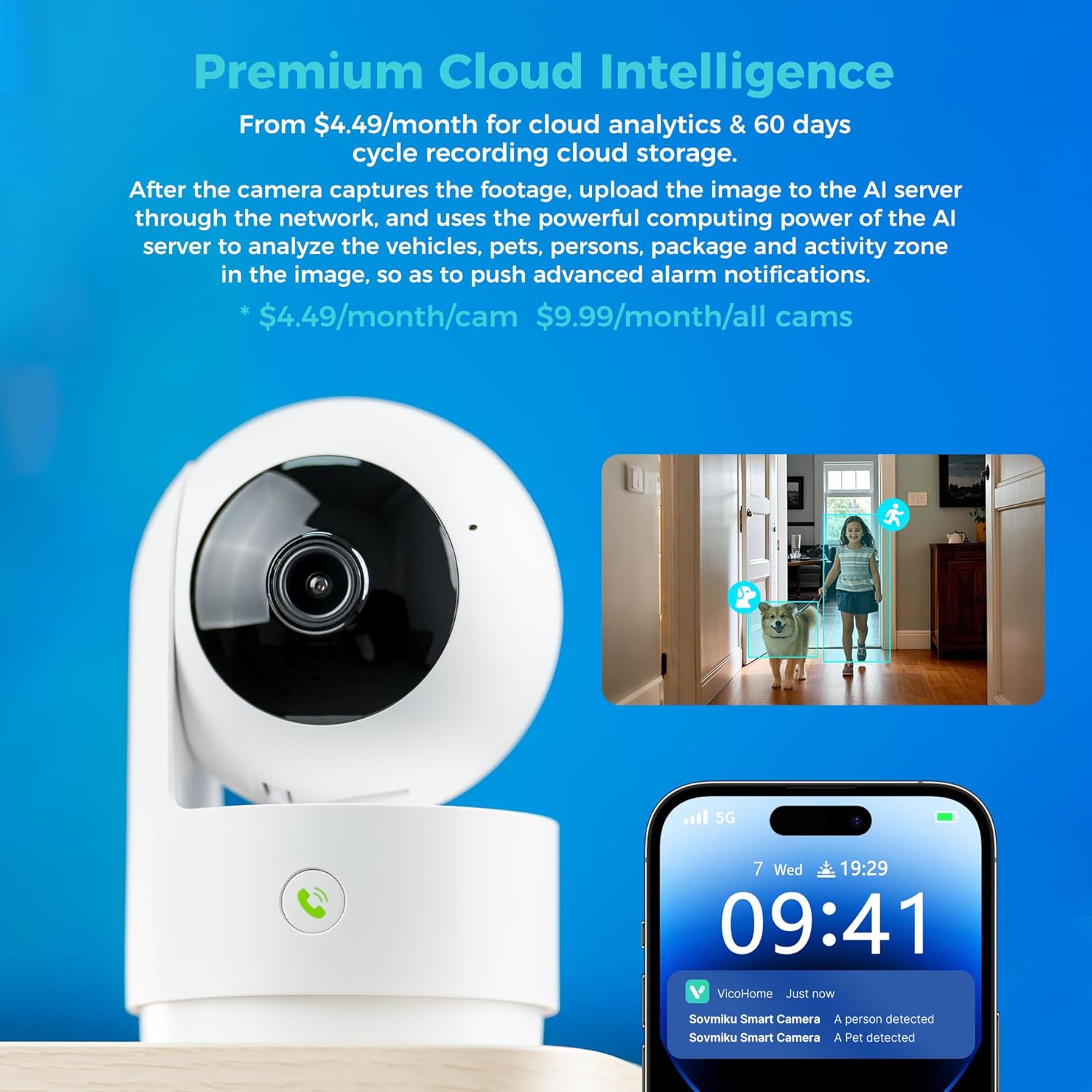
Image: A hand pressing the emergency SOS button on the camera, with a smartwatch showing an incoming call from the Vicohome app, indicating the emergency alert feature.
5.5 Privacy Mode
- Activate Privacy Mode in the app to physically hide the camera lens, ensuring privacy when monitoring is not desired.

Image: Two Vicohome cameras side-by-side, one in normal operating mode and the other in privacy mode with its lens retracted, demonstrating the privacy feature.
6. Features
- 2K Resolution: Captures clear and detailed video footage (3MP effective still resolution).
- Dual-Band Wi-Fi: Supports both 2.4GHz and 5GHz Wi-Fi networks for flexible connectivity.
- 360° Pan/Tilt: Offers a wide viewing angle with horizontal (83.5°), vertical (44°), and diagonal (59.2°) movement.
- AI Tracking: Automatically detects and follows human or pet movement.
- Two-Way Audio: Communicate with individuals near the camera using the built-in microphone and speaker.
- Night Vision: Equipped with infrared LEDs for clear black and white video in low-light conditions.
- Local & Cloud Storage: Supports Micro SD card up to 128GB for local storage and offers optional cloud storage services.
- Emergency SOS: One-touch call feature for immediate contact in emergencies.
- Privacy Mode: Physically hides the camera lens for enhanced privacy.
- Seamless Vicohome App Compatibility: Integrates with existing Vicohome devices for unified management.

Image: The Vicohome camera with example images demonstrating its 3MP resolution, showing clear details of a dog and a child in a home setting.

Image: A graphic illustrating the Vicohome camera's compatibility with both 2.4GHz and 5GHz dual-band Wi-Fi networks.

Image: A hand inserting a Micro SD card into the camera, with icons for 128GB storage and cloud storage, indicating local and cloud storage options.
7. Maintenance
- Cleaning: Use a soft, dry cloth to clean the camera lens and body. Avoid abrasive cleaners or solvents.
- Firmware Updates: Regularly check the Vicohome app for available firmware updates to ensure your camera has the latest features and security enhancements.
- Power Supply: Ensure the camera is connected to a stable power source. Use only the provided power adapter or a compatible replacement.
- Placement: Place the camera in a location where it has a clear view and is protected from extreme temperatures or direct moisture.
8. Troubleshooting
- Camera Not Connecting to Wi-Fi:
- Ensure your Wi-Fi password is correct and the camera is within range of your router.
- Try resetting the camera and repeating the setup process.
- Verify your router supports 2.4GHz or 5GHz Wi-Fi and is not using a hidden SSID.
- No Live View:
- Check your internet connection and ensure the camera is powered on.
- Restart the Vicohome app.
- Motion Alerts Not Received:
- Verify motion detection is enabled in the app settings.
- Check app notification settings on your smartphone.
- Two-Way Audio Issues:
- Ensure microphone and speaker permissions are granted to the Vicohome app on your phone.
- Check the volume settings on both the app and your phone.
9. Specifications
| Feature | Detail |
|---|---|
| Recommended Uses | Indoor Security |
| Brand | SOVMIKU |
| Model Name | CA43 |
| Connectivity Technology | Wi-Fi (2.4GHz & 5GHz) |
| Special Feature | Adjustable, AI Tracking, Two-Way Audio, Night Vision, SOS Call, Privacy Mode |
| Indoor/Outdoor Usage | Indoor |
| Compatible Devices | iOS, Android, iPad OS |
| Control Method | App |
| Power Source | Corded Electric |
| Effective Still Resolution | 3 MP (2K) |
| Video Encoding | H.265 |
| Flash Memory Type | Micro SD |
| Max Flash Memory Supported | 128 GB |
| Item Weight | 1.5 Pounds |
| Material | PVC |
10. Warranty and Support
- Warranty: The product comes with a 1-Year Manufacturer Warranty.
- Exchange Policy: Enjoy a 180-Day No-Risk Guarantee, backed by a 6-month replacement promise for defects.
- Customer Support: Free expert support is available 24/7 to assist with any questions or issues.
For further assistance, please refer to the contact information provided in your product packaging or through the Vicohome app.