
1. Introduction
This manual provides detailed instructions for the installation, operation, and maintenance of your SOVMIKU Vicohome CA43 2K Indoor Security Camera. This camera offers advanced features including 2K resolution, AI tracking, 24/7 recording capability, 360° pan/tilt view, two-way audio, night vision, and an audible alarm, all managed through the Vicohome app.
Please read this manual thoroughly before using the product to ensure correct usage and optimal performance. Keep this manual for future reference.
2. Safety Information
- This device is designed for indoor use only. Do not expose it to water or moisture.
- Use only the provided power adapter or a compatible 5V/1A power source.
- Ensure the camera is installed in a stable location to prevent falling.
- Keep the camera away from direct sunlight, heat sources, and strong magnetic fields.
- Do not attempt to disassemble or repair the camera yourself. Contact support for assistance.
- Ensure your Wi-Fi network is 2.4GHz for proper connectivity.
3. Package Contents
Verify that all items are present in your package:
- SOVMIKU Vicohome CA43 Indoor Security Camera
- Power Adapter
- USB Power Cable (Type-C)
- Mounting Screws and Wall Plugs
- User Manual
4. Product Overview
Familiarize yourself with the components of your security camera:

Image: Front view of the SOVMIKU Vicohome CA43 Indoor Security Camera, showing the lens and base.
- Camera Lens: Captures 2K resolution video.
- Microphone: For audio input during two-way communication.
- Speaker: For audio output during two-way communication and audible alarms.
- Status Indicator Light: Indicates camera status (e.g., solid blue for connected, flashing red for pairing mode).
- Power Port (Type-C): Connects to the power adapter.
- Micro SD Card Slot: Supports up to 128GB for local storage.
- Reset Button: Used to reset the camera to factory settings.
- SOS Button: One-touch call feature for emergencies.

Image: A hand inserting a Micro SD card into the camera's slot. The image highlights the 128GB capacity and cloud storage options.
The camera supports both local Micro SD card storage (up to 128GB) and cloud storage options for continuous recording and event-triggered footage.
5. Setup
5.1. Download the Vicohome App
Search for "Vicohome" in the Google Play Store (for Android devices) or the Apple App Store (for iOS devices) and download the application. The app is compatible with iOS, Android, and iPad OS.
5.2. Account Registration and Login
- Open the Vicohome app.
- If you are a new user, tap "Register" and follow the on-screen prompts to create an account using your email address.
- If you already have an account, tap "Login" and enter your credentials.
5.3. Power On the Camera
Connect the provided USB cable to the camera's Type-C power port and plug the other end into the power adapter. Plug the adapter into a wall outlet. The camera will power on, and the status indicator light will begin to flash, indicating it is ready for pairing.

Image: Close-up of the camera's Type-C power port, illustrating the plug-in power connection for continuous operation.
5.4. Add Device to App
- In the Vicohome app, tap the "+" icon or "Add Device" to begin the pairing process.
- Select your camera model from the list or choose the option to scan a QR code.
- Follow the app's instructions to connect the camera to your 2.4GHz Wi-Fi network. (5GHz Wi-Fi is not supported).
- The app will generate a QR code. Hold your phone's screen in front of the camera lens (approximately 15-20 cm or 6-8 inches away) until you hear a confirmation sound from the camera.
- Once connected, the status indicator light will turn solid blue. You can then name your camera and complete the setup.
Video: An official installation guide video for the CA43 camera, demonstrating the pairing process with the Vicohome app.
5.5. Mounting the Camera
The SOVMIKU CA43 is designed for surface mounting indoors. Choose a location that provides the desired viewing angle and is within range of your Wi-Fi network and a power outlet. Use the provided screws and wall plugs to securely mount the camera base. Ensure the camera has a clear line of sight and is not obstructed.
6. Operating Instructions
6.1. Live View
Open the Vicohome app and select your camera from the device list to access the live video feed. You can view real-time footage from your home from anywhere with an internet connection.

Image: A smartphone screen displaying the Vicohome app with multiple camera feeds, demonstrating multi-device monitoring.
6.2. Pan/Tilt Control
From the live view interface in the app, use the directional controls to remotely pan (rotate horizontally up to 360°) and tilt (rotate vertically) the camera lens to adjust your viewing area.

Image: The SOVMIKU CA43 camera with overlaid graphics indicating its horizontal viewing angle of 83.5°, vertical viewing angle of 44°, and diagonal viewing angle of 59.2°, along with 355° pan rotation.
6.3. Two-Way Audio
Tap the microphone icon in the app's live view to speak through the camera's speaker. Tap the speaker icon to hear audio from the camera's surroundings. This feature allows for real-time communication with individuals near the camera.
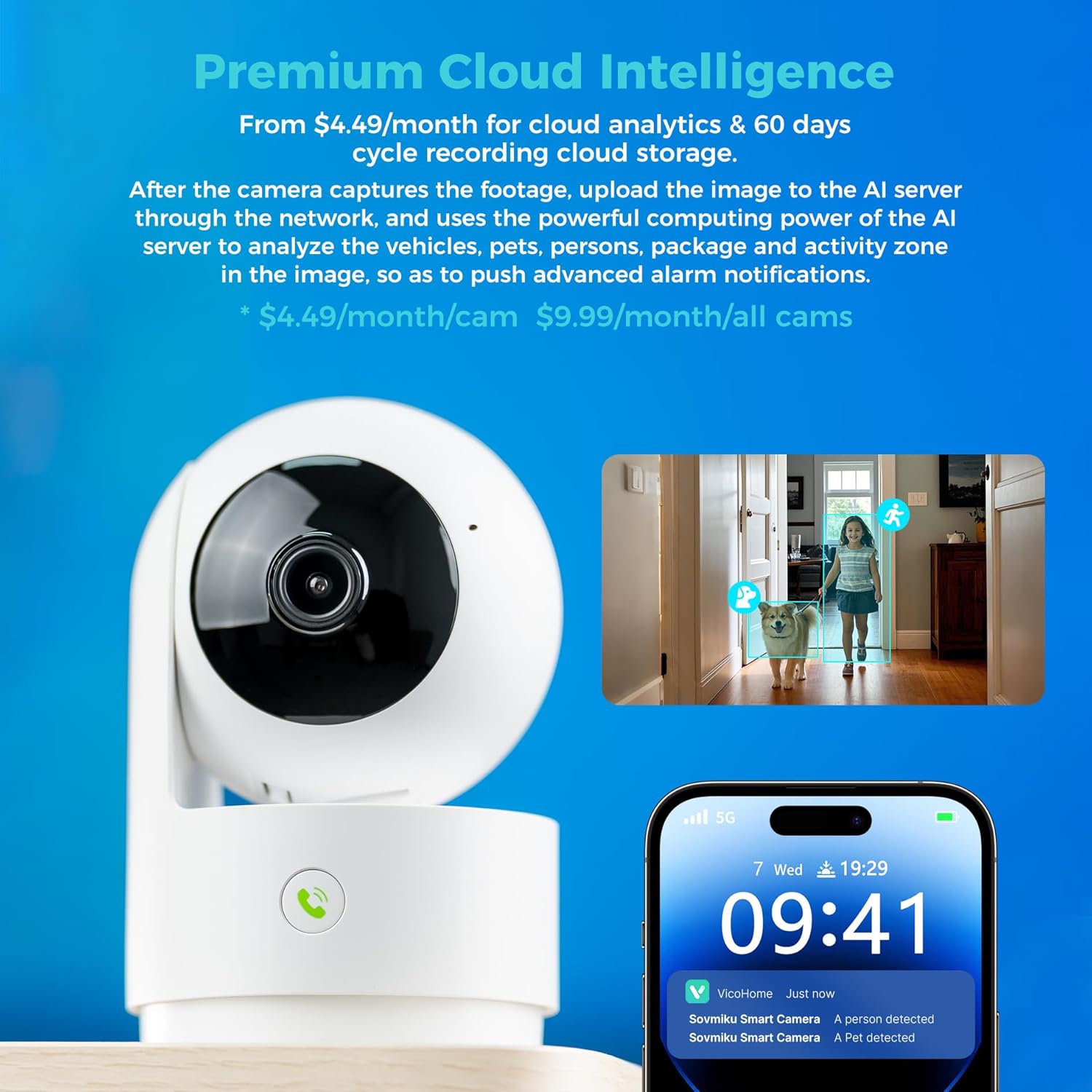
Image: Two children in a kitchen, with speech bubbles indicating a conversation with a parent through the camera, demonstrating the two-way audio feature.
6.4. Recording and Playback
- 24/7 Continuous Recording: If a Micro SD card is inserted, the camera can record continuously. Access playback through the app's timeline.
- Motion-Detected Recordings: The camera automatically records when motion is detected. These events are typically highlighted in the app's timeline or event list.
- Cloud Storage: Optional cloud storage plans are available for secure, off-site storage of recordings.

Image: A graphic illustrating the dual storage options: local Micro SD card and cloud storage, emphasizing flexibility and data security.
6.5. AI Tracking
The camera features AI-powered motion tracking. When motion is detected, the camera will automatically pan and tilt to follow the moving object or person within its field of view, ensuring the subject remains in the frame.

Image: A white cat walking on a piano, with red boxes highlighting its movement, demonstrating the AI auto-tracking feature of the camera.
6.6. Night Vision
The camera is equipped with infrared LEDs for automatic night vision. In low-light conditions, the camera will switch to black and white mode, providing clear visibility without disturbing the environment, ideal for monitoring pets or babies.

Image: A smartphone screen displaying a black and white live feed of a baby sleeping in a crib, illustrating the camera's night vision capability for baby monitoring.
6.7. Audible Alarm
The camera can be configured to trigger an audible alarm upon motion detection or manually activated through the app to deter intruders.
6.8. Emergency SOS via One-Touch Call
The camera features a dedicated SOS button. Pressing this button allows individuals near the camera to initiate an immediate call to a pre-configured contact through the Vicohome app, useful for elderly parents or young children in emergencies.

Image: A hand pressing the SOS button on the camera, with a smartwatch displaying an incoming call from "Vicohome," illustrating the emergency call feature.
6.9. Privacy Mode
Activate Privacy Mode through the app to physically hide the camera lens, ensuring privacy when monitoring is not desired. The camera will retract its lens into its housing.

Image: Two SOVMIKU CA43 cameras side-by-side, one with the lens exposed and the other with the lens retracted, demonstrating the privacy mode feature.
6.10. Multi-Device Support and Sharing
The Vicohome app allows you to manage multiple cameras simultaneously. You can also share access to your camera with up to 10 different users, setting different permissions for each. This supports up to three accounts viewing the camera concurrently.

Image: A SOVMIKU CA43 camera positioned next to a map of the United States, with pin icons representing multiple users, illustrating the multi-user sharing capability.
7. Maintenance
- Cleaning: Gently wipe the camera lens and body with a soft, dry cloth. Avoid using harsh chemicals or abrasive cleaners.
- Firmware Updates: Regularly check the Vicohome app for available firmware updates. Keeping your camera's firmware up-to-date ensures optimal performance and security.
- SD Card Management: If using a Micro SD card, periodically check its status in the app. Format the card as needed to maintain recording efficiency.
8. Troubleshooting
| Problem | Possible Solution |
|---|---|
| Camera not connecting to Wi-Fi |
|
| No recording or playback issues |
|
| Poor image quality |
|
| Two-way audio not working |
|
If you encounter issues not listed here or require further assistance, please contact SOVMIKU customer support.
9. Specifications
| Feature | Detail |
|---|---|
| Model Name | CA43 |
| Video Capture Resolution | 2K (3MP Effective Still Resolution) |
| Connectivity Technology | Wi-Fi (2.4GHz only) |
| Special Features | 2-Way Audio, AI Tracking, Night Vision, Audible Alarm, Pan/Tilt (360° View) |
| Indoor/Outdoor Usage | Indoor |
| Compatible Devices | iOS, Android, iPad OS |
| Power Source | Corded Electric (Plug-in) |
| Storage Options | Micro SD Card (up to 128GB), Cloud Storage |
| Video Encoding | H.265 |
| Material | PVC |
| Item Weight | 1.5 pounds (approx. 0.68 kg) |
| Dimensions | 4.25 inches x 2.96 inches x 2.96 inches |
10. Warranty and Support
10.1. Manufacturer Warranty
The SOVMIKU Vicohome CA43 camera comes with a 1-Year Manufacturer Warranty covering defects in materials and workmanship.
10.2. 180-Day Exchange Policy
SOVMIKU offers a 180-Day Exchange Policy for defects. If your product experiences a defect within 180 days of purchase, you may be eligible for a replacement.

Image: A graphic illustrating the 180-day exchange policy, emphasizing a commitment to product quality and customer satisfaction.
10.3. Customer Support
For technical support, warranty claims, or any questions regarding your SOVMIKU product, please refer to the contact information provided on the product packaging or the official SOVMIKU website. Free expert support is available 24/7.