
Introduction
This manual provides detailed instructions for the proper use and maintenance of your LAUNCH X431 V+ PRO 5.0 diagnostic tool. This device is designed for professional vehicle diagnostics, offering advanced features such as ECU coding, bidirectional control, and extensive maintenance services across a wide range of vehicle brands. Please read this manual thoroughly before operating the device to ensure optimal performance and safety.
Setup and Initial Use
1. Unboxing and Component Identification
Carefully unpack all components from the protective case. Verify that all items listed in the complete kit are present.
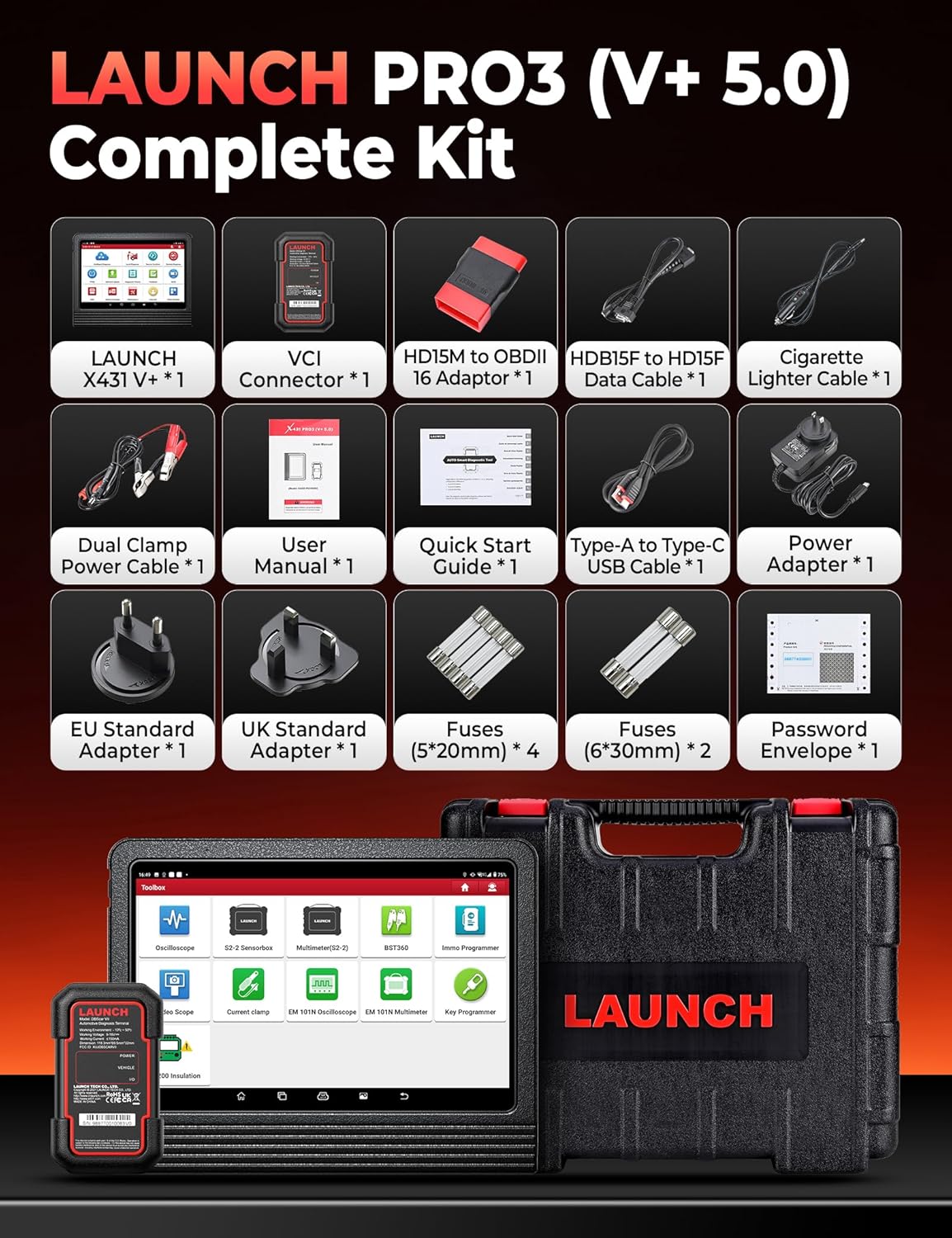
Image: The complete kit includes the LAUNCH X431 V+ unit, VCI Connector, various adapters, cables, power accessories, fuses, user manual, quick start guide, and password envelope, all housed in a protective case.
- Main Unit: LAUNCH X431 V+ tablet.
- VCI Connector: DBSCar VII diagnostic connector.
- Adapters: Various OBDII and specific vehicle adapters.
- Cables: USB cable, power cables.
- Power Adapter: For charging the main unit.
- Documentation: User Manual, Quick Start Guide, Password Envelope.
2. Initial Power-On and Configuration
Connect the power adapter to the main unit and a power outlet. Press and hold the power button to turn on the device. Follow the on-screen prompts to complete the initial setup, including language selection, Wi-Fi connection, and account registration.

Image: This image details the hardware specifications of the device, including its 2.0GHz 4-Core CPU, Android 10.0 operating system, 10.1-inch screen, 4GB RAM + 64GB ROM, 8MP+5MP cameras, 2.4GHz/5GHz Wi-Fi, and 6300mAh battery.
3. Connecting the DBSCar VII Connector
The DBSCar VII connector supports the CAN-FD protocol, expanding vehicle compatibility. Plug the DBSCar VII connector into the vehicle's OBD-II port, typically located under the dashboard. Ensure a secure connection. The connector will establish a Bluetooth connection with the main unit automatically or can be paired manually via the device's settings.
Operating Instructions
1. All System Diagnostics
The device performs OE-level diagnostics across all available vehicle systems. This includes reading and clearing diagnostic trouble codes (DTCs), viewing 12-in-1 live data streams, accessing freeze frame data, and retrieving ECU information.

Image: This image illustrates the Topology Mapping feature, which systematically displays the communication structure between vehicle modules. It also highlights All System Diagnostics capabilities, including Read/Clear Codes, 12-IN-1 Live Data, Freeze Frame Data, ECU Information, and AutoVIN & Scan for automatic VIN retrieval and system scanning.
- Topology Mapping: Systematically displays the communication structure between vehicle modules for a clear overview.
- AutoVIN & AutoScan: Automatically retrieves vehicle identification number (VIN) and scans all systems for quick diagnosis.
- Read/Clear Codes: Identify and erase diagnostic trouble codes from various vehicle systems.
- Live Data: View real-time data streams from sensors and components.
- Freeze Frame Data: Capture a snapshot of sensor values when a DTC is set.
2. ECU Coding
ECU coding allows for component replacement adaptation and vehicle customization. It supports both online and offline coding for various brands.

Image: This image differentiates between Online Coding and Offline Coding. Online Coding involves cloud server data and automatic instructions for a simpler procedure. Offline Coding allows manual steps, detailed control, and more complete customization adjustments.
- Online Coding: Utilizes cloud server data for automatic instructions, simplifying the coding process. Supported for brands like BMW, VW, Audi, Skoda, Seat.
- Offline Coding: Provides manual control over each coding step, offering more detailed customization.
- Customization: Adjust vehicle parameters such as disabling seat belt chimes or customizing mirror folding behavior.
- Guided Functions: Provides OE-level instructions for simplified diagnostic procedures on supported vehicles (VW, Audi, Skoda, Seat).
3. Bidirectional Control (Active Tests)
Perform active tests to send commands to vehicle systems and components, verifying their operational status without using the vehicle's controls. This helps in quickly pinpointing faulty areas.
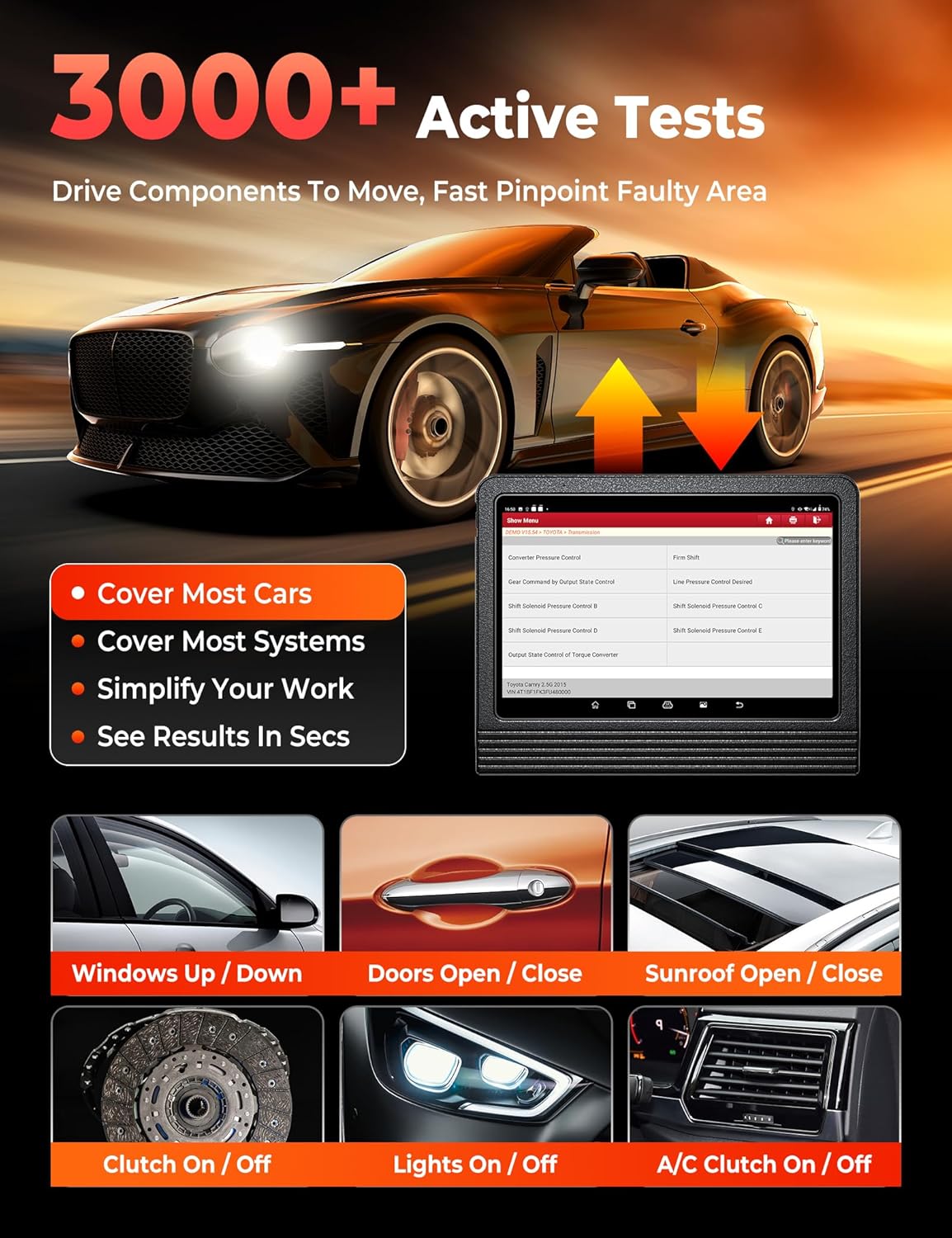
Image: This image demonstrates the 3000+ Active Tests feature, which allows the user to drive components to move and quickly pinpoint faulty areas. Examples include controlling windows, doors, sunroof, clutch, lights, and A/C.
4. Vehicle Coverage
The tool supports over 200,000 vehicle models from 1984-2025 across American, Asian, and European markets. It includes support for FCA AutoAuth for SGW-equipped vehicles (Chrysler, Dodge, Jeep, Alfa Romeo, Fiat) and CAN-FD protocol for newer GM vehicles.

Image: This image highlights the extensive 200+ Brands Coverage of the LAUNCH X431 V+ PRO 5.0, including American (Chevrolet, Chrysler, Ford, Buick, Cadillac, Dodge, GM, Hummer, Jeep, Lincoln, Brazil-Fiat), European (BMW, Jaguar, LandRover, Volvo, Abarth, Alfa Romeo, Audi, Bentley, Bugatti, Citroen, Dacia), Asian (Toyota, Honda, Nissan, Hyundai, Kia, Acura, Daihatsu, Infiniti, Isuzu, Lexus, Mazda, Mitsubishi, Nissan GTR, Scion), and Australian (AU-Ford, Holden) vehicles. It also notes support for FCA SGW, CAN-FD & DoIP (with adapter), and no IP limitation.
Maintenance Services
The LAUNCH X431 V+ PRO 5.0 offers over 55 maintenance and reset services, with more than 100 advanced functions available within the diagnostic software.

Image: This image showcases the 55+ Hot Maintenance Services offered by the LAUNCH X431 V+ PRO 5.0, including Oil Reset, ABS Bleed, Electronic Parking Brake (EPB), Steering Angle Sensor (SAS), Supplemental Restraint System (SRS), Injector Coding, Tire Pressure Monitoring System (TPMS), Clutch Adaptation, Coolant Bleed, Seat Calibration, Headlamp Reset, and Air/Fuel Ratio (A/F) Reset, among over 100 additional functions.
- Oil Reset: Reset the oil life system after an oil change.
- SAS Reset: Calibrate the steering angle sensor.
- EPB Reset: Reset the electronic parking brake pads after replacement.
- TPMS Reset: Program new TPMS sensors or perform sensor relearn procedures.
- BMS Reset: Register new battery replacement.
- ETS Reset: Perform electronic throttle position reset.
- Transmission Adaptation: Reset transmission adaptive learning values.
- ABS Bleeding: Perform ABS brake bleeding procedures.
- AFS Reset: Reset the adaptive front lighting system.
- Injector Coding: Code new injector numbers to the ECU.
- AdBlue Reset: Reset the AdBlue system after urea replacement/refill.
- NOx Sensor Reset: Reset the NOx sensor after fault repair/catalyst replacement.
Advanced Functions and Add-on Modules
The LAUNCH X431 V+ PRO 5.0 supports various optional add-on modules to expand its capabilities.
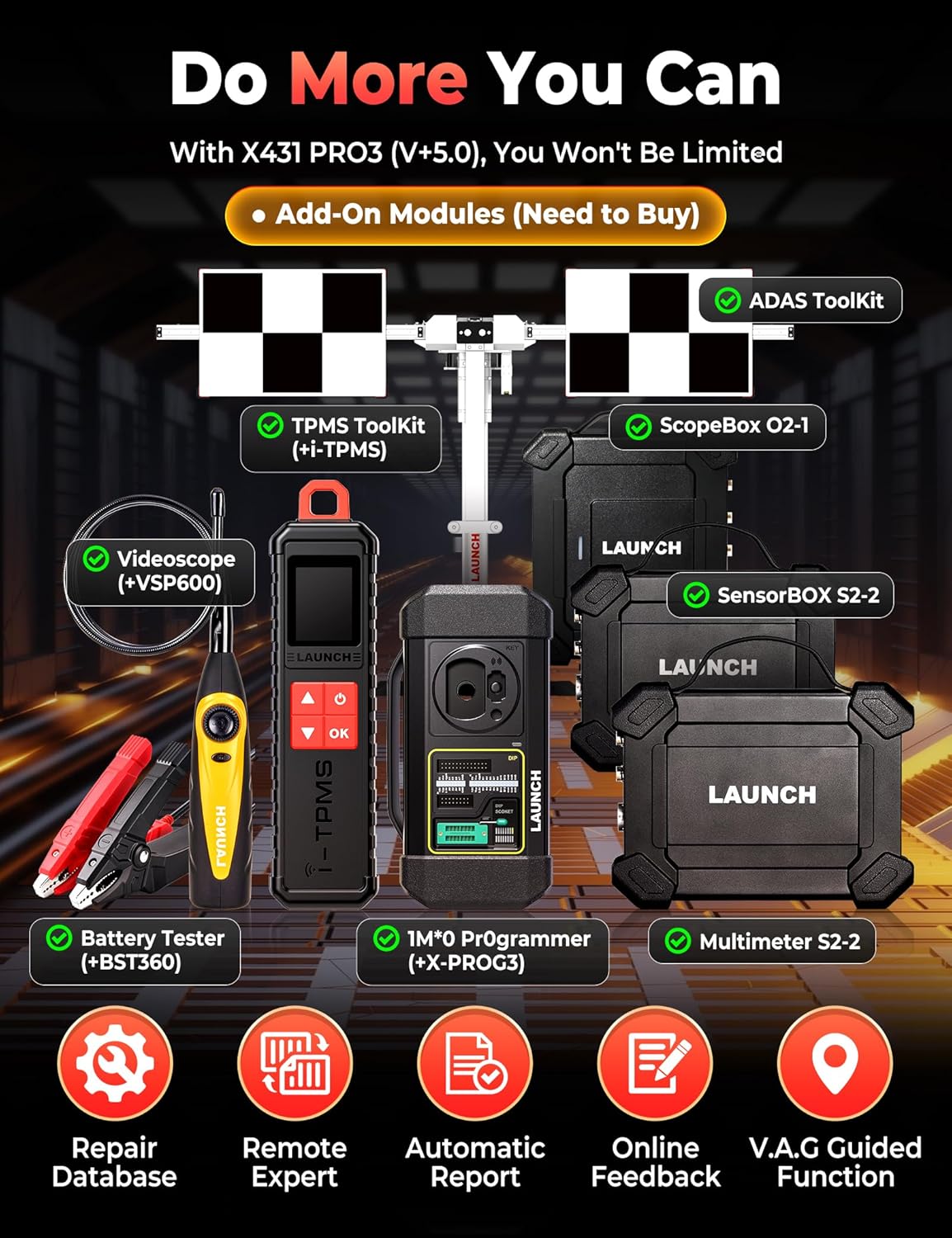
Image: This image displays various add-on modules that can be purchased separately to enhance the LAUNCH X431 V+ PRO 5.0's functionality. These include the ADAS Toolkit, TPMS Toolkit (with i-TPMS), ScopeBox O2-1, Videoscope (VSP600), Battery Tester (BST360), IMMO Programmer (X-PROG3), and Multimeter S2-2.
- ADAS Tool: For Advanced Driver-Assistance Systems calibration.
- TPMS Tool (X431 TSGUN): For comprehensive TPMS services.
- Battery Tester (BST360): For battery health analysis.
- Videoscope (VSP600): For visual inspection of hard-to-reach areas.
- IMMO Programmer (X-PROG3): For advanced immobilizer functions.
- ScopeBox: For waveform analysis.
- SensorBOX: For sensor simulation and testing.
Troubleshooting
If you encounter issues with your LAUNCH X431 V+ PRO 5.0, refer to the following common troubleshooting steps:
- Device Not Powering On: Ensure the device is fully charged or connected to the power adapter. Check the power button for proper function.
- No Communication with Vehicle: Verify the DBSCar VII connector is securely plugged into the vehicle's OBD-II port. Ensure the vehicle's ignition is on. Check the Bluetooth connection between the main unit and the VCI connector.
- Software Freezes/Crashes: Restart the application or the device. Ensure the software is updated to the latest version. Clear cache if necessary.
- Diagnostic Errors: Confirm the correct vehicle make, model, and year are selected. Ensure all cables and connectors are secure.
- Slow Performance: Close unnecessary applications running in the background. Ensure sufficient storage space is available.
For persistent issues, consult the official LAUNCH support resources or contact customer service.
Specifications
| Feature | Detail |
|---|---|
| Brand | LAUNCH |
| Model | X431 V+ |
| Item Weight | 4.94 Kilograms |
| Package Dimensions | 42.9 x 39.7 x 17.6 cm |
| Operating System | Android 10.0 |
| Screen Size | 10.1 Inches |
| Processor | 2.0 GHz 4-Core |
| RAM + ROM | 4 GB + 64 GB |
| Battery | 6300 mAh |
| Power Source | Battery Powered |
| Automotive Fit Type | Vehicle Specific Fit |
| UPC | 810139303558 |
Warranty Information
The LAUNCH X431 V+ PRO 5.0 diagnostic tool typically comes with a manufacturer's warranty. Please refer to the warranty card included in your product packaging or visit the official LAUNCH website for detailed warranty terms and conditions. Keep your proof of purchase for warranty claims.
Customer Support
For technical assistance, product inquiries, or support, please contact LAUNCH customer service through their official website or the contact information provided in your product documentation. Regular software updates are available to enhance functionality and vehicle coverage; ensure your device is connected to Wi-Fi to receive these updates.


